In both live conversations and tickets you can take advantage of a practical feature: internal notes. Such notes are invisible to your customers, and are only intended for you and other agents on your Tidio project. Internal notes also serve as a way of leaving useful information or comments, and allow you to mention any agent directly as well - making internal communication easier.
Please note: internal notes, mentions and the Mentions folder are available on every Tidio plan, including Free. Notes saved on a customer's profile (Customer notes) are a different feature, available on the Growth plan and above.
In this article, you will learn:
- How to add internal notes to chats and tickets
- How to mention other agents in chats and tickets
- How to browse your own mentions
Adding internal notes
To add an internal note inside a live conversation, click on the Live chat button in the top-left of your text input area:
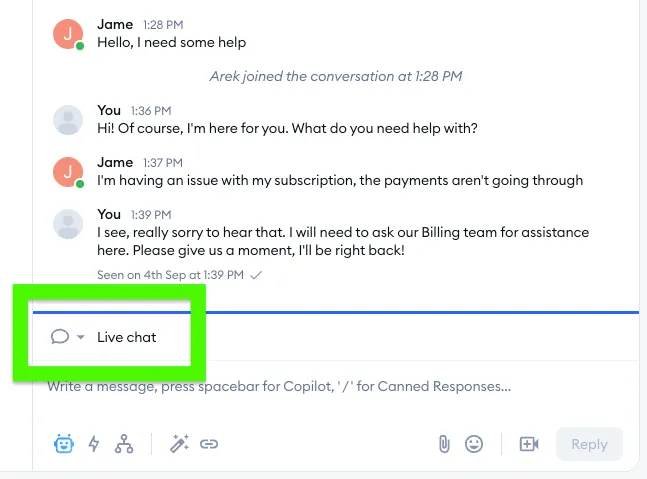
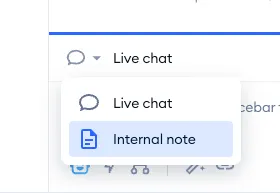
You will see the available options listed there: Live chat (for responding to the customer directly on chat - or the other channels you can reply on, such as Email or WhatsApp) and Internal note (for leaving an internal note, invisible to the customer). Select Internal note from the menu:
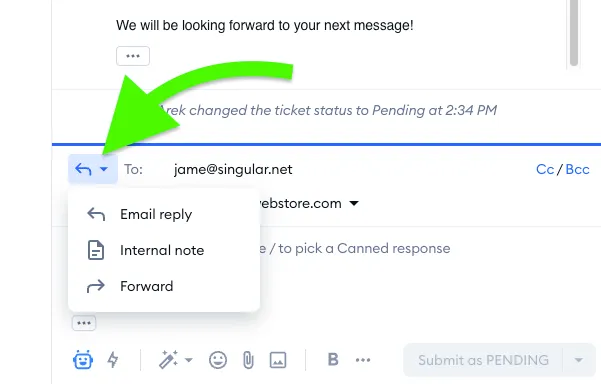
The same Internal note option is available if you're responding to a ticket instead of a live chat. Find it in the top-left of your text input area as well, after clicking the icon there:
Prefer the keyboard? Press Cmd + Option + X (Ctrl + Alt + X on Windows) in a live conversation, or Cmd + Shift + X (Ctrl + Shift + X) in a ticket, to switch to an internal note. Create internal note is also in the Search actions menu (Cmd + K, or Ctrl + K on Windows).
When typing in the internal note mode, the text input area will turn yellow, and you'll see Internal note (this won’t be visible for the customer) at the top. You can type your note and be sure that the customer will not see it - the note is intended only for you and your team. You can also add files, links and emoji to your note, just like in a regular reply.
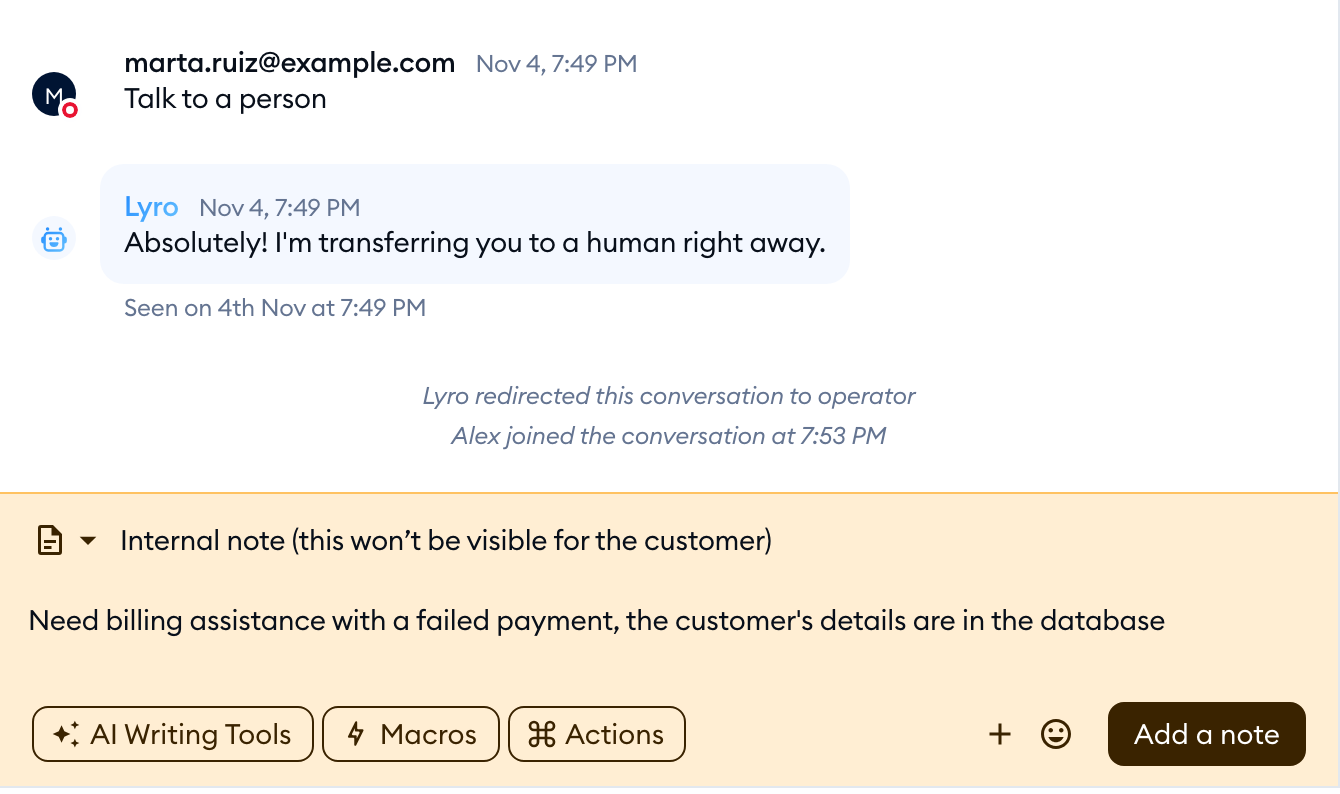
Once you hit Add a note, the note will be saved and displayed inside the conversation (or ticket thread):
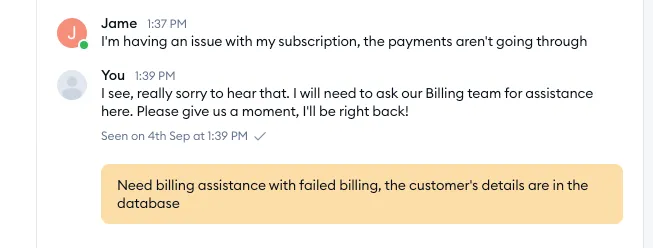
Any agent viewing this communication will be able to see the note. This is a handy tool for leaving information, summaries, or comments that may be relevant to the interaction. Please note that a note can't be edited or deleted once it's added, so give it a quick read before you hit the button.
Mentioning other agents
Apart from leaving relevant internal information inside the chat (or ticket), internal notes have one more practical feature: the ability to mention agents directly. This is especially useful if you do not want to assign the chat (or ticket) to another team member - and you only need the other agent to be notified of the note, e.g. when you need their assistance with something.
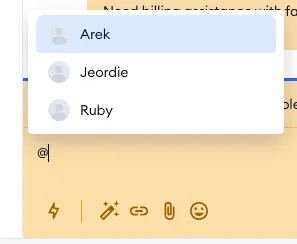
To mention an agent, make sure you've switched to the internal note mode, and simply type in the @ symbol. You will see a list of all available agents (you can mention individual agents only, not departments):
Selecting an agent from the list will apply the mention inside the note, which will also be visible to the entire team when viewing the chat (or ticket):
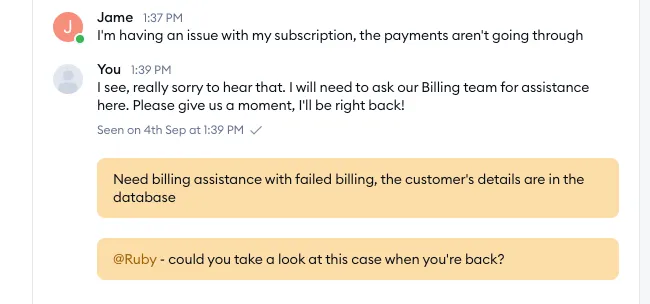
Naturally, the agent you mention will be additionally notified in their own Tidio panel (New mention from followed by your name), and will be able to view the associated thread inside their Mentions folder - this is covered in the section below.
Each agent decides how they're notified about mentions in Settings > Notifications, in the New mention row: Email, Web notification and Web notification sound. In the Tidio mobile app, a mention arrives as a push notification - tap it to open the chat or ticket.
Browsing your own mentions
If an agent is mentioned inside a chat or ticket, they will see a notification about that in their own Inbox section in Tidio. All such notifications will appear in the Mentions folder, where a counter shows how many mentions you haven't read yet:
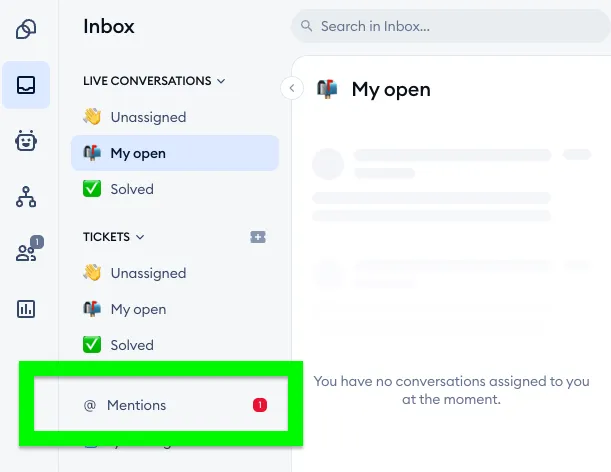
Inside, the agent can browse all the chats and tickets where they've been mentioned so far - within the Live conversations and Tickets tabs, respectively:
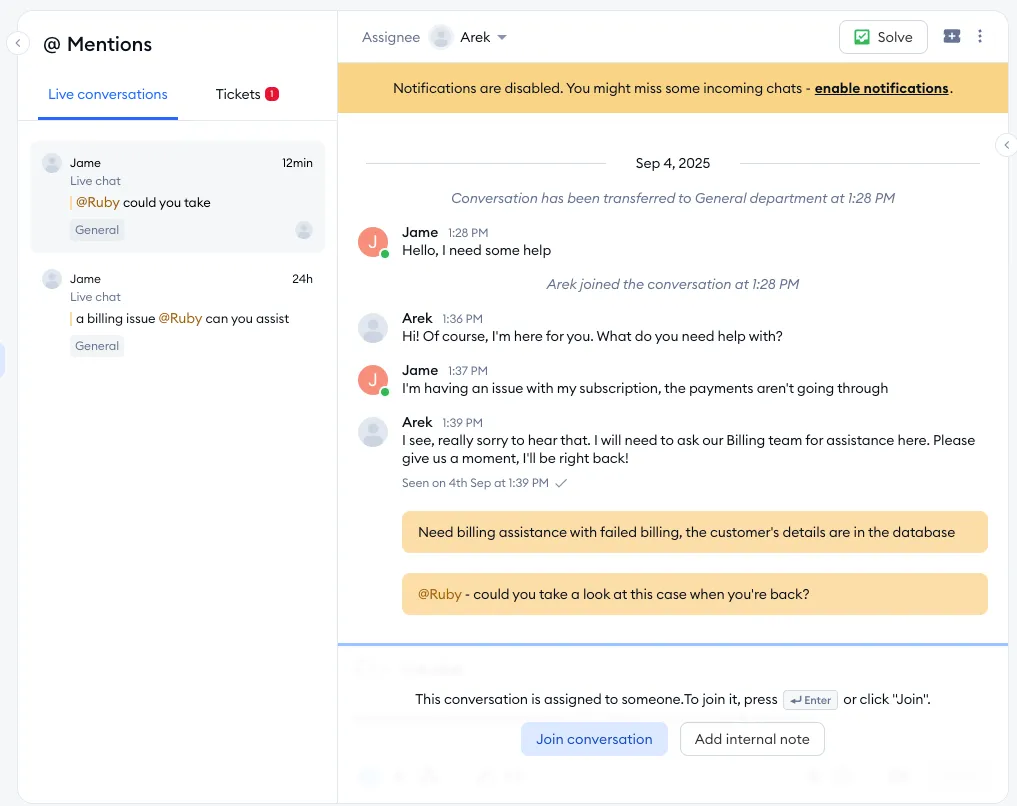
This allows the agent to see the full interaction without searching for it on their own, and without the need for being assigned to the chat (or ticket). The agent gets the option to join, or to leave their own internal note.
The Tidio mobile app has its own Mentions folder in the Inbox menu as well.
Further reading
- Tidio notifications
- Keyboard shortcuts and the Search actions menu
- Assigning conversations to agents
- Live Video Calls
