You can effortlessly talk with your website visitors in real time through live video calls, making interactions more personal and engaging!
In this article, you'll learn:
Please note: at the moment, video calls can only be made over the widget installed on your website; the Chat Page does not support this feature. You won't see the video call button in Messenger, Instagram or WhatsApp conversations either. Video calls use your camera and microphone - there's no screen sharing.
How do video calls work?
When a visitor is online, you - as the agent - can initiate a video call with them. You can do that when you're in a conversation, from inside the Tidio panel. Currently, only the agent has this ability; visitors can't proactively start the call from their end.
To request a video call, simply click on the video camera icon (Start video call) in the conversation header at the top, right next to the Create ticket icon:

Prefer the keyboard? Press Cmd + K (Ctrl + K on Windows) to open Search actions, and choose Start video call. This action isn't listed while you're writing an internal note.
Once you initiate the call, a pop-out window will appear on your screen, saying Calling... Waiting for a visitor to answer. You can move this window around freely within the Tidio panel, but it cannot be dragged outside the panel's page. To make it bigger or smaller, drag its bottom-left corner.
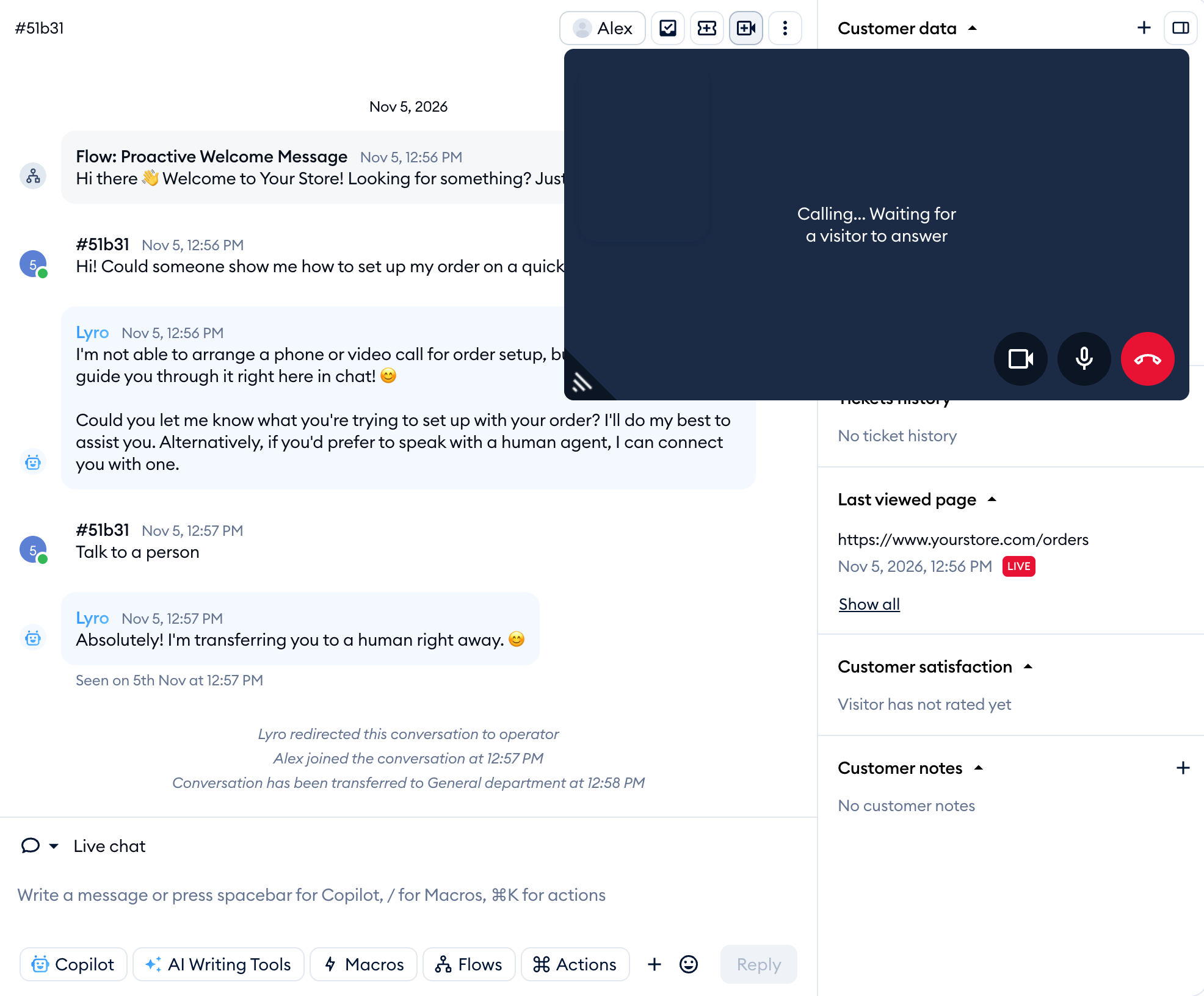
You have the option to make a regular video call or just a voice call - by disabling the camera. You can enable or disable the microphone and camera at any given time during the call by clicking on the respective icons in the floating window. To finish the call, click on the red button:
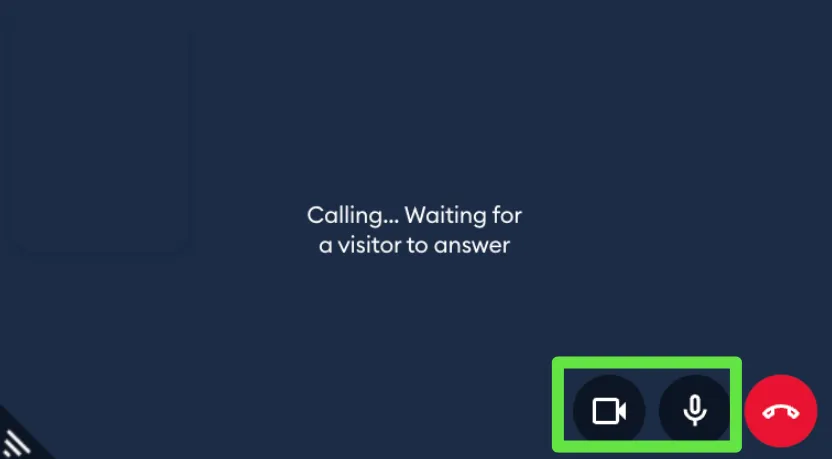
If the visitor turns off their camera or microphone, the window lets you know - for example, User has their camera turned off.
When you initiate a call, the visitor will receive a prompt to either accept or decline it. In case they decline it, they will just get redirected back to the conversation, and you'll see Visitor declined a call.
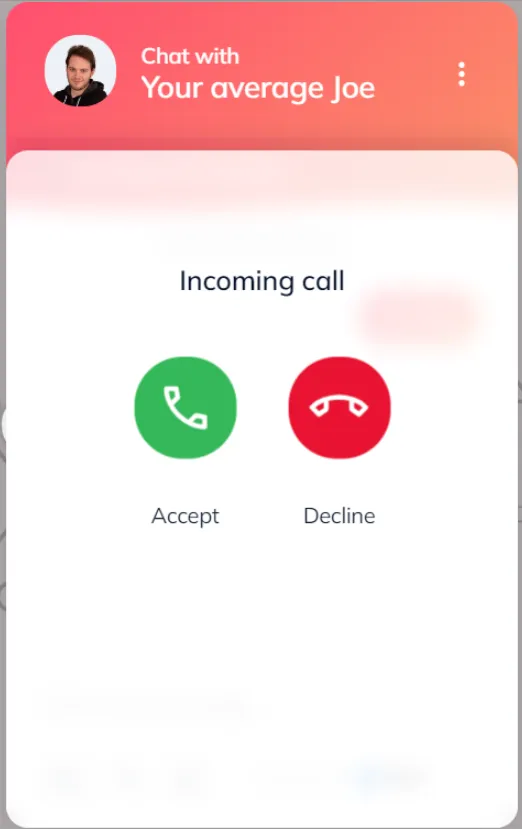
If they accept, they'll be able to see and hear you (if you have your camera and microphone enabled, of course).
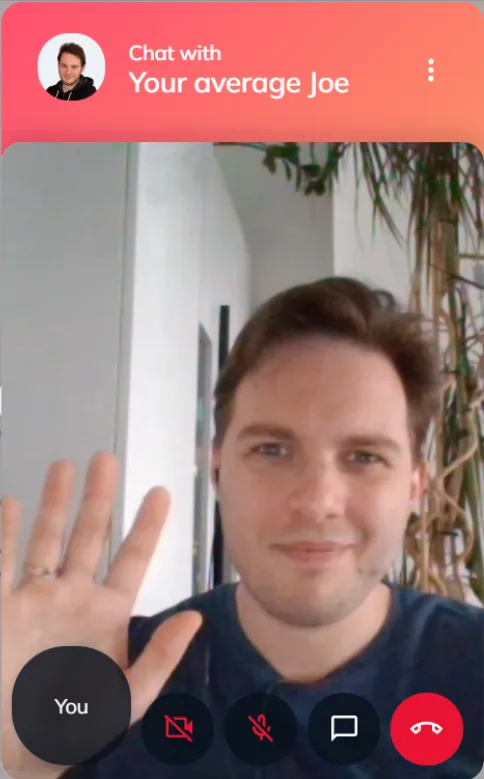
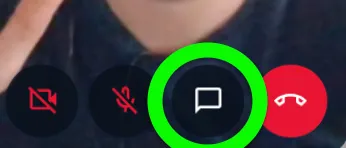
Visitors can also choose to mute themselves or disable their cameras if they prefer. In case they'd like to write a message during the call, they can click on the chat icon as well:
If the visitor ends the call, you'll see Visitor ended a call. Please note that the call also ends when you open a different conversation in the Inbox - you'll see Call ended.
Further reading
- The Inbox - a powerful interface for managing your conversations
- Keyboard shortcuts and the Search actions menu
- Internal notes and mentions
