In your Tidio admin panel, the Channels section (which is part of Settings in general) provides various options that allow you to customize and manage your widget, social media integrations, email, and more. We will explore the different settings available in Channels and guide you through their configuration.
You'll find these items in the Channels group of the Settings menu: Live Chat (with Appearance, Installation, Chat page and Translations), Email, Facebook, Instagram and WhatsApp:
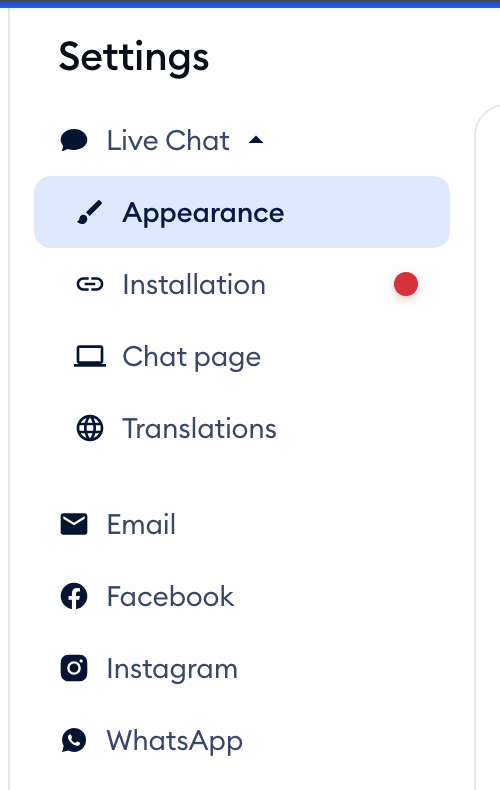
Please note: the phone channel is in beta. If your project takes part in the beta, you'll also see Phone calls in this group.
In this article, you'll learn:
- How to adjust your widget's appearance
- How to use the installation instructions
- What the Chat page is
- How to use Translations
- How to set up Email (ticketing)
- How to integrate Facebook Messenger
- How to integrate Instagram
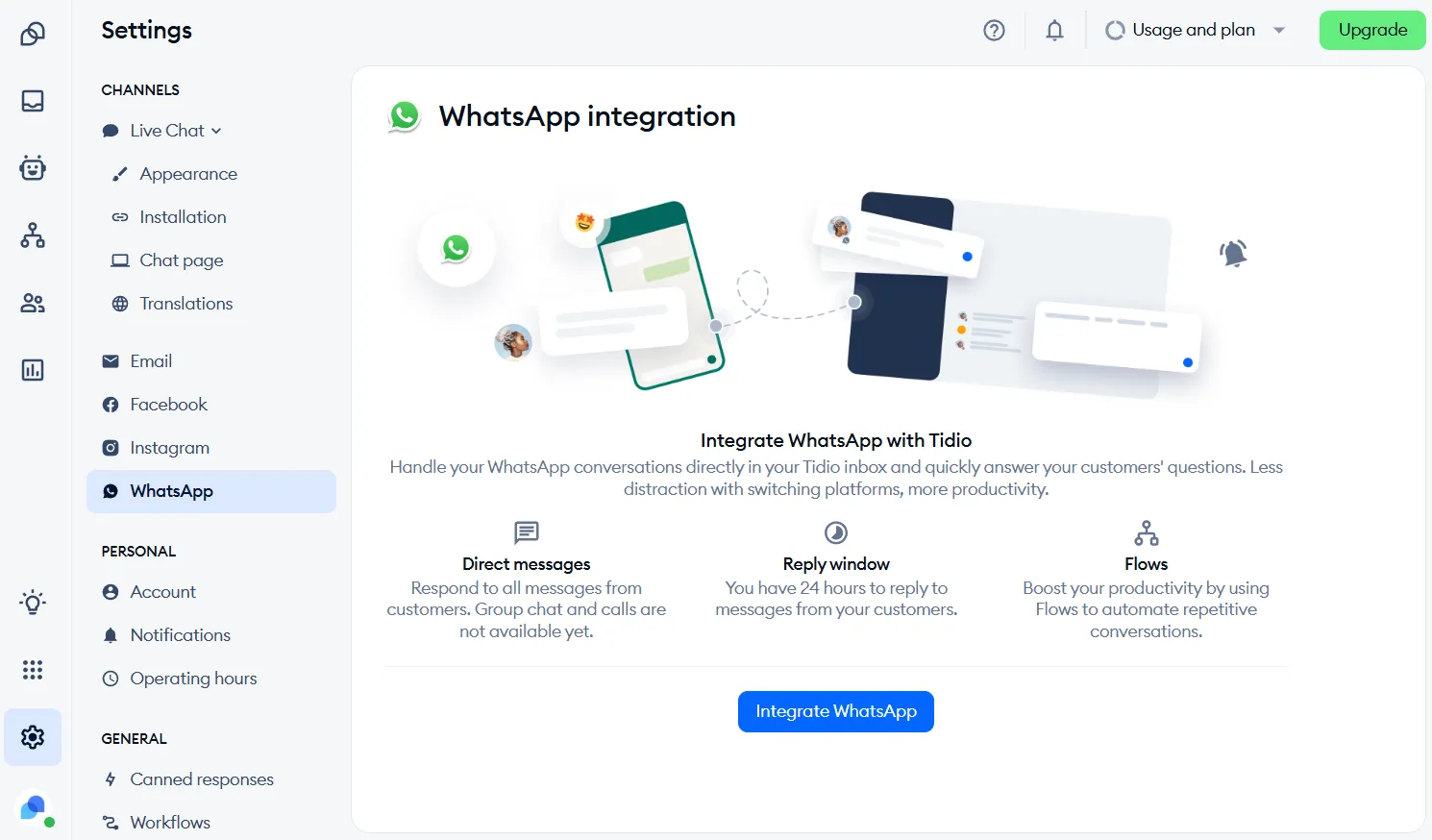
- How to integrate WhatsApp
Widget appearance
In Settings > Live Chat > Appearance, you can customize the Tidio widget to your preference. There are several sections available to expand and modify, as well as a preview of the widget's different aspects (on the right):
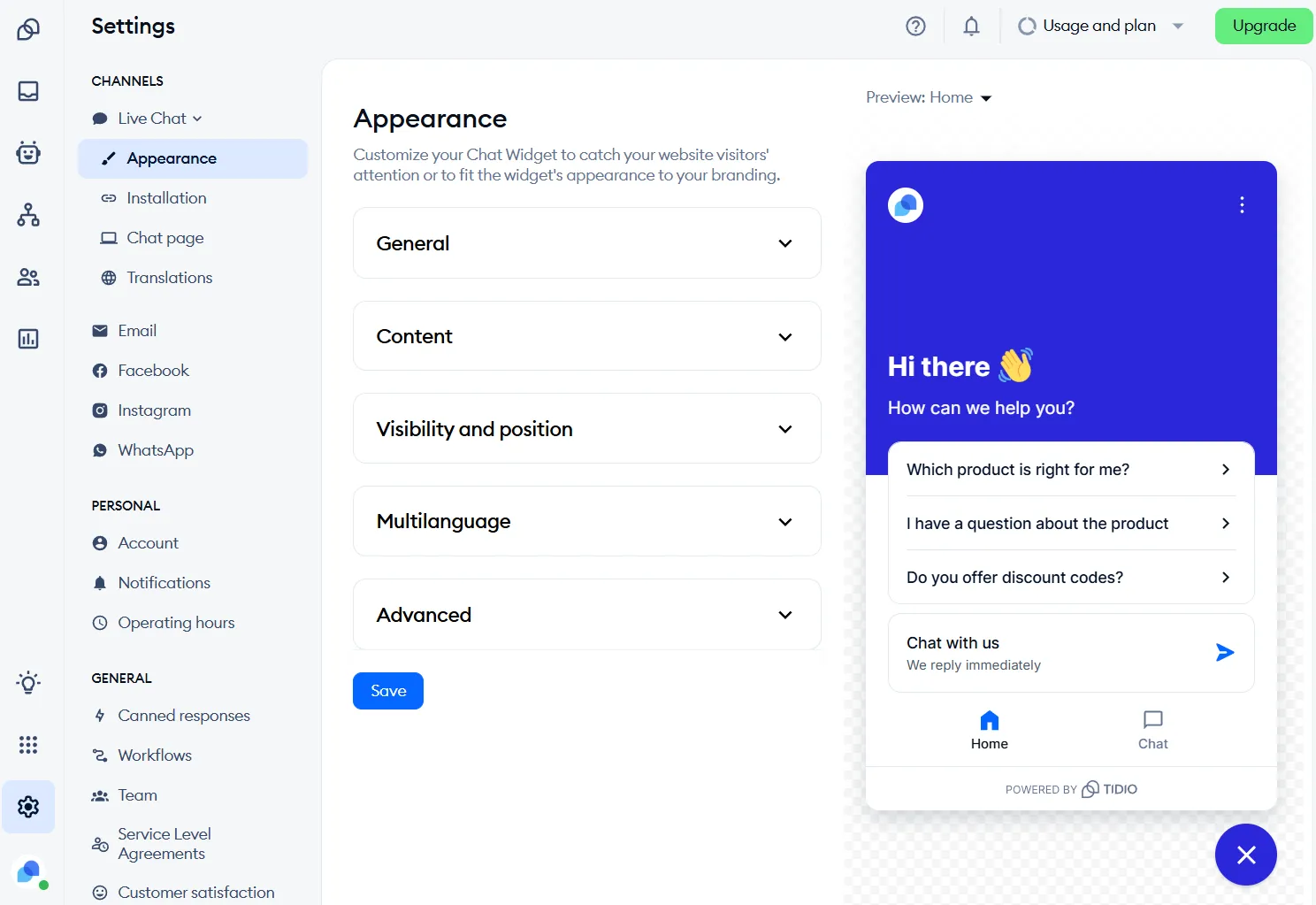
You can learn more about each section in our dedicated article on customizing Tidio. We highly recommend this guide, as it deals with major aspects of your Tidio chat widget!
Installation
The Installation section allows you to check the state of your widget installation on a website (whether Tidio is installed or not), and to review the most common installation instructions.
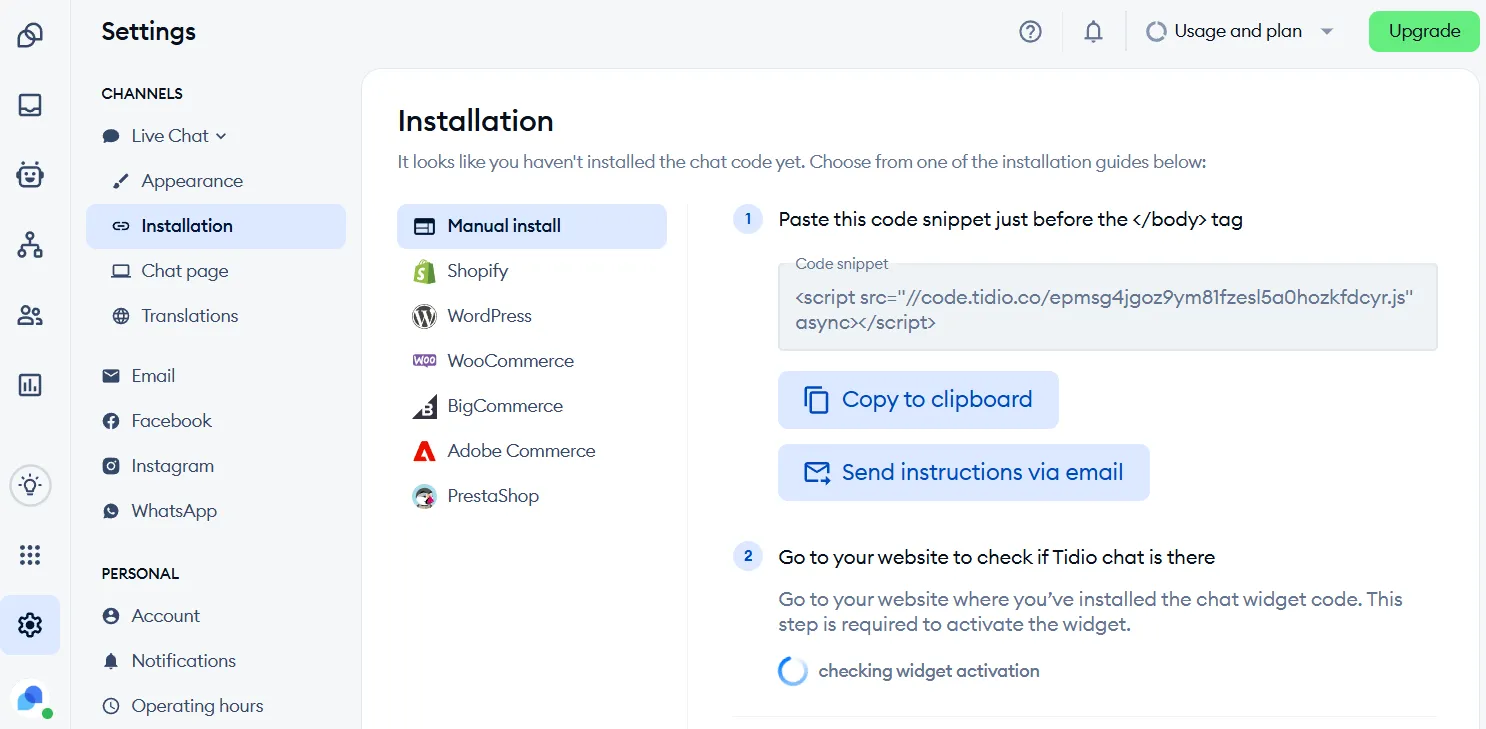
For example, you can check the exact steps necessary for installing Tidio on WordPress, or directly integrate the Tidio project with your Shopify store, or get instructions (and the necessary script) for installing Tidio manually.
The Chat page
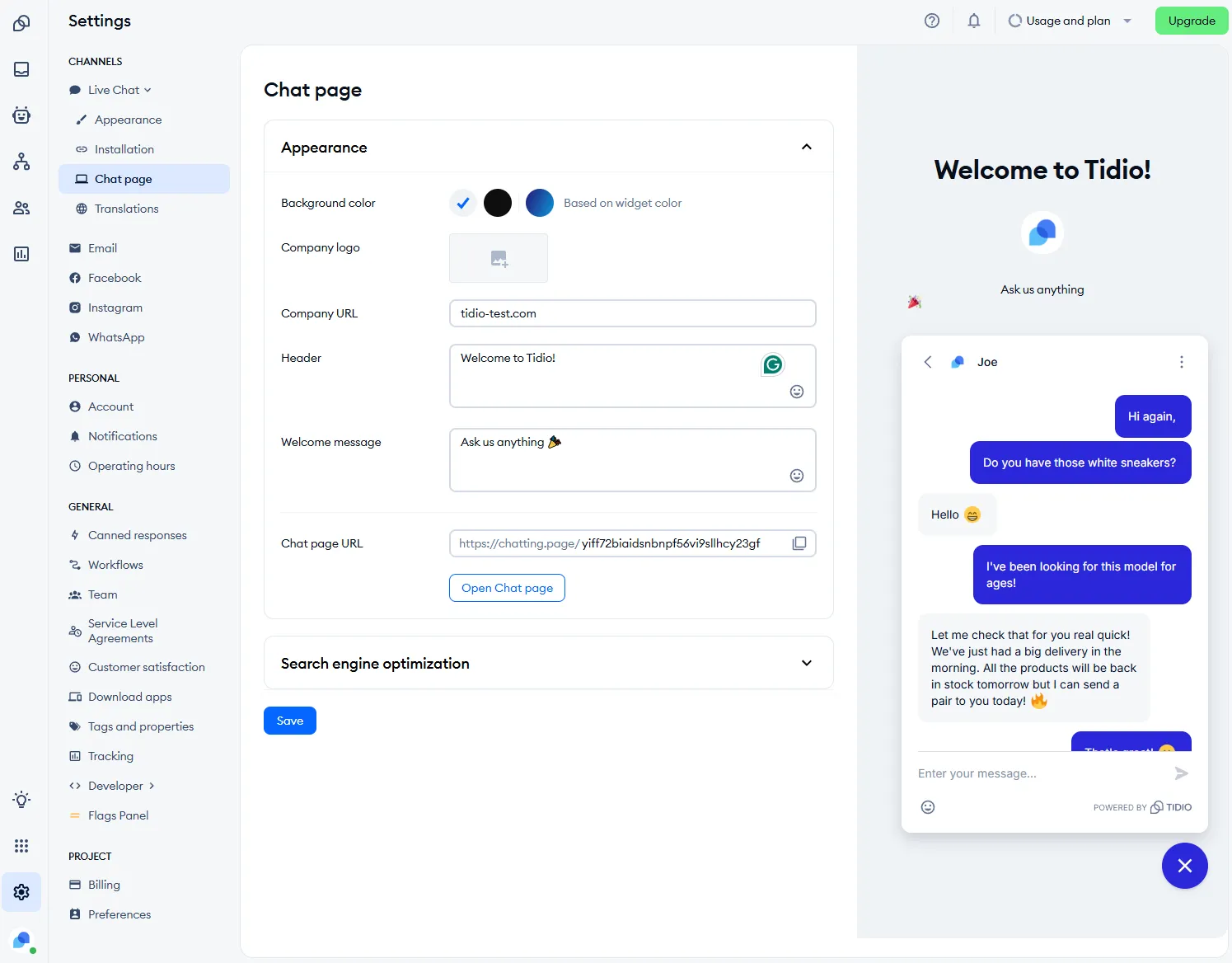
Please note: the Chat page isn't available on every plan, and it may need an additional verification by our Support team before it can be enabled. If it's not available in your current plan, you'll see Chat page feature is not available in your current plan. at the top of the section, with a link to upgrade to the plan that includes it. If verification is needed, you'll see Additional verification is required before Chat page can be enabled. Contact support to complete verification.
You can also link your chat to a button on your page and have it appear in a new window when clicked by a user. The Chat page URL is available at the bottom of the Appearance part of the section - you can copy and link it to a button on your website, or check it with Open Chat page.
Translations
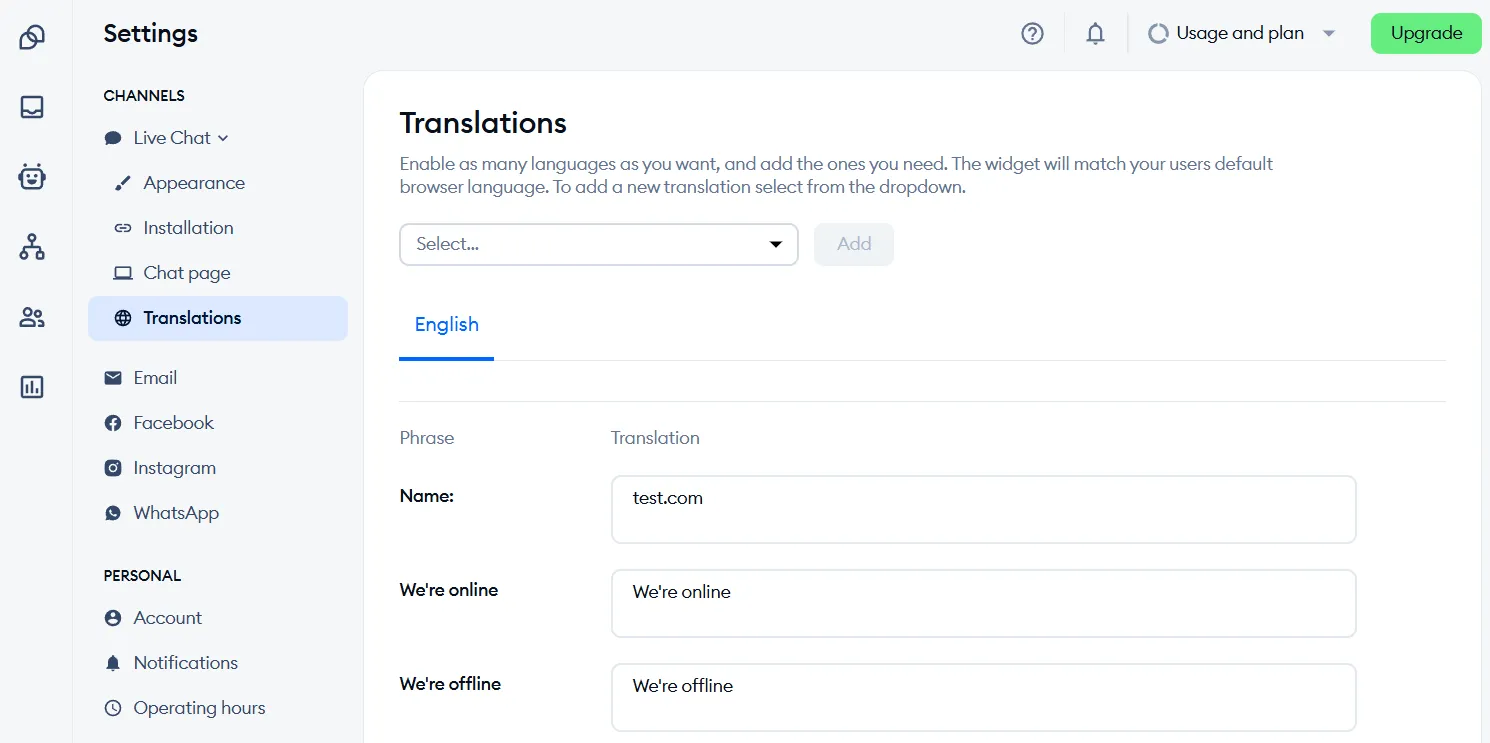
The Translations section allows you to add language packs to your project and modify the phrases within. With this, you can change the vast majority of text that's displayed in different aspects of your Tidio widget.
You can learn more about translations and Tidio's multilanguage functionality from this article.
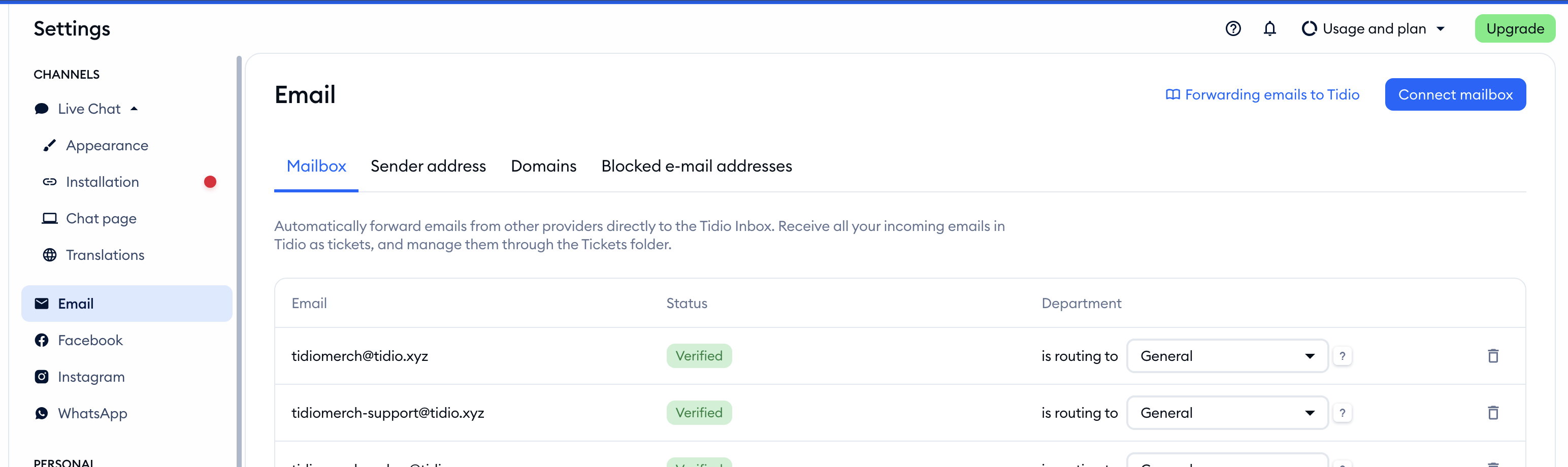
In Settings > Email, connect Tidio with your mailbox (or several) to receive and send emails through Tidio, and manage all such messages as tickets. This will let you keep all your communication with clients in one place. The page has four tabs: Mailbox, Sender address, Domains and Blocked e-mail addresses. To learn more about this, check out our comprehensive Ticketing guide.
Facebook Messenger
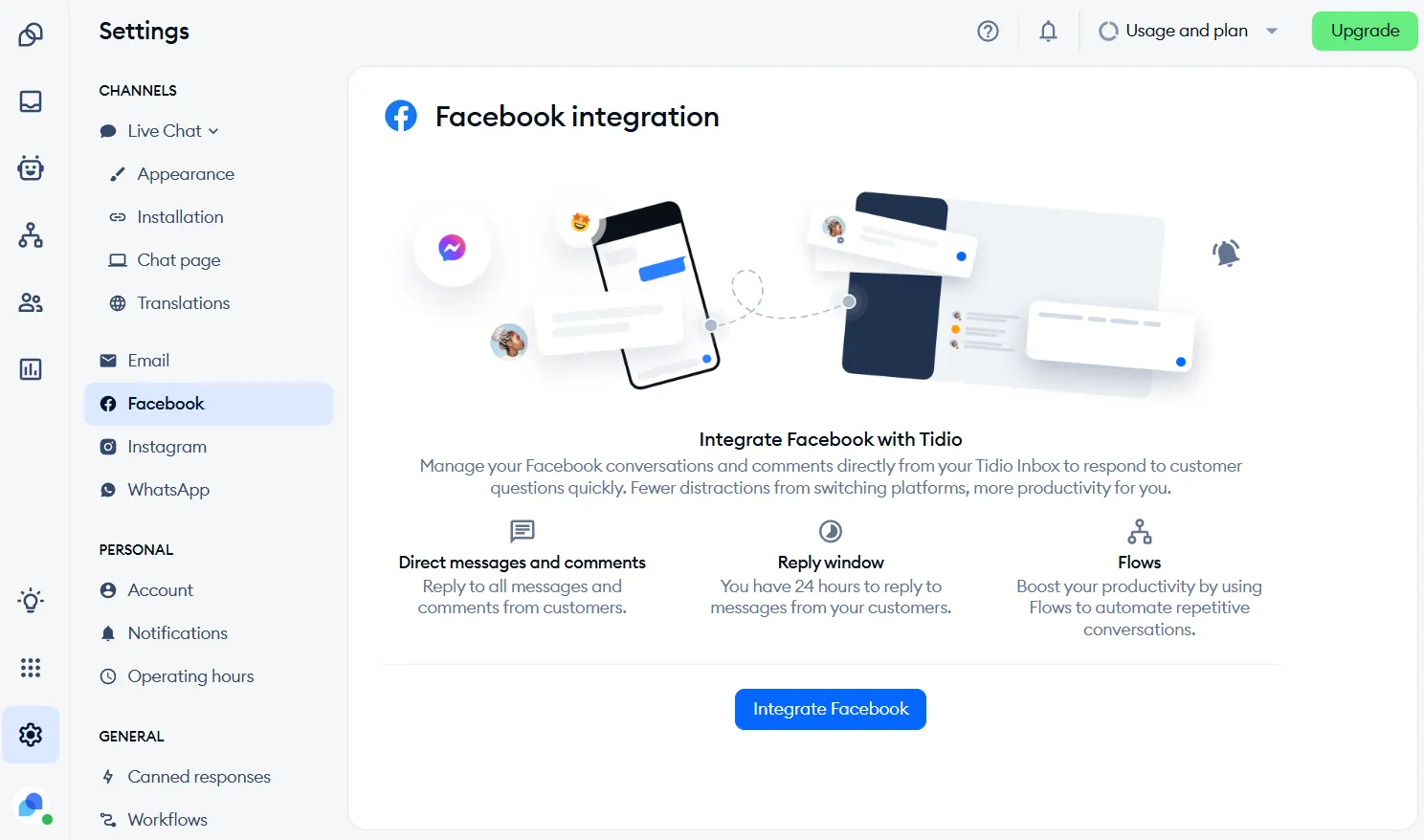
In Settings > Facebook, you can configure your integration with Messenger. To authorize, log in with your Facebook credentials. To learn how this works in detail, and what conditions must be met, read our article that explains how to Integrate Tidio chat with Messenger.
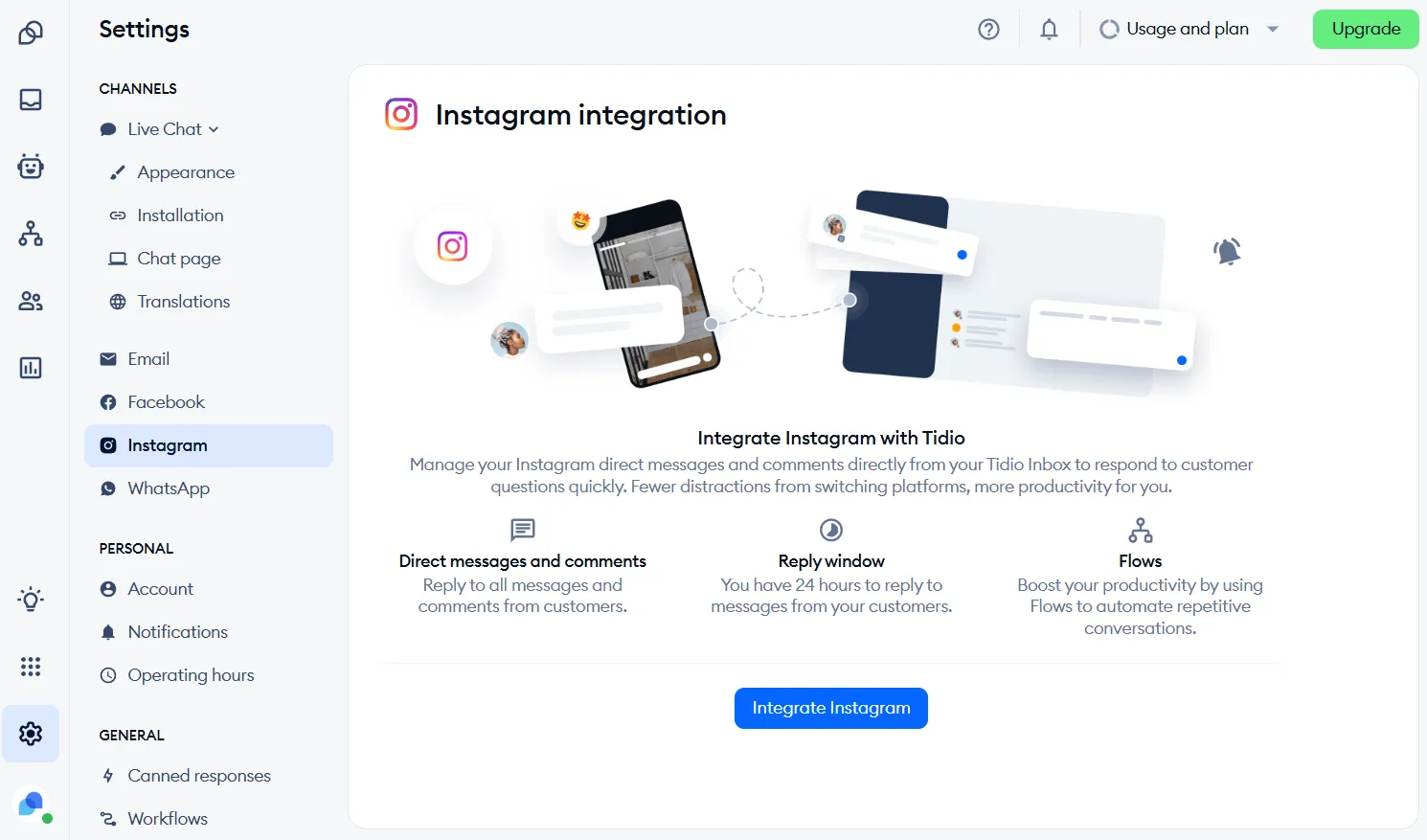
In this section, you can connect your Tidio project with Instagram. Refer to our guide on integrating Tidio chat with Instagram for detailed instructions and requirements.
Here you can connect your Tidio project with a WhatsApp number. Check out our article on how to integrate Tidio with WhatsApp for step-by-step instructions, as well as detailed conditions that need to be met for the integration to work properly.