Connect Instagram to Tidio to manage incoming messages and replies from your Inbox. You can reply to customers yourself or use Flows to handle routine conversations.
In this article, you'll learn:
- The benefits of the Tidio integration with Instagram
- The requirements to integrate
- How to set your account to Instagram Business
- How to connect an Instagram account with a Facebook Page
- How to allow access to messages
- How to integrate Tidio with Instagram
- How to enable different types of communication
- How to troubleshoot common integration issues
Benefits
Tidio integration with Instagram has many benefits that can improve the way you operate your business communication. Take a look at just a few of them.
Handle all conversations in one place
Now, you and your team can handle all strategic communication in just one Tidio panel. You can connect more than one Instagram account with your Tidio project.
See Instagram story activity
You can see the replies, mentions, and reactions added to your Instagram story in your Tidio panel.
Automate your support on Instagram with Tidio's flows
You can set up flows to handle communication with your Instagram audience for you.
Easy to integrate
The integration with Instagram doesn't require any coding, and you complete it through Meta's authorization window.
See visitors' current Instagram page
When a visitor is browsing one of your integrated pages, Tidio saves this information as a Contact Property for you to see while chatting. You can also use this Contact Property to create custom Lyro Audiences and conditions for flows, etc.
Instagram integration requirements
Set your account to Instagram Business
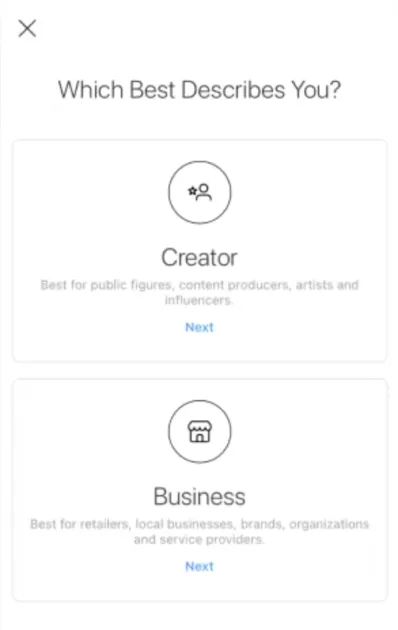
To connect Tidio to Instagram, you'll need to make sure your account is a Business Instagram Account. Do you have a standard Instagram account? You can switch to a Business account in Instagram.
To see how to switch your Instagram account to a Business Account - take a look at the official Instagram guide on setting up the Business Account. Please, make sure you've chosen the business account and not the creator account. At this moment, the creator account doesn't support the integration.
Connect your Instagram account with a Facebook Page
Since Instagram is part of Facebook now, your Instagram account needs to be connected to your Facebook Page. To see how to connect Instagram to Facebook, take a look at an official Meta guide.
Allow access to messages
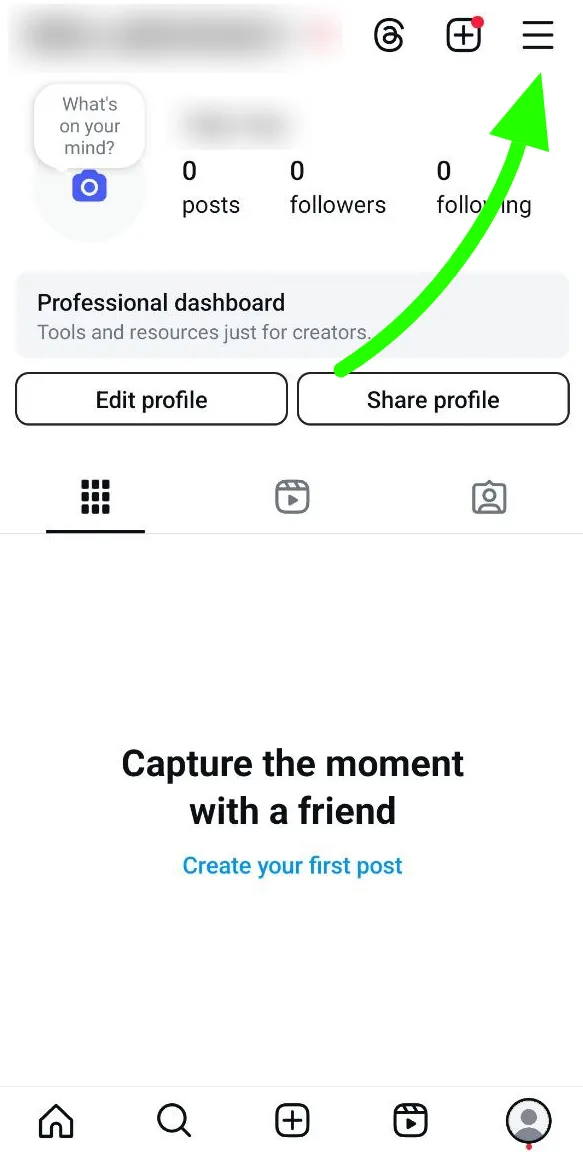
You'll also need to ensure your Instagram account allows Tidio to receive the messages. To do that, open your Instagram app and head over to Settings and activity by clicking the menu icon at the top-right.
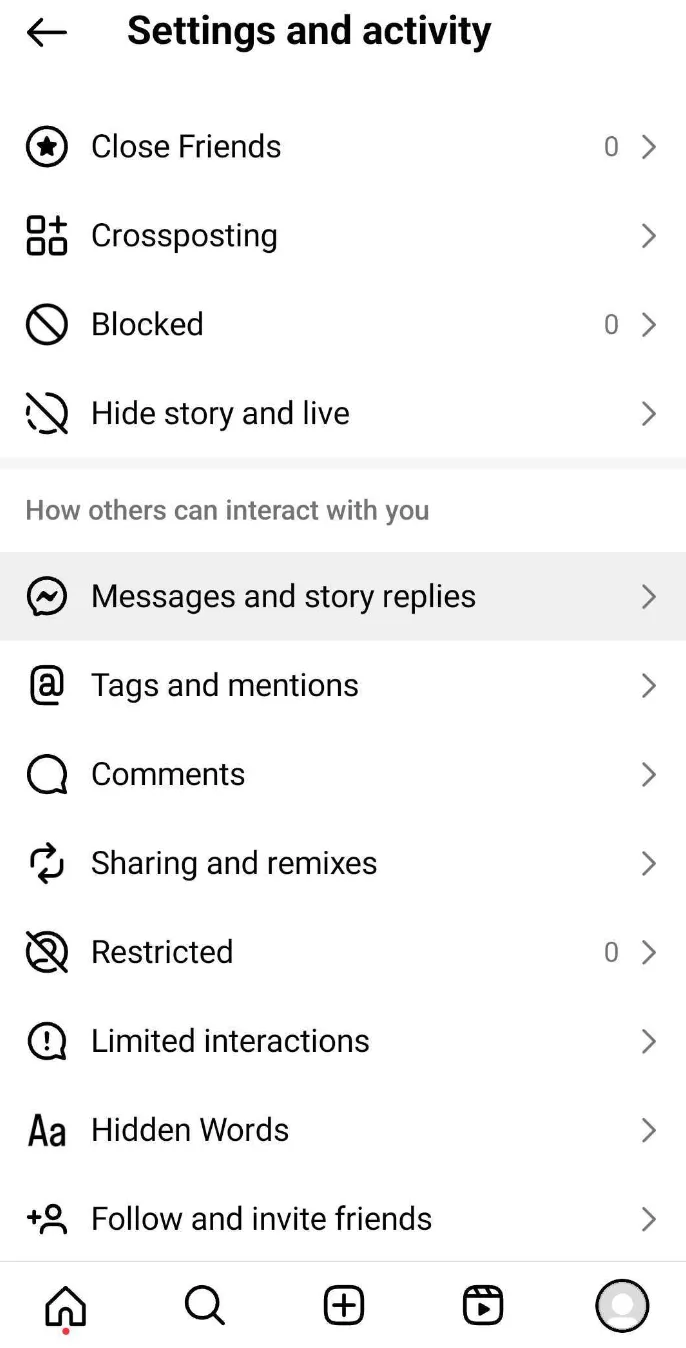
After that, head to Messages and story replies:
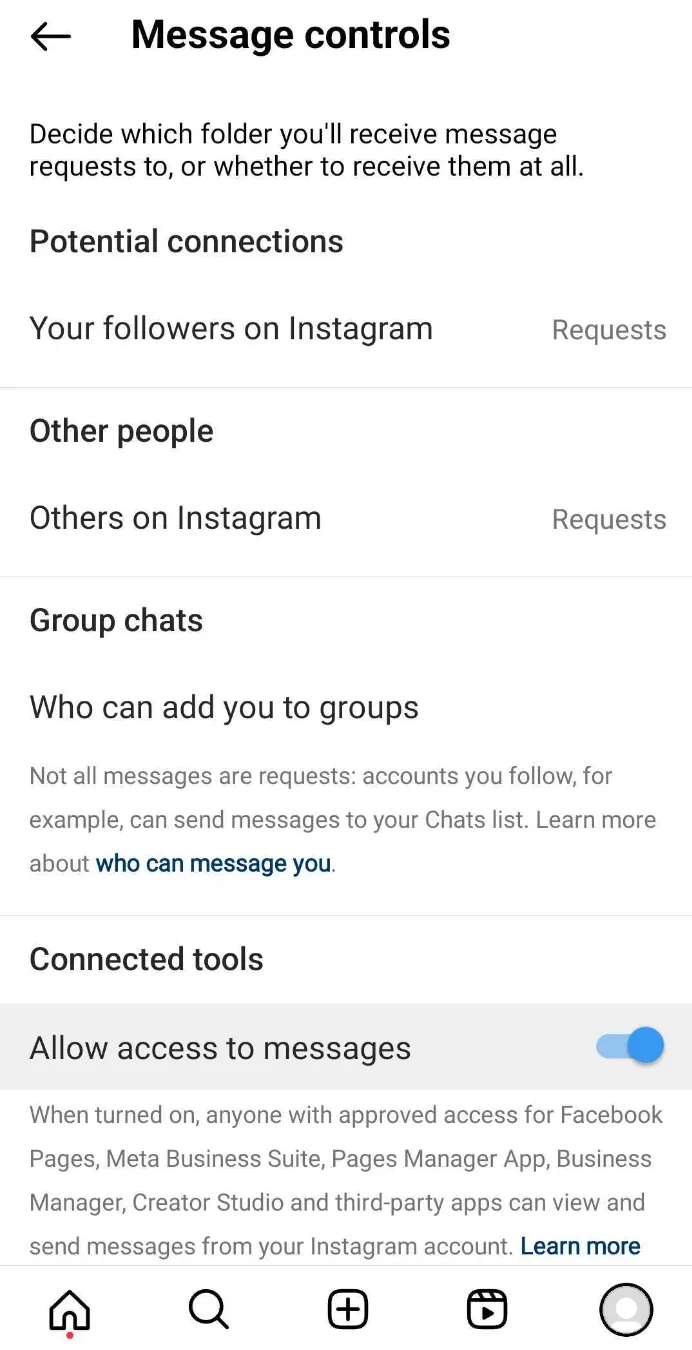
... then open Message controls - and make sure the Allow access to messages toggle is enabled:
Integrate Tidio with Instagram
Before you connect Tidio to Instagram, make sure you meet all the requirements to integrate with Instagram (see above).
To connect Instagram to Tidio, head to Settings > Channels > Instagram section and click on the blue button - Integrate Instagram.
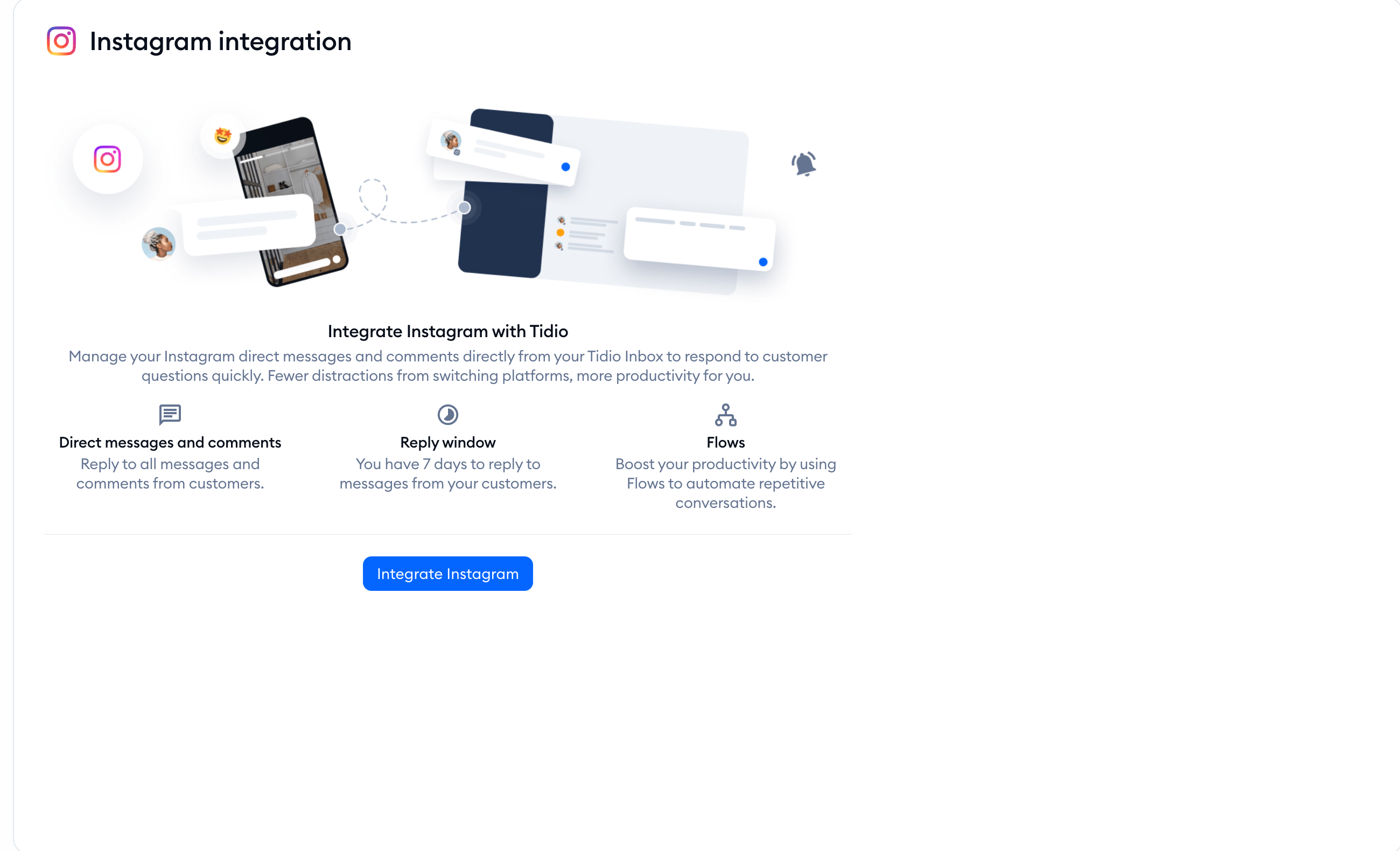
You'll now see a window that will remind you about all requirements.
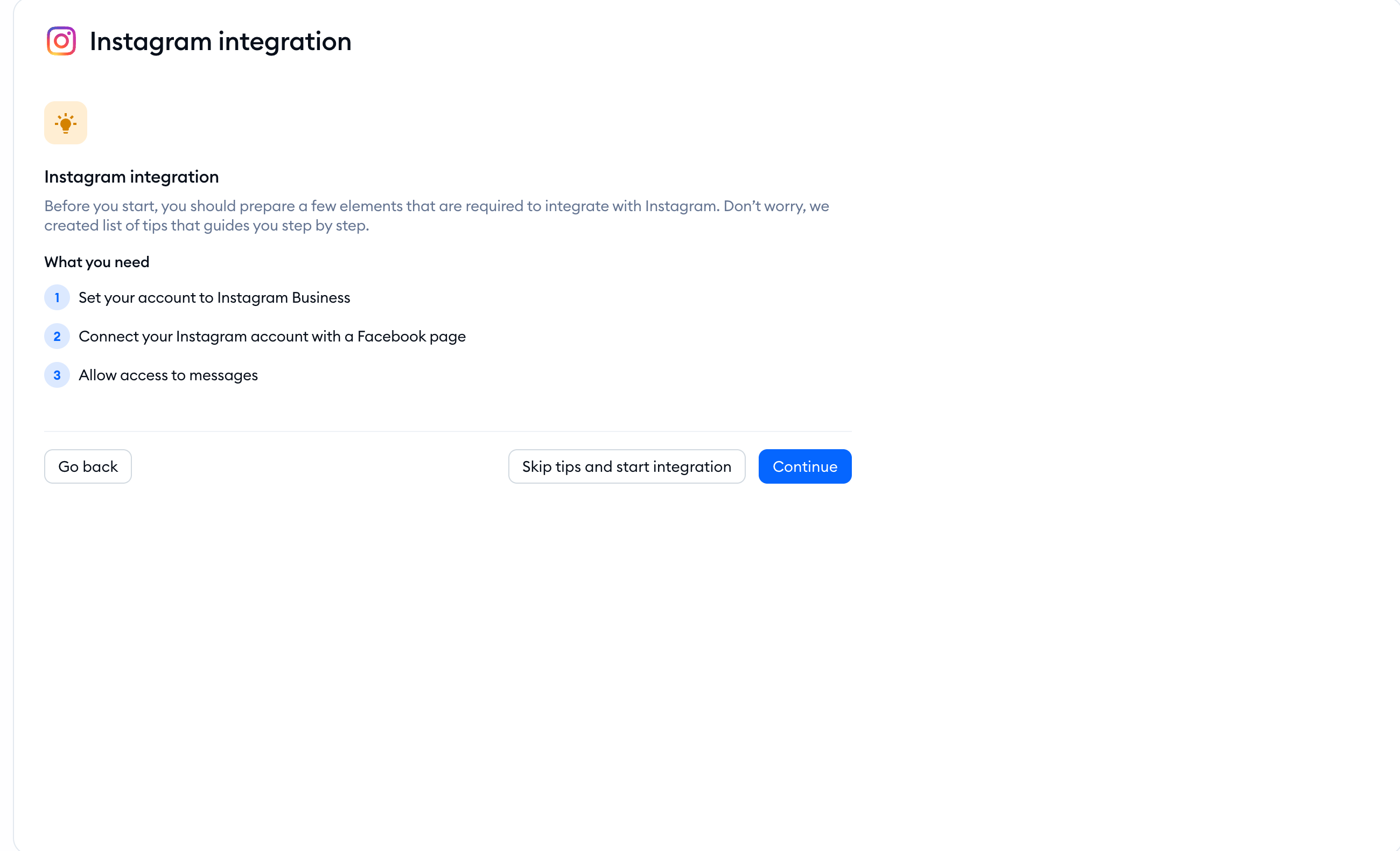
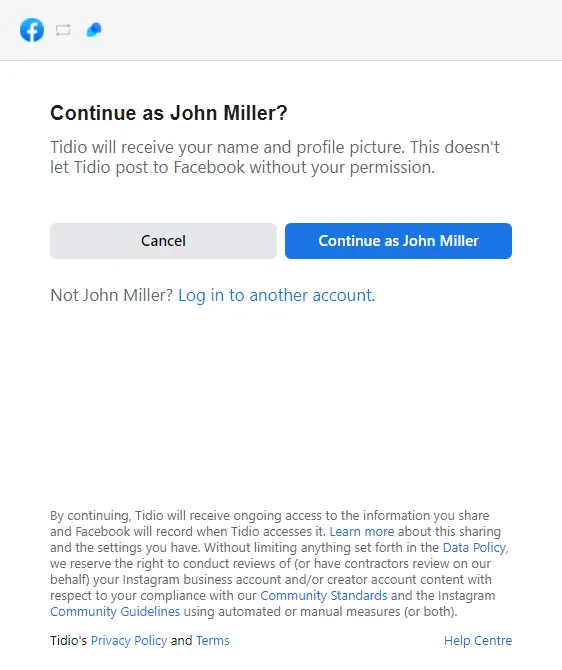
After receiving the tips on the requirements, you'll see a new popup window asking you to login in with Facebook.
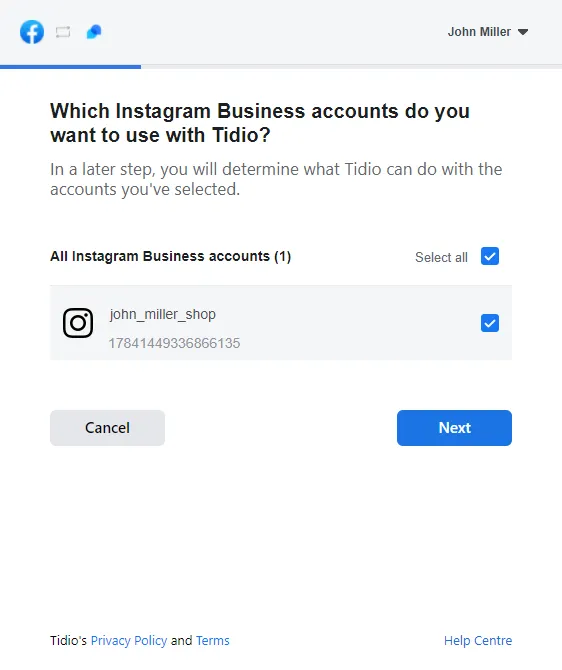
The integration will ask you to choose your Instagram Business Account:
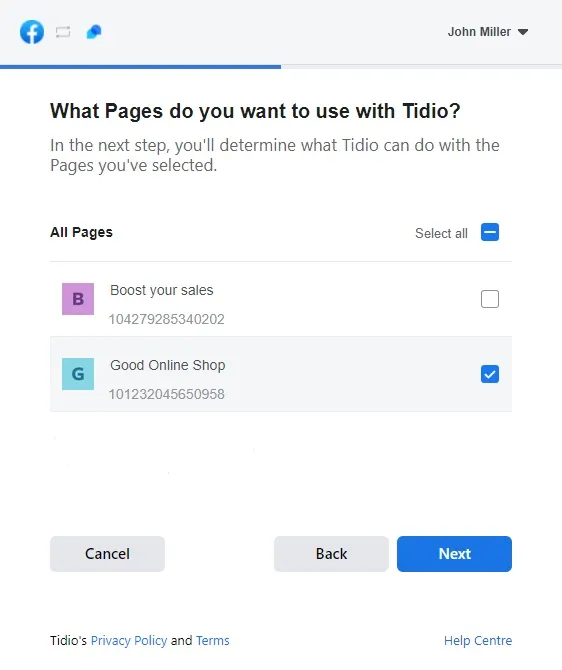
It will also ask you to pick your Facebook Page:
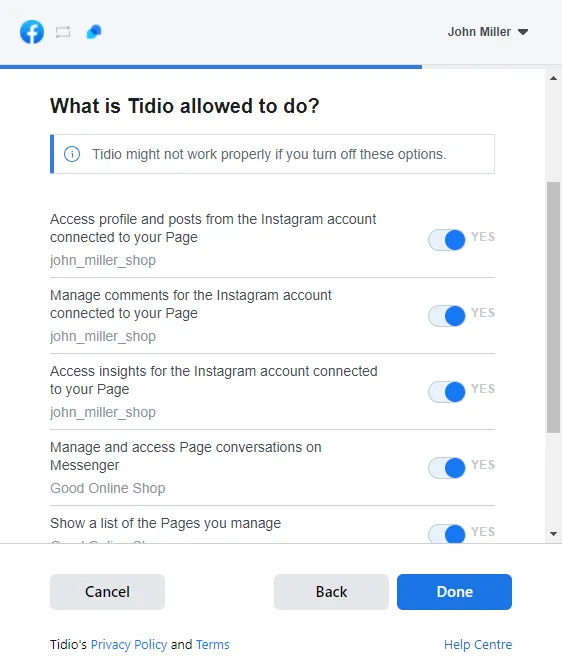
The last step will ask you for permissions so the integration can be completed.
You've connected your Instagram with Tidio! Now, you will start receiving Instagram and Facebook messages.
Please note: If Tidio reports that the account is already connected elsewhere, remove the existing integration or choose another account. Contact Tidio support if you need help moving it.
Enabling the types of communication
After successful integration with Instagram, you'll be able to choose which types of Instagram communications you want to see in Tidio and which accounts you want to manage. To do that, head over to the Settings > Channels > Instagram section and use the toggles to activate different accounts and the checkbox next to the following types of notifications to enable them:
- Story Mentions
- Story Replies
- Comments
- Direct Messages (always transferred, can't be disabled)
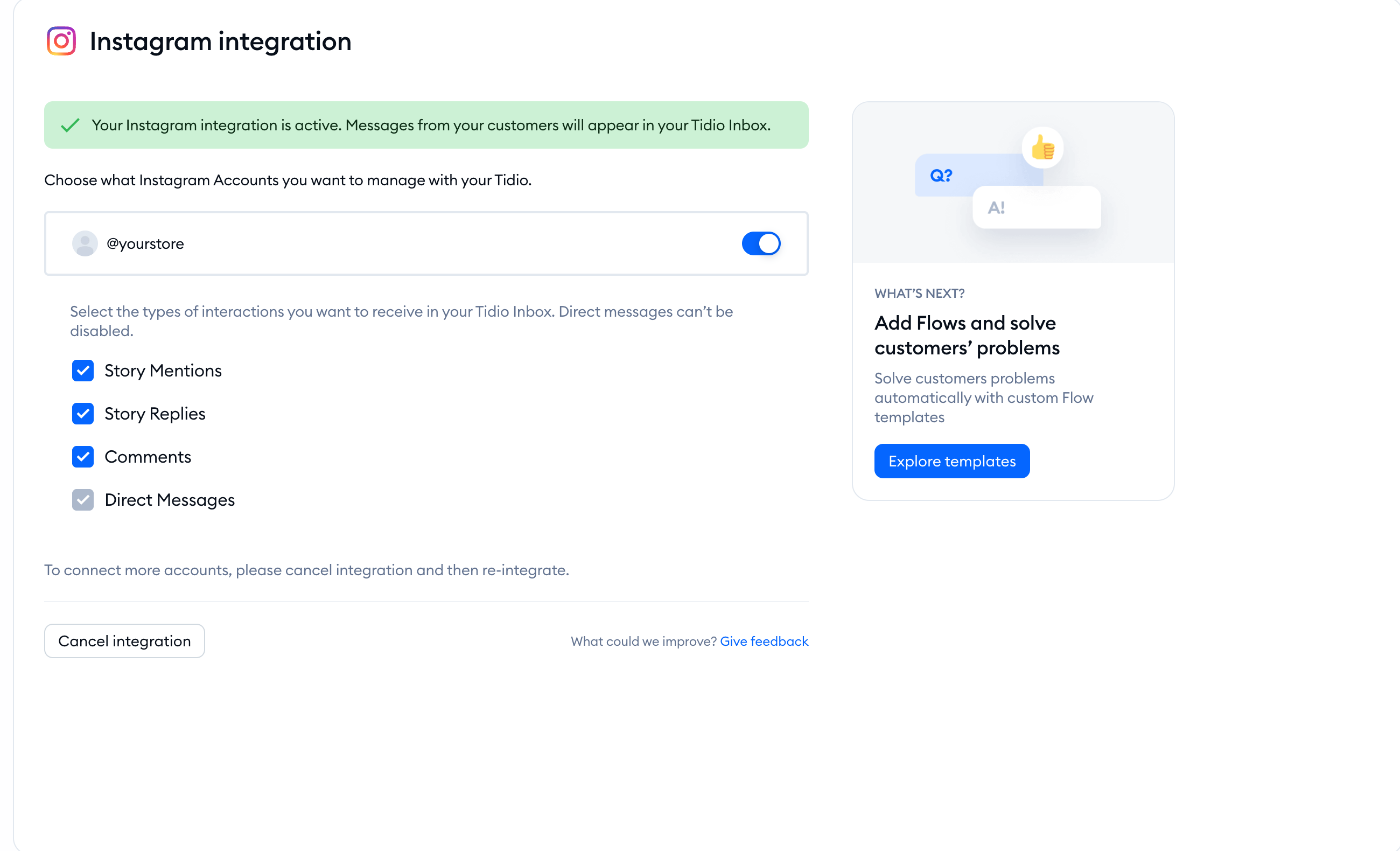
If Comments is unavailable because permissions are missing, grant the requested Meta permissions before enabling it. Direct Messages cannot be disabled. See Responding to Instagram and Facebook comments for the next steps.
Troubleshooting common integration issues
A common issue is seeing the integration's loading screen, and nothing else happening. This usually happens because your browser has blocked an important popup window from Tidio; that popup is required for you to log into Meta in order to complete the integration.
To solve this particular issue, disable your browser's block for the current website (the Tidio panel in this case). As an example from Chrome, you can see the pop-up blocked notification in the upper-right of the browser window - that is also where you can allow the popups back again:
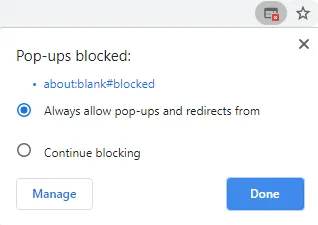
To try again, you may need to refresh your page; the popup should not be blocked any longer.
FAQ
How will I know that a message is coming from the Instagram channel?
Whenever you see a message from Instagram in your Tidio inbox, it will include the Instagram profile handle directly below the user ID. This is also a quick way to know which Instagram profile the message is coming from exactly, if you've integrated more than one profile.
I can't find the "Allow access to messages" toggle in my Instagram account. How do I find it?
The option to allow access to messages in Instagram will be only showed to you when you have Instagram Business Account enabled and connected to your FB fanpage. The toggle will not be displayed for the users with the private/standard Instagram account.
Next steps:
- Create Instagram flows - free your agents from answering repetitive questions and generate more sales and leads.
- Discover more integrations - see all seamless integrations Tidio offers to automate your business even more.
