WhatsApp only lets you reply freely to a customer within 24 hours of their last message. Once that window closes, the only way to reach the customer again is with a message template: a message pre-approved by Meta. With WhatsApp templates in Tidio, you can pick up a conversation that went quiet, send an order update, or remind a customer about an appointment - all from the Tidio panel.
Using WhatsApp templates in Tidio allows you to:
- Message customers after the 24-hour reply window has expired;
- Personalize each message by filling in variables, such as a name or an order number;
- Add buttons that let customers reply with one tap, open a link, or copy a discount code;
- Send templates from both the Tidio panel and the Tidio mobile app.
In this article, you'll learn:
- What the requirements are
- How to create a template in WhatsApp Manager
- Which templates you can send from Tidio
- How to send a template from Tidio
- The answers to the most Frequently Asked Questions
Requirements
WhatsApp integration
Your WhatsApp Business Account needs to be integrated with Tidio. If you haven't done it yet, please see this guide on integrating with WhatsApp.
Tidio subscription
The WhatsApp integration is available for all Tidio users for free, but sending WhatsApp templates requires either the Growth, Plus, or Premium subscription. If your plan does not include templates and you have billing access, the panel shows an upgrade button naming the required plan instead of Select template.
Please note: You need an active WhatsApp integration and permission to access WhatsApp. Sending a template also requires permission to send WhatsApp messages. If you cannot send one, ask your project admin to check your access.
Access to WhatsApp Manager
Templates are created and approved in Meta's WhatsApp Manager, not in Tidio. You need access to the Meta Business Account your WhatsApp Business Account belongs to, with permission to manage message templates.
Creating a template in WhatsApp Manager
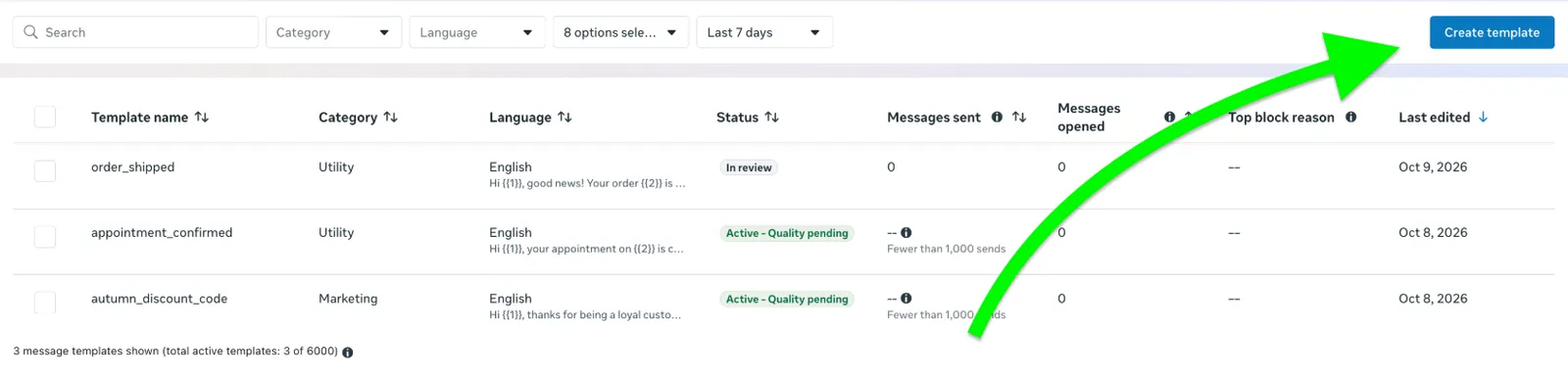
To begin, log into your WhatsApp Manager and select the WhatsApp Business Account connected with Tidio. Then, go to Account tools > Message templates and click on the Create template button:
Inside the creator, you will need to complete several steps:
- Choose the category and type
- Name the template and choose the language
- Add the content
- Add buttons (optional)
- Submit for review
Step 1: Choose the category and type
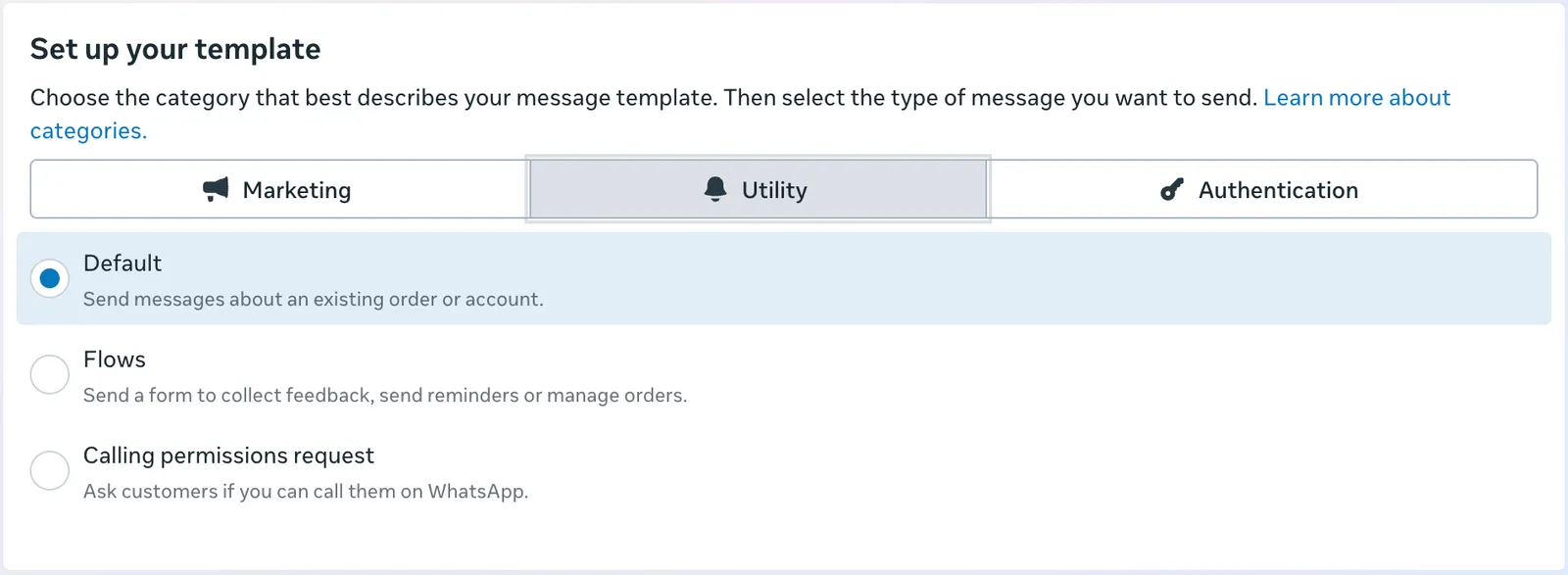
Select the category that fits your message best:
- Marketing - promotions, offers, product announcements, and re-engaging customers;
- Utility - updates about an order, account, or appointment the customer already has with you;
- Authentication - one-time passcodes.
Please note: authentication templates cannot be sent from Tidio. You can choose either Marketing or Utility for use with your Tidio integration.
Then, select the template type. For templates that you plan to send from Tidio, choose Default, and go to the next step.
Step 2: Name your template and choose the language
Enter a name for your template. It can contain only lowercase letters, numbers, and underscores, e.g.: order_shipped. Your customers won't see the name, but it helps you find the template later.
Once you've entered a name, select the language of the template.

Step 3: Add the content
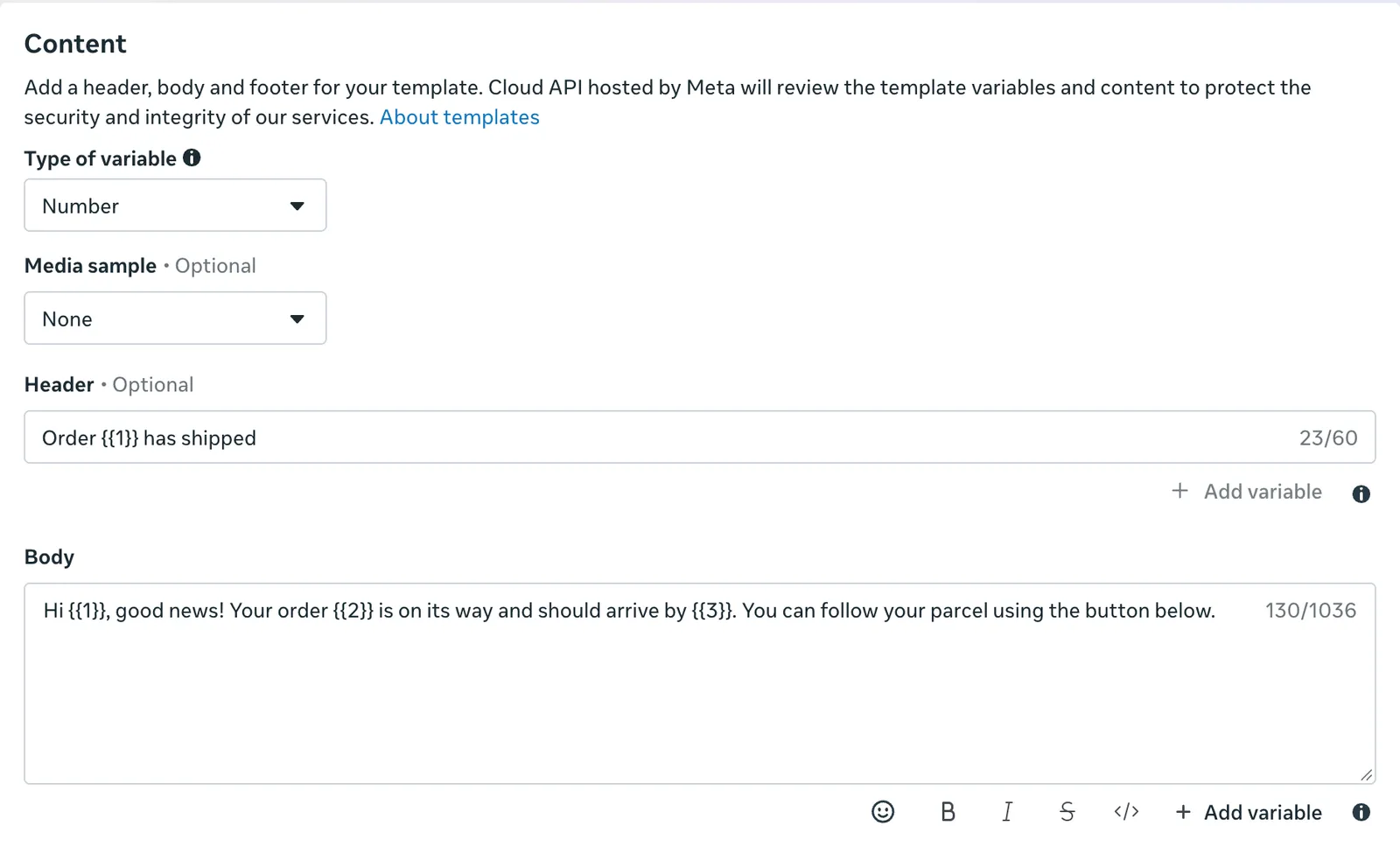
Now it's time to write your message. A template is made of the following element:
- Header (optional) - a short title; choose Text if you want to send the template from Tidio;
- Body (required) - the main message, up to 1,024 characters;
- Footer (optional) - a short line of text below the message, e.g. your company name;
- Buttons (optional) - can be added below the message; more about this in step 4.
To personalize your message, click on Add variable.
A variable is a placeholder that you need to complete manually each time you send the template. For example, the variable {{1}} can stand for the customer's name and {{2}} for their order number. You can use numbered variables ({{1}}) or named variables ({{customer_name}}), whichever you prefer; both work in Tidio.
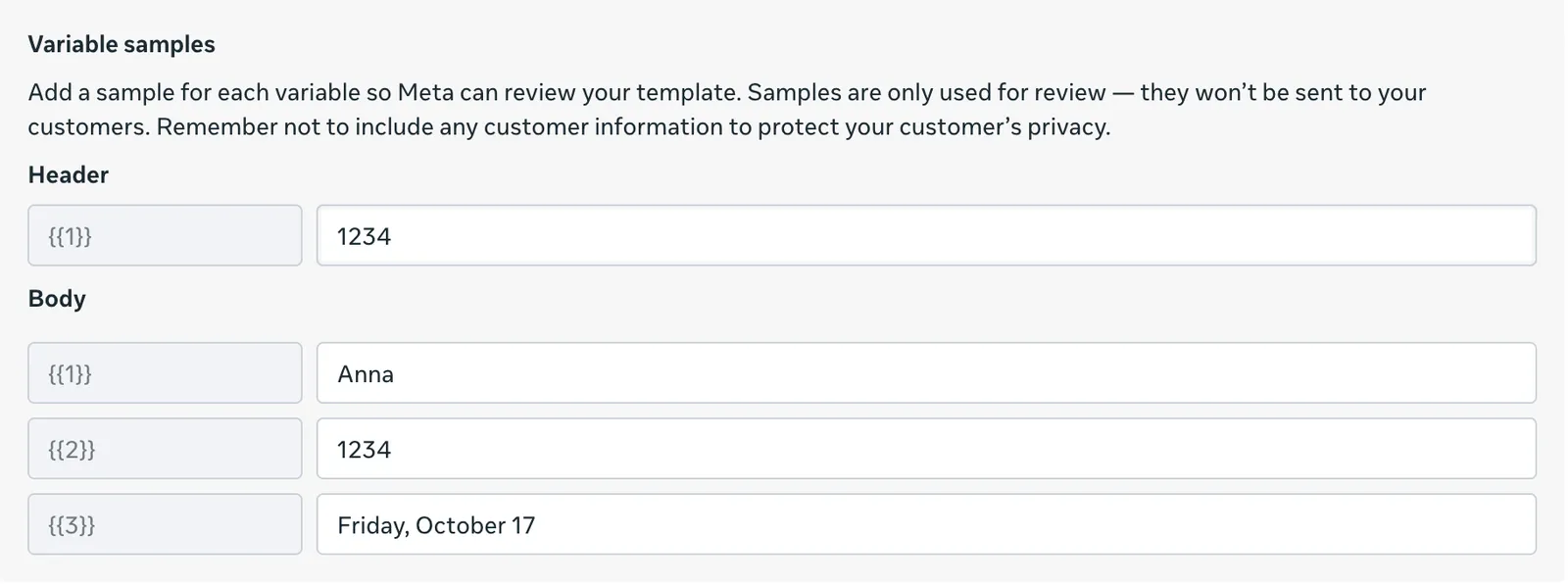
Meta will ask you to provide a sample value for each variable, such as "Anna" or "#1234". Samples are only used to review your template; your customers won't see them.
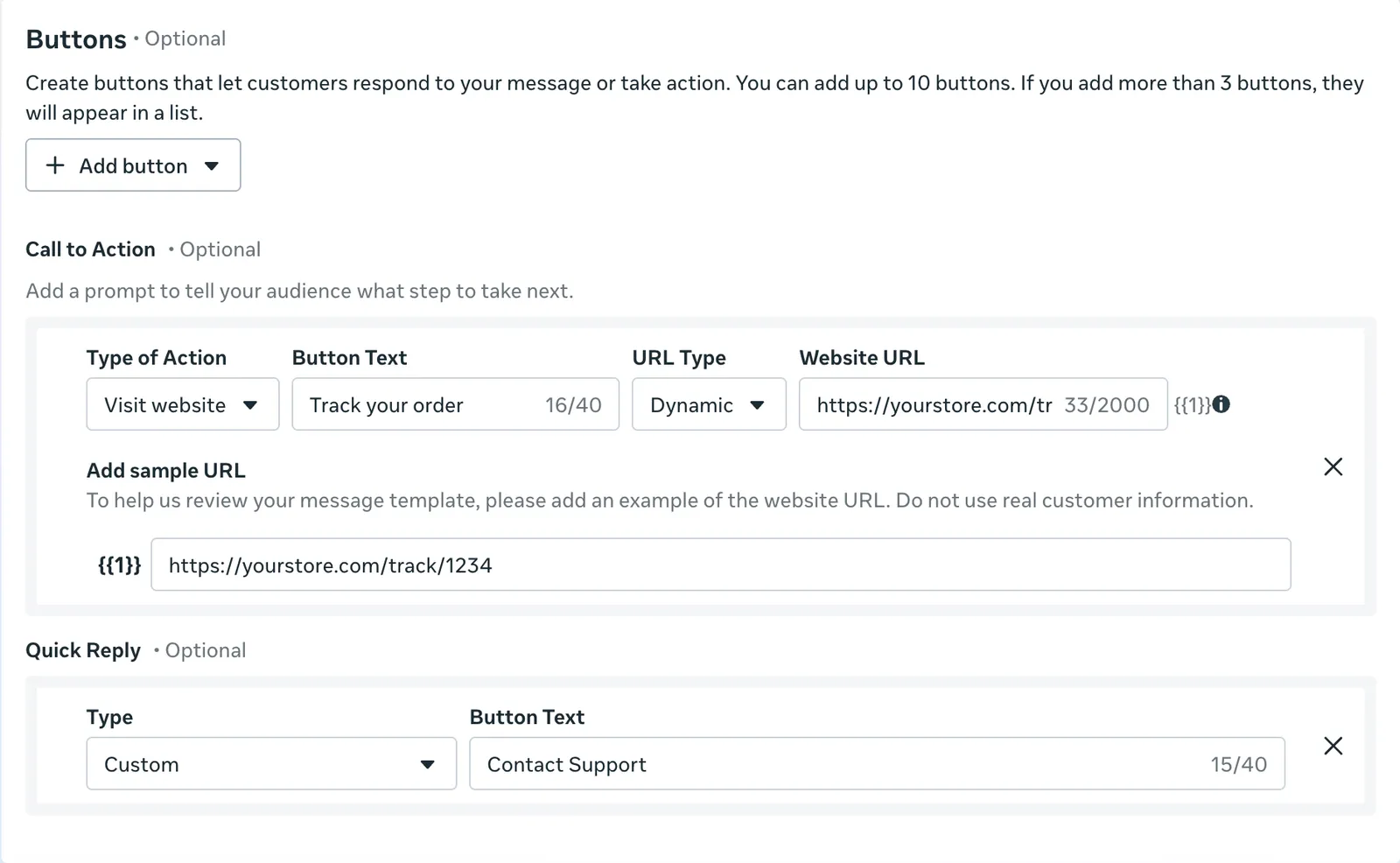
Step 4: Add buttons (optional)
Buttons appear below your message. Tidio supports the following types:
- Quick reply - a predefined answer the customer can send with one tap, e.g. "Yes, I'll be there";
-
Visit website - opens a link; the link can be static or end with a variable, e.g.
https://example.com/orders/{{1}}, which you'll complete manually in Tidio; - Copy offer code - lets the customer copy a discount code that you enter in Tidio when sending.
Please note: templates with a Complete flow button, a catalog, or a carousel cannot be sent from Tidio.
Step 5: Submit for review
The last step is submitting your template for review by Meta. Once your template is ready, click on Submit for review. Meta usually reviews templates within a few minutes, but it can take up to 24 hours. You can check the status in the Message templates list. Only templates with the Active status (approved by Meta) will be visible in Tidio. It can take up to 15 minutes for a newly approved template to appear there.

If Meta rejects your template, you'll see the reason next to it. You can edit the template and submit it again. To learn more about Meta's rules, see Meta's template guidelines.
The types of templates you can send from Tidio
Tidio shows all of your approved templates, but some of them can't be sent from Tidio. Below are the types of template elements, and whether they're supported in Tidio or not:
Marketing and Utility categories |
Supported |
Authentication category |
Not supported |
Text header (with or without a variable) |
Supported |
Image, video, document, or location header |
Not supported |
Body with numbered or named variables |
Supported |
Footer |
Supported |
Quick reply buttons |
Supported |
Visit website buttons (static or with a variable) |
Supported |
Copy offer code buttons |
Supported |
Complete flow buttons, catalogs, and carousels |
Not supported |
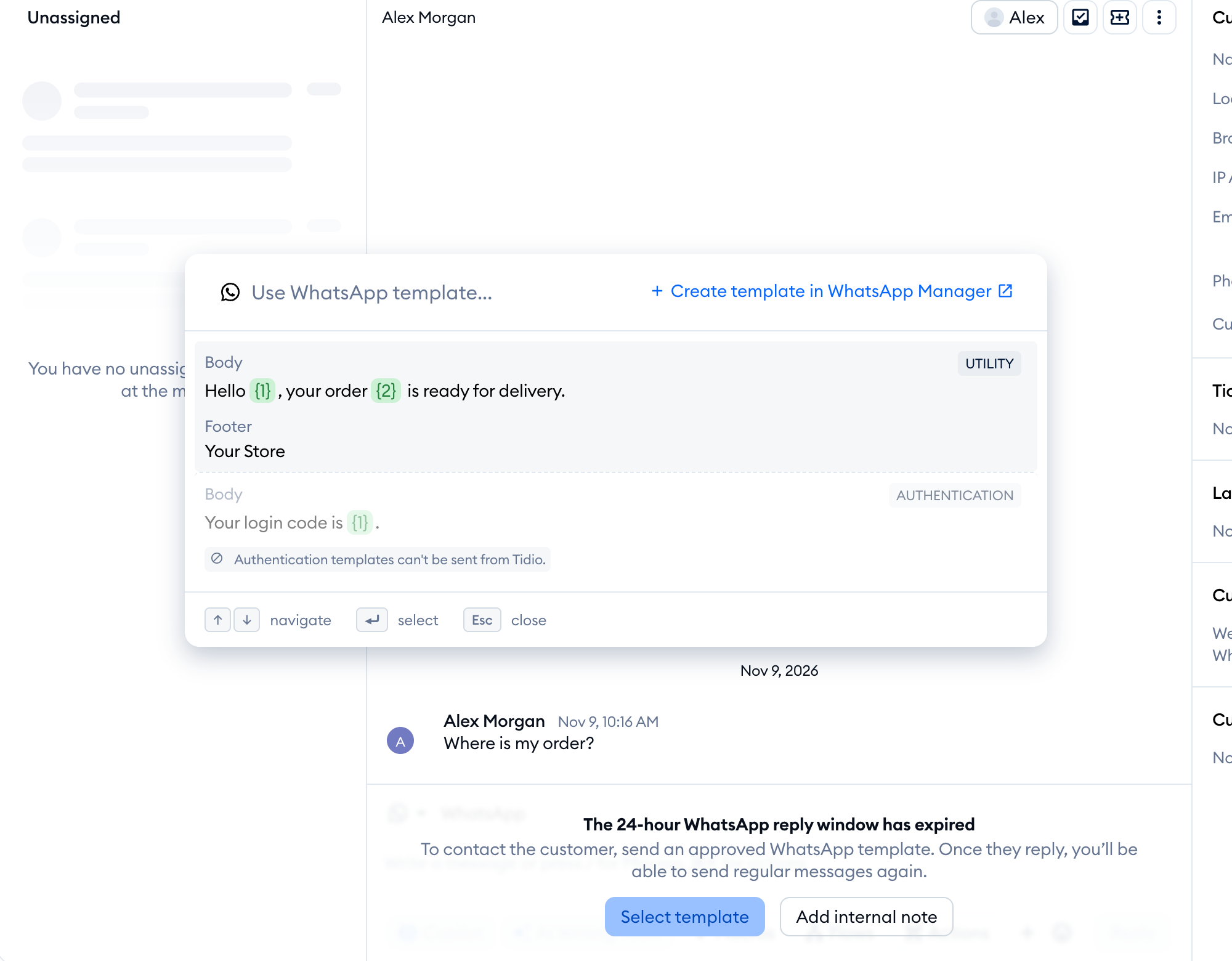
All of the unsupported templates are visible at the bottom of the list, dimmed, with an explanation of why they can't be used:
Sending a template from Tidio
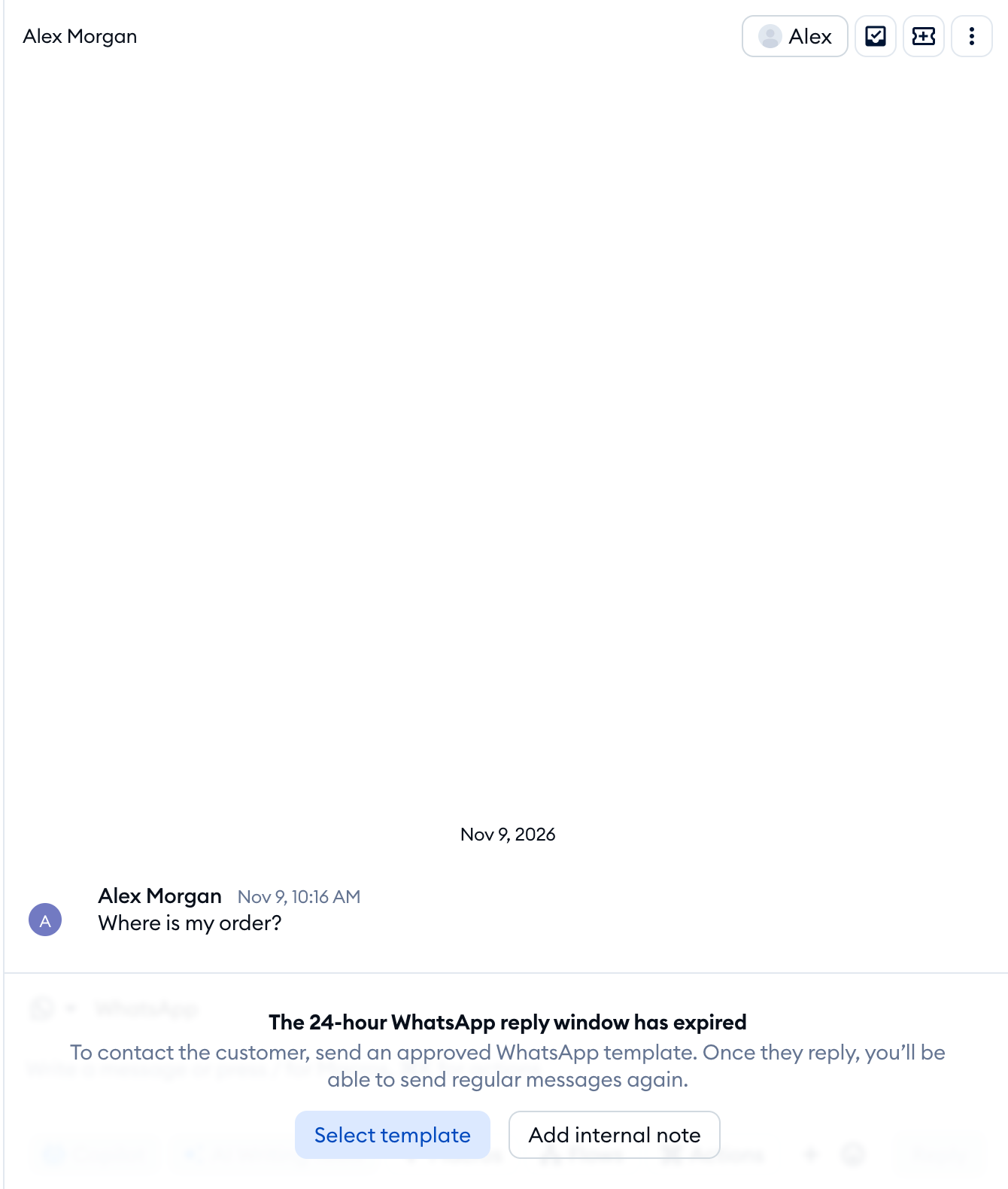
Open a WhatsApp conversation inside your Tidio Inbox. If the 24-hour reply window has already expired, you'll be informed about it in place of the message field. Click on the Select template button there:
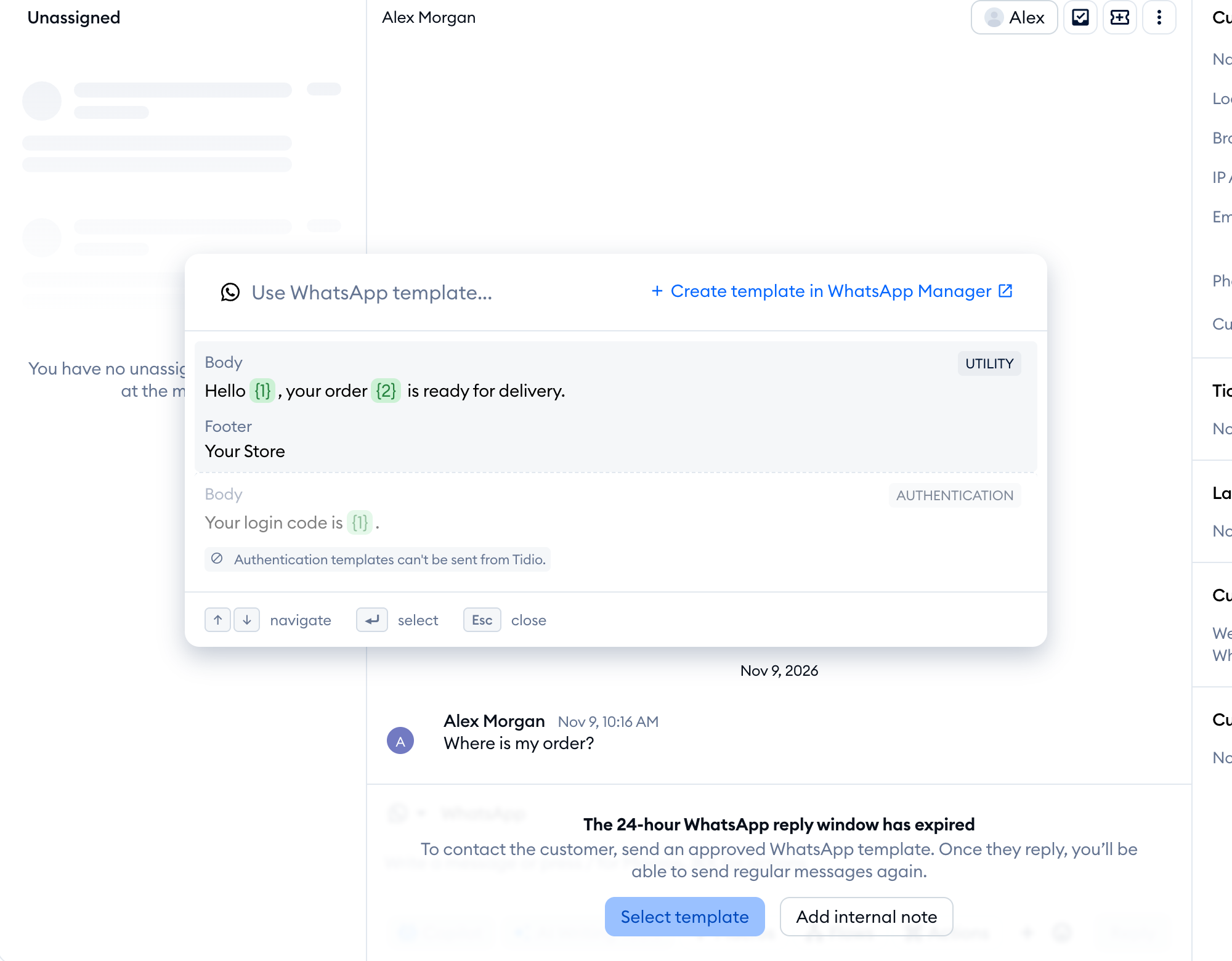
You'll see the list of your approved templates, with their category, content, and buttons. You can search for a template by any text in its header, body, or footer. You also get the option of creating a new template.
Select a template and fill in its variables. Each variable has its own field, grouped under the sections Header, Body, and Buttons. The preview on the left updates as you type:
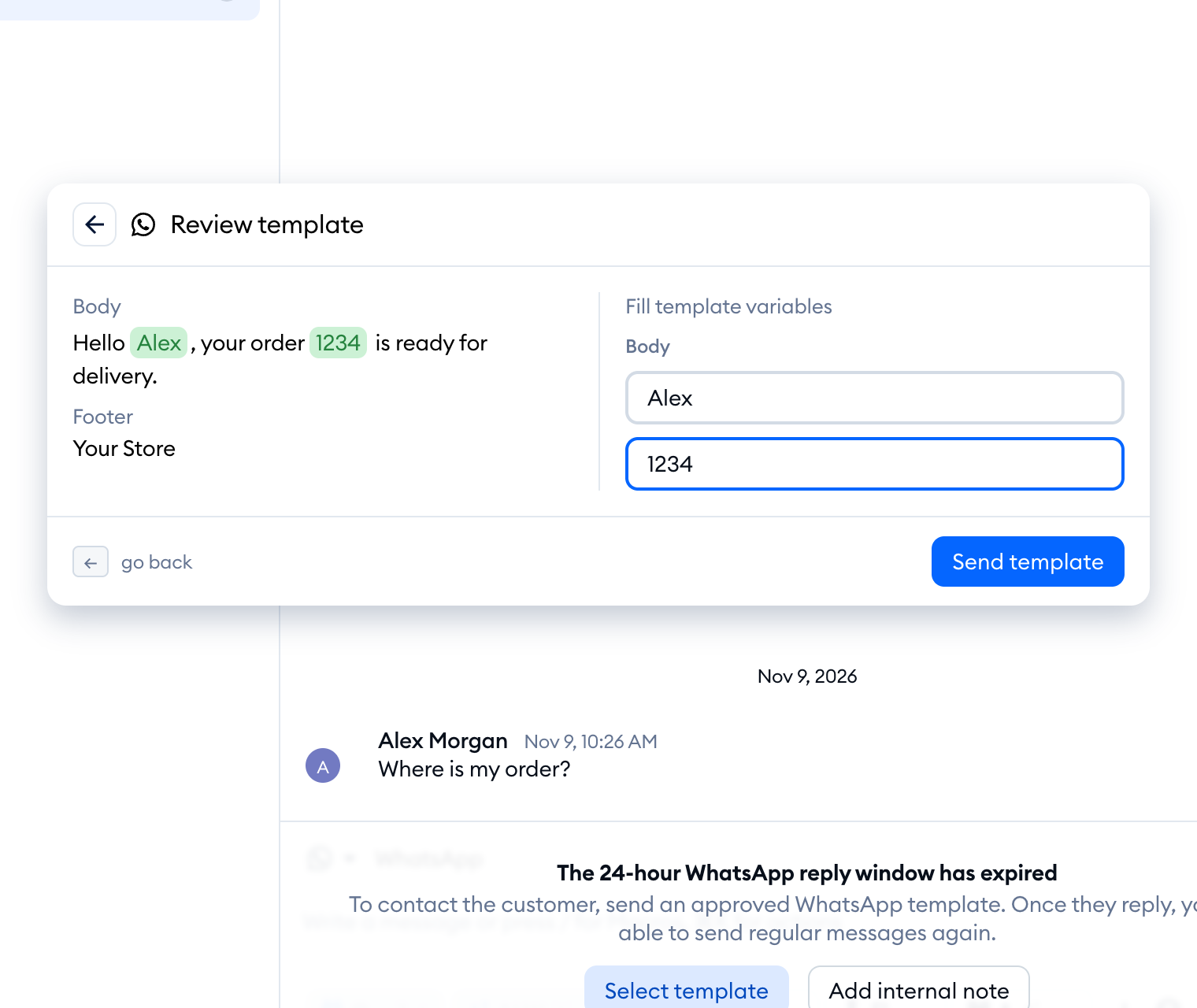
When you're done, click on the Send template button at the bottom.
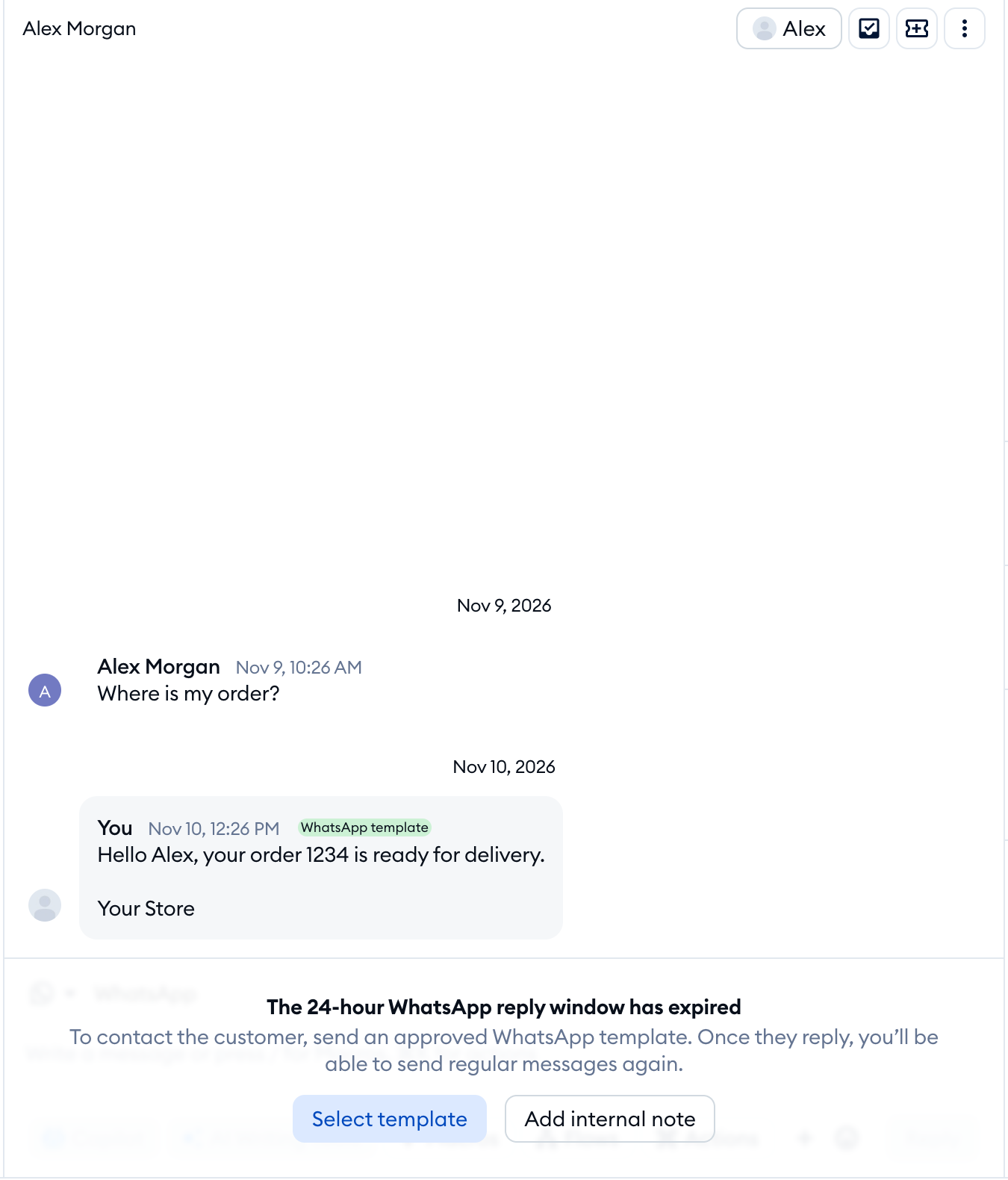
The template will appear in the conversation with a WhatsApp template badge. When the customer replies (or taps a quick reply button), the 24-hour window opens again and you can continue the conversation as usual.
Please note:
- Variable values can't be empty and can't contain line breaks, tabs, or more than four spaces in a row.
- The whole header can have up to 60 characters, and the body up to 1,024 characters, including the values you enter.
- Meta may reject values that are too long. If that happens, you'll see Meta's reason and the field will be marked in red. Correct the value and submit the template again.
- If you click outside the template window before sending, the values you entered will be lost.
Frequently Asked Questions
Why can't I see my template in Tidio?
Only templates approved by Meta (with the Active status) are shown. If your template is still in review, was rejected, or was paused by Meta, it won't be listed. Also, make sure you've created the template in the WhatsApp Business Account connected with Tidio.
Tidio refreshes the list of templates every 15 minutes, so if your template has just been approved, please wait a few minutes and open the list again.
Why is my template dimmed (grayed-out)?
Your template uses an element Tidio doesn't support, such as an image header, an authentication category, or a flow button. Please see the Which templates can you send from Tidio section above.
Can I edit a template in Tidio?
No. Templates are managed in WhatsApp Manager. Changes you make there, such as editing or deleting a template, can take up to 15 minutes to show up in Tidio. If you try to send a template that was deleted, paused, or disabled in the meantime, you'll see an error message and the list will be refreshed right away.
Can I send a template within the 24-hour window?
No. Within the 24-hour window, you can reply with regular messages. The Select template option appears once the window has expired.
Can I start a new WhatsApp conversation with a template?
Templates can be sent in existing WhatsApp conversations only. It's not possible to start a conversation with a new contact from Tidio.
How much does it cost to send a template?
Meta charges for template messages based on the template category and the customer's country. Templates can be sent even when your WhatsApp spending limit has been reached. See the monthly limit and pricing for more details.
Will I see if the customer received or read the template?
No. Neither delivered nor read statuses are shown for template messages.
