Connect WhatsApp to Tidio to manage incoming WhatsApp messages in your Inbox. Your team can reply to customers without switching between apps.
Integrating Tidio with WhatsApp allows you to:
- Respond to all text messages received through WhatsApp (Please note: you have 24h to reply to received messages);
- Create and use message templates once the 24-hour window closes;
- Connect multiple WhatsApp Business Accounts (each with several numbers);
- Boost your productivity by adding flows to automate routine conversation.
In this article, you'll learn:
- What the requirements are
- How to integrate with WhatsApp
- How to remove the integration with WhatsApp
- What the monthly limit and pricing are
- How to use message templates
- How to use flows for WhatsApp
- The answers to the most Frequently Asked Questions
- How to handle PIN mismatch errors
Requirements
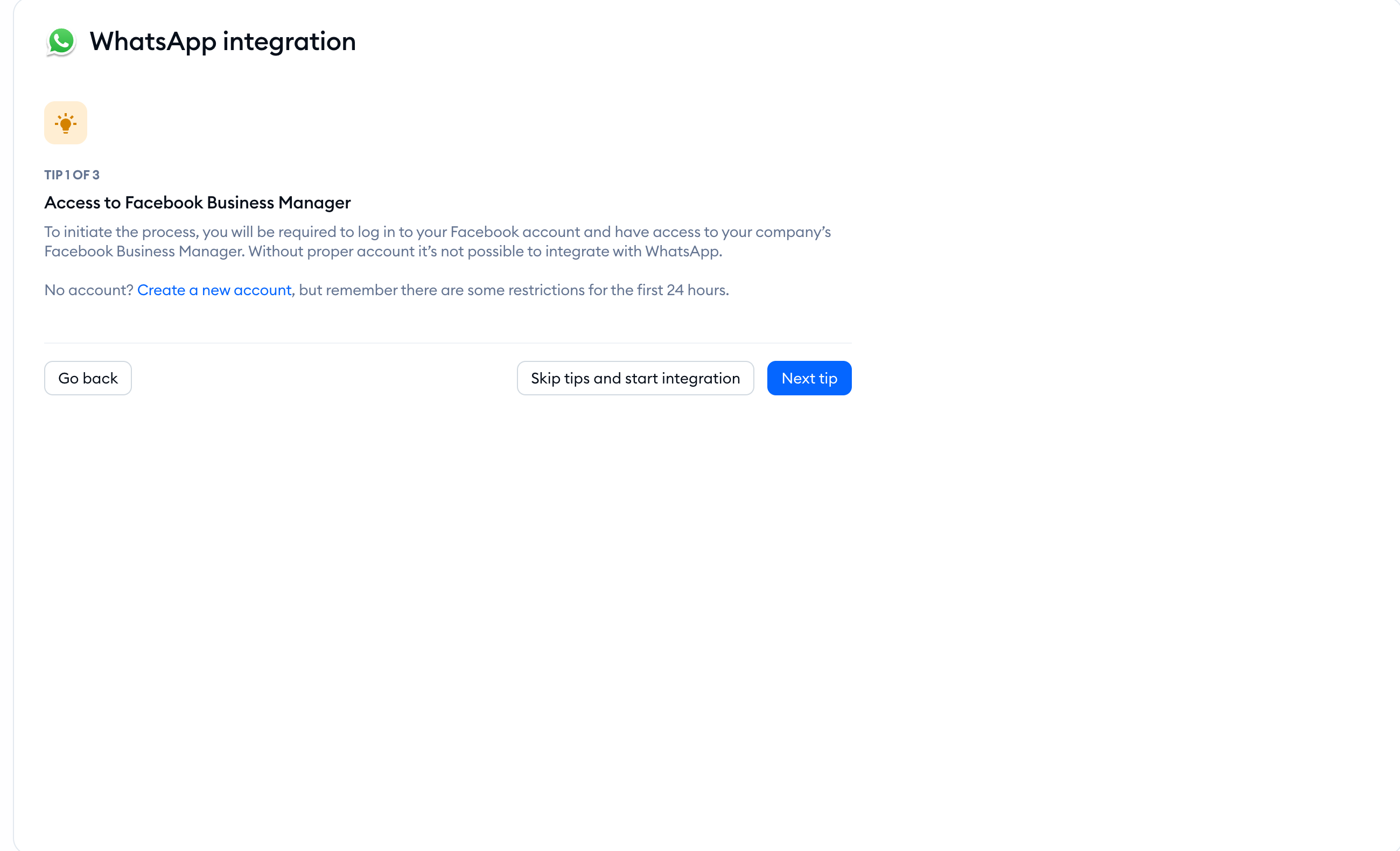
Access to Facebook Business Manager
To be able to integrate with WhatsApp, each business needs to have access to Facebook Business Manager. Without access to it, you will not be able to integrate with WhatsApp.
If you don't have the Facebook Business Manager, you can create a new account. However, keep in mind that there may be certain restrictions on use in the first 24 hours.
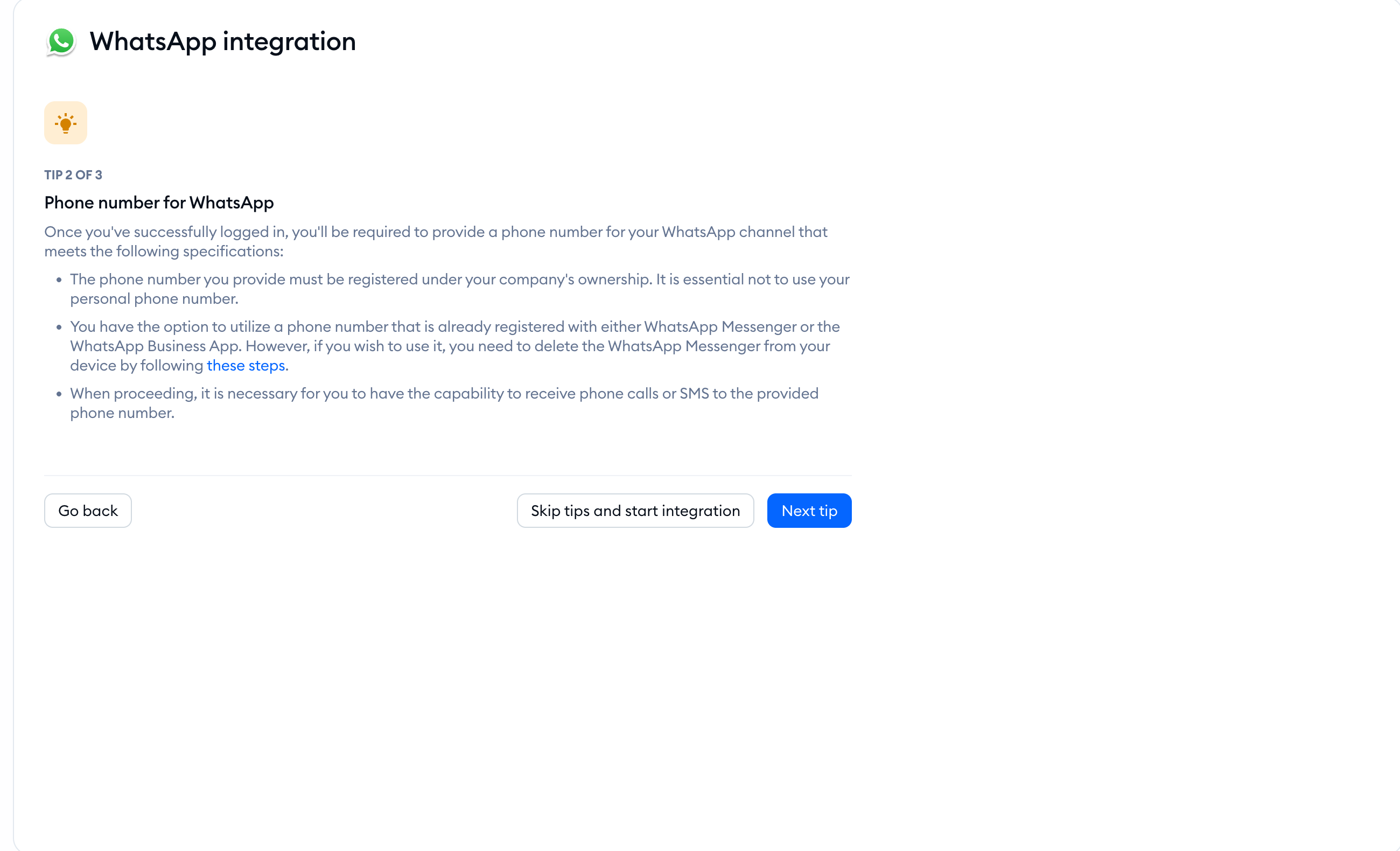
Phone number for WhatsApp
The phone number must be a valid phone number that meets the following criteria:
- the phone number is owned by you and registered under your company's ownership. You should not use your personal phone number.
- you are able to receive phone calls or SMS to the provided number.
- If your number is already registered in the WhatsApp Messenger or WhatsApp Business app, delete that WhatsApp account before using the number with this integration. Uninstalling the app does not release the number.
Business details and legal address
While integrating Tidio with WhatsApp, you will need the following information:
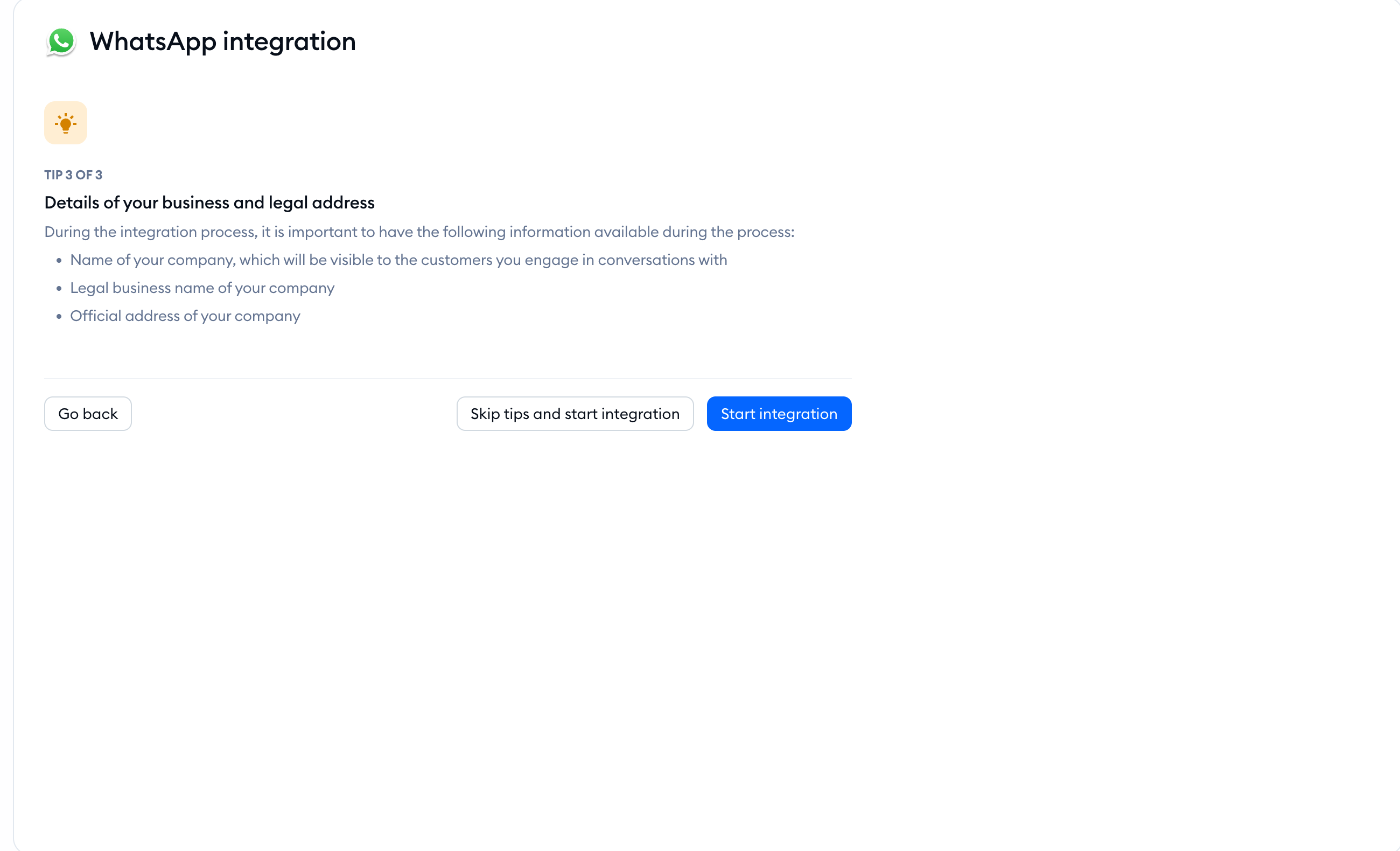
- name of your company that will be visible to all visitors you engage with
- legal business name
- the official address of your company
How to integrate
To begin the integration with WhatsApp, head to Settings > Channels > WhatsApp section in your Tidio panel. Then, click on the Integrate WhatsApp button to start the integration.
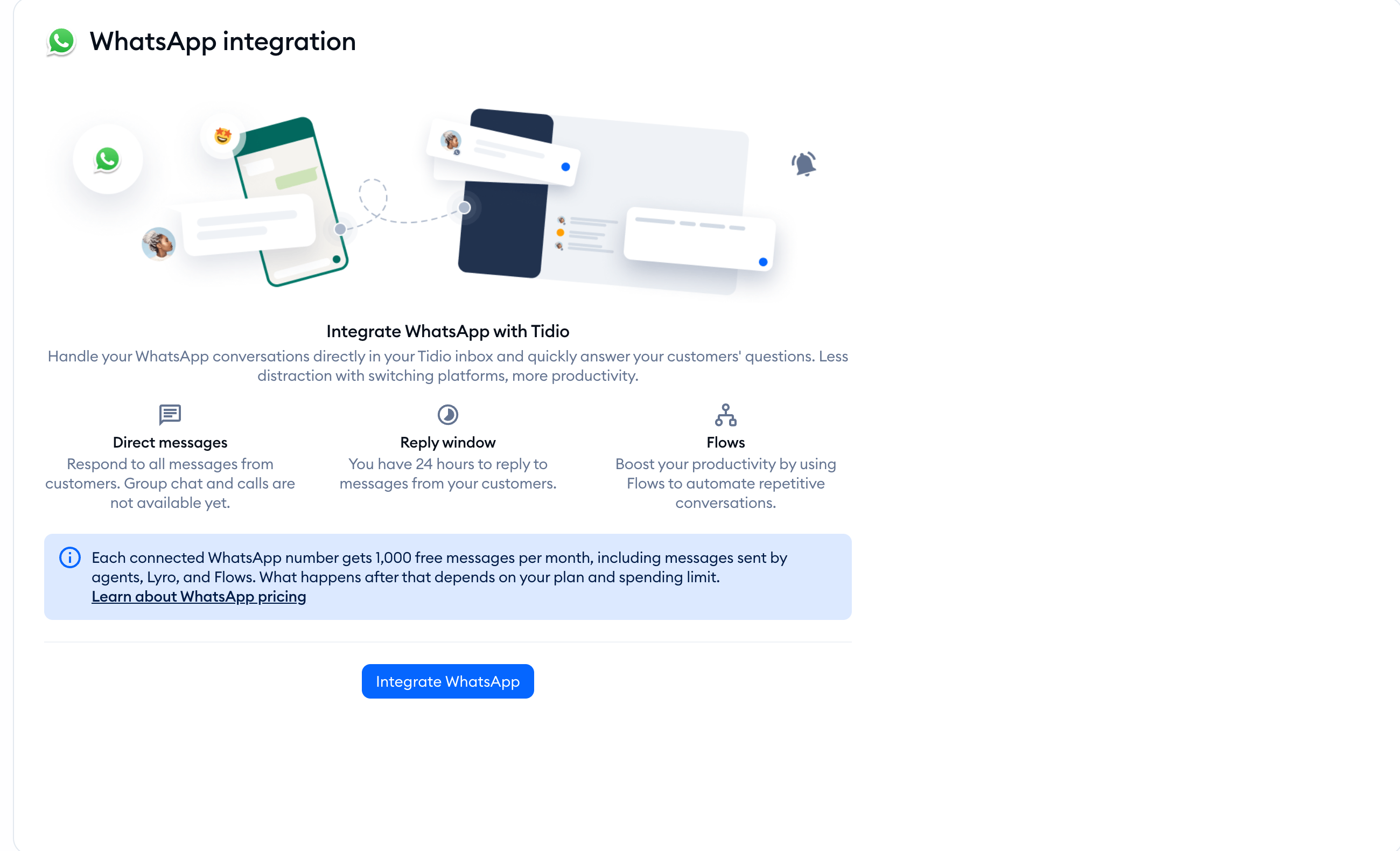
You'll see a summary of the requirements. Click Continue to read the tips.
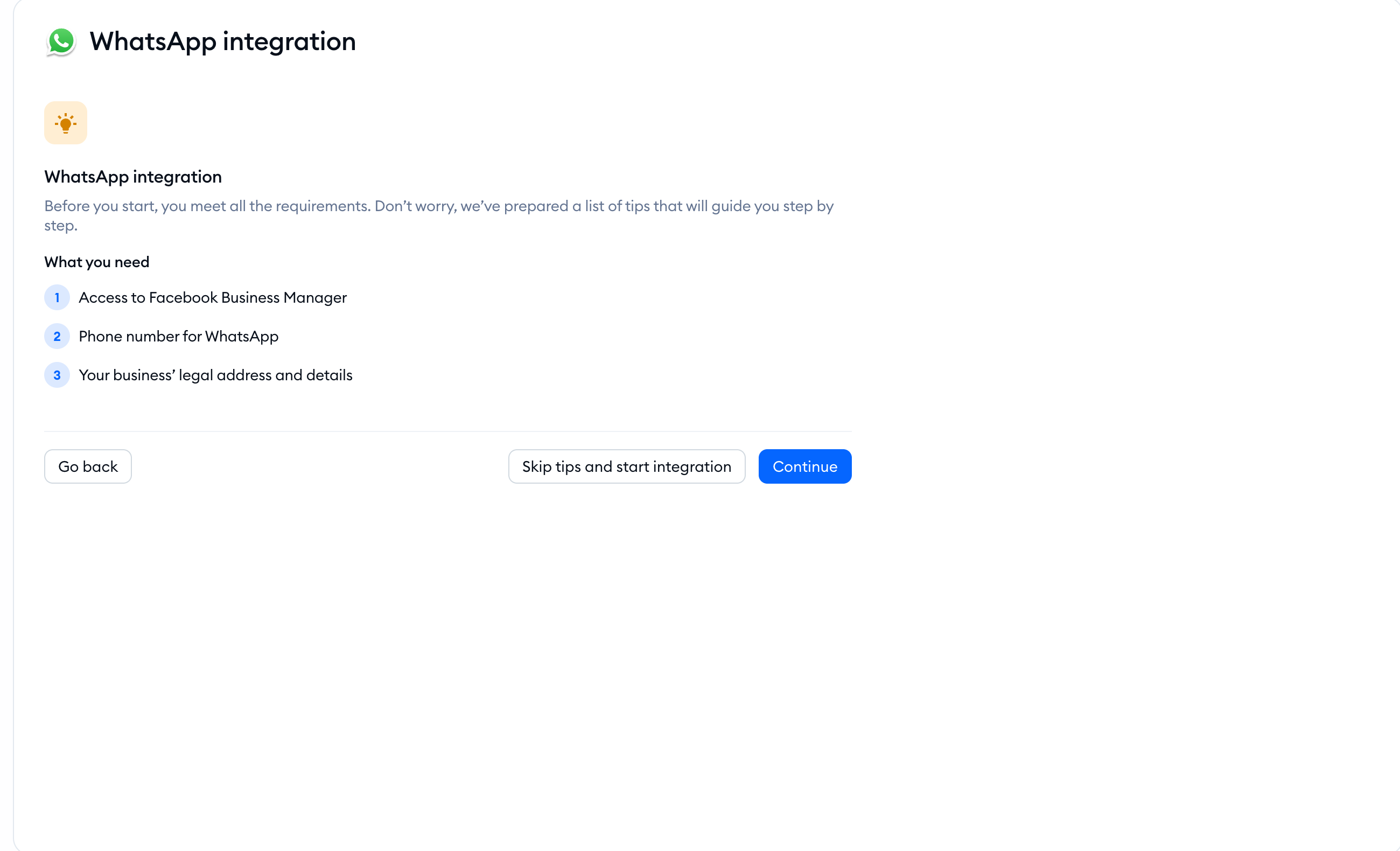
Each requirement is explained in detail. Click Next tip to move forward, then Start integration on the final tip. You can also choose Skip tips and start integration:
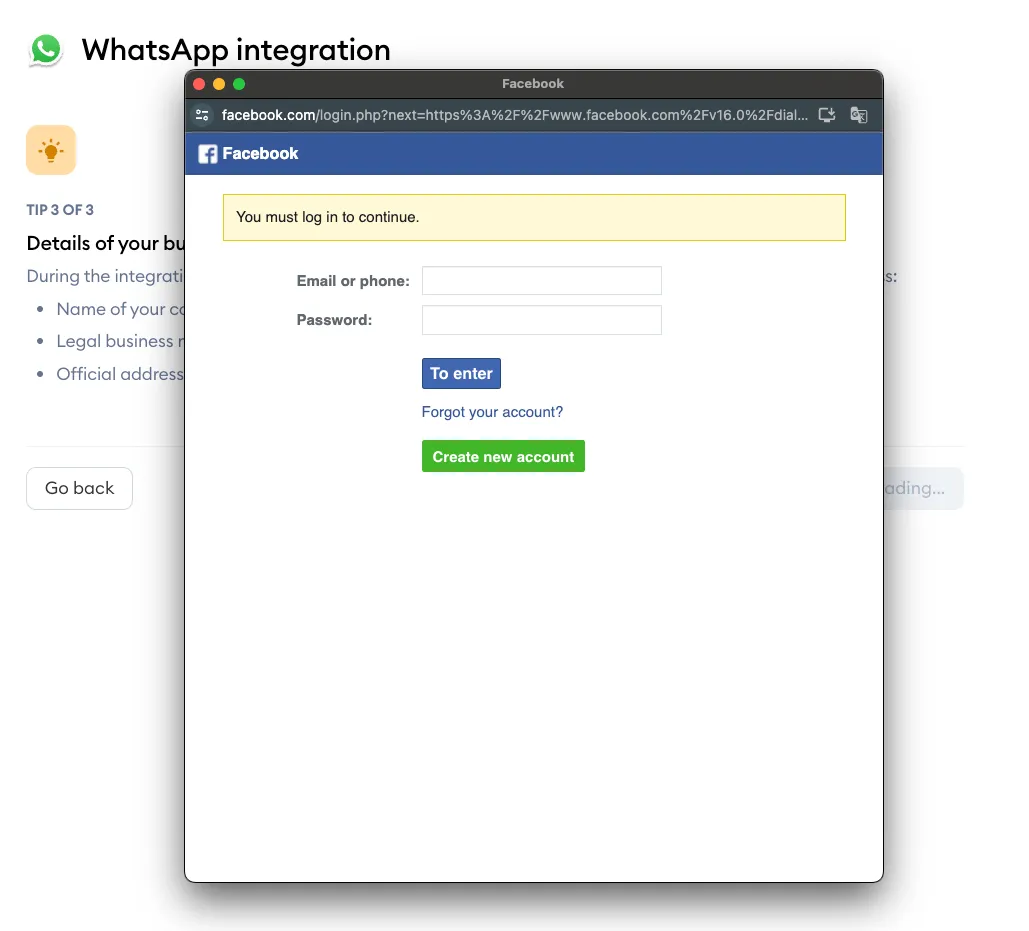
In the next stage, you'll see a Facebook login modal. Please log in to your Facebook account associated with your Meta Business Account.
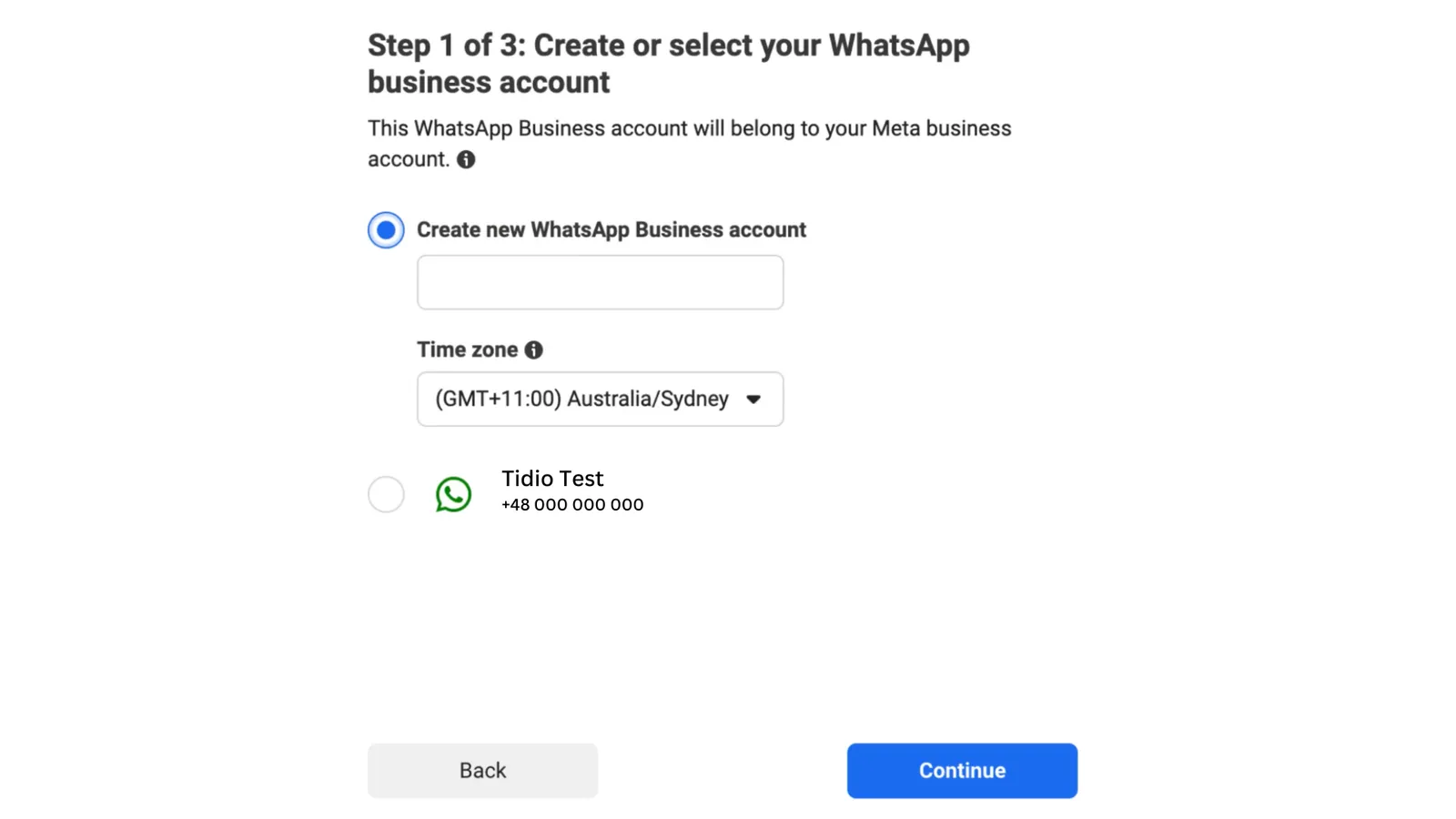
Select the Meta Business Account you want your integration associated with (or create one if you don't have one).
Next, create your WhatsApp Business Account (or select an existing one).
Then - submit the phone number that you plan to use as your WhatsApp Phone Number for verification. Please ensure that the phone number meets all the requirements. Receive your verification code and submit it in the Facebook integration window.
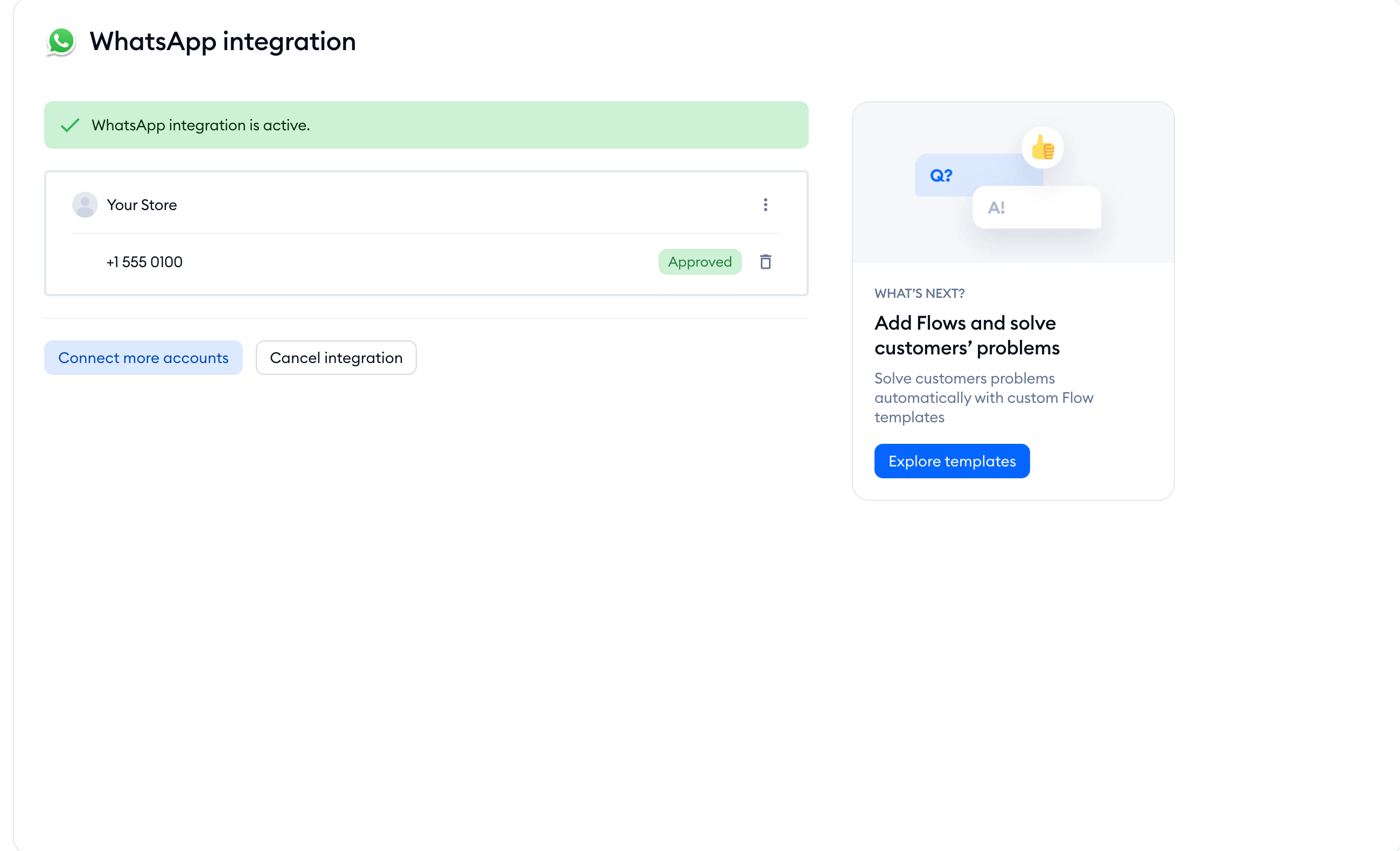
After the integration is completed, you'll come back to your Tidio panel where you will be able to see all the data about your integration:
How to remove the WhatsApp integration
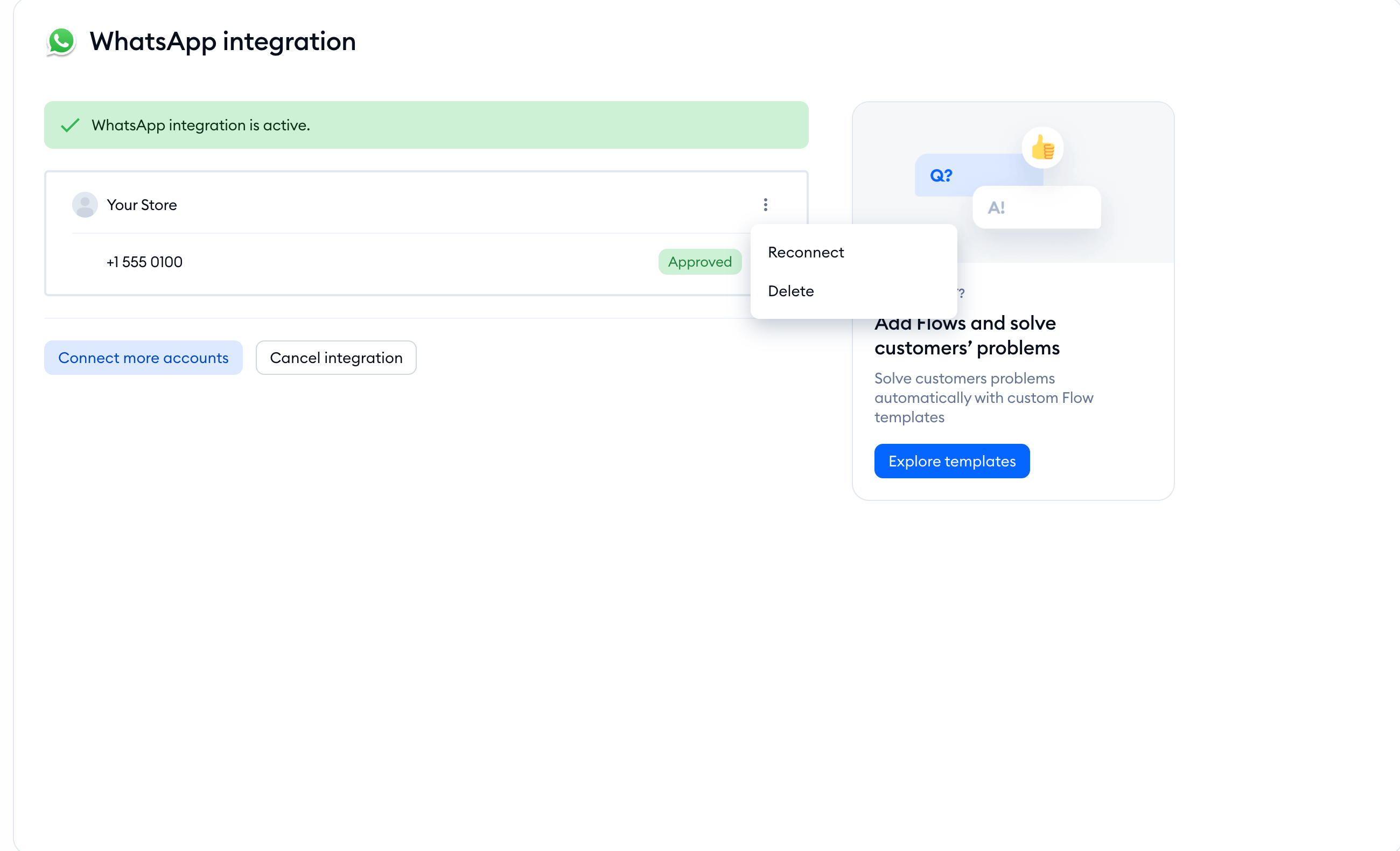
To disconnect an account in Tidio, open Settings > Channels > WhatsApp. Open the account's three-dots menu, choose Delete, and read the confirmation before continuing. To remove just one connected number, use its Delete icon instead.
Removing a phone number in Meta is a separate task. To do that, follow the steps below.
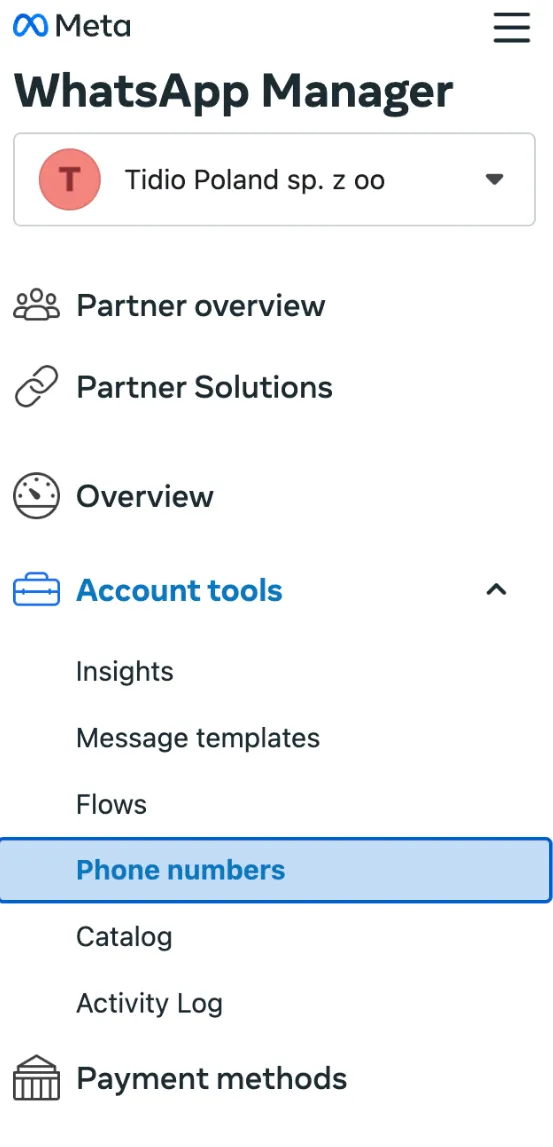
To begin, access the WhatsApp Manager. Once on the platform, navigate to the Phone numbers section, which can be found in the left-hand menu.
Within this section, locate the phone number you wish to remove. Next, click on the Delete icon associated with that number.
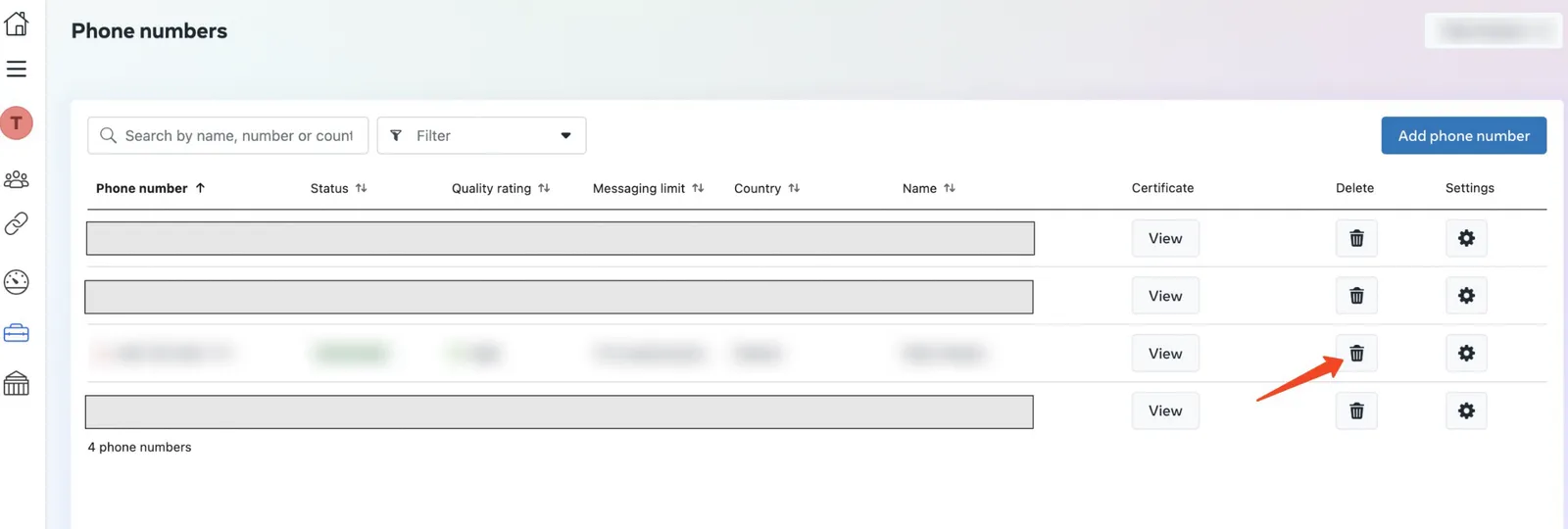
Once you click on the Delete icon, it'll kickstart the deletion process. You'll likely need to confirm this by entering your password to make sure it's really you. Just follow the prompts that pop up to finish the deletion smoothly.
The monthly limit and pricing
WhatsApp usage above your free monthly allowance is billed based on usage.
This is a structural change coming from Meta directly, and affects all messaging platforms and providers - including Tidio. The billing applies to WhatsApp responses sent inside the 24-hour customer service window.
1,000 free messages monthly
You get a monthly limit of 1,000 free WhatsApp messages per phone number. This allowance covers delivered service messages, including replies sent by human agents, Lyro AI, and Flows. Template messages have separate category-based charges.
After the limit is reached
Additional messages (above the free 1,000/month limit) are charged based on usage. Rates depend on the customer's country; the exact pricing is available through official Meta and WhatsApp documentation.
How billing works in Tidio
If you are subscribed to any paid package in Tidio, we will bill you at the end of the month for any WhatsApp usage above the free limit. You are charged by Tidio, not by WhatsApp or Meta directly. We add no markup, however - these fees cover WhatsApp (Meta) costs only.
If you are using Tidio for free (or are on the initial free trial), you can only send up to 1,000 WhatsApp messages per month; there is no billing possible above that, so sending more messages becomes disabled. To send more message, you will need to purchase any paid package in Tidio.
Tracking and controlling usage
You'll be able to track your WhatsApp usage and set a custom spending limit directly in your Tidio dashboard. Click on the Usage and plan button in the top-right, and you'll see details on your WhatsApp usage there:
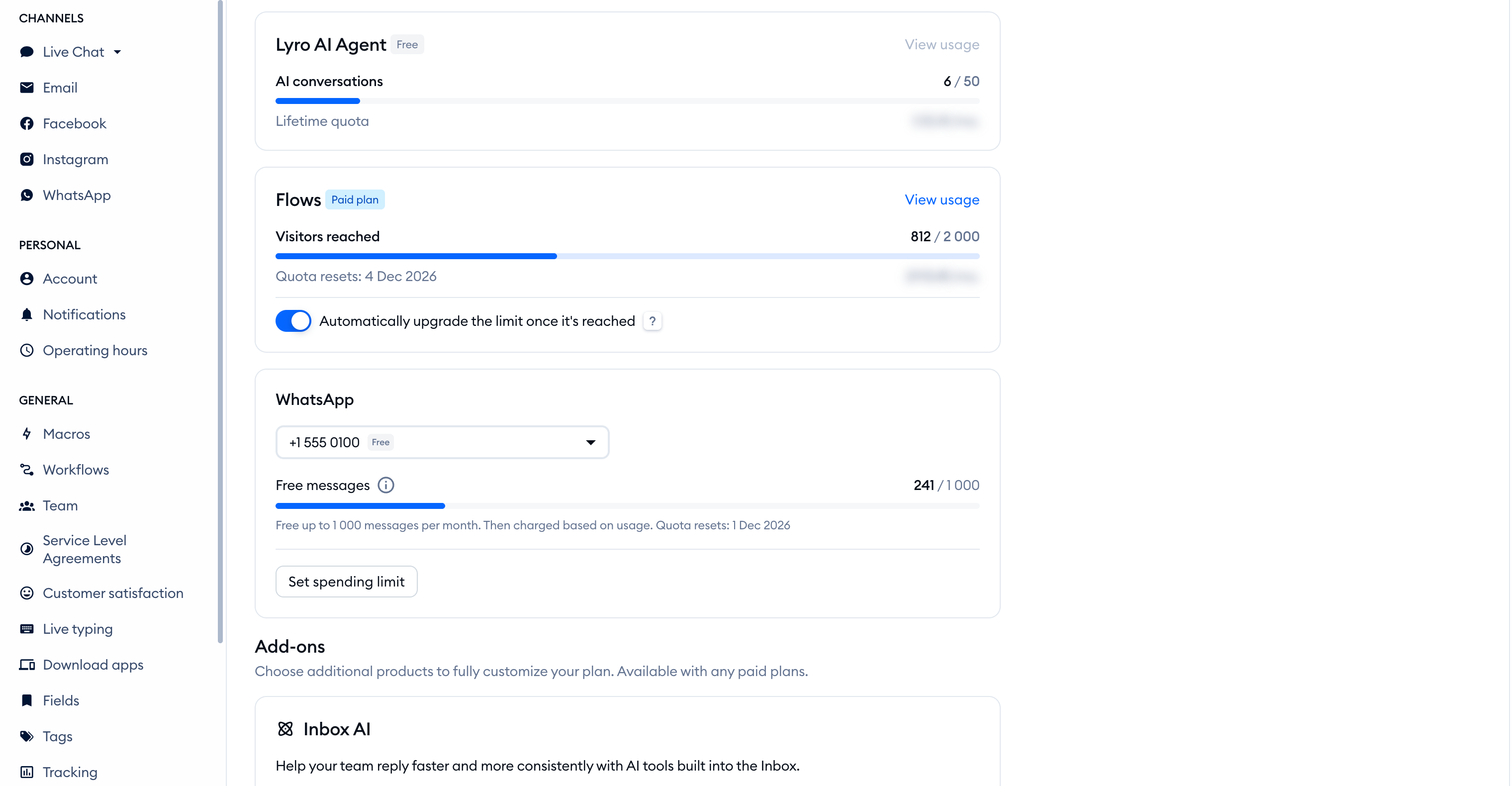
Inside the Project > Billing section, you can also set your spending limit. You can decide not to set any limit at all, or set a specific monthly spending limit (in the currency that applies to you). It's also possible to block paid usage completely, which limits your usage to the free amount only.
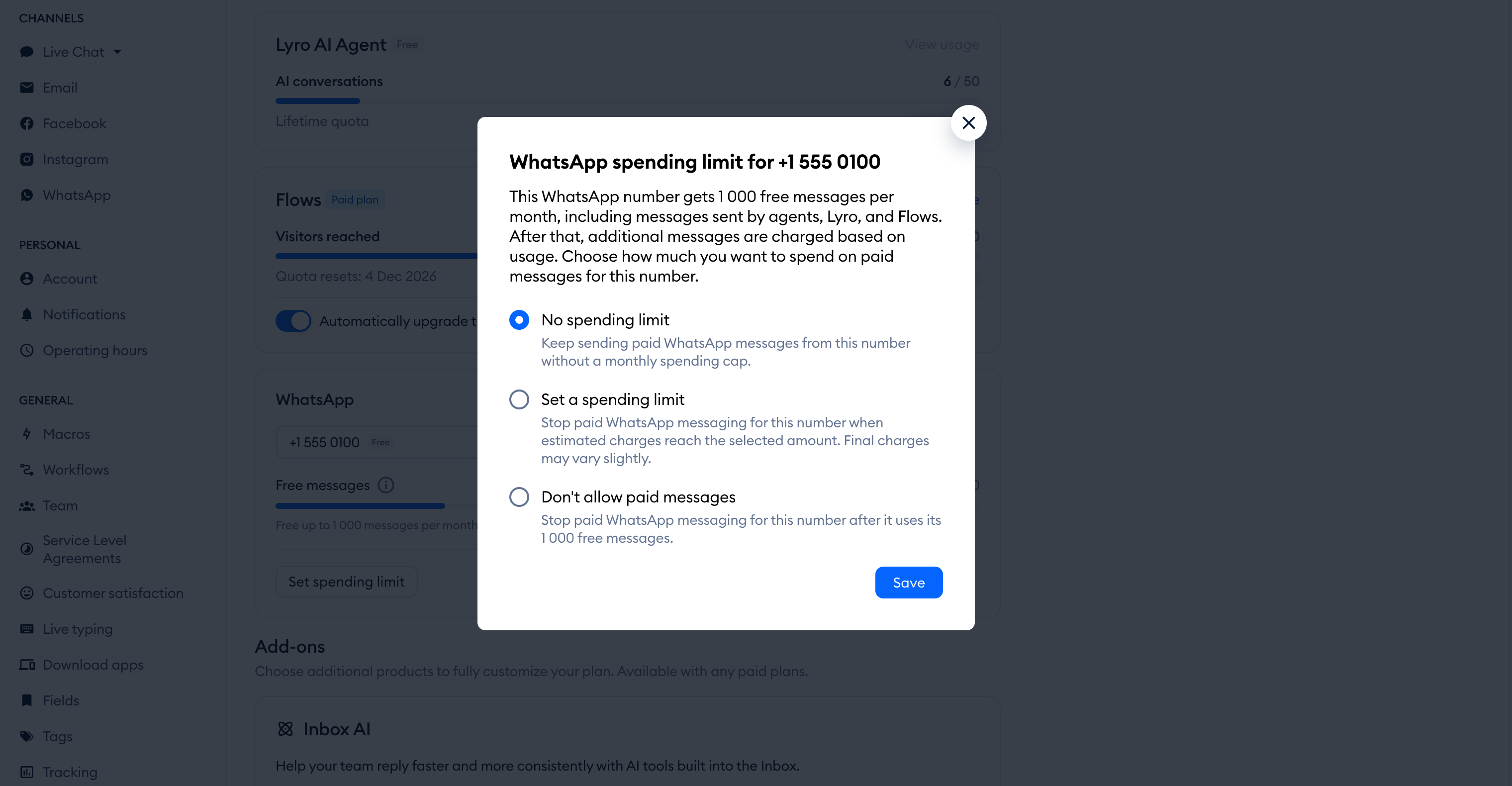
A tip to lower usage: combine your thoughts into a single response instead of sending several short messages. Also make sure to review your Flows for multiple messages that can be merged together.
Meta also offers a free entry point window for eligible Click-to-WhatsApp ads. If you respond within 24 hours, the free window starts with your response and can remain open for up to 7 days. See Meta's current pricing rules for eligibility and exceptions.
Creating and using message templates
WhatsApp only allow you reply freely to a customer within 24 hours of their last message. Once that window closes, the only way to reach the customer again is with a message template: a message pre-approved by Meta. With WhatsApp templates in Tidio, you can pick up a conversation that went quiet, send an order update, or remind a customer about an appointment - all from the Tidio panel.
Please see this dedicated guide on WhatsApp message templates.
Flows for WhatsApp
You can take advantage of WhatsApp integration to provide a more efficient customer service experience. This integration supports flows, an additional layer of automation to your communication, allowing you to utilize some of the triggers for a streamlined customer service experience.
To learn more about flows in general, please see this section of our Help Center.
There are some limitations for flows due to how WhatsApp works; for example, only three triggers are able to function in WhatsApp:
- Visitor says
- Agent doesn't take the conversation
- Agent starts the flow
In addition to the above, the action Decision (Quick Replies) is slightly limited as well. Technically, the action allows you to create up to 11 different buttons to select from; WhatsApp users will only be able to view the first 3 buttons, however.
FAQ
Is the integration with WhatsApp free?
Yes, the integration itself is completely free and available on each plan. Please note that usage above a specific monthly limit is not free, however, and Meta pricing applies. Please see this section of the article.
Can I integrate a phone number that I've used for a different WhatsApp or WhatsApp Business account?
Yes. However, you must delete the number from the current account in order to reuse it for the new integration.
How to delete the account:
- Open the WhatsApp App/WhatsApp Business App
- Navigate to Settings → Account
- Select Delete My Account
- Follow the steps described to delete the WhatsApp account. Please note it may take up to 3 minutes for the disconnected number to become available.
- Once the number has become available, you can undergo new WhatsApp onboarding.
Can I integrate multiple phone numbers?
Yes! New Meta business portfolios initially allow two registered business phone numbers. Meta increases this cap to 20 after business verification or when the portfolio reaches a messaging limit of 2,000. This is a portfolio-level limit, not a separate allowance for each WhatsApp Business Account.
Users can individually manage each phone number and WhatsApp Business Account connected with Tidio. Adding a new WhatsApp Business Account or phone number does not affect the functionality of existing ones.
Can I pick up calls from WhatsApp?
Tidio does not support WhatsApp audio or video calls, statuses, reactions, or group messages. This is a limitation of the Tidio integration, not a claim that the WhatsApp API lacks all of these features.
Can I add a contact and create a new conversation?
Unfortunately, it is not possible to initiate WhatsApp conversations from Tidio's end; it's only possible to reply to incoming messages.
Handling PIN mismatch errors
The PIN Mismatch error occurs primarily when a phone number that was previously registered (e.g., via a Tidio integration) is being re-registered. In older integrations, the PIN assigned to the phone number was not stored in the Tidio database; as a result, when you try to reconnect, the system encounters an active 2-step verification (2FA) lock with an unknown PIN, ending up in an error.
This issue is limited to legacy records. For all new integrations and numbers that have been successfully re-registered, this problem will no longer occur. Current system updates ensure that both the phone number and its assigned PIN are securely stored in our database, preventing future mismatches.
Since the 2FA settings are managed within the user's infrastructure, you need to following the steps below in order to solve the issue.
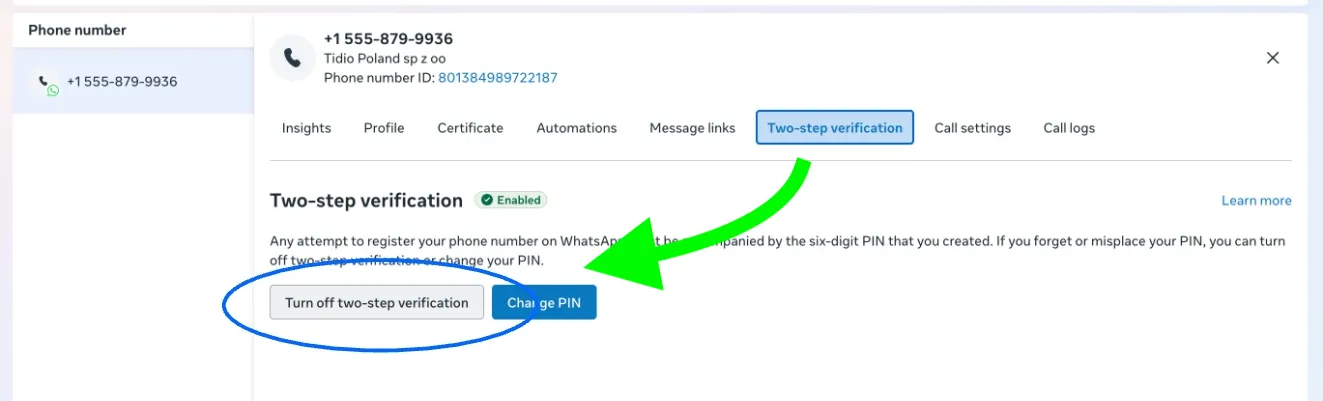
Step 1: Disabling 2FA in your WhatsApp Manager
Log into your WhatsApp Manager dashboard and open the relevant WhatsApp account:
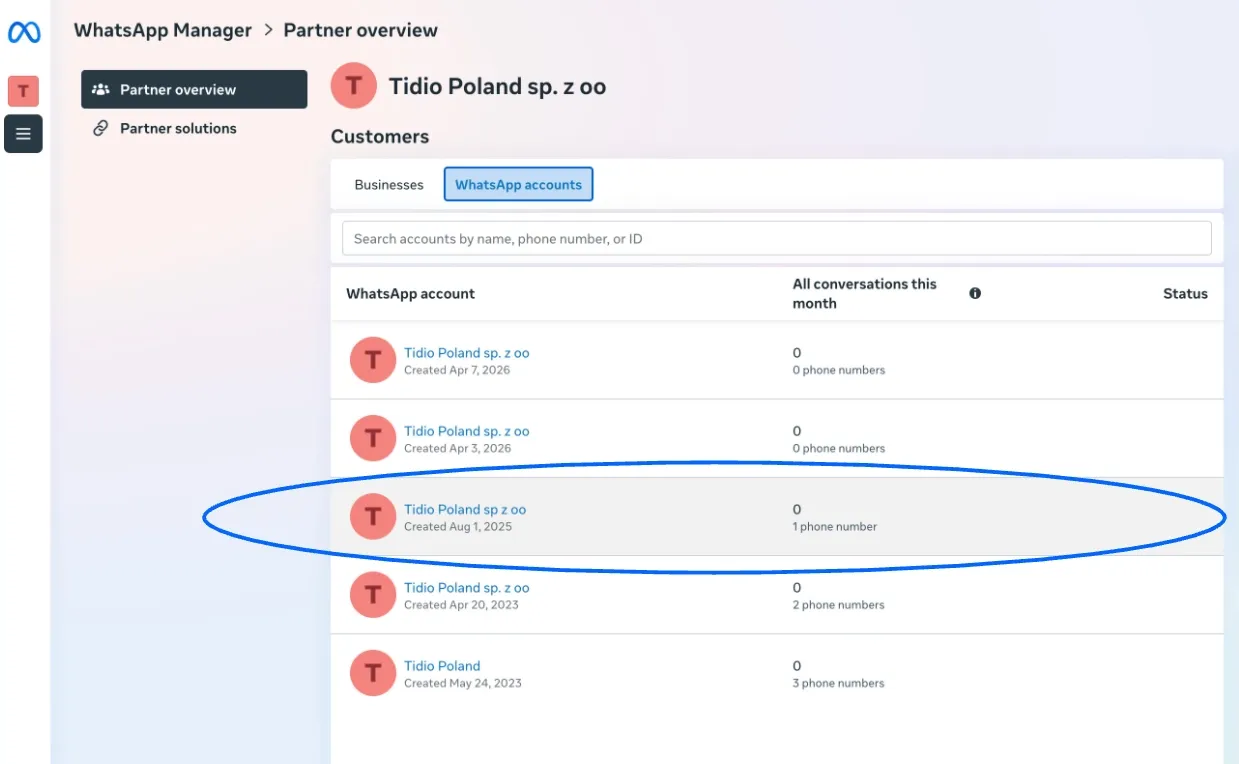
Inside, locate the specific phone number experiencing the error. Open its settings:
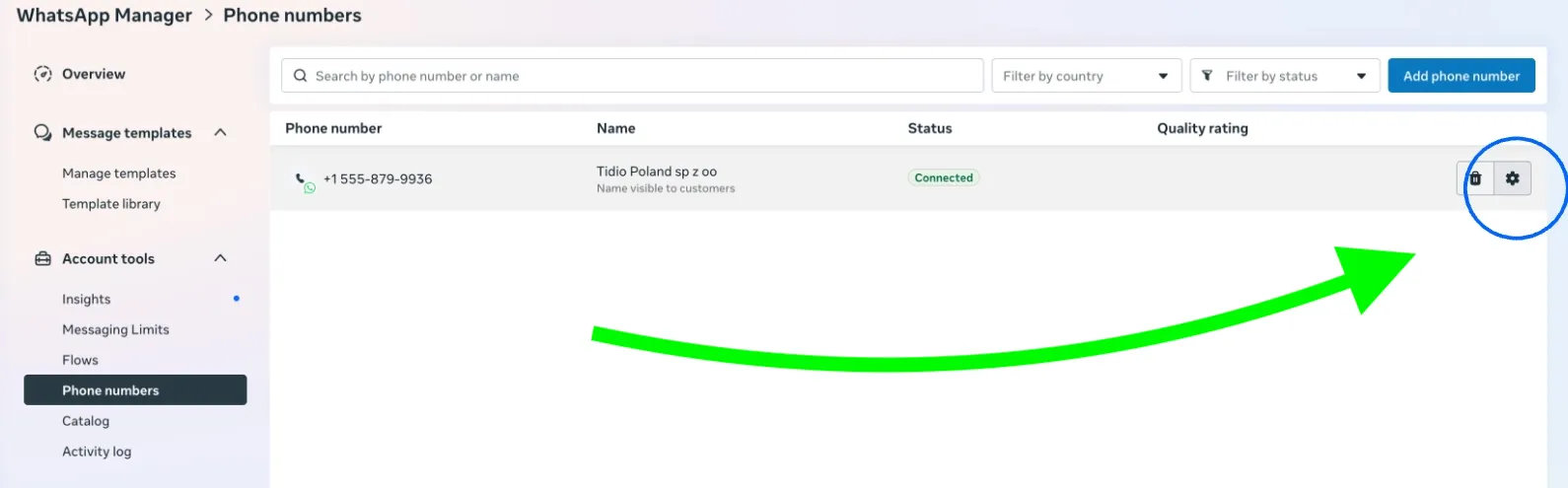
In the Two-step verification tab, select the option to Turn off two-step verification:
Step 2: Email confirmation
Just disabling 2FA in the WhatsApp Manager panel is not enough; Meta requires a manual confirmation to prevent unauthorized changes.
- An automated email from WhatsApp/Meta will be sent to the address associated with your WhatsApp Business account.
- You must open the link in that email and click Confirm.
- Note: If you fail to confirm via email, the PIN lock remains active, and the integration will continue to result in an error.
Step 3: Re-initiating the Integration
Once the 2FA has been disabled and confirmed:
- You should return to your Tidio project and start the WhatsApp integration process from scratch.
- The system will now be able to register the number and automatically assign/store a new PIN, ensuring a stable connection moving forward.
