In Tidio, you can integrate with your Facebook Pages and Instagram profiles, and see any comments that users leave under your posts. These comments will become available in your Tidio inbox as incoming tickets, allowing you to respond to them through Tidio as well.
In this article, you'll learn:
- How to see Instagram and Facebook comments in Tidio
- How to respond to Instagram comments
- How to respond to Facebook comments
- How to hide unwanted comments
- How to create custom views for comments only
- How to check comment-related analytics
Enabling and browsing your Instagram and Facebook comments
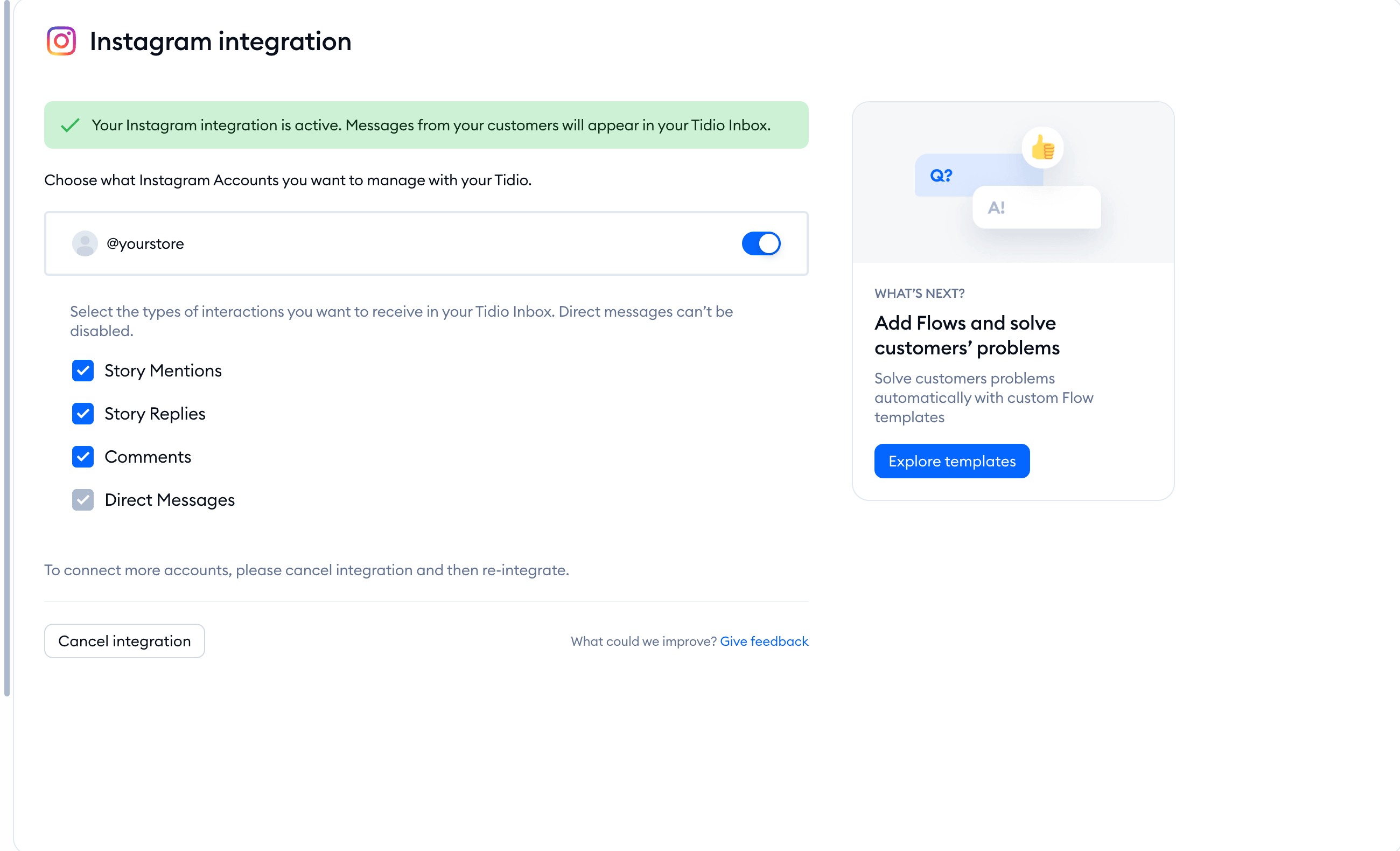
Once you integrate your Facebook Page(s) or Instagram profile(s), you will start seeing the comments in your Unassigned tickets folder. This feature is enabled by default, but you can disable it in Settings > Channels > Facebook (or Settings > Channels > Instagram).
If Comments is unavailable because permissions are missing, grant the requested Meta permissions before trying to enable it.
See the Comments option available underneath the particular page/profile:
If you'd like to learn more about integrating Facebook Pages with your Tidio project, see this guide.
If you're interested in integrating Instagram, see this guide.
Responding to Instagram comments
After your Instagram integration is complete, any new comment you get will generate a ticket in your Tidio project.
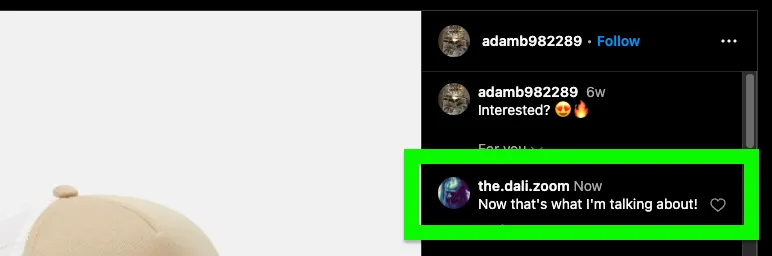
You'll be able to see that ticket (along with the user's Instagram handle and the Instagram profile it was posted on) in the Unassigned folder of your tickets inbox:
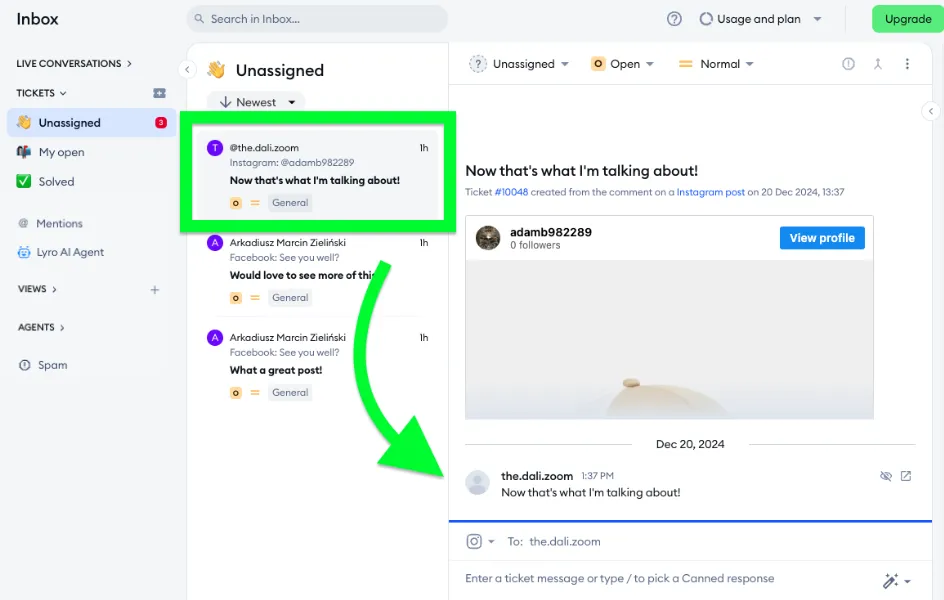
Each top-level comment creates one ticket in Tidio. The content of the ticket will also include a preview of your Instagram post and a direct link to it.
You can respond to the comment as you would to any other Tidio ticket; type in your response at the bottom of the ticket, and submit it (you can also assign the ticket to other agents or change its status, etc.). All responses to that comment will be added to the same ticket.
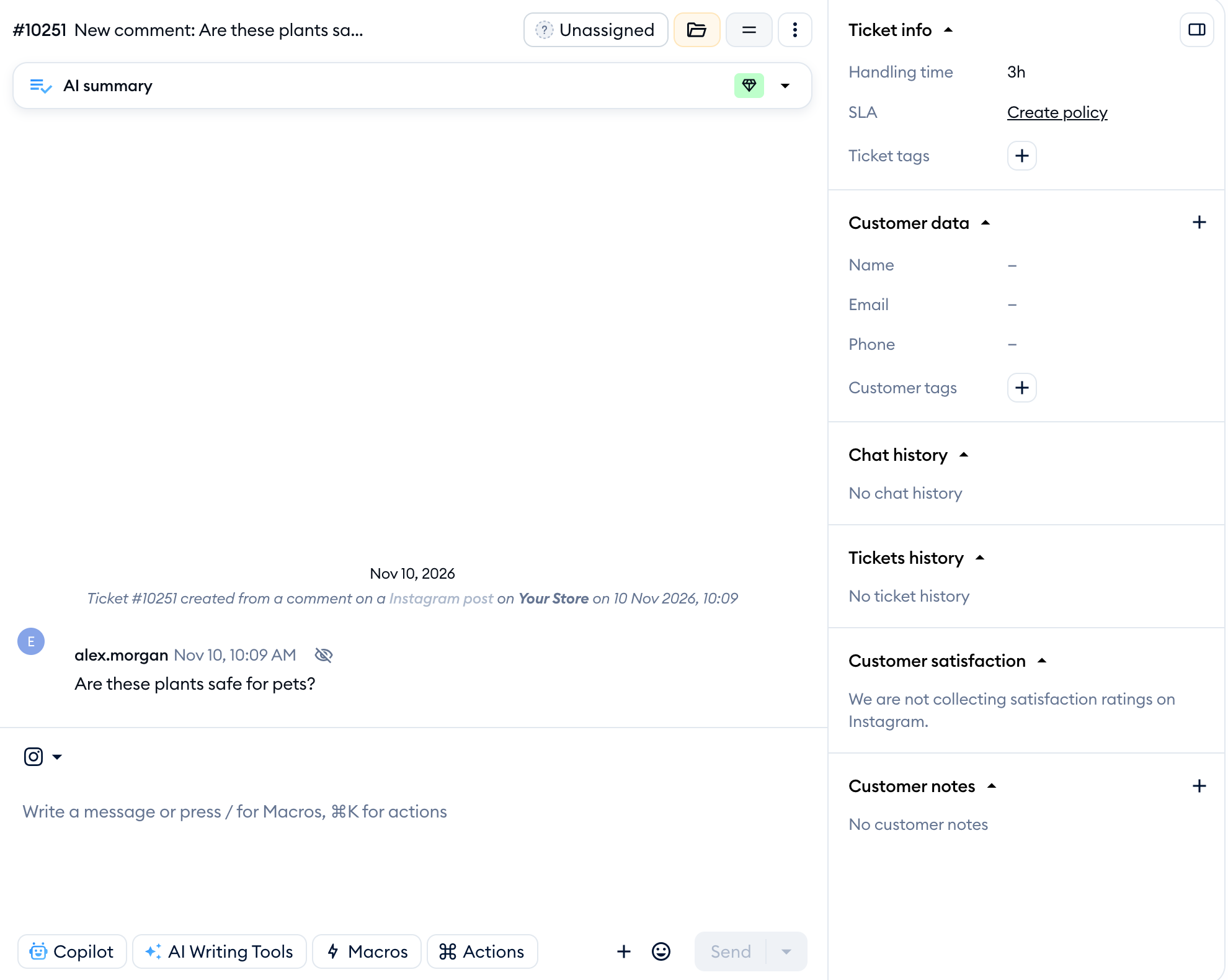
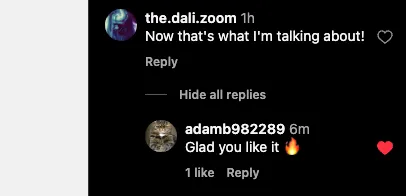
In the ticket, note that next to each comment or reply you can use the Go to comment link as well. Of course, all your replies will be published under the Instagram post:
Responding to Facebook comments
Responding to your Facebook comments is very similar to responding to Instagram comments, with one important difference: on Facebook, comment replies can have multiple nesting levels (while Instagram only allows for one).
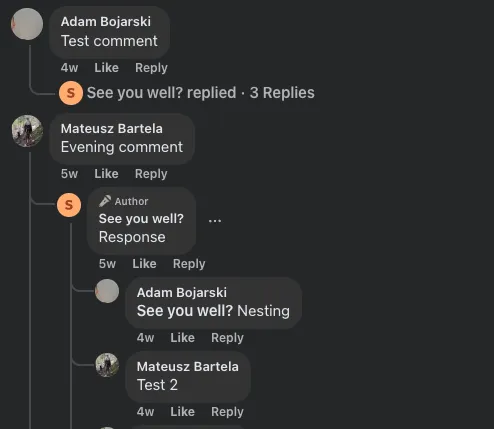
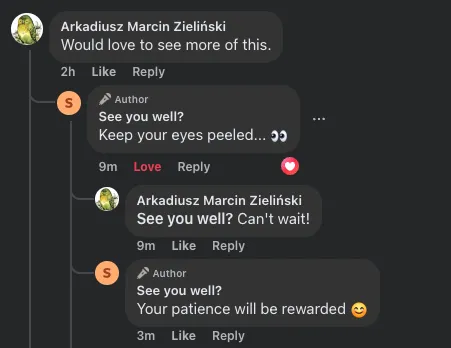
That means a top-level Facebook comment can have a reply; then that reply can have its own reply; and that 2nd-level reply can have another reply, etc... You're able to view this "reply tree" of comments and responses under the Facebook post directly, but Tidio needs its own way to handle this complexity inside ticket threads.
Once you integrate with a Facebook Page, any new comments will start appearing in your Tidio panel as tickets.
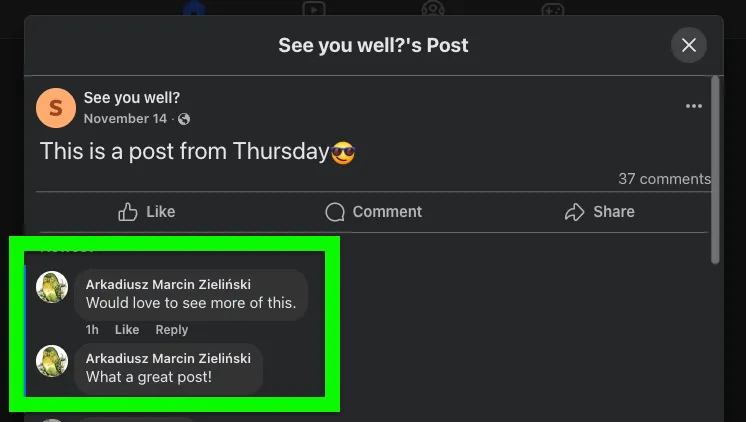
As with Instagram comments, any top-level Facebook comment will generate one new ticket in Tidio; you will find it in the Unassigned folder of your tickets inbox:
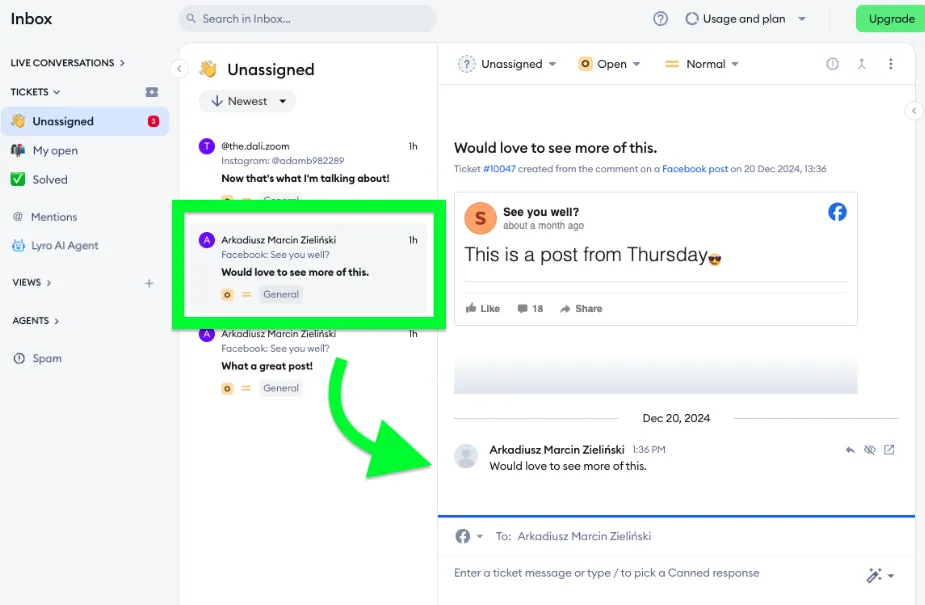
From there, you can respond to the comment, and your reply will become visible under the Facebook post, naturally.
If the top-level comment receives multiple levels of its own replies, Tidio allows you to address them accurately - just hit the Reply button next to the comment you wish to respond to:
That way, you will be able to respond to specific comments/replies under the Facebook post. To avoid confusion inside your ticket, you always see the comment you're responding to indicated at the top of your input field:
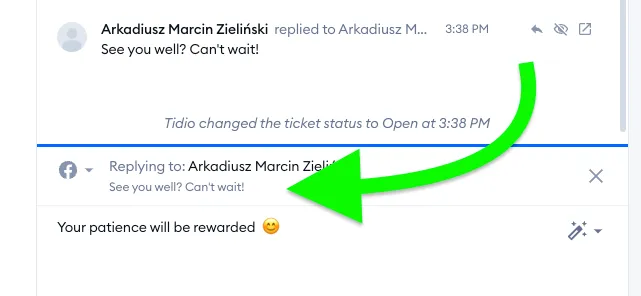
By default, your response input field addresses the top-level comment - so make sure you use the Reply button if you want to respond to a specific lower-level reply!
Hiding unwanted comments
On occasion, you may want to hide certain comments - e.g. if they're inappropriate or irrelevant. This can be done through Facebook or Instagram directly, of course, but Tidio also offers its own comment-hiding method.
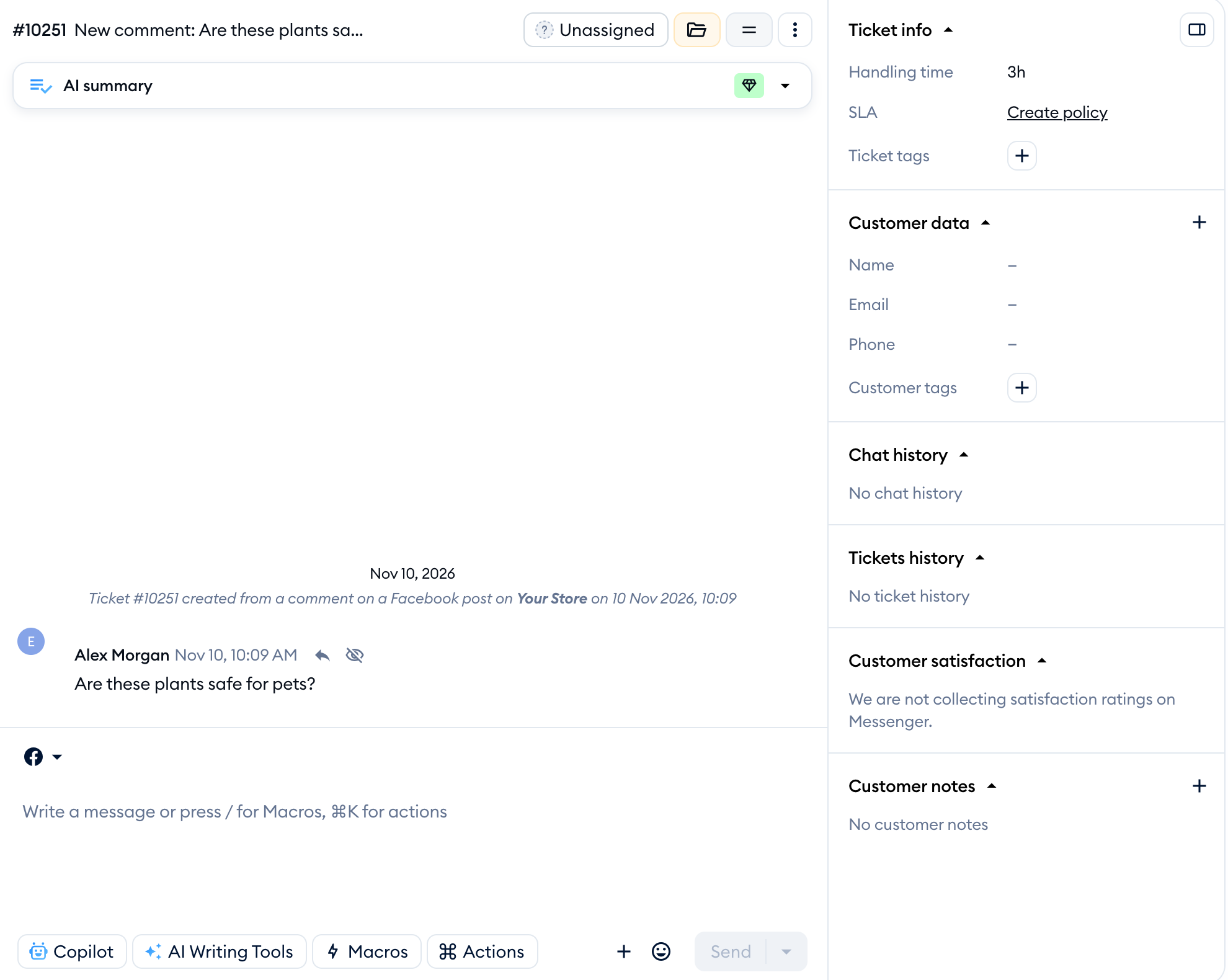
Inside each comment-related ticket in Tidio, you can see the Hide comment button; it's available for every reply that isn't your own:
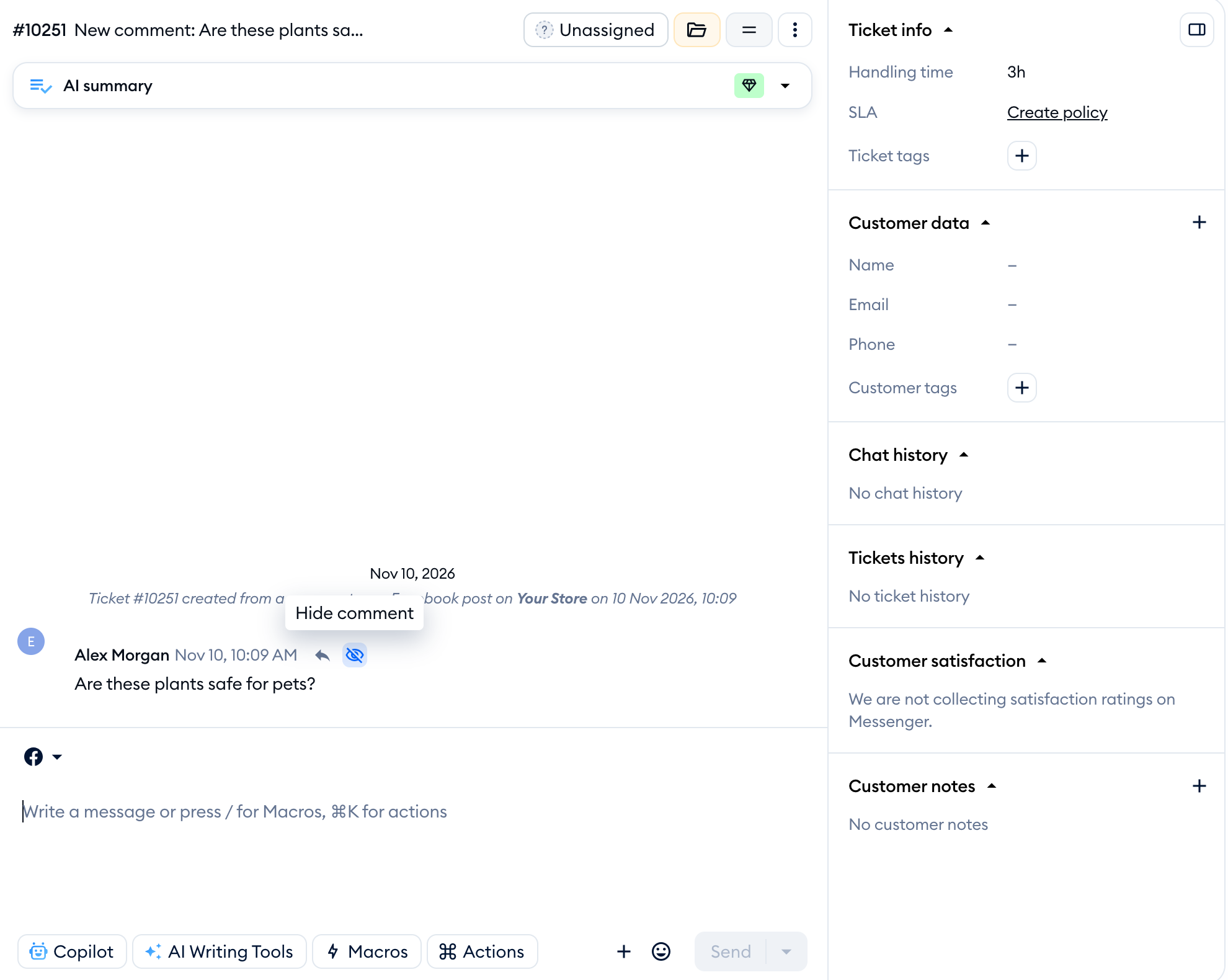
Hiding a comment changes its visibility on Facebook or Instagram, but does not delete it. You can still see the hidden comment in Tidio. Visibility to other people depends on the platform; do not use hiding as a way to remove sensitive information permanently.
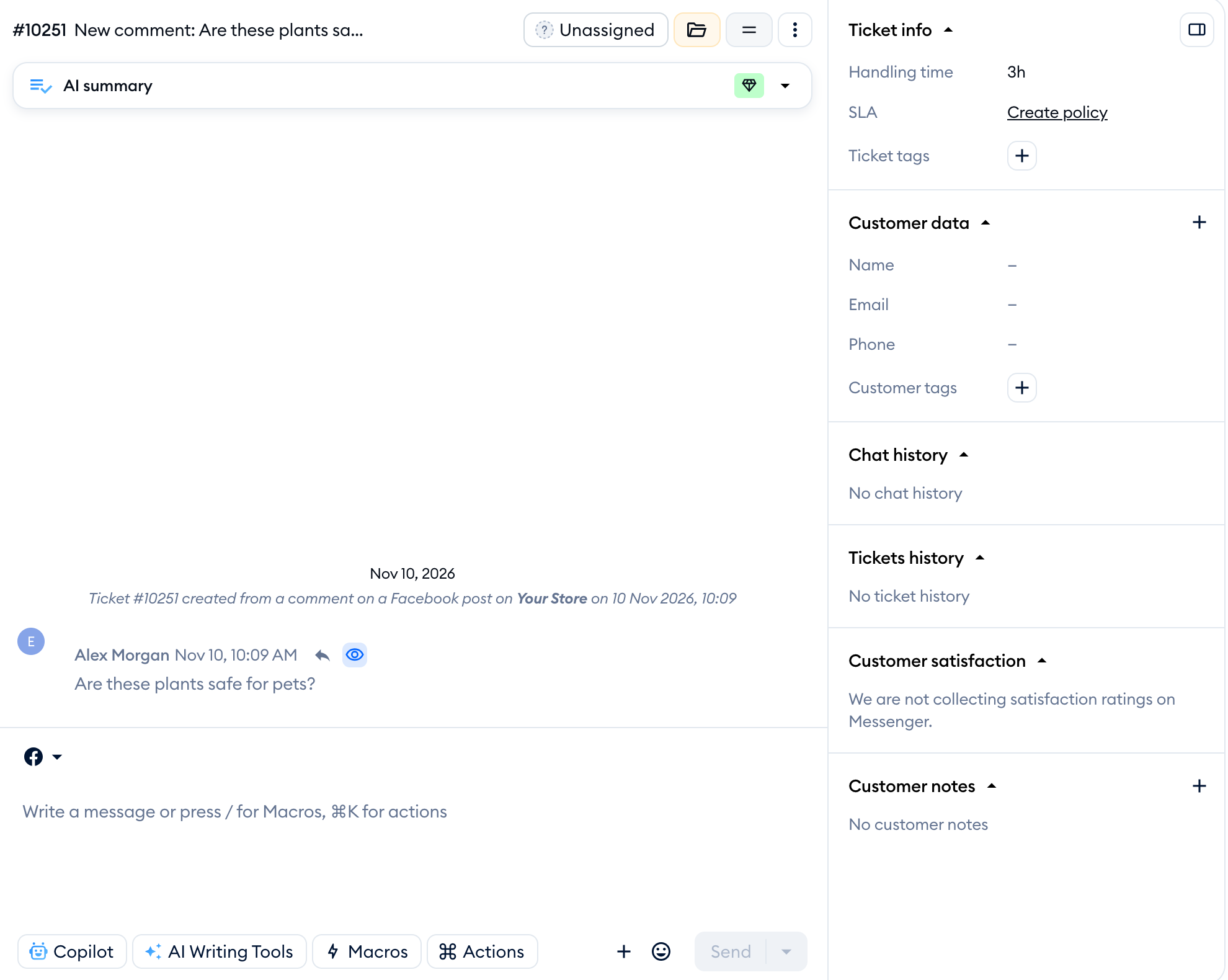
To indicate that the comment has been hidden, the content inside your ticket will be grayed out, and you will also see the button saying Show comment instead of Hide comment:
Creating custom views for comments only
Since Facebook and Instagram comments appear in your Tidio project as tickets, you can create custom ticket views for easier browsing and a more efficient workflow. Views are basically folders in your Tidio inbox, and they only show the tickets (or live conversations) that satisfy the conditions you configure. You create a set of conditions manually for each view, by adding various filters.
To learn more about custom ticket views in general, head over to this article. Below we will only cover custom views that let you find your comments faster.
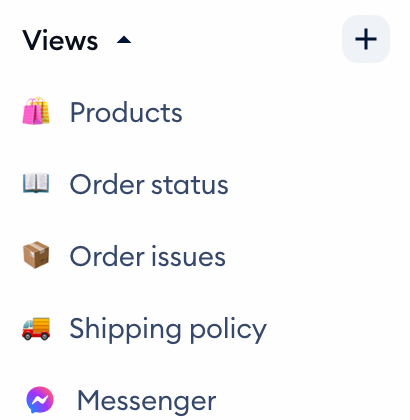
To create your custom view, click on the Create view button in your Inbox section; it's located under the Tickets inbox, right next to the Views list:
In the new window that pops up, set a name for your new view, then make sure you select Tickets as the source, and decide about the view's visibility. Next, configure your first condition: set the first filter to be Ticket source is, and in the last drop-down menu make sure you select either Created from Facebook comment or Created from Instagram comment:
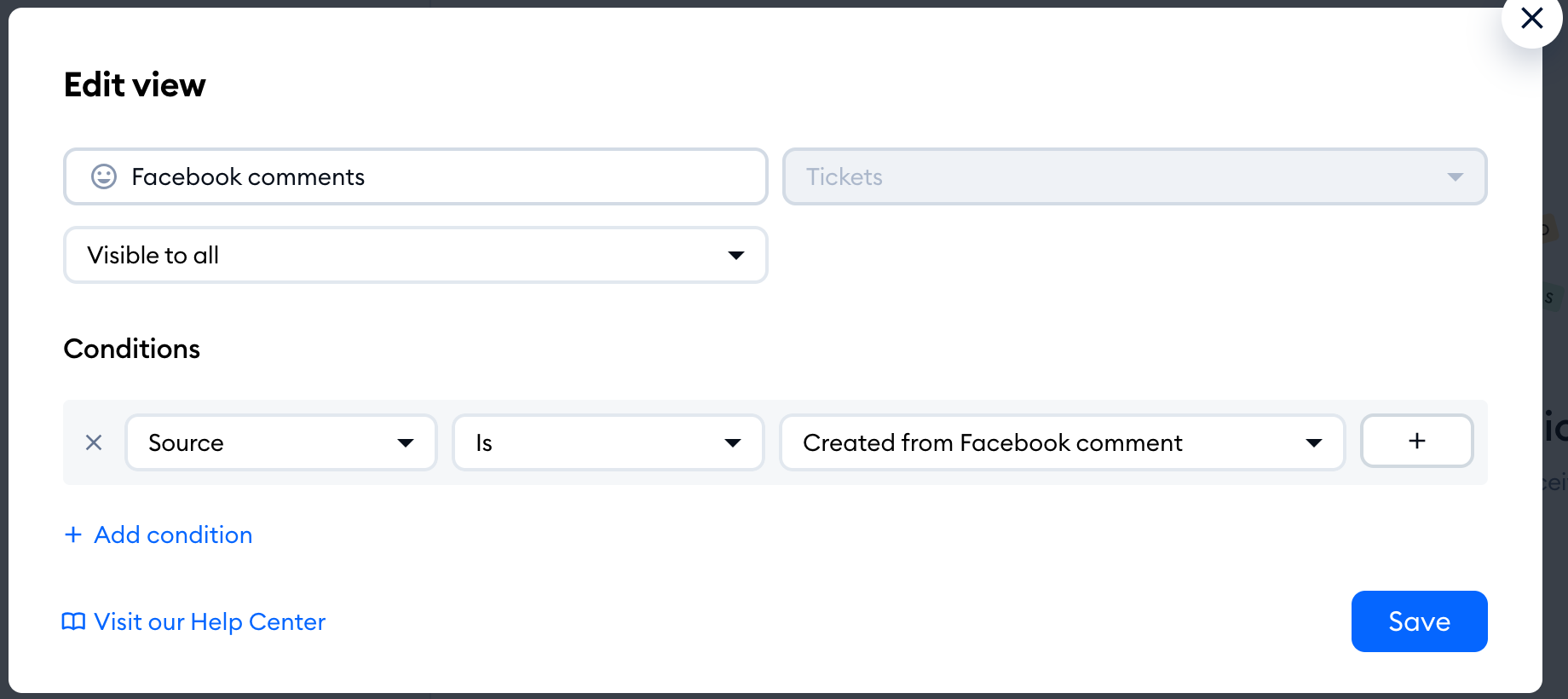
Naturally, you can add more filters to your condition, but this is the most basic version that will allow you to quickly find your Facebook and/or Instagram comments.
After hitting the Create button, your new view will become operational - you will start seeing the comments inside their own dedicated folders, inside the Views list:
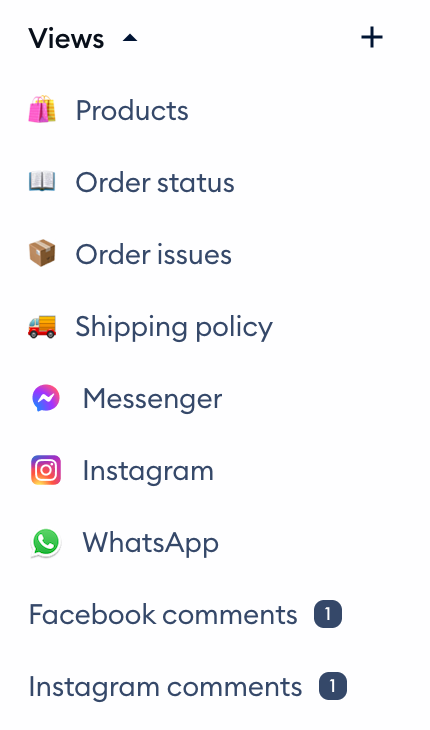
Keep in mind that you can browse tickets in folders such as Unassigned, My open, or Solved. Your custom views are just categories that let you filter tickets for easier visibility.
Checking your comment-related analytics
If you have access to the Analytics in your Tidio project (that's only available on the Growth package and higher), you can check statistics related to your comments.
This data is part of your general ticket analytics, so it can be found in the Analytics > Human support > Tickets section. Once inside, open the channels drop-down menu, and select the channel(s) you'd like to check out:
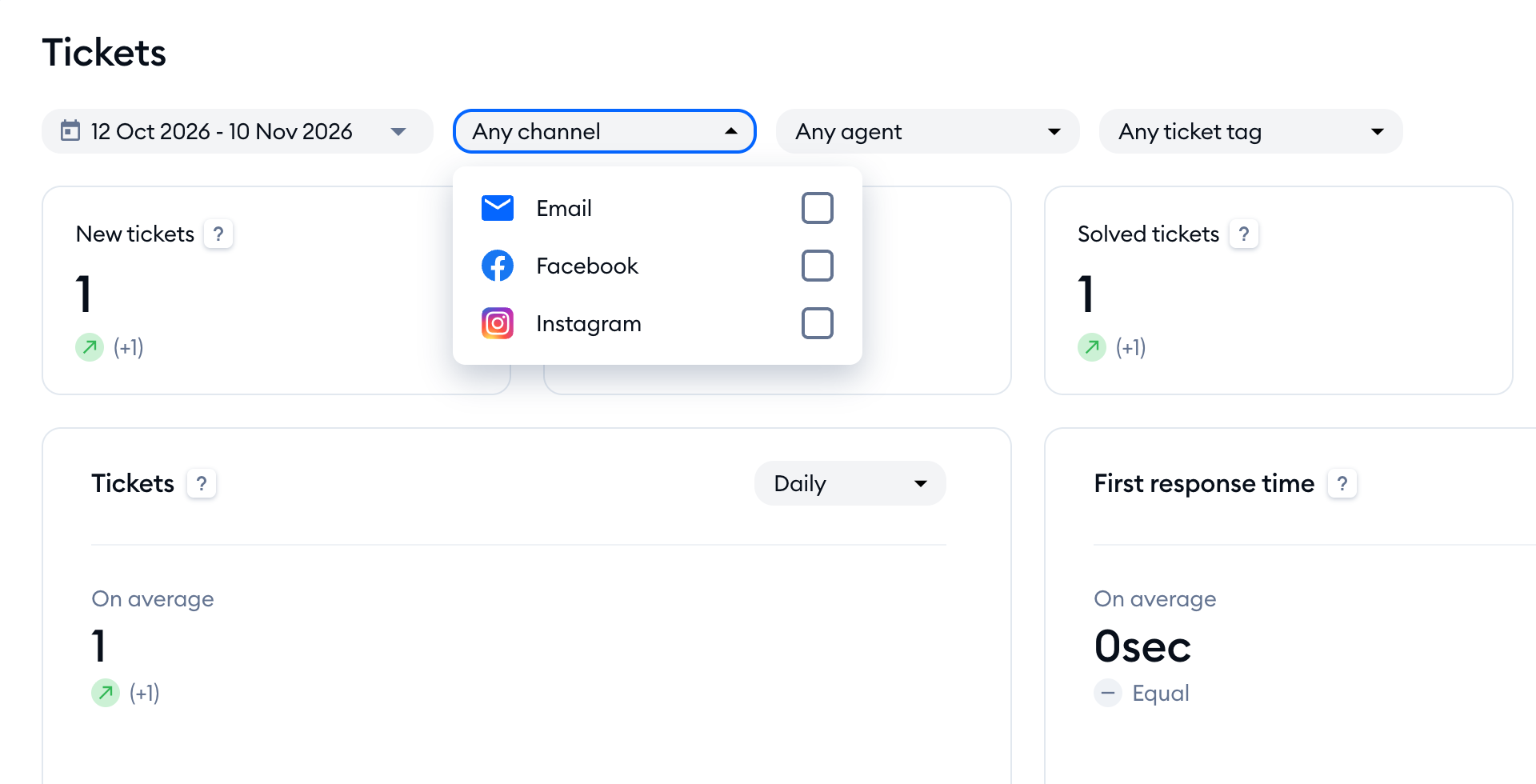
You can select either email, Facebook, Instagram, or any combination of the three. This will allow you to see any relevant analytics that are available, like the number of comments that your team has replied to or your average first response time.
To learn more about the Analytics section in general, head over to this article.
