Visitors don't always wait for an answer. Someone asks about shipping, closes the tab, and your reply ends up waiting in a chat widget they may never open again. With Visitor notifications, Tidio carries the conversation over to email: your replies to a visitor who has left go straight to their inbox, and Tidio emails them any messages they didn't get to read.
You don't need to create a ticket or switch tools - you reply in the same live conversation, and the reply box tells you that your message will be sent by email.
In this article, you'll learn:
- How Visitor notifications work
- How to turn on Visitor notifications
- How to reply by email to a visitor who left
- How to choose the sender address
- What happens when your reply can't be sent by email
How Visitor notifications work
With Visitor notifications turned on, Tidio uses email to reach website visitors who have left:
- Your replies - when you reply to a visitor who is no longer on your website, your message is sent to their email address. They'll also see it in the chat widget when they come back.
- Unread messages - if a visitor leaves before reading your messages, Tidio emails them the unread messages together with the chat transcript. You'll see An email with unread messages has been sent to the visitor in the conversation. For more, please see Chat transcripts.
Both need the visitor's email address. The easiest way to get it is to ask for it before the chat starts, with the pre-chat survey or a flow - see Start collecting leads.
Please note: this works in live chat conversations from your website. Messenger, Instagram and WhatsApp conversations are always answered in their own channel, and emails from your customers come in as tickets - see Email (Ticketing).
Turning on Visitor notifications
Head over to Settings > Project > Preferences, and scroll down to the Visitor notifications section. It says Automatically notify visitors about unread chat messages via email. Simply turn on the Enable: switch:
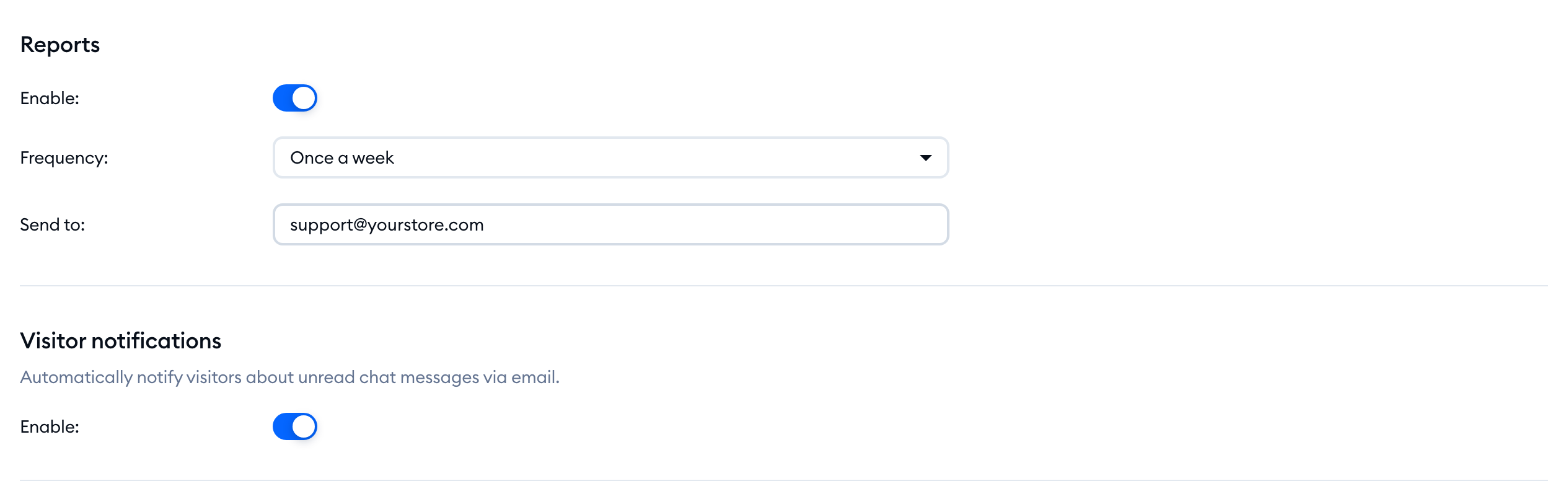
There's no save button - the change is saved as soon as you flip the switch. It applies to the whole project, so every agent's replies to visitors who left will go out by email.
Changed your mind? Turn the switch off, and your replies will wait for visitors in the chat widget until they come back to your website.
Replying by email to a visitor who left
When a visitor leaves your website, you'll notice a red dot in the corner of their avatar in the Inbox:
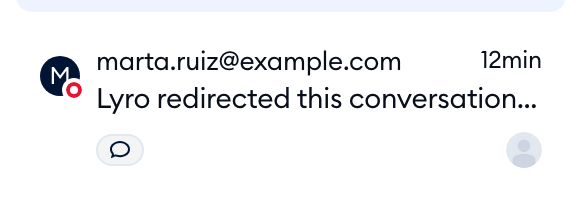
Open the conversation and click into the reply box. Next to Live chat, you'll see the tag Visitor is offline. Your reply will be sent via email. Hover over the question-mark icon in the tag to see The visitor will also see this message in the chat widget when they return to your website.
Below the tag, you'll find two fields:
- To: - the visitor's email address. It comes from the visitor's details and can't be changed here.
- From: - the address your email is sent from (more on this below).
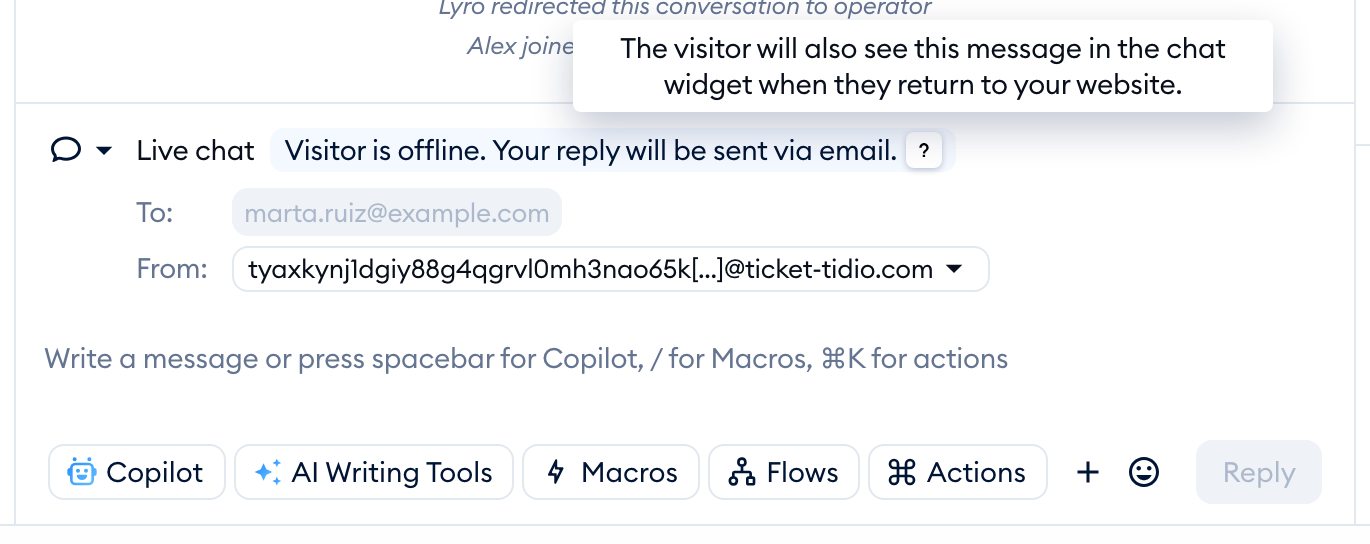
Now type your reply and send it as usual. That's it! Your visitor gets your message by email, and it stays in the conversation for your team to see.
Internal notes are never emailed: when you switch the reply box to Internal note, the tag and the email fields disappear, and your note stays inside Tidio.
Choosing the sender address
Click on the From: drop-down to pick the address your reply is sent from. You'll see your verified sender addresses and your project's Tidio address. The address you pick is saved for this conversation:
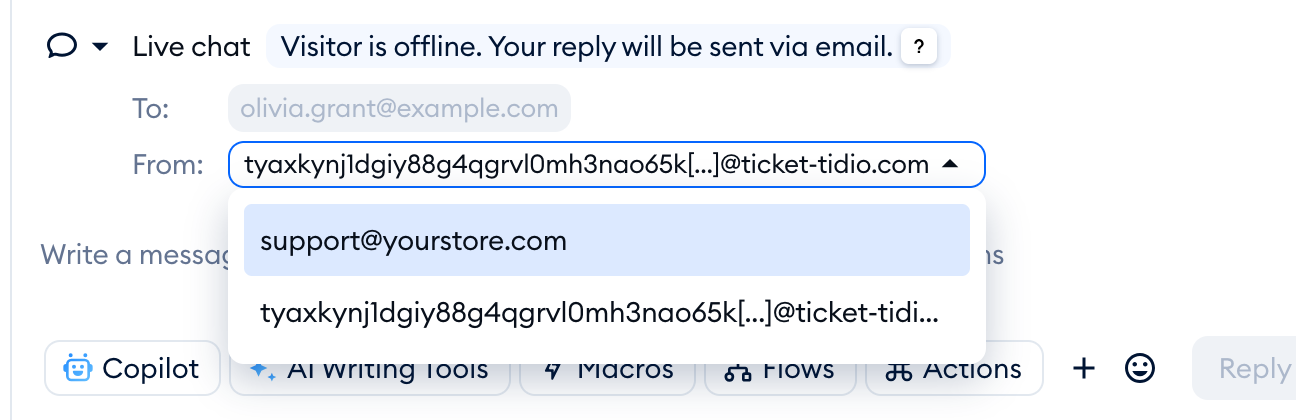
Want your replies to come from your own domain? If the list only has the Tidio address, you'll see Add sender address at the bottom of it - click on it to go to Settings > Email, Sender address tab. To learn how to connect your domain and add an address, please see Use your own Domain for tickets.
Please note: only verified sender addresses are listed. If an address you've added is missing, check its status in Settings > Email.
When your reply can't be sent by email
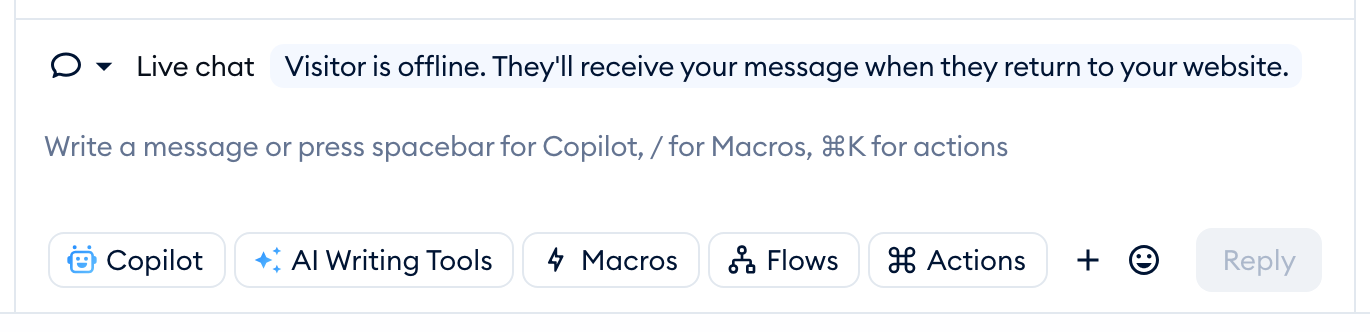
If the visitor hasn't left an email address, or Visitor notifications are turned off, the tag in the reply box says Visitor is offline. They'll receive your message when they return to your website. and there are no To: and From: fields:
You can still reply - your message will be waiting in the chat widget when the visitor comes back. If you have the visitor's email address from elsewhere, you can also click on the Create ticket icon in the top-right of the conversation and continue in a ticket - see Send emails from Tidio.
