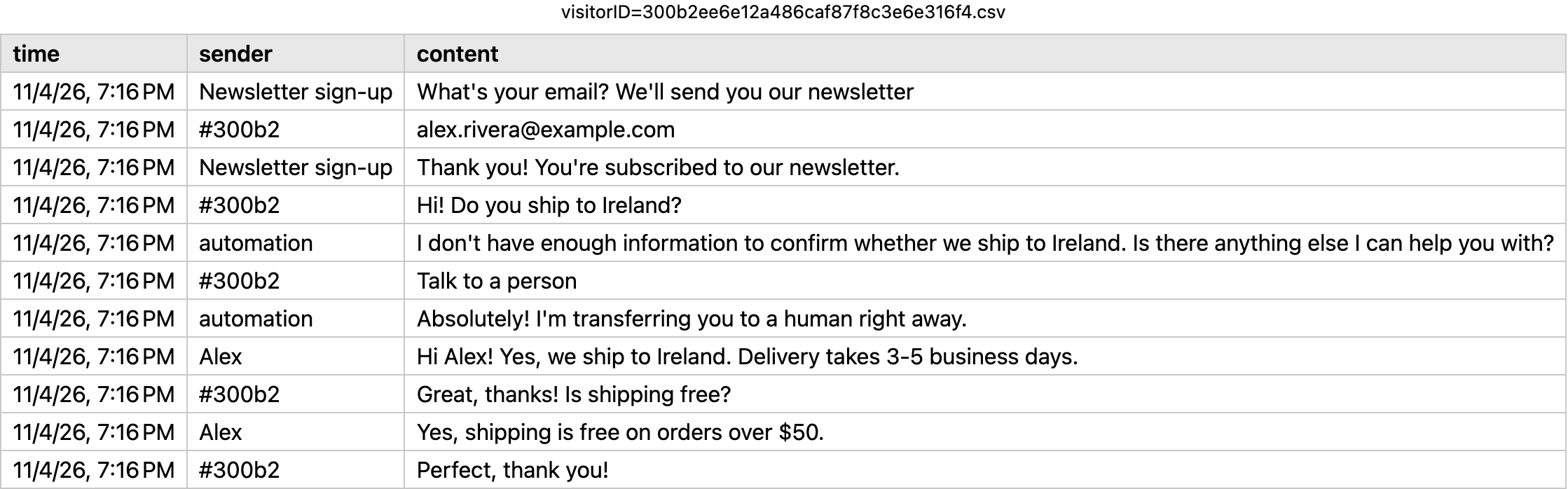
In Tidio, you have the option to request chat transcripts for each of your conversations. This feature allows you to preview the transcript, send it to your email address or export it in CSV format.
In this article, you'll learn:
- How to preview the transcript
- How to send transcripts to an email address manually
- When Tidio sends transcripts automatically
- How to export the transcript to the CSV format
Preview your transcript
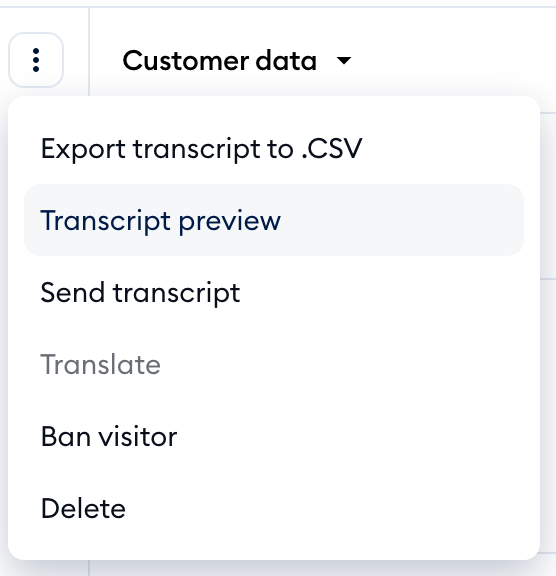
To preview the chat transcript, head to your Inbox panel and open a chat conversation. Click on the three-dots menu (More options) in the top-right of the conversation, and choose the Transcript preview option:
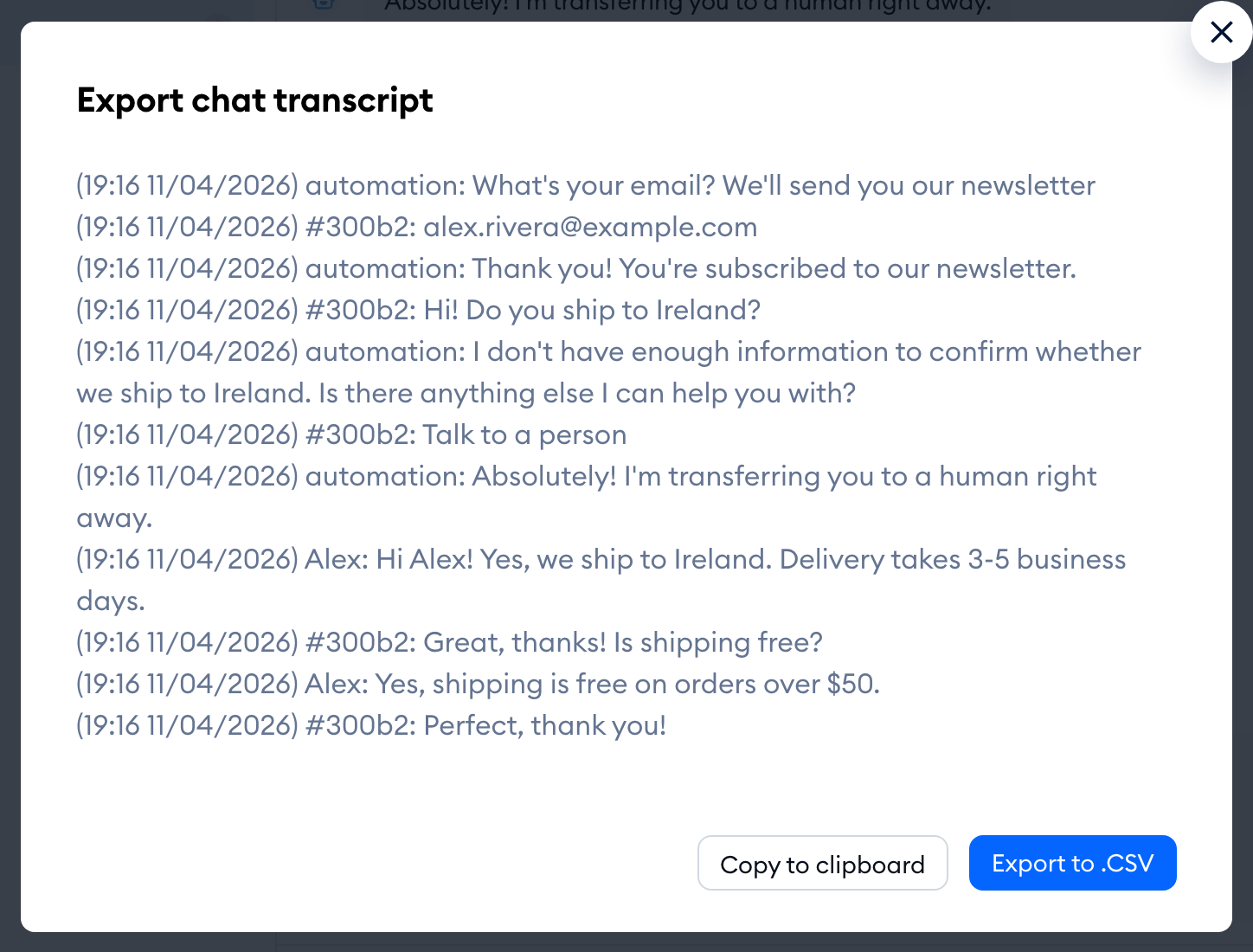
A preview of the chat transcript will be displayed in the Export chat transcript window. You can also export it from the popup directly (to a CSV file) with the Export to .CSV button, or copy the text to your clipboard with Copy to clipboard:
Sending transcripts to an email address manually
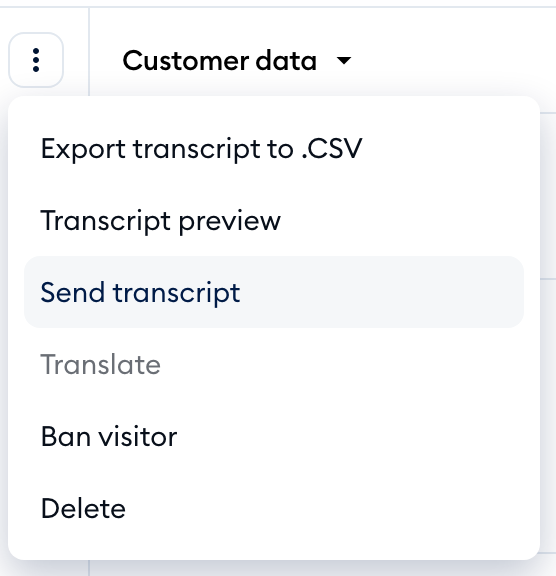
To send the chat transcript to a chosen email address, open a chat conversation, click on the three-dots menu (More options) in the top-right of the conversation, and choose the Send transcript option:
You'll now see the Send transcript window, asking you to specify the email address to which the transcript will be sent. By default, you'll see your Tidio account email in the Email address field. You can change that email to any email you wish to send the chat to, for example your visitor's email address.
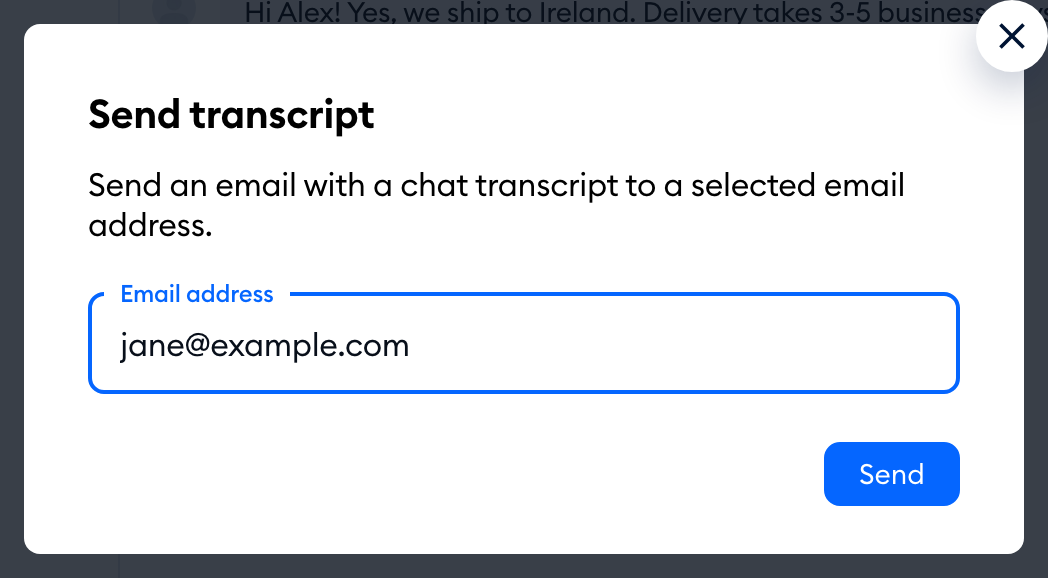
Click on the blue Send button, and your transcript will be sent - you'll see the message Transcript has been sent!
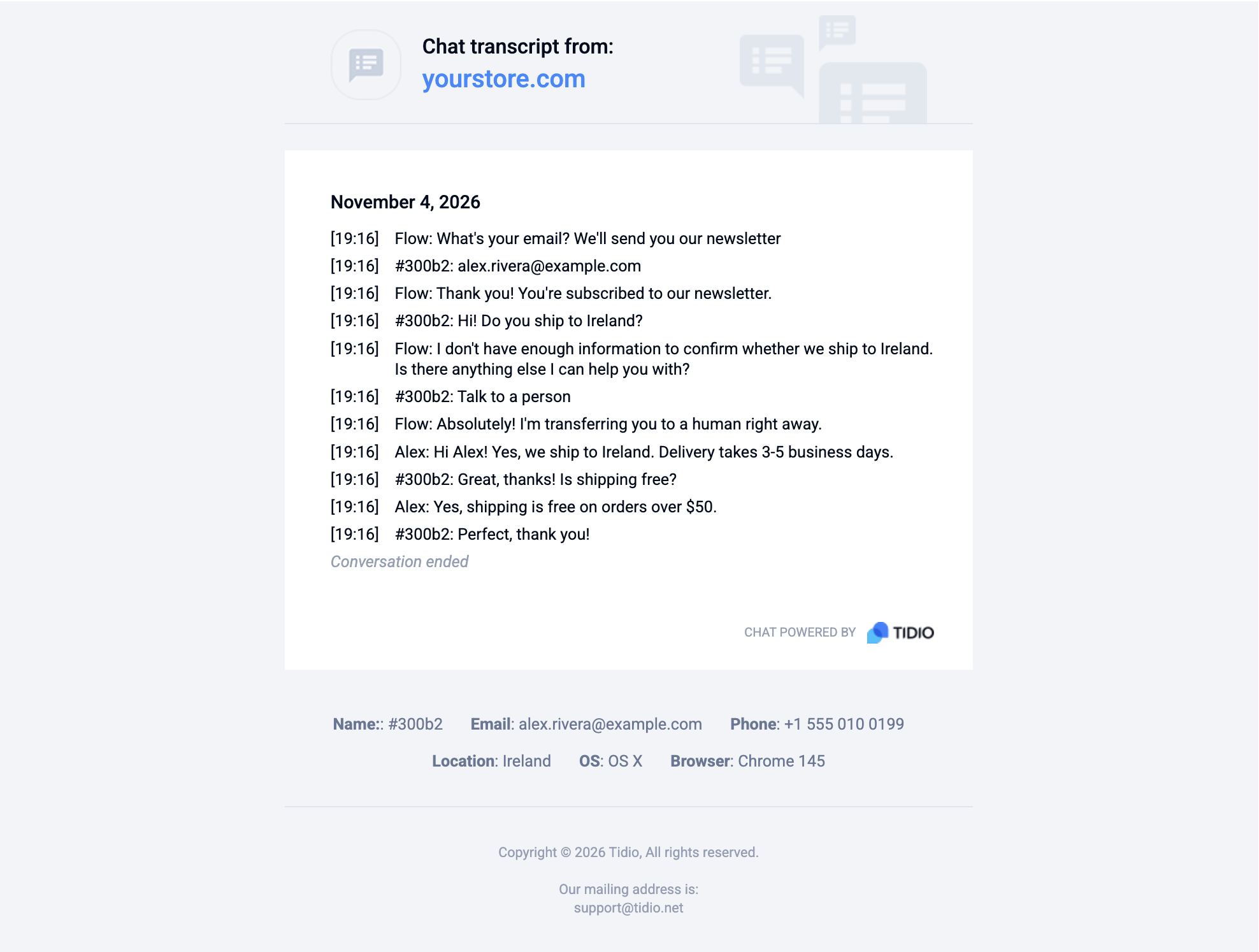
Below, you can see a preview of the transcript sent to the email address:
Sending transcripts automatically
If a website visitor leaves before finishing a chat with the agent, Tidio can automatically send a chat transcript to the visitor who missed a message on live chat. The chat transcript will be sent 15 minutes after leaving the website.
For this to happen, two things are needed:
- Visitor notifications are turned on in Settings > Project > Preferences - the section says Automatically notify visitors about unread chat messages via email.
- the visitor has left their email address, for example in the pre-chat survey or a flow.
The email sent to a visitor includes:
- All unread messages on the top of the email
- Thread transcript to give full context to the visitor
Once the email goes out, you'll see An email with unread messages has been sent to the visitor in the conversation. With Visitor notifications on, the replies you send to a visitor who has already left also go out by email - see Reply by email to visitors who left.
Exporting transcript to CSV files
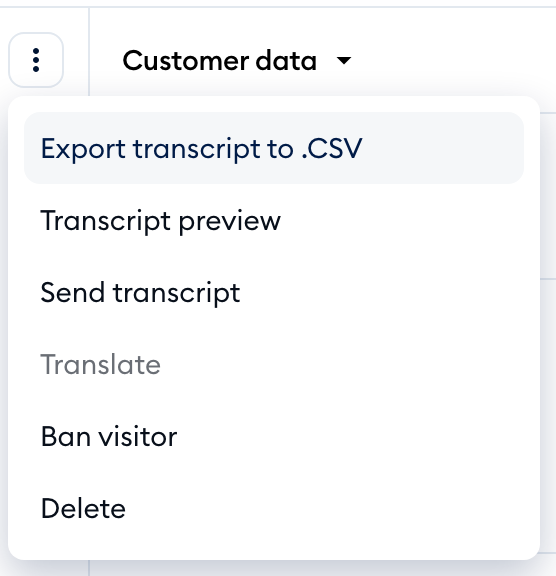
To export the chat transcript to a CSV format, open a chat conversation, click on the three-dots menu (More options) in the top-right of the conversation, and choose the Export transcript to .CSV option:
Prefer the keyboard? Press Cmd + K (Ctrl + K on Windows) to open Search actions, and pick Export transcript.
Once your file is downloaded, you'll see the transcript in the following form: