In this article, we will guide you on how to access and utilize the chat history and archived chats in Tidio. By understanding these functionalities, you'll be able to review past conversations, monitor your team's activity, and easily retrieve important information from previous chats.
In this article, you'll learn:
- Where solved chats are located
- How to explore chat history
- How to search for specific chats
- What happens when you delete a conversation or ticket
Locating chat history
To access the chat history in your Tidio panel, navigate to the Solved tab located within your Inbox. By entering this tab, you can view all your archived conversations.
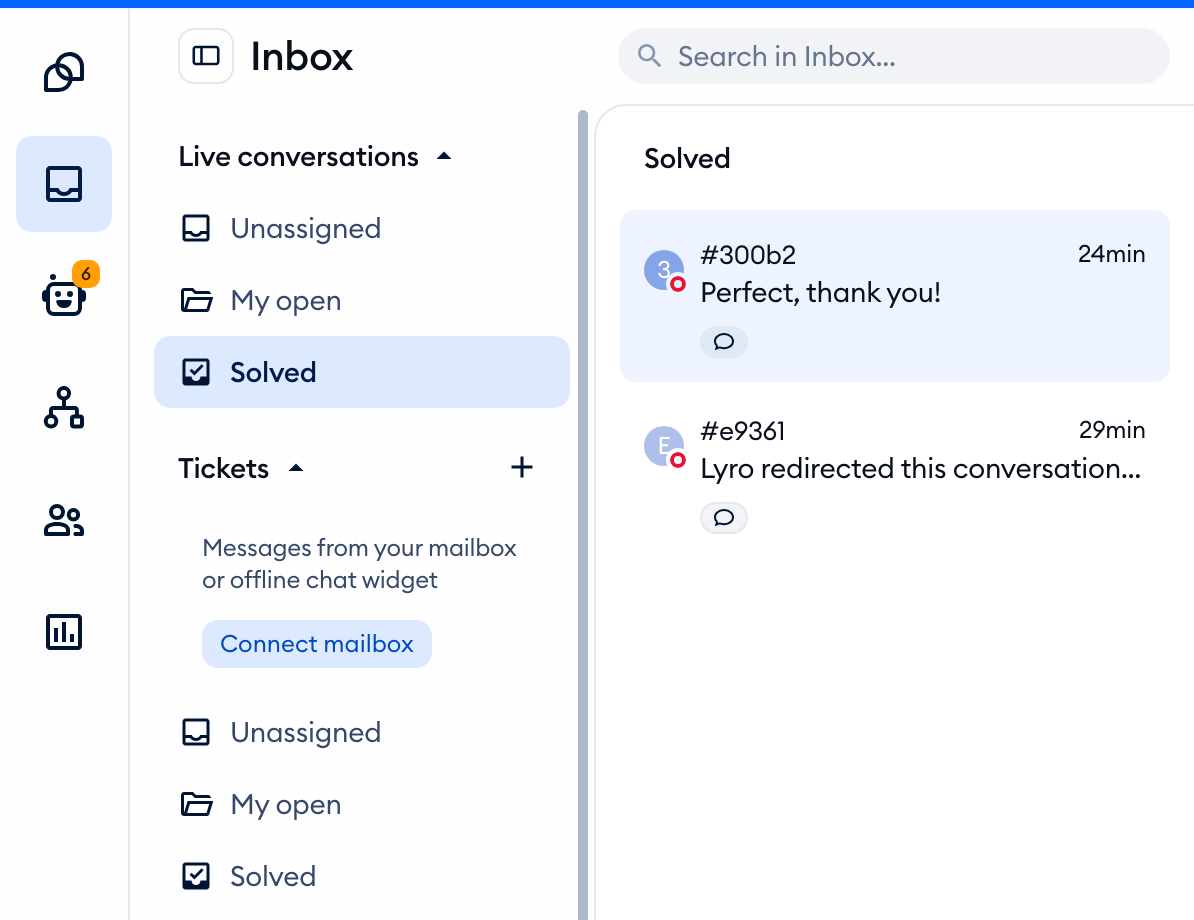
Please note: if the same user comes back with a new message, the conversation will once again appear in the Unassigned folder as usual, where your agents can pick it up and respond - and it will go back to Solved once they are finished with it again.
Looking for an old email? Your tickets have their own Solved folder, in the Tickets section of the Inbox menu, just below your live conversations.
Please note: live conversations without a visitor's reply for 30 days get solved automatically, even if you haven't turned on automatic solving. With automatic solving, available on the Growth plan and above, you can have conversations solved after a period you choose - see Solve chats and tickets automatically.
Exploring your chat history
Within the chat history (the Solved folder), you'll find a detailed record of your team's interactions. You can review conversations, analyze customer inquiries, and gain insights to improve your support strategies. Additionally, offline messages left in your chat widget can also be accessed in the chat history section, and your solved emails wait in the Solved folder of Tickets, ensuring that no customer communication is overlooked.
Searching for specific chats
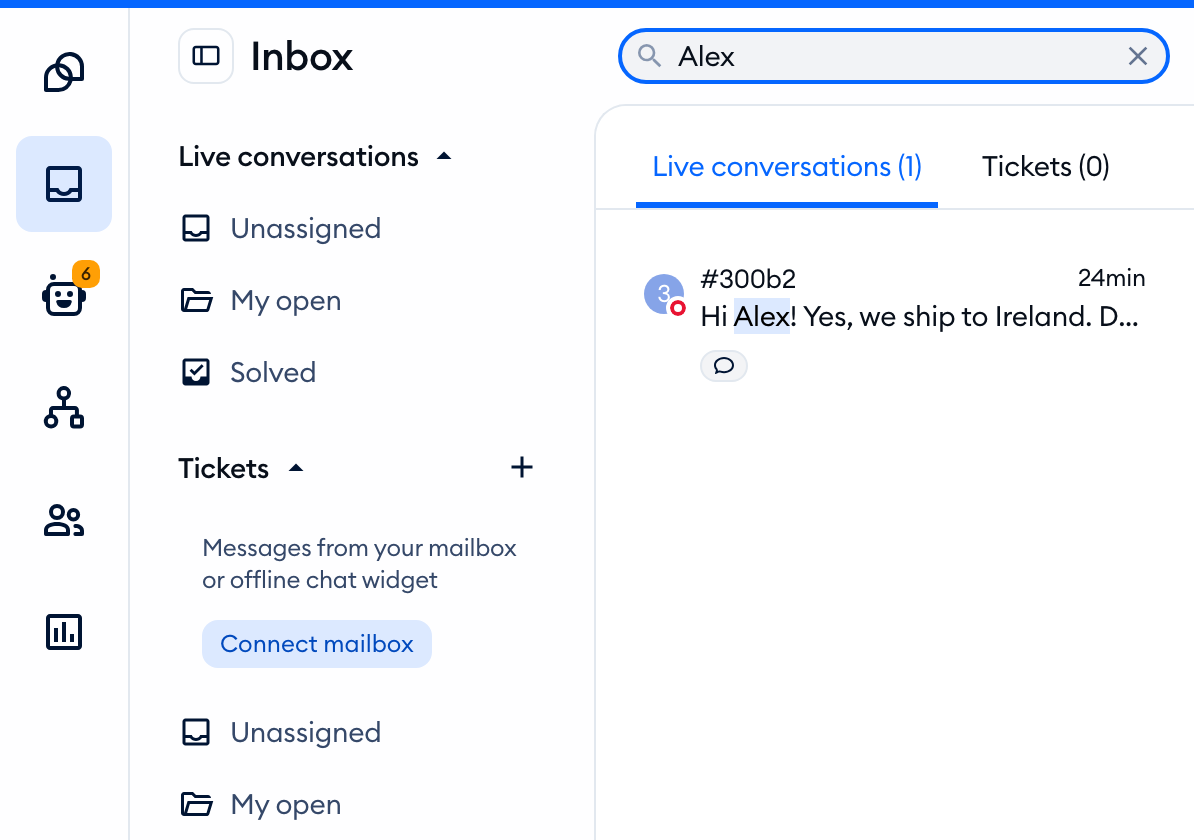
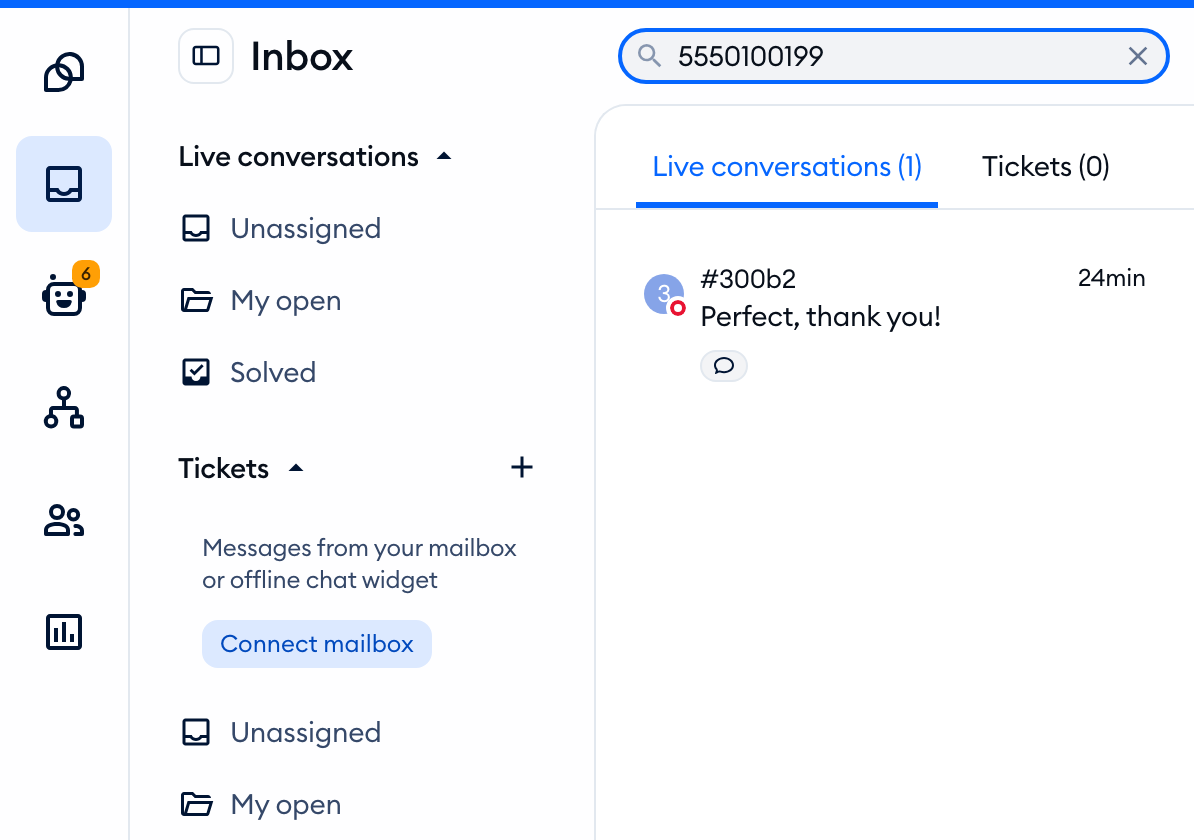
If you're looking for a specific chat or client within your chat history, Tidio provides a convenient search bar. Simply enter the relevant email or keyword in the Search in Inbox... box at the top of the Inbox menu (if the menu is narrow, click on the magnifying glass icon first). The results show up once you've typed at least 3 characters:
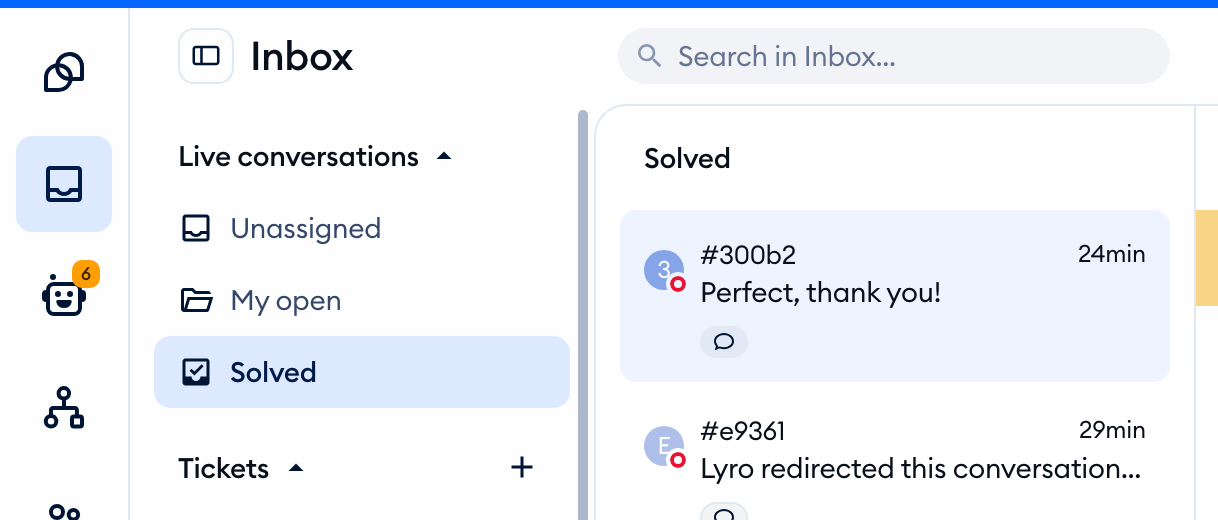
This feature enables you to quickly locate specific chats, retrieve important information, and efficiently address customer queries based on past interactions. The results will be shown in chronological order.
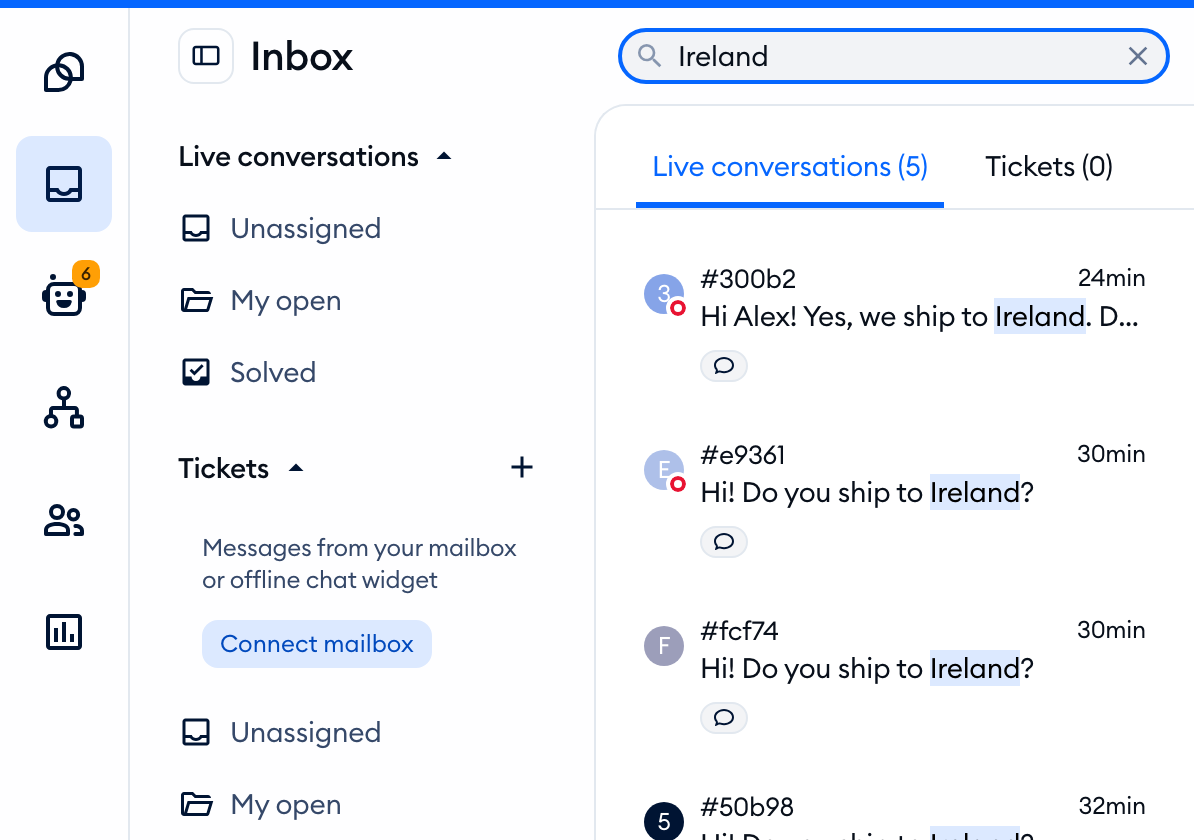
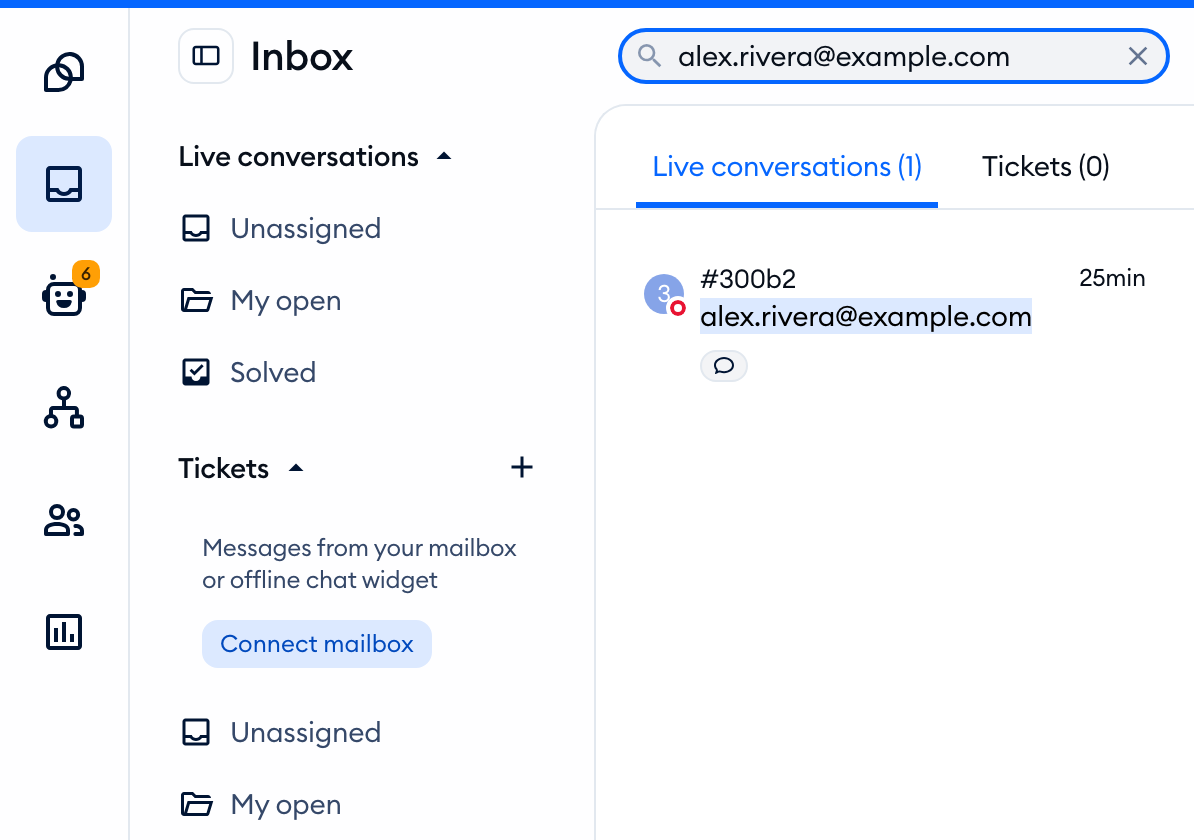
Please note: results will be shown separately for live conversations and for tickets, in their own tabs - Live conversations and Tickets, each with the number of results. The text you searched for is highlighted in the results.
You can search by keywords:
... by email:
... by name:
... or by phone number:
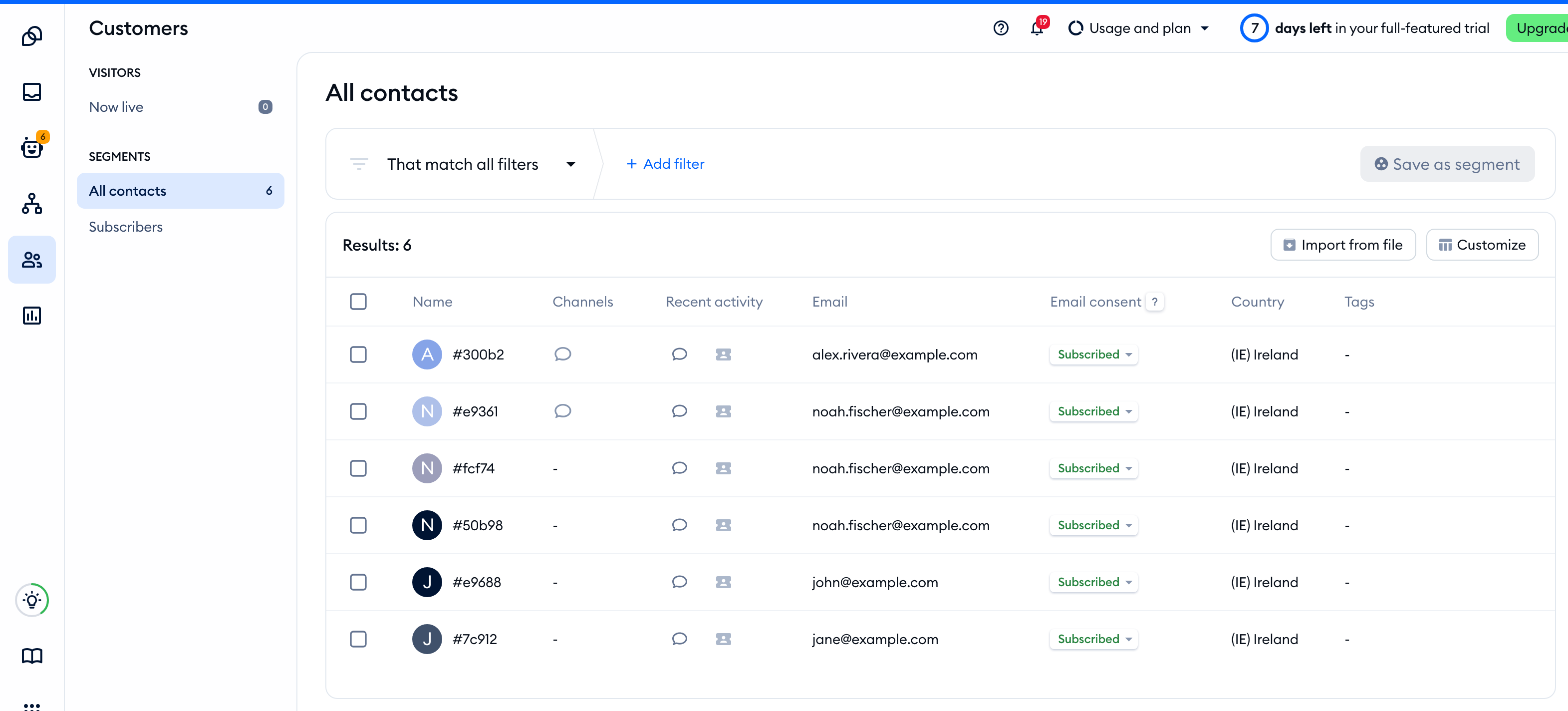
You can also access the Customers section and open the All contacts segment, where you can find all your saved Tidio leads. When you find a contact you're looking for (you can also use filters and sorting options there!), use the two icons in the Recent activity column: the speech bubble opens their latest live chat conversation in the Inbox, and the ticket icon opens their latest ticket. For more, please see The Contacts List.
Deleting conversations and tickets
Solved conversations stay in your chat history, so you can come back to them anytime. If you need to delete one, open it and click on the three-dots menu (More options) in the top-right, and choose Delete. Tickets have the same option in their own three-dots menu.
Before anything is removed, you'll be asked to confirm:
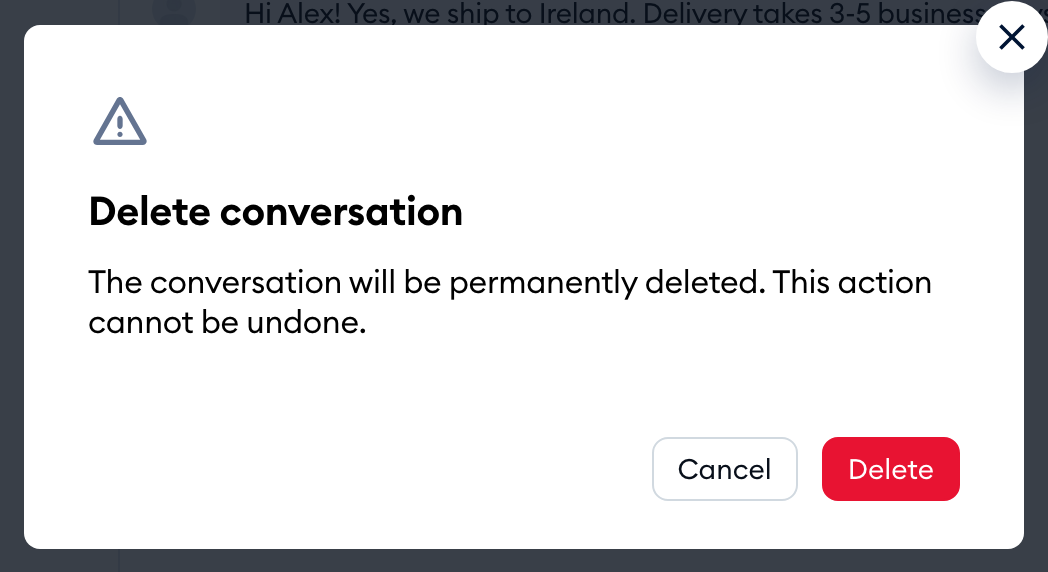
Hit Delete to confirm. Deleted conversations and tickets can't be restored, so please make sure you no longer need them.
Please note: Delete only shows up for agents whose permissions allow Delete conversations (or Delete tickets). Deleting a contact in the Customers section also deletes all of their conversations. For more, please see Permissions.
