In this article, we'll guide you through the common causes of login issues and provide solutions to regain access to your Tidio admin panel. Whether you've forgotten your password or email, or you see an error message on the login page, we've got you covered.
In this article, you'll learn:
- What to do when you forget your password
- What to do when you forget your Tidio account email
- What the login error messages mean
- How to log in with 2FA or SSO
- What to do when you see the Trial Expired message
Forgotten Password
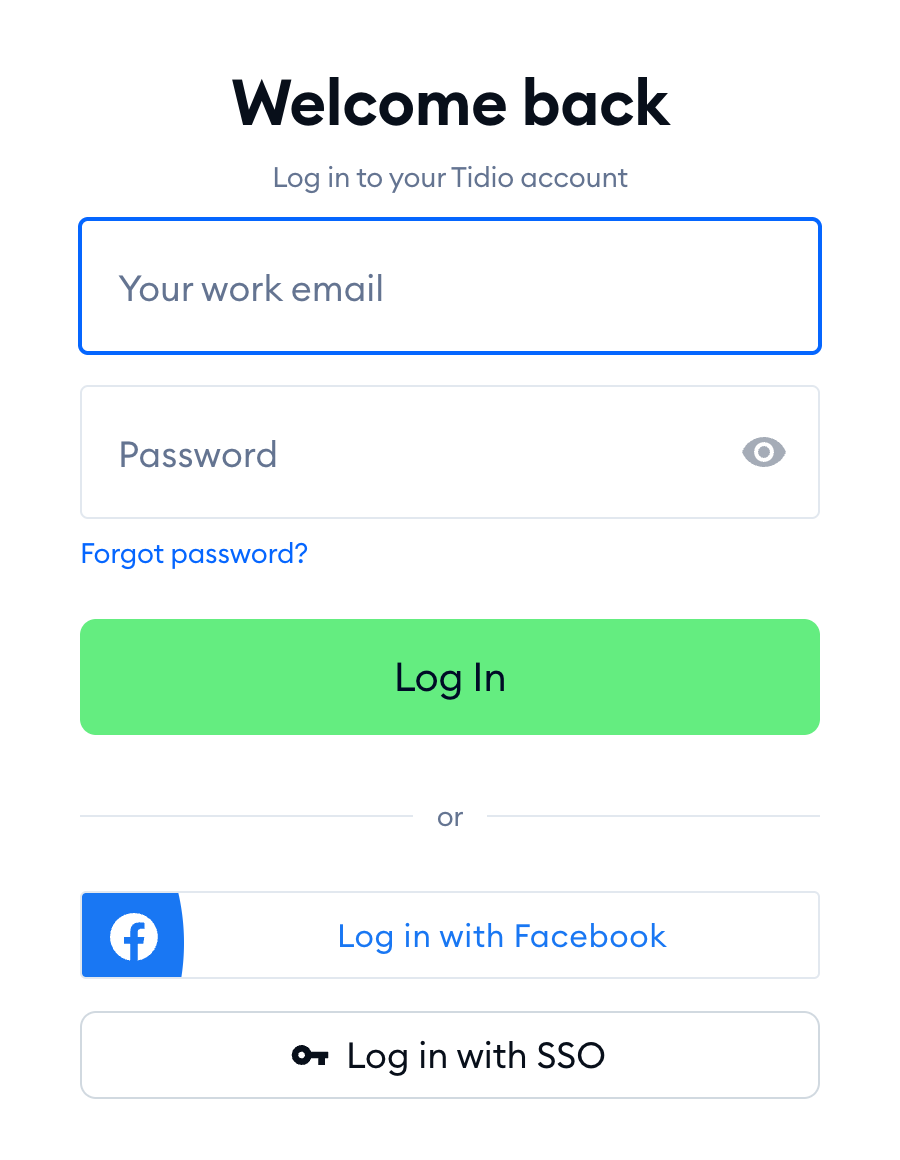
If you forget your password to log in to your Tidio admin panel, click the Forgot password? link under the password field on the login page (or go straight to our password recovery page):
On the Forgot password? page ("We will send you reset instructions by email."), type the email address of your Tidio account and hit Send. We'll send you a link to set a new password. Learn more in Forgotten password or email.
If you requested the password reset link but do not see it in your mailbox - please, check the spam/junk folder. If the email isn't visible even in the spam folder of your mailbox, contact our support via chat on your www.tidio.com website or email us at support@tidio.net.
In the email, please include the email address of your Tidio account. We will check whether the email address exists in our database, and if possible, we will approach to send you the link manually from our system.
Wrong Email Address
If you forget your login email address, please contact us via email or chat. We'll help you after verifying that you're the project owner.
You can contact us at support@tidio.net
Login error messages
If something stops you from logging in, the login page tells you why. Here are the most common messages and what to do about them:
- Incorrect email or password! - check the email address and password you typed (watch out for Caps Lock). Still no luck? Reset your password with Forgot password?.
- Too many login attempts. Please try again in 60 minutes. - you've tried to log in too many times. Wait 60 minutes before you try again, or reset your password in the meantime.
- Your account is inactive. Please contact project owner to activate your account. - ask the owner of your Tidio project to activate your account.
- Your organization requires you to log in with SSO. Use Log in with SSO below. - your company uses Single Sign-On, so password login is turned off. Click Log in with SSO instead (see below).
- Access to Tidio is blocked. - if you believe this is an error, contact our Support team at support@tidio.net.
- Your browser is blocking the reCAPTCHA script. - an ad blocker, a privacy plugin or a privacy-focused browser (like Brave) is blocking Google reCAPTCHA, so the Log In button stays greyed out. Allow reCAPTCHA for Tidio, and try again - see Troubleshooting reCAPTCHA issues.
Logging in with 2FA or SSO
If you use Two-Factor Authentication, Tidio asks for a code after your email and password. On the Enter verification code screen, type the 6-digit code from your authentication app and hit Verify. If you see Incorrect verification code., simply type the current code from the app.
Lost your device with the authenticator? As the screen says, "Lost your device with an authenticator? Use codes from the recovery kit." - type one of your backup codes instead. Learn more in Two-Factor Authentication (2FA).
If your company uses Single Sign-On (SSO), click Log in with SSO on the login page, type your work email and sign in with your identity provider. If you see Unable to log in. Your email is not associated with an SSO account., make sure you've typed the email address you use in Tidio, or contact your project owner. Learn more in Single Sign-On (SSO) in Tidio.
Trial Expired
Every new project starts with a 7-day full-featured trial. Once it ends, you'll see the Your 7-day full-featured trial has ended screen, and the rest of your Tidio panel opens again once you've chosen whether to subscribe to one of our paid plans or continue on the Free plan.
To pick a paid plan, click on the Choose your plan button. If you wish to enter your Tidio panel but are still unsure which plan to choose, or want to stay on the Free plan, scroll down to Downgrade to Free plan, click on the Downgrade button, and confirm with Use Free plan (and then Ok, got it!). This way, you will be able to enter your Tidio panel. You can subscribe to the paid plans anytime later by clicking on the Upgrade button in the top-right corner of your Tidio panel.
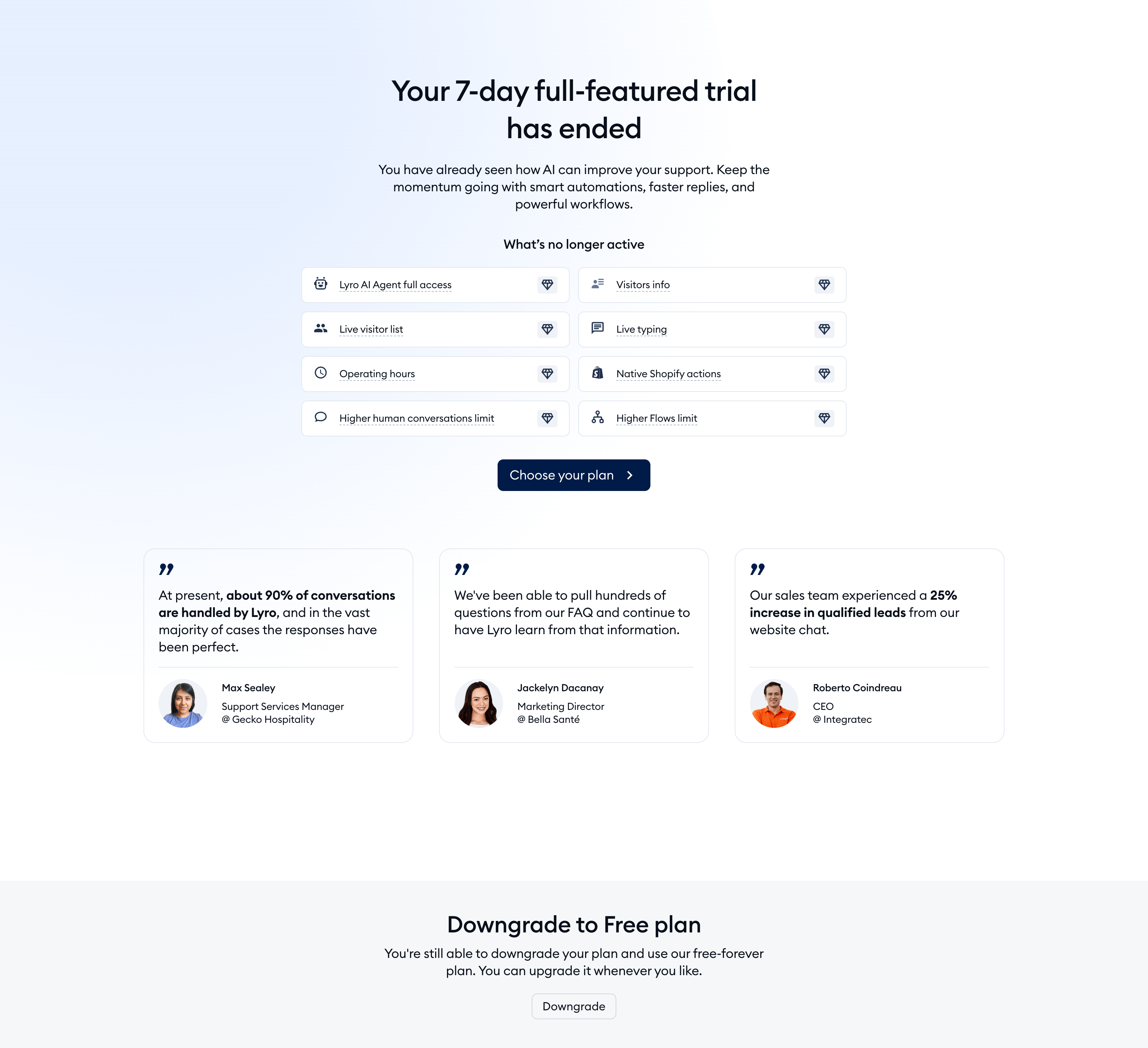
Please note: only the project owner can choose a plan or the Free plan. If another agent tries, they'll see the message "Sorry, you don't have permissions to choose the payment plan. Only the project owner (…) can do it.", with the owner's email address. In that case, ask your project owner to make the choice.
