Two Factor Authentication, or 2FA, is an extra layer of protection used to ensure the security of your Tidio account beyond just a username and password.
In this article, you'll learn:
- What two-factor authentication is
- How to enable 2FA in Tidio
- How to log in with 2FA
- How to turn 2FA off
- How to check who on your team uses 2FA
What is 2FA?
Two-factor authentication (also known as two-step authentication) is an important security measure that adds a second layer of protection to your account and password. Adding this additional security layer makes it much harder for hackers to break into your accounts.
The email address and password combination is the first form of authentication in Tidio, while a 6-digit code from an authenticator app on your phone is the second form of authentication. Tidio doesn't send these codes by text message or email - your authenticator app generates them. Even if a hacker were to obtain your email and password, they would be unable to access your account without having access to your phone to get the code. This greatly increases the security of your account and the sensitive information stored within it.
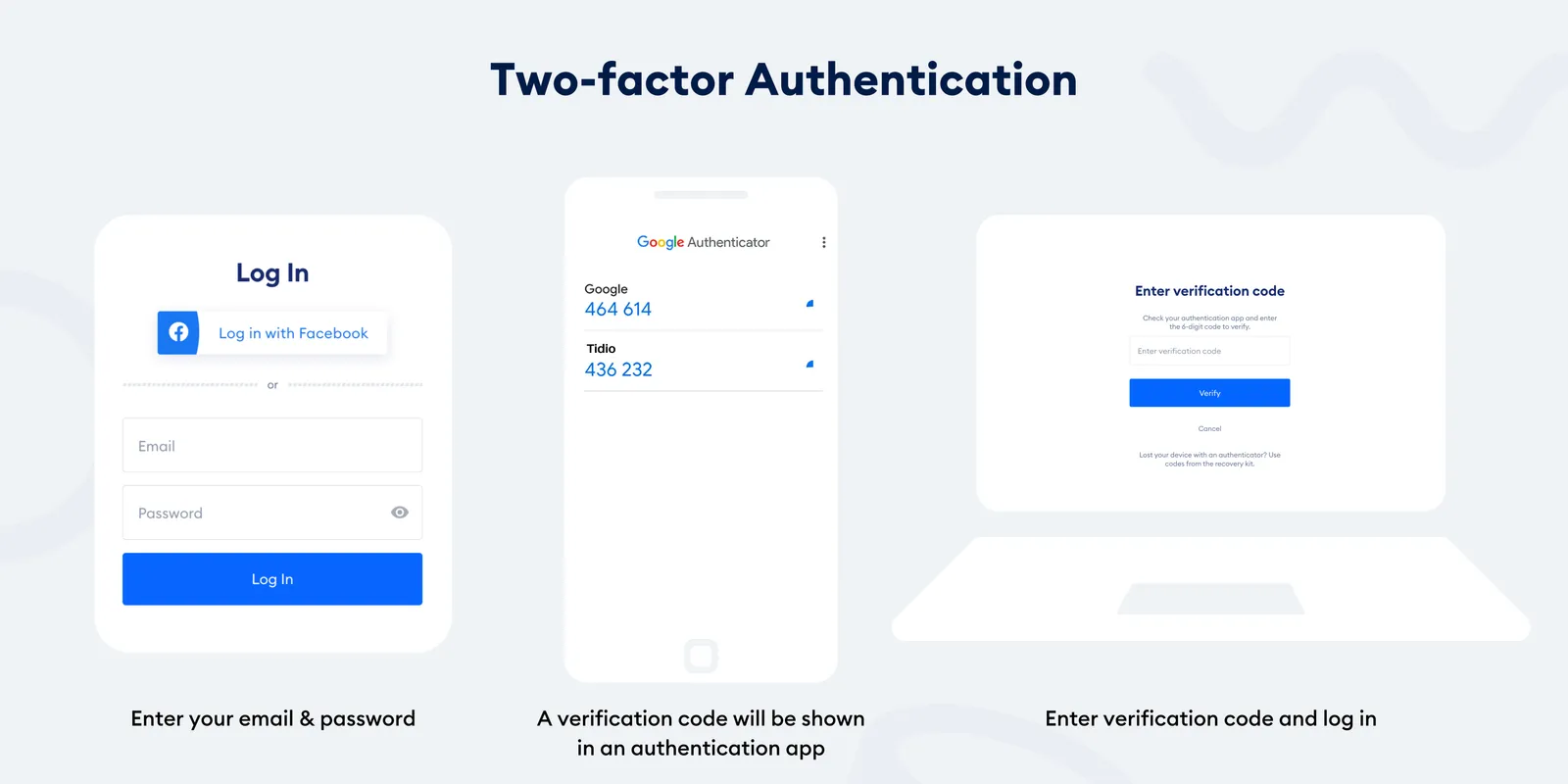
How to enable 2FA in Tidio
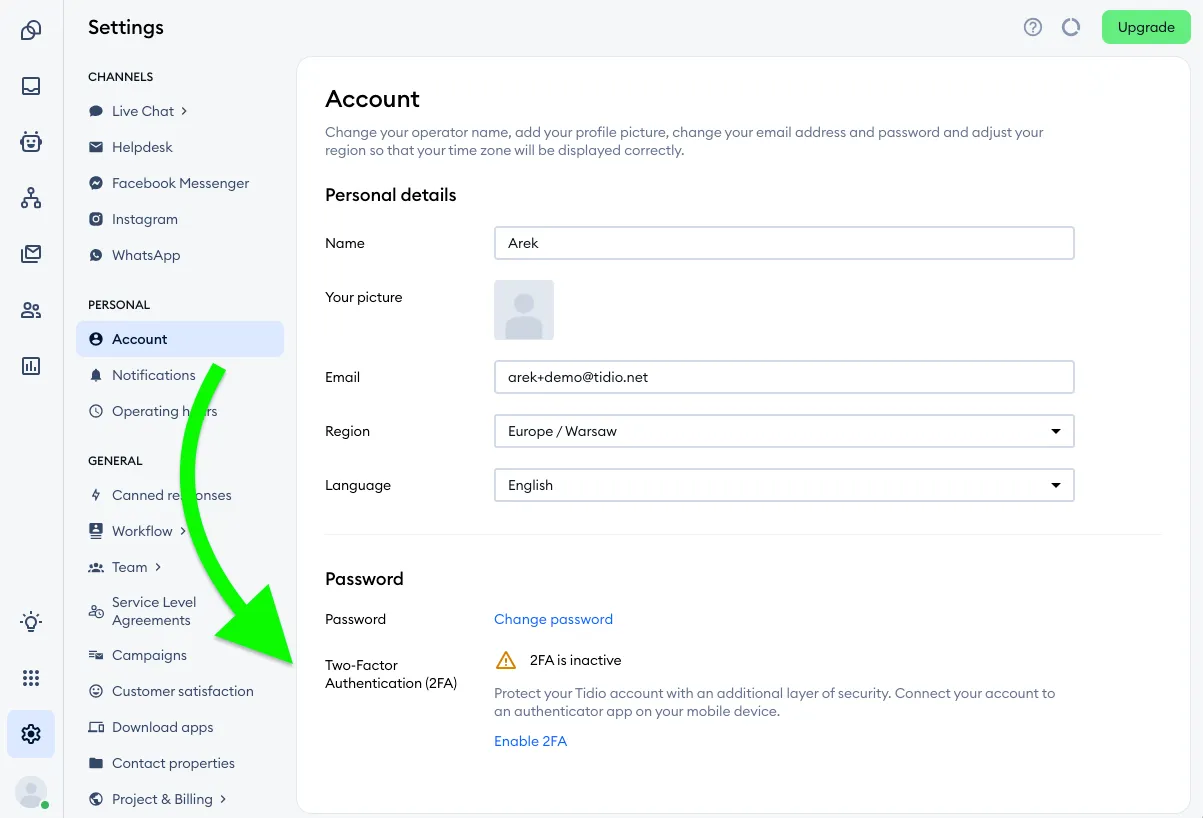
To enable two-factor authentication, head to Settings > Account in your Tidio admin panel, and open the Password tab. Each agent turns on 2FA for their own account.
Please note: you can enable two-factor authentication only in the Tidio panel in your web browser, not in the mobile app. After enabling it, the 2FA will work in the mobile app as well.
Below your password, in the Two-Factor Authentication (2FA) section, you'll see 2FA is inactive and the Enable 2FA link:
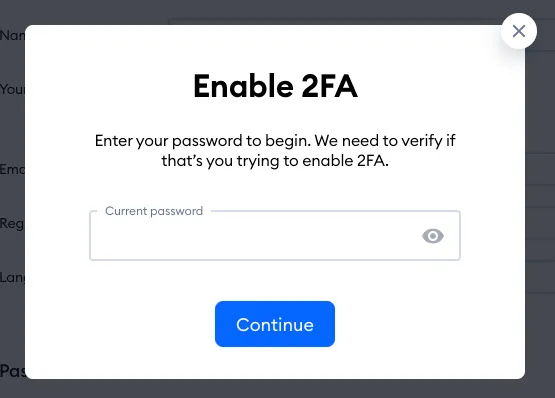
Once you click the Enable 2FA link, you'll be prompted to enter your password to verify your identity. Type it in the Current password field, and click on Continue:
After that, the Enable 2FA window will walk you through three steps:
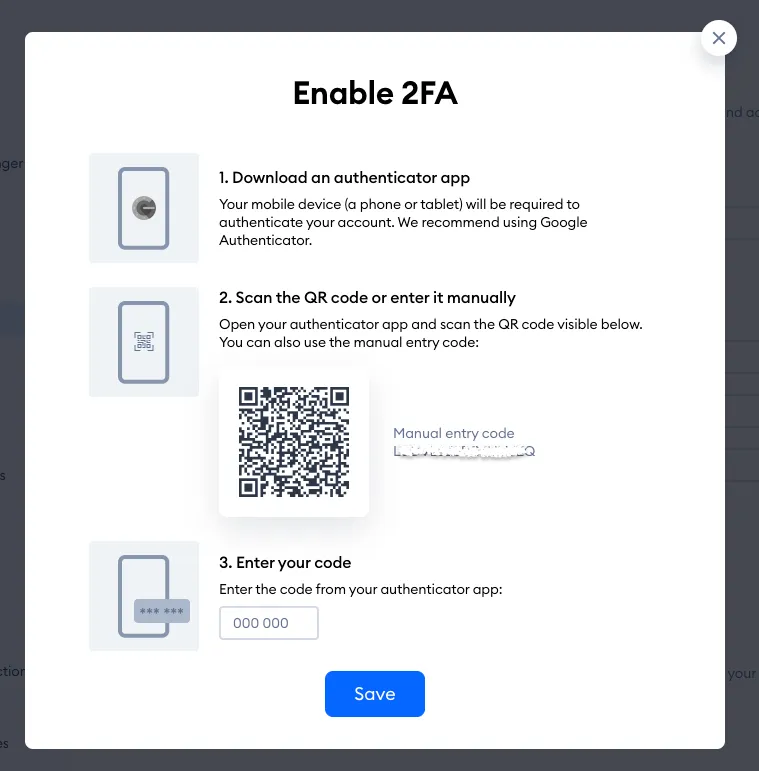
1. Download an authenticator app
To be able to use the 2FA, please download a mobile authentication app on your phone or tablet. The authentication app is needed to receive verification codes which will be required to use when you log in to your Tidio admin panel. We recommend using the Google Authenticator app or Microsoft Mobile Authenticator.
2. Scan the QR code or enter it manually
Once you download the authenticator app, you'll need to scan your unique QR code through the authenticator app or type in the Manual entry code shown next to it. Please keep in mind that each code is unique for each Tidio agent/account. This step ensures you'll receive the right verification codes for your Tidio account.
3. Enter your code
To ensure the integration with your authenticator app works correctly, please enter the code for Tidio displayed in your authenticator app. If the code doesn't match, you'll see This code is invalid - simply type in the current code from the app.
Click the Save button to confirm the code and enable two-factor authentication for your Tidio account.
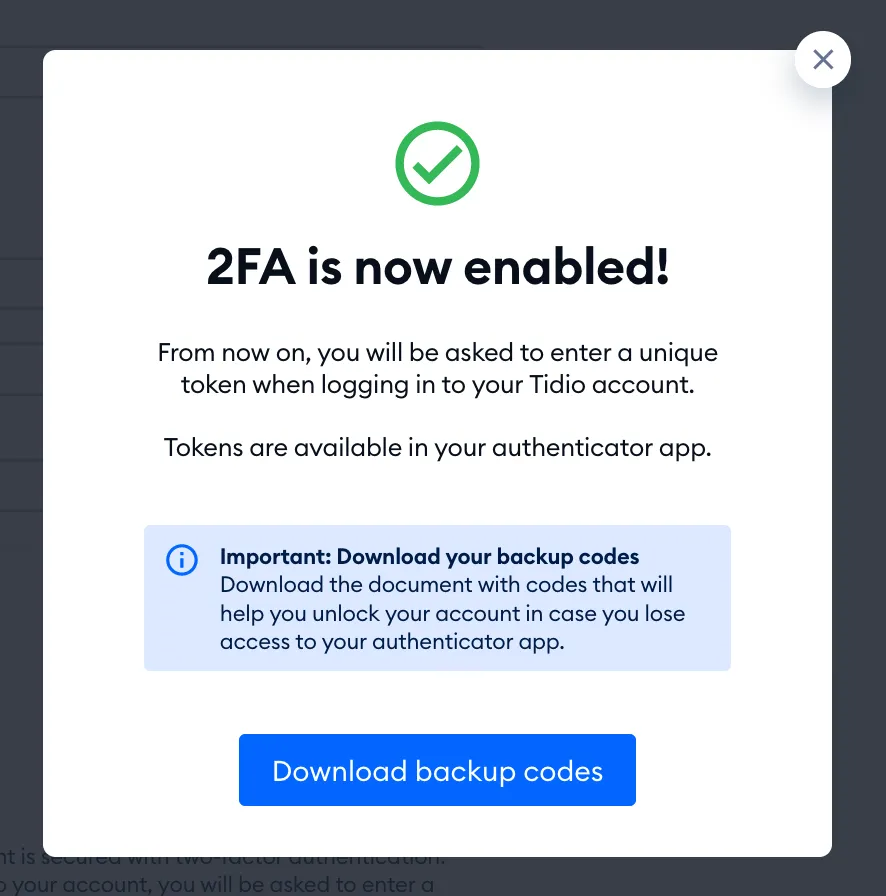
When the 2FA is enabled, you'll see the 2FA is now enabled! window, with the Download backup codes button. This is the most important step in enabling the 2FA in your account. You should download the codes (a text file) and keep the file secure.
The document with the codes will help you unlock your Tidio account in case you lose access to your authenticator app. Please also keep in mind that once you turn on 2FA, you'll be logged out from all your connected devices - simply log in again, this time with a code from your authenticator app.
If you skip the step of downloading your codes, you can download them later from the Password tab by clicking on the Download backup codes button. Tidio will ask for your password first (Confirm it’s You). The Backup codes section also tells you how many codes you've already used:
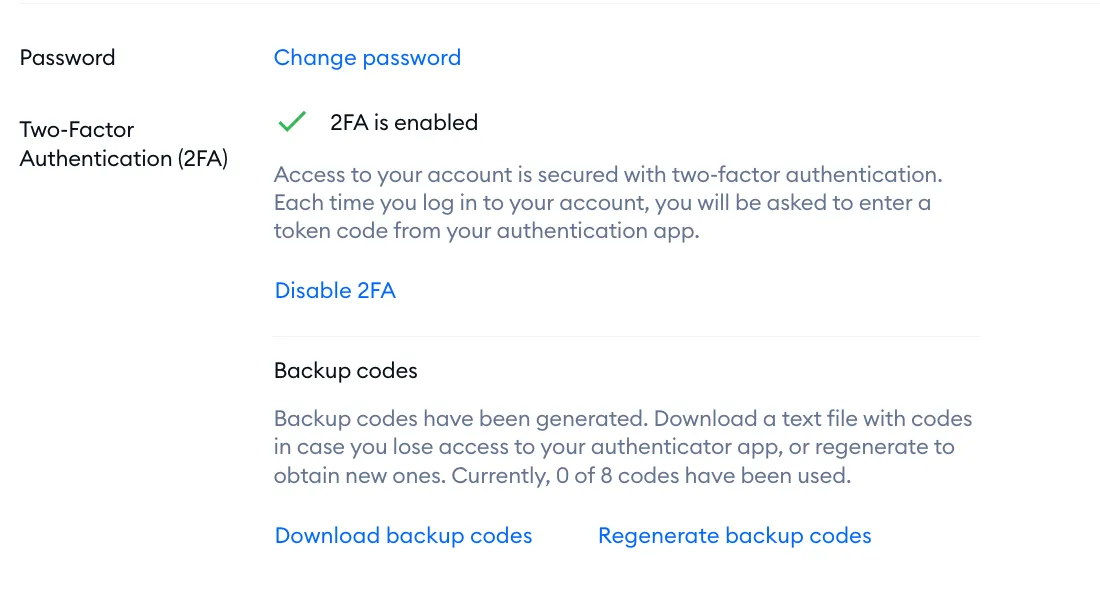
The backup codes are valid indefinitely, but you can use each code only once.
If you run out of the codes (once all of them are used, Download backup codes is grayed out) or the codes are seen by an unauthorized person, you can request new codes by clicking on the Regenerate backup codes button. If you regenerate the codes, the old codes will stop working. You'll see Backup codes regenerated - don't forget to download the new ones.
Logging in with 2FA
From now on, each time you log in to Tidio - in your browser, the desktop app or the mobile app - you'll first enter your email and password as usual. Then, on the Enter verification code screen, open your authenticator app, type in the 6-digit code it shows for Tidio, and hit Verify:
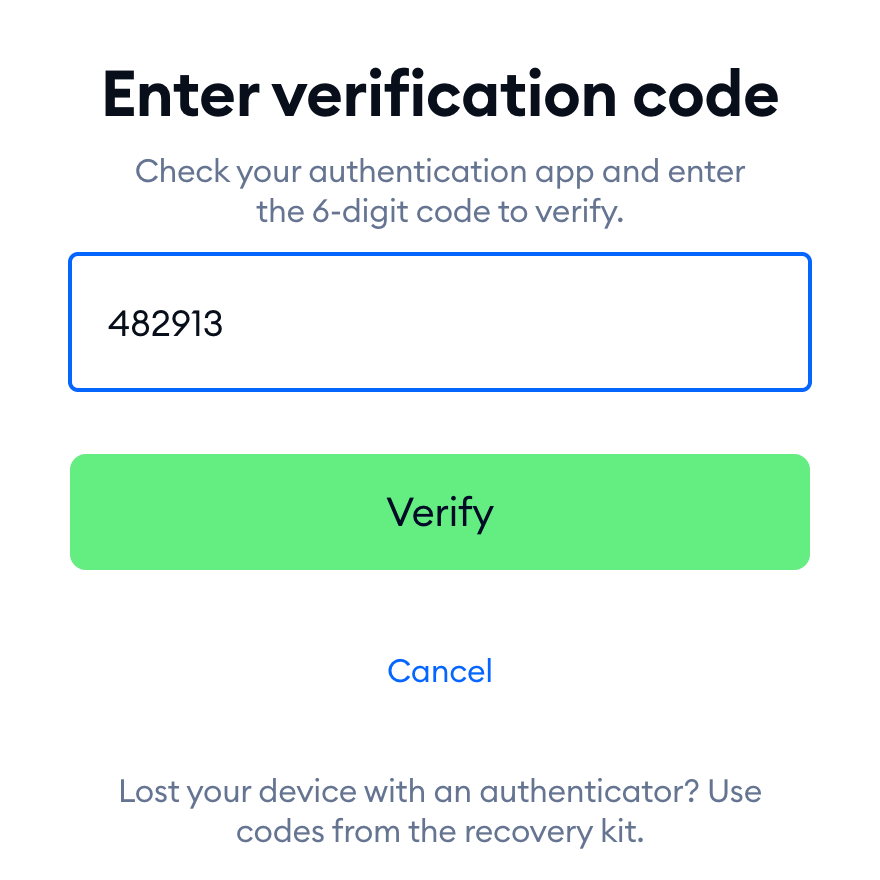
Lost your phone, or can't open your authenticator app? Use one of your backup codes in the same field instead - each code works only once.
Turning 2FA off
When 2FA is on, the Password tab shows 2FA is enabled. To turn it off, click on Disable 2FA and confirm your password. Then, in the Disable 2FA window, enter the current code from your authenticator app and hit Save:
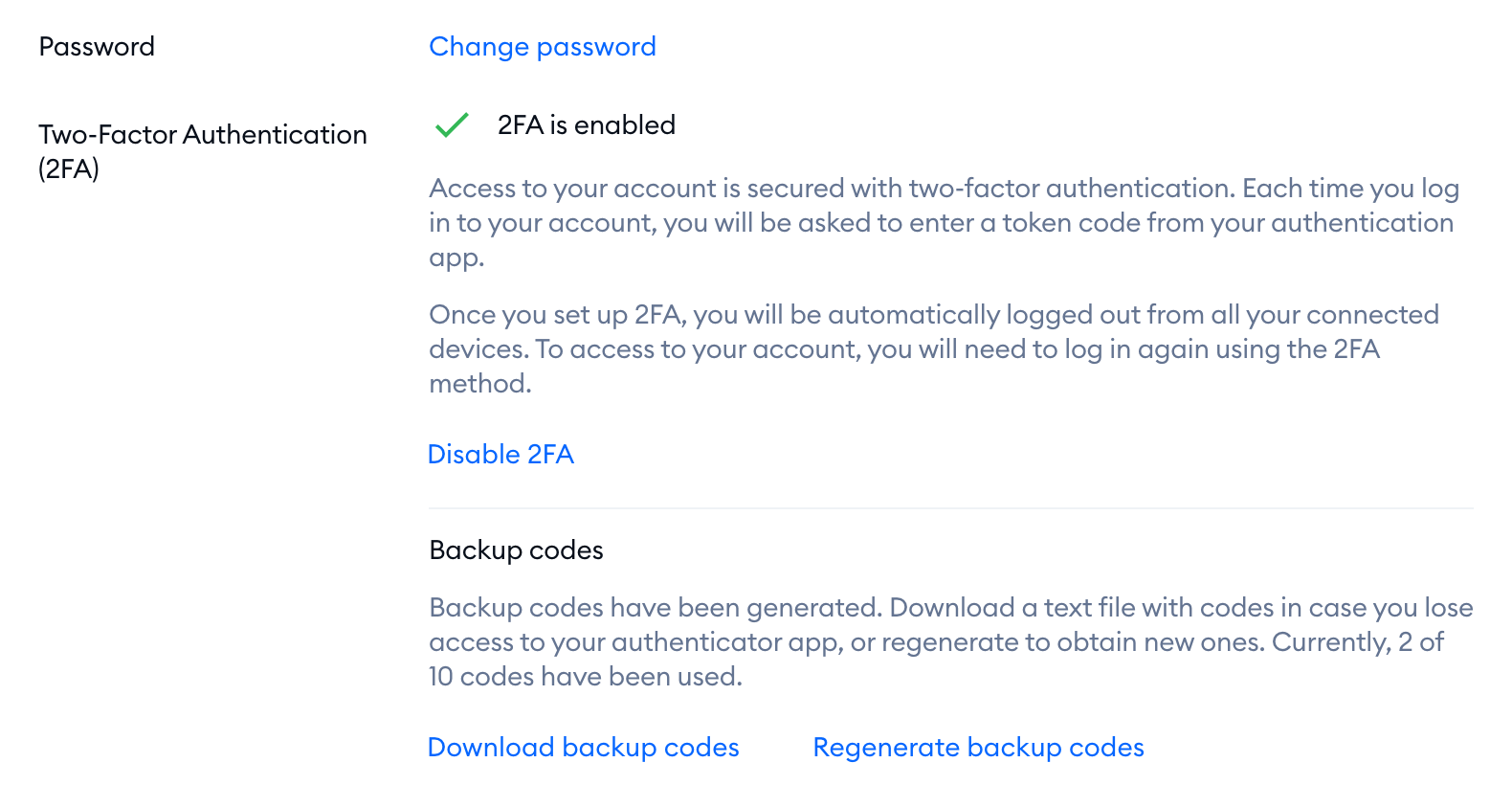
Please note: turning 2FA off removes an extra layer of security that protects your account, so we recommend keeping it on.
Checking who on your team uses 2FA
Want to make sure your whole team is protected? Head over to Settings > Team, and open the Agents tab. The Two-factor authentication (2FA) column shows On for every agent who has turned 2FA on, and None for those who haven't. In your own row, you'll see the Enable 2FA link if you haven't set it up yet:

Please note: each agent sets up 2FA for their own account in Settings > Account. If someone on your team shows None, just ask them to follow the steps above.
