If you would like to delete your Tidio account (project) or pause it temporarily to come back at a more suitable time, we'll explain how to do that step-by-step in this article.
In this article, you'll learn:
- How to pause your paid subscription (temporarily)
- How to hide the Tidio widget on your website
- How to delete the account permanently
Pause paid subscription
To pause your Tidio account in general, we advise you to check your subscription status and cancel it before you hide the chat widget on your website. With this approach, you will be able to come back to Tidio at a more suitable time.
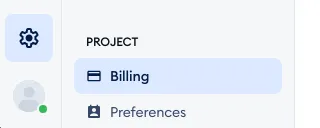
To cancel your paid subscription, head over to Settings > Billing:
In the Subscription tab, click the Cancel subscription button to stop further billing and downgrade your subscription to the free version:
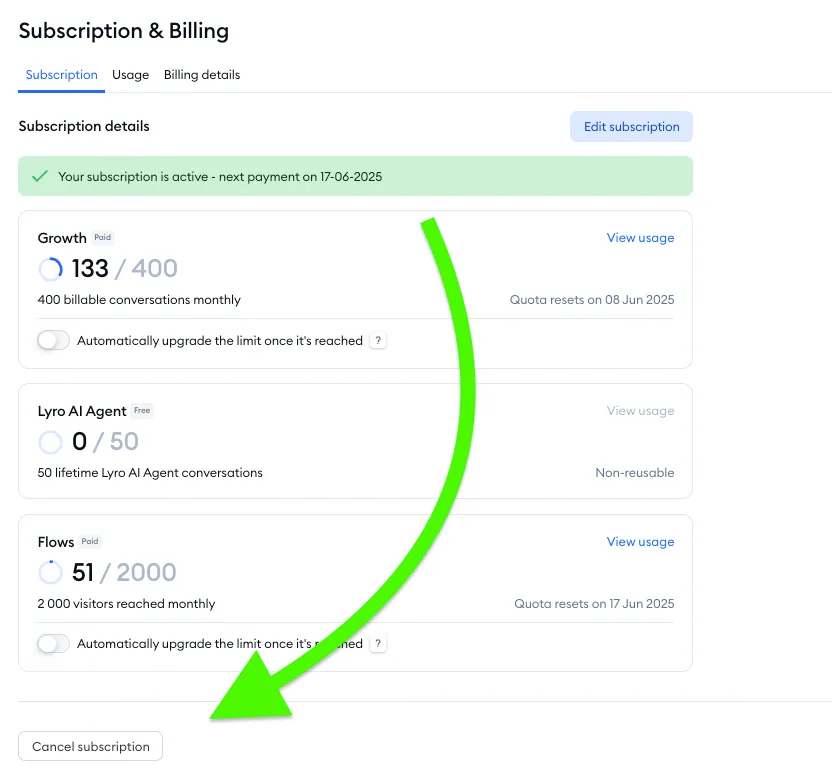
In the Downgrade to Free? window, click on Continue to cancel, tell us why you're leaving, and click on Continue to cancel once more. You keep your paid features until the end of your current billing period - and until then, you can still change your mind with the Resume subscription button. For all the details, please see Manage your subscription.
Hide the widget
When the subscription is canceled, you can hide the chat widget on your website by heading over to Settings > Live Chat > Appearance, and accessing the Visibility and position section:
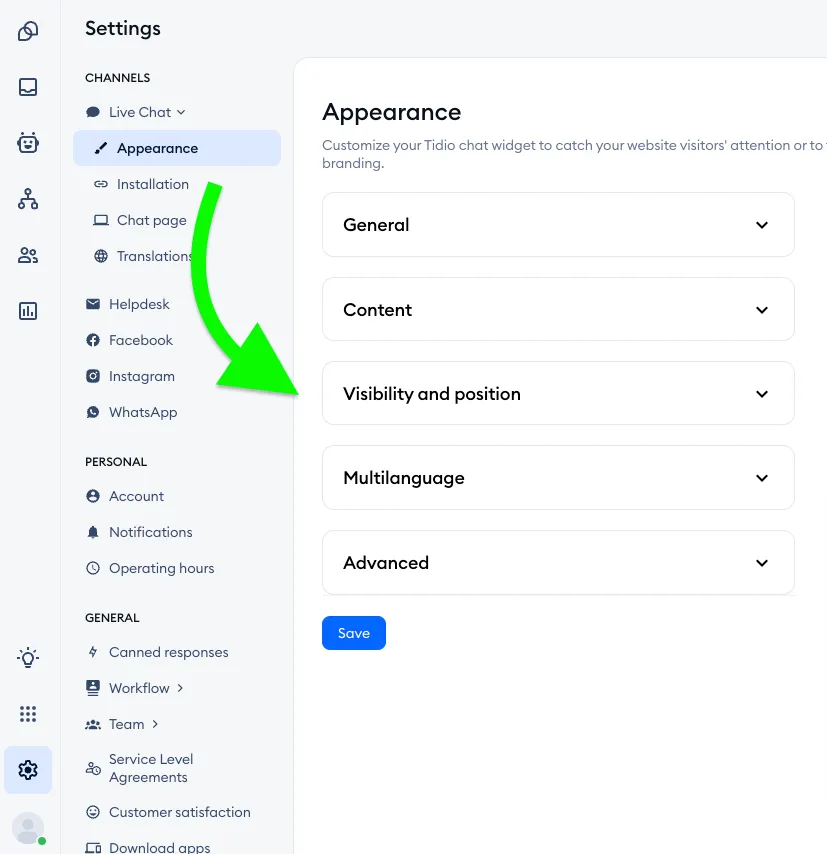
If you wish to completely disable the chat widget on your website (without uninstalling it), disable the Display toggle. Make sure to do this for both the desktop and mobile version of your widget; this will hide the widget entirely on your website.
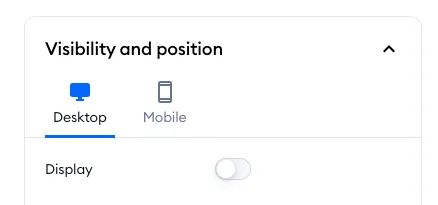
Please note: the Display switch depends on your plan. If it's grayed out and you see Available only in PRO plan when you hover over it, you can't change it on your current plan - in that case, hide the widget before your paid features end, or uninstall Tidio from your website instead.
Make sure to hit the Save button in the bottom-left of the Appearance section to save your changes. Your visitors will no longer see the Tidio chat widget displayed on your website.
To start showing Tidio on your website again, enable the Display toggle back again (and make sure you enable it for the devices you need).
Deleting your Tidio account (project)
Before you delete your Tidio project, you'll need to make sure that:
- You canceled your paid subscription, and your account is on the free, basic plan.
- Your Tidio chat widget is uninstalled from your website.
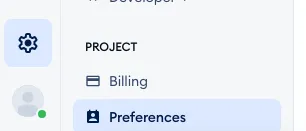
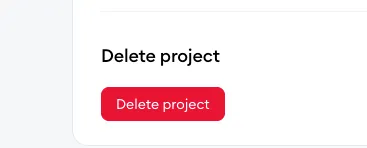
To entirely delete your Tidio project, you'll need to be the Project Owner. To continue with the deletion procedure, head over to the Settings > Preferences section, where you'll see a red Delete project button at the bottom.
If you're on the Plus or Premium plan (or another custom plan), you won't see the Delete project section - please reach out to your Customer Success Manager or our support team, and we'll help you delete the project.
By clicking on the Delete project button, you'll delete the whole project from our database, together with the agents and any data collected inside the project.
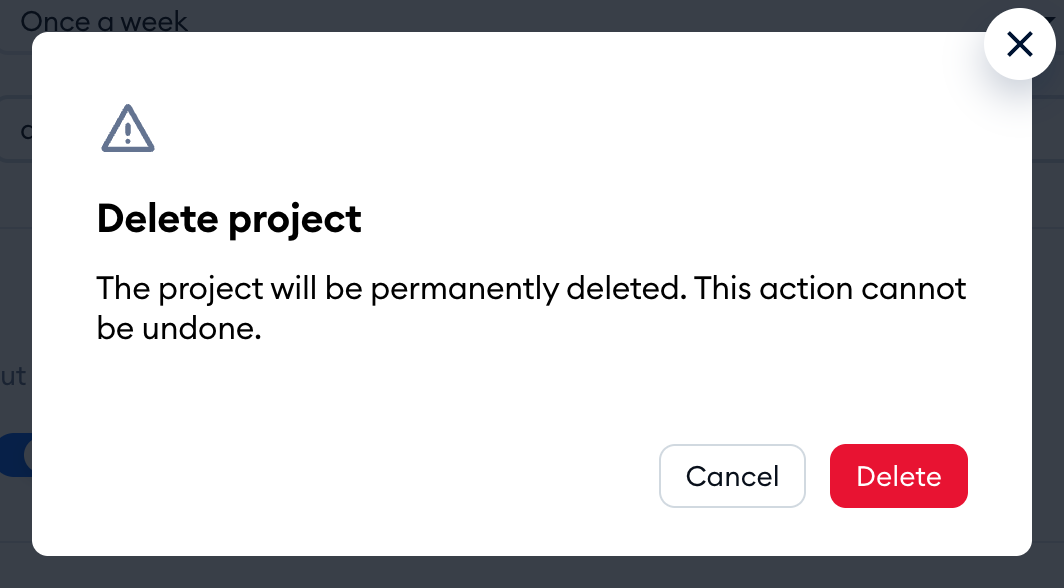
You'll be asked to confirm in the Delete project window: The project will be permanently deleted. This action cannot be undone. Click on Delete to go ahead, or Cancel to keep your project:
Please note: if your project still has an active subscription, you'll see Sorry, you can't remove a chat project with an active subscription. Cancel your subscription first, and try again once your project is on the free version.
If the agents were added only to this one deleted project, their accounts would be entirely deleted from our system, together with the project owner's account.
However, if the agents were added to more than one Tidio project, their accounts would not be deleted. Their accounts will be only deleted / unattached from the deleted project.
