See how to switch between separate projects to manage a few projects from only one Tidio account.
In this article, you'll learn:
- How to switch between projects on the web & desktop app
- How to switch between projects on the mobile app
To learn how to create a new project - please read our article on managing multiple projects.
Switch between projects - web & desktop app
When you log in to your Tidio web or desktop app, click on your avatar in the bottom left corner of the panel. In the menu that opens, you'll see your current project's URL under Project - point to it to open the list of your projects, and click on the one you'd like to switch to:
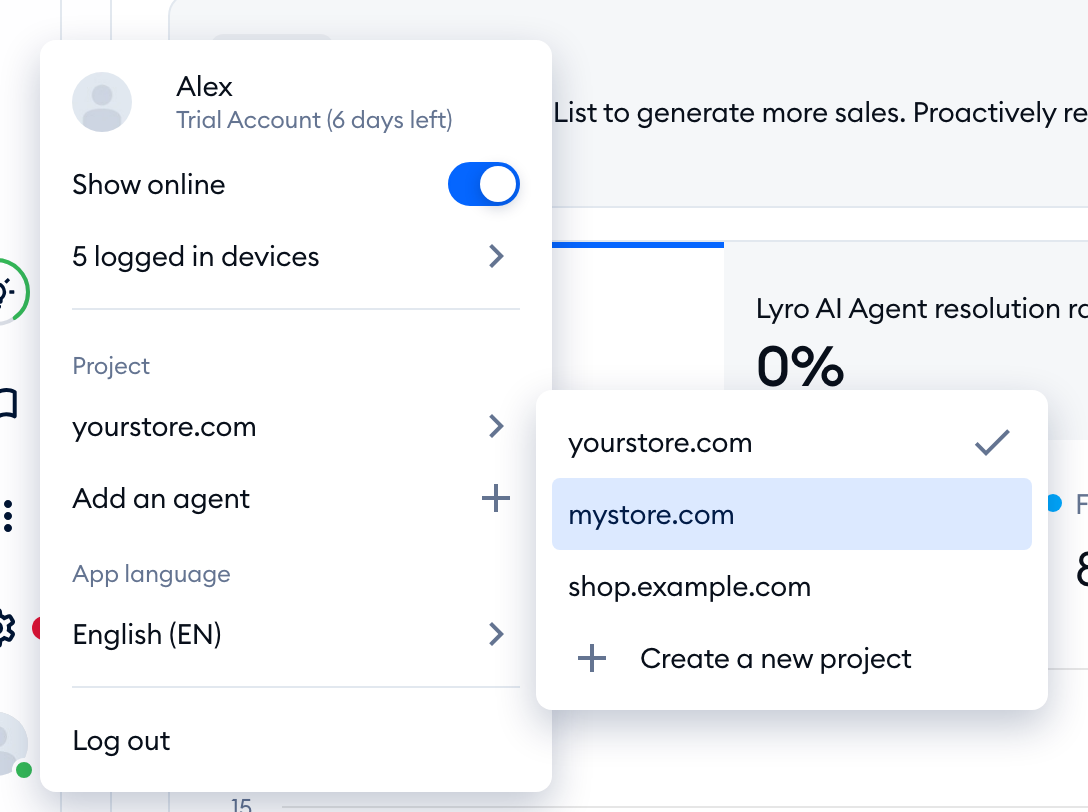
The page will refresh, and you'll be taken to the chosen project.
If a project has a small key icon next to it, it uses a different way of signing in (for example, Single Sign-On). Choosing it opens Sign in to continue - click on Continue to Login, and you'll be redirected to the login page to sign in to that project:
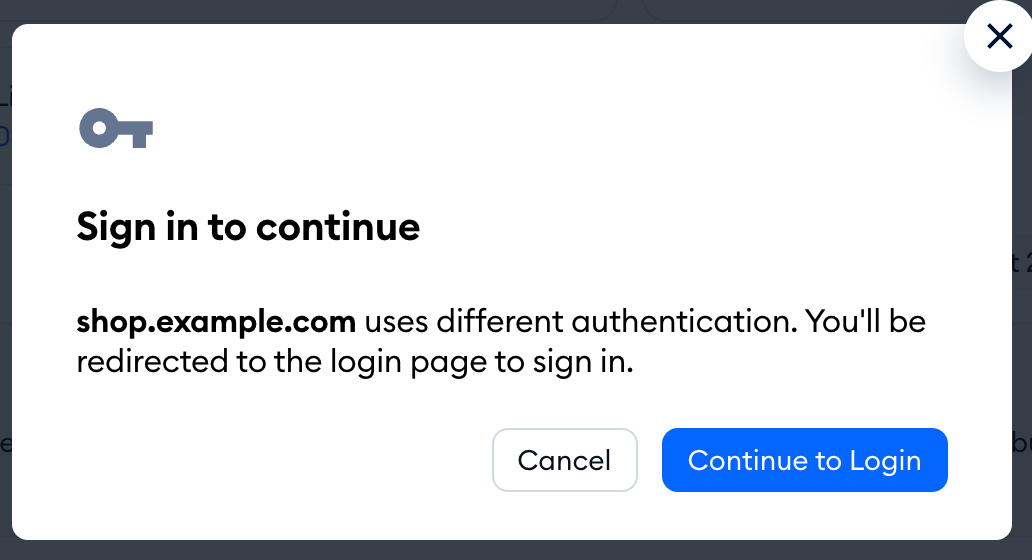
Switch between projects - Mobile App
To switch between your projects on the Tidio mobile app - head over to the settings section and click on the project name to change the project.
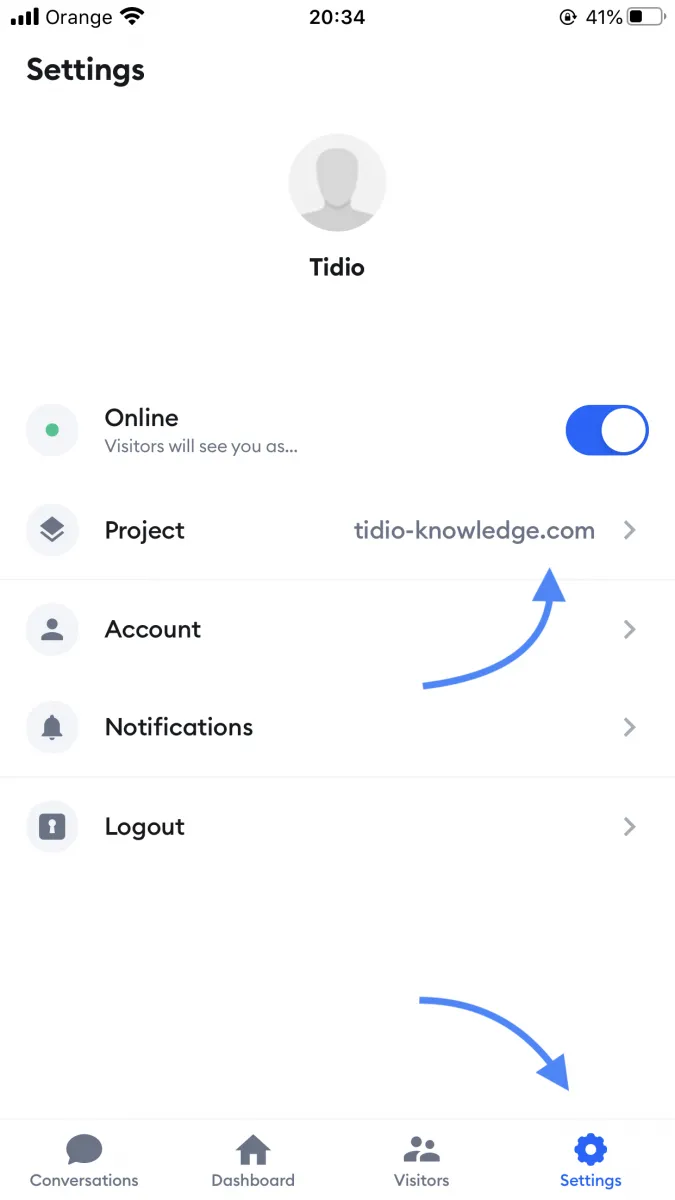
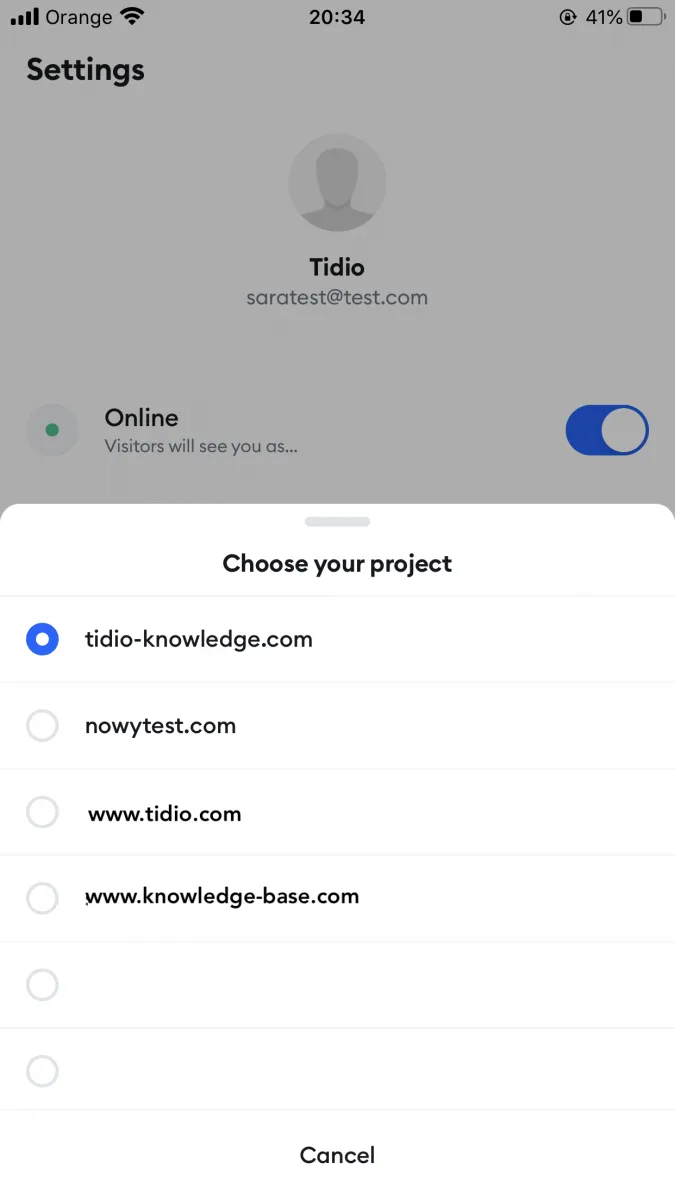
Once the menu slides out, you can select the project you would like to use from the list.
Please note: you can be logged into only one project at a time, and you'll see the notifications only from the project you're logged in to at the very moment. On the Plus plan, Multiproject shows all your projects in a bar on the left of the web and desktop panel, with notifications from all of them.
