Suggesting products to customers not only helps them discover new items but also boosts your store's sales potential. Our integration with Shopify allows you to suggest products without having to leave the Tidio panel!
In this article, you'll learn:
- What the Recommend products action is
- How to use the Recommend products action
- How to configure the Recommend products action in detail
What is the Recommend products action?
The Recommend products action examines the most recent product ID that the visitor has added to their cart, and uses this information to tailor its recommendations. If the cart is empty, the action is ignored in the flow.
You'll find it in the Shopify group of the Actions menu in the flow editor. It works with the Shopify integration - if your store isn't connected yet, the action's settings will show the Integrate with Shopify button. If Tidio needs extra permissions to read your products, you'll see Reintegrate with Shopify instead.
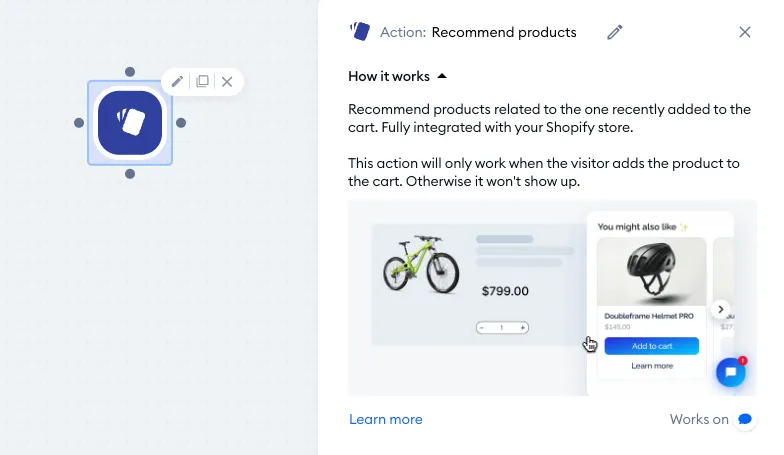
Using the action
You can use the Recommend products action in any flow, but it performs optimally when the flow is using the Shopify - Visitor adds to a cart trigger. That allows Tidio to check the added product's ID and make its recommendation right away.
Please note: Tidio keeps the most recent product ID for an hour after the product has been added to the cart. While we do not track if the item is kept in the cart or removed, the item's ID will become unavailable an hour after having added it to the cart.
That means you can use this action in different types of flows successfully, but you need to keep in mind that product recommendation won't work if an hour passes.
You can end the flow with this action if that suits your needs. However, the action provides two possible outcomes: When shown and When not shown, allowing the flow to adapt in either case.
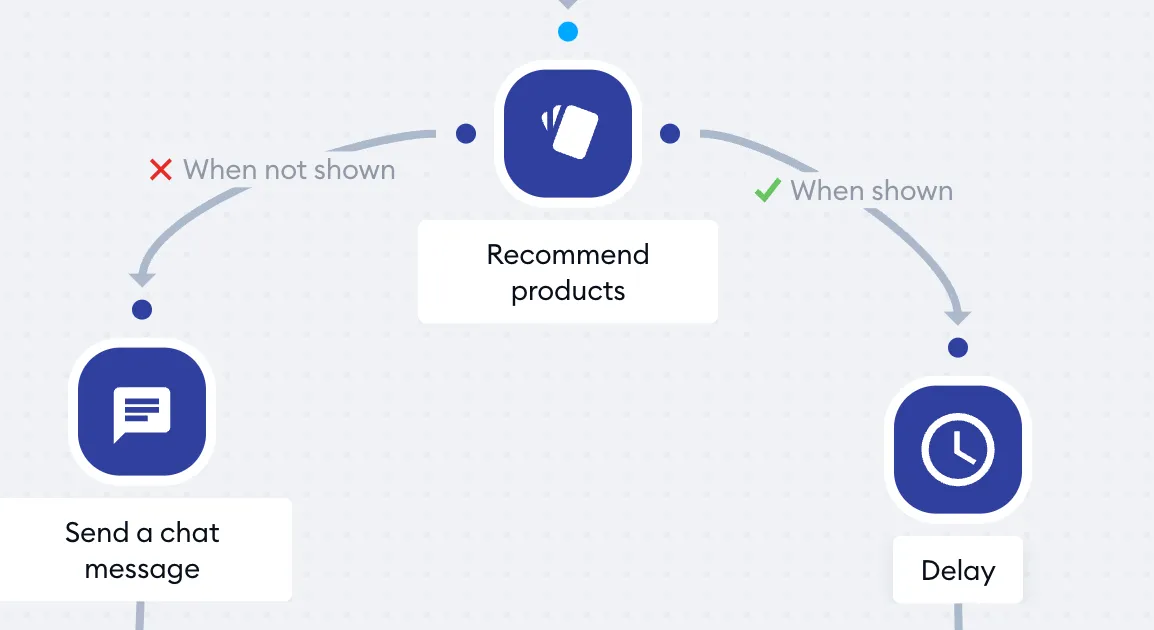
These two options determine whether the action is performed at all, affecting the visitor's interaction with the flow. If a customer receives a product recommendation, the flow can continue with further actions; if a recommendation doesn't take place, you can create a different scenario to ensure the best possible outcome.
Configuring the details
By clicking on the Recommend products node inside the flow editor, you'll see a quick setup where you can customize the Message sent to the visitor along with the recommendation (up to 80 characters - by default, You might also like ✨). You can also configure the Recommendation intent, and select the Number of recommended products to display.
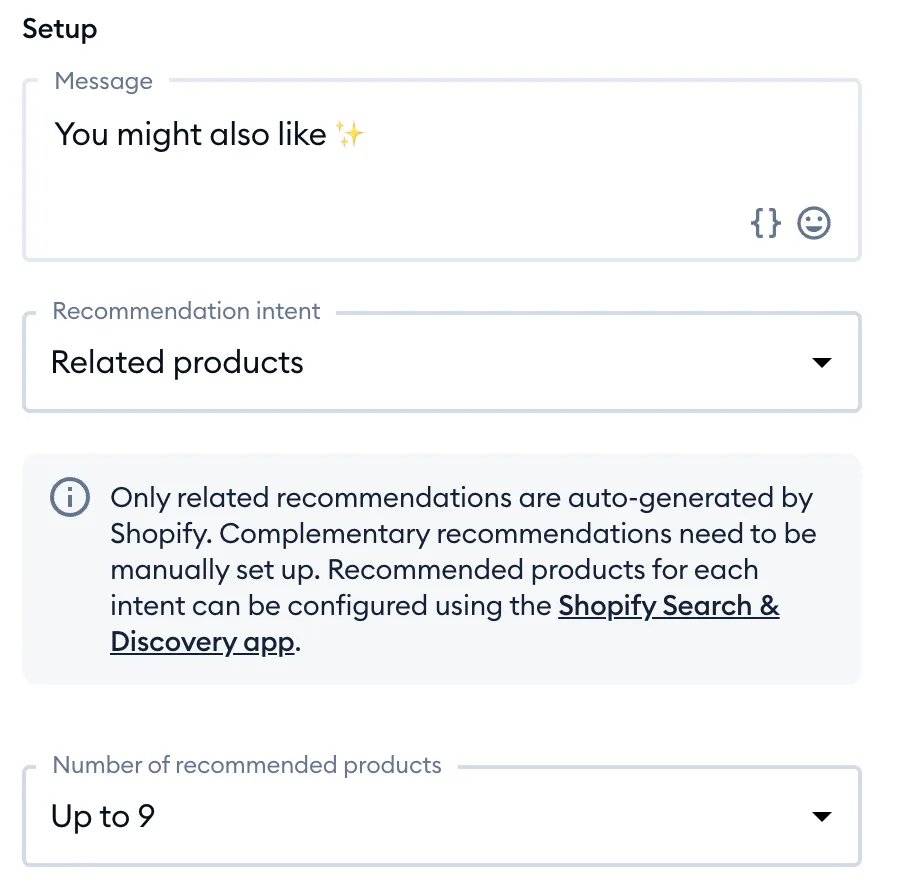
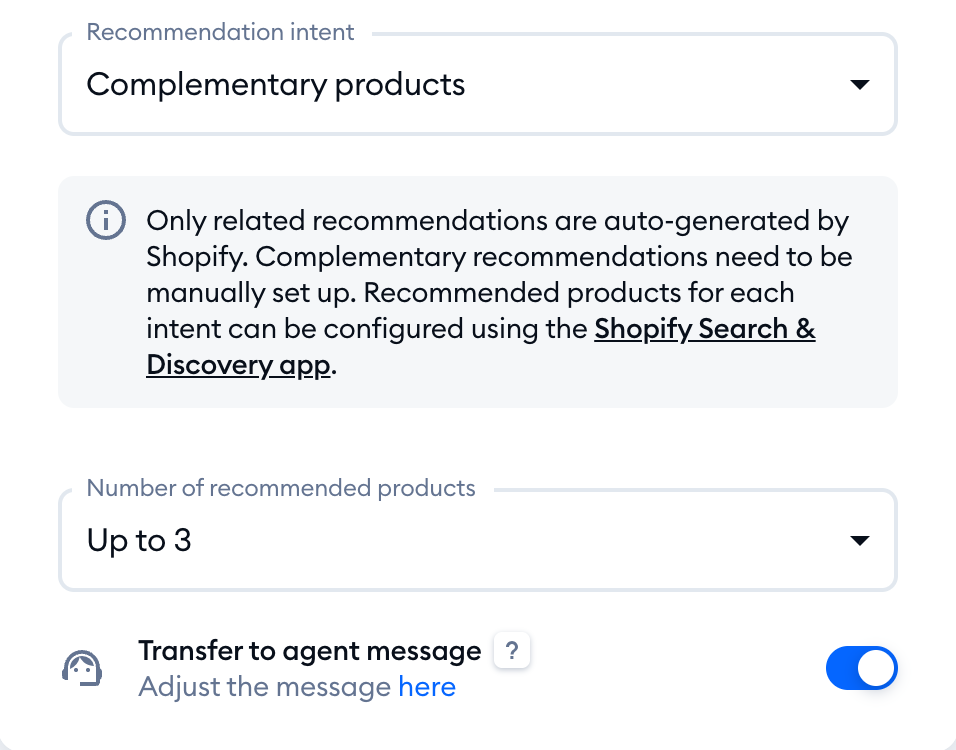
Recommendation intents fall into two categories: Related products and Complementary products (selected by default):
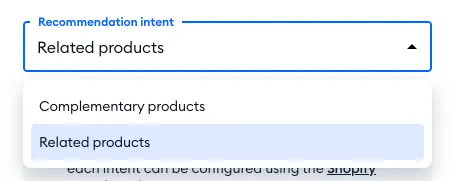
Related products
These recommendations are automatically generated by Shopify, and suggest products that are often purchased together, share similar descriptions, or belong to related collections.
Complementary products
These recommendations require deeper configuration within Shopify directly. Complementary products pair well with the item the customer is currently interested in, though they may not be directly related. You can set up the recommended products for each intent in the Shopify Search & Discovery app - the action's settings link to it.
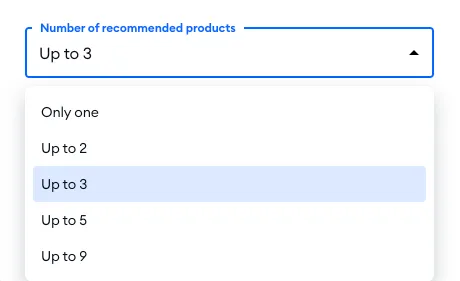
Of course, you can also decide about the maximum Number of recommended products the action can provide: Only one, Up to 2, Up to 3 (the default), Up to 5 or Up to 9:
Below these settings, you can also turn on the Transfer to agent message for this action. Click on here in its description to adjust the message - the text is shared by all your flows (see The "Transfer to agent" message).
Here's an example of a typical product recommendation in action: