In this article you will learn to install Tidio on your Ecwid store. Follow the steps described below and implement the Tidio installation script into your store.
In this article, you'll learn:
Install Tidio on Ecwid
These steps apply to Ecwid Instant Site. Custom code is available on the Venture, Business, and Unlimited plans. If you haven't registered with Tidio yet, look at our article explaining how to create a Tidio account.
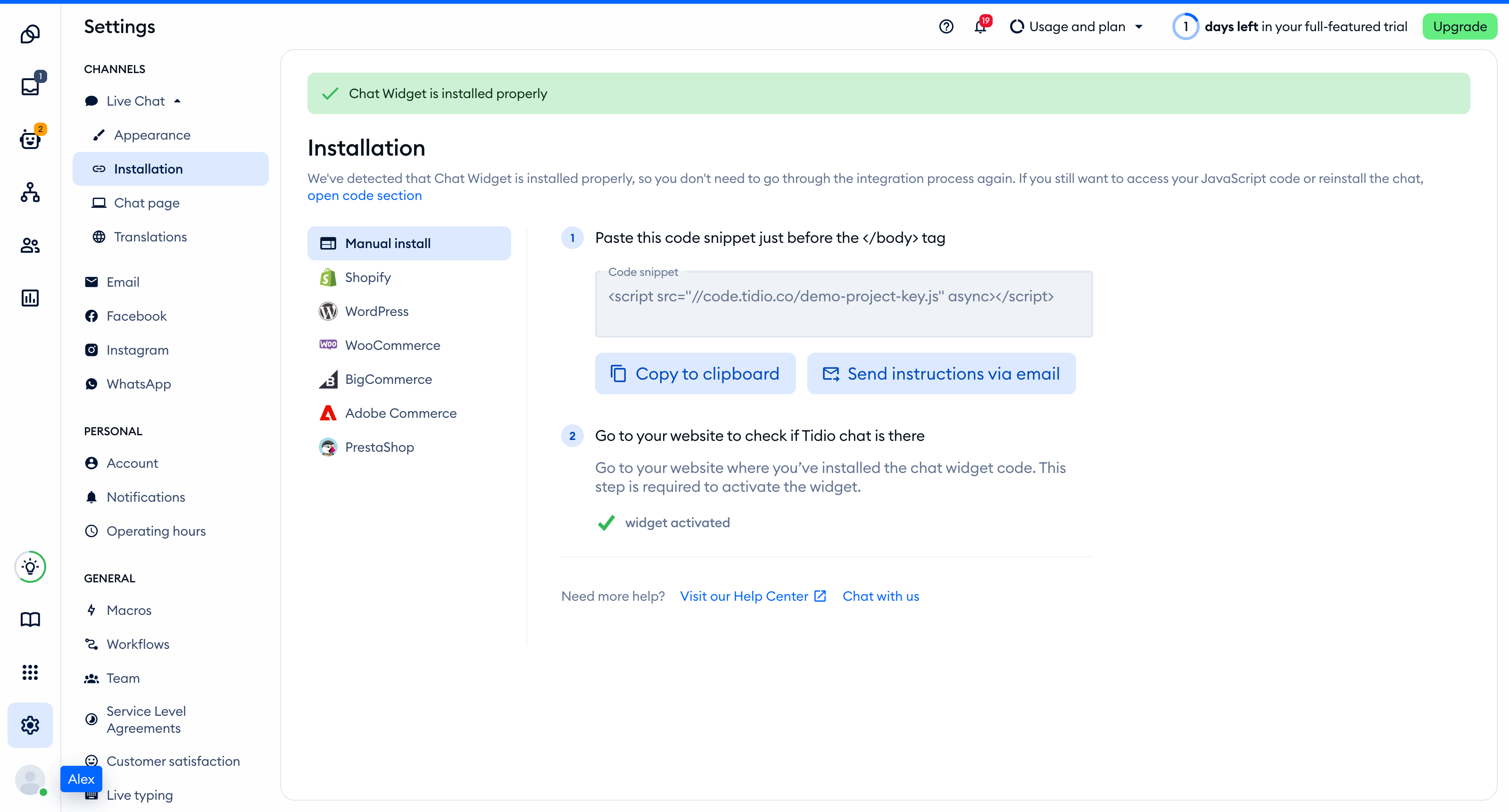
First, you will need your Tidio project's unique installation code. You can find that anytime under Manual install, in the Settings > Live Chat > Installation section in your Tidio panel. Copy your unique code snippet from there:
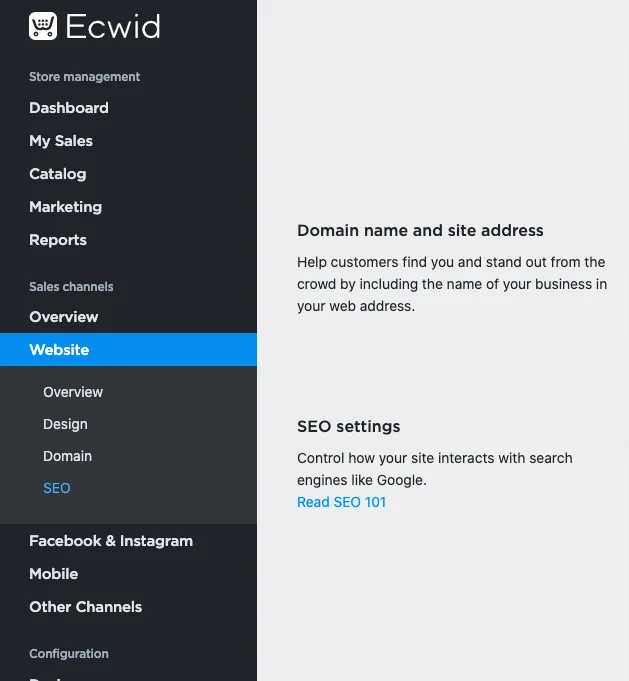
Second, open your Ecwid panel and head over to Website (or Overview > Manage Instant Site):
Scroll down to the SEO settings section and click Add Code under Header meta tags and site verification, then paste your Tidio installation snippet into the code field:
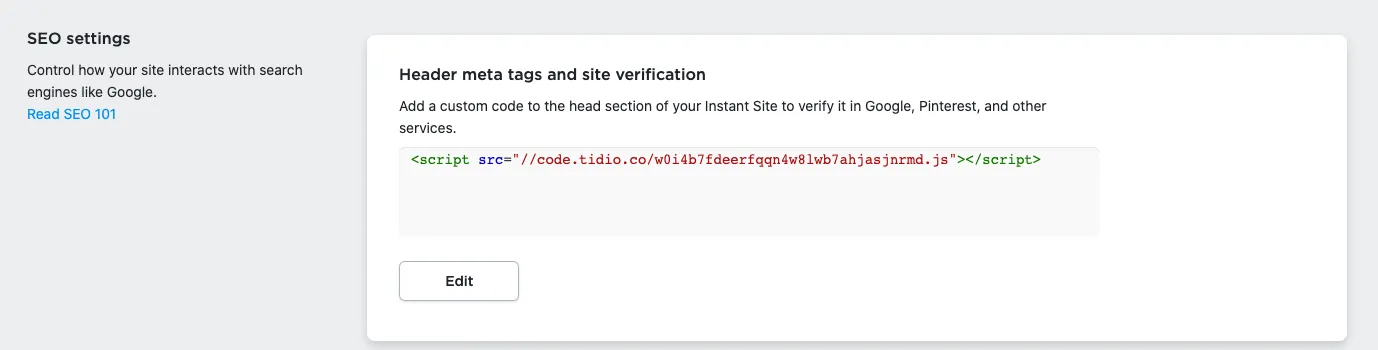
After pressing the Save button, the Tidio widget will be added to your website!
