With Ticketing, you're able to receive all your incoming emails inside your Tidio inbox - and respond to them from within Tidio as well. You can connect all the most popular mailboxes and make sure all your communication is managed from one place. You can learn more about this functionality in this guide.
Gmail is easily the most popular mailbox provider nowadays, and Tidio offers a very quick way to connect; with our dedicated one-click integration, you'll start receiving your Gmail traffic in no time!
In this article, you'll learn:
Connecting with Gmail
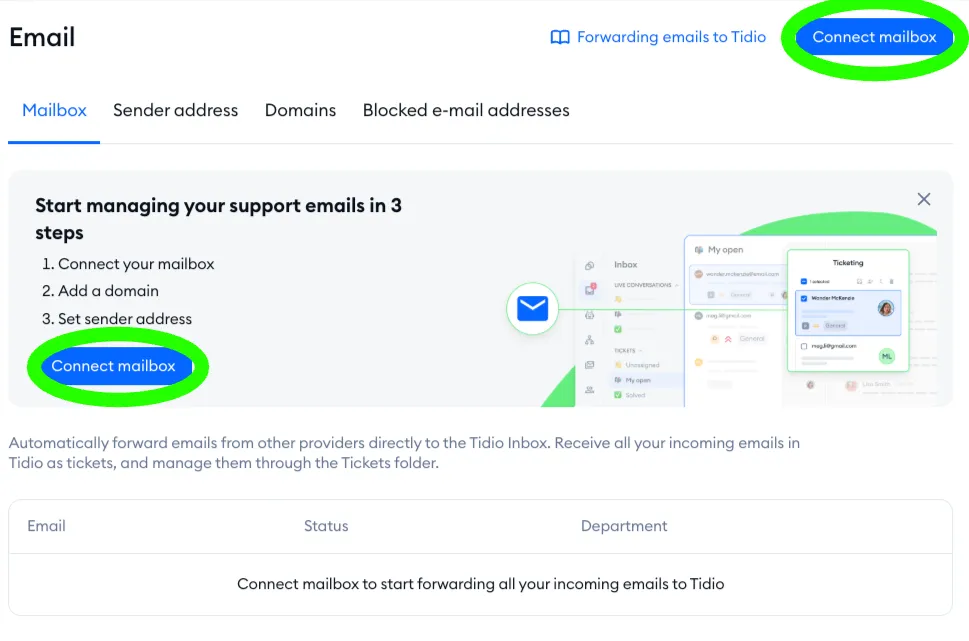
You can add your mailbox (or multiple mailboxes) by heading to the Settings > Email section in your Tidio admin panel:
Click on the blue Connect mailbox button:
You will see a pop-up with three options to choose from (and the I want to create a new Tidio address link at the bottom); in this case, use the dedicated Gmail option - "Connect Gmail or Google workspace mailbox". It works for Google Workspace mailboxes, too:
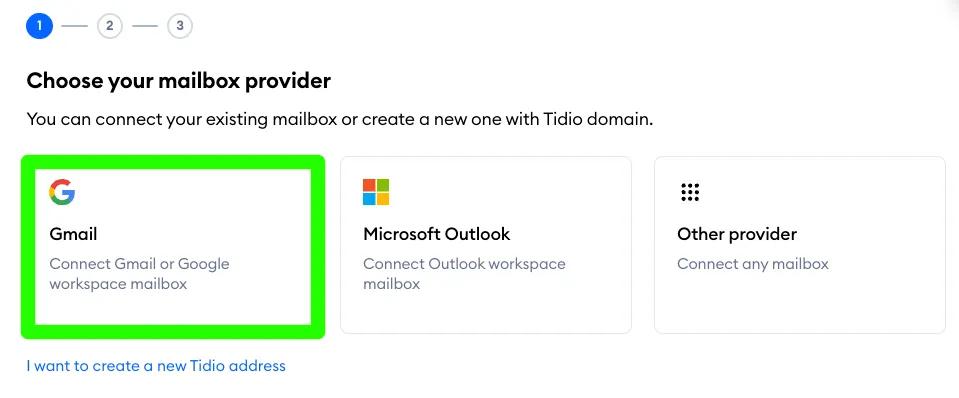
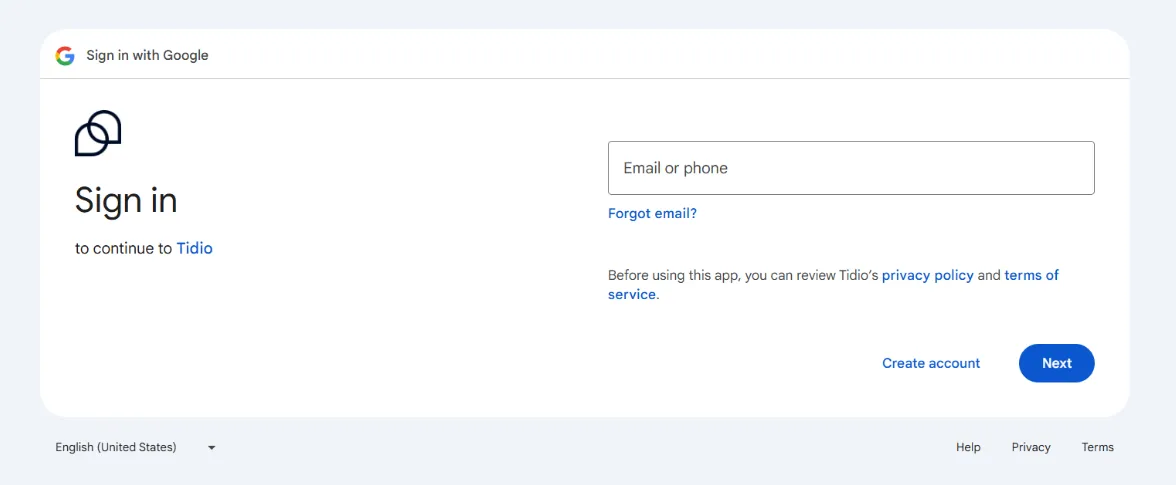
This integration is by far the quickest available; it doesn't require any actual setting up. Tidio opens Google's sign-in in a new window - just follow the steps provided by Gmail directly.
Please note: the Gmail option isn't shown in older versions of the Tidio desktop app (before version 5.4). If you don't see it there, connect your mailbox from Tidio in your web browser.
You'll be asked to sign into Gmail (or select one of the accounts you're already signed into):
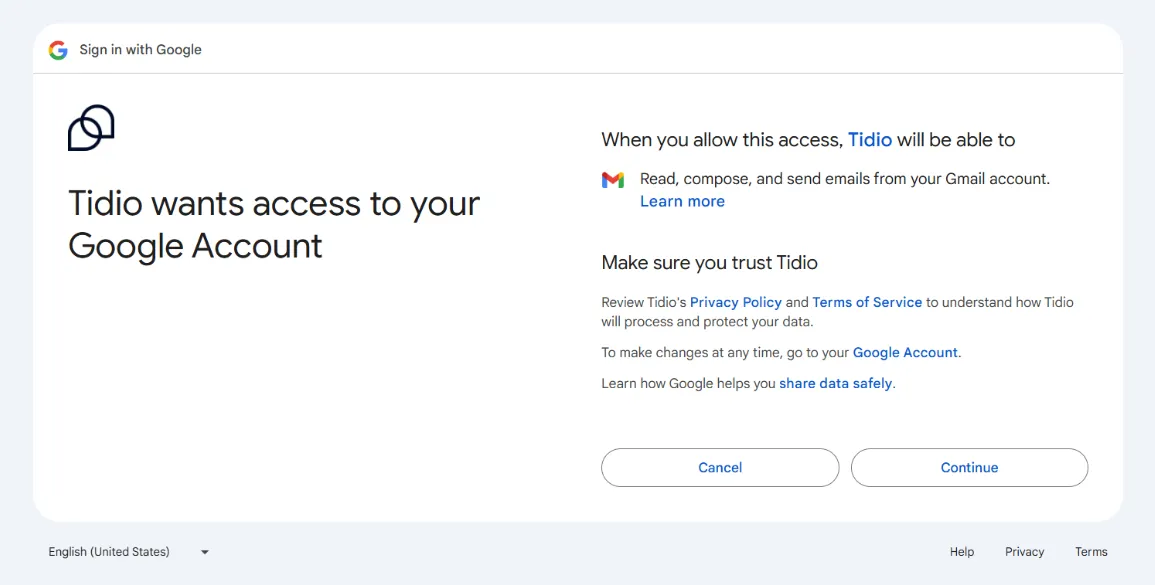
... and confirm, by clicking the Continue button:
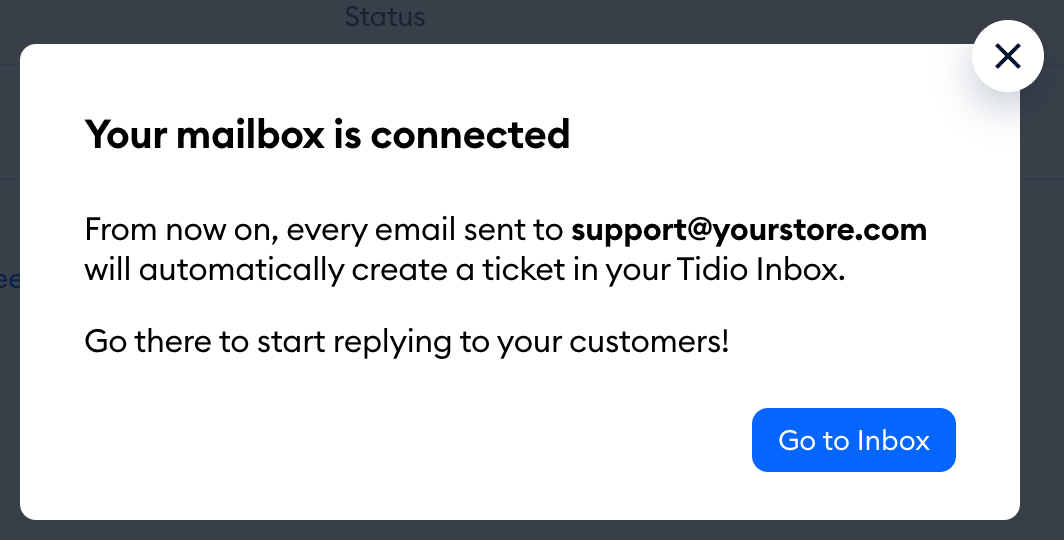
Once you finish these steps via Gmail, you'll see the Your mailbox is connected window in Tidio - from now on, every email sent to that address will create a ticket in your Tidio Inbox. Hit Go to Inbox to start replying:
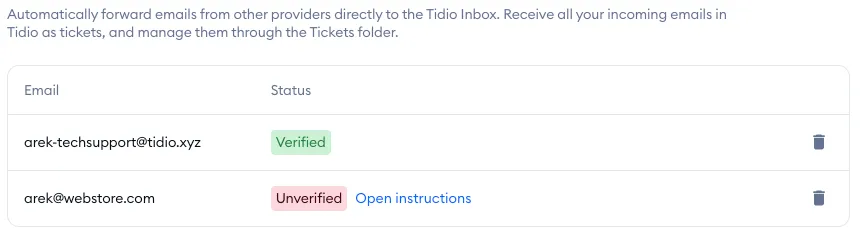
You will also see your mailbox listed in your Mailbox tab, and verified for use right away:
If something goes wrong, Tidio closes the window and shows a message instead. For example, "We couldn't connect your Google account because it's already connected to this or another Tidio account." If the sign-in was stopped or failed ("The connection process has been stopped. Please try again."), simply click on Connect mailbox and try again.
Cancelling Gmail integration
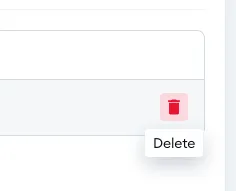
If you'd like to cancel any forwarding from Gmail, you will just need to remove the Gmail mailbox you've added. Go to the Settings > Email section in your Tidio panel (the Mailbox tab), and on the far right of the mailbox you want to disconnect - hit the trash icon (Delete):
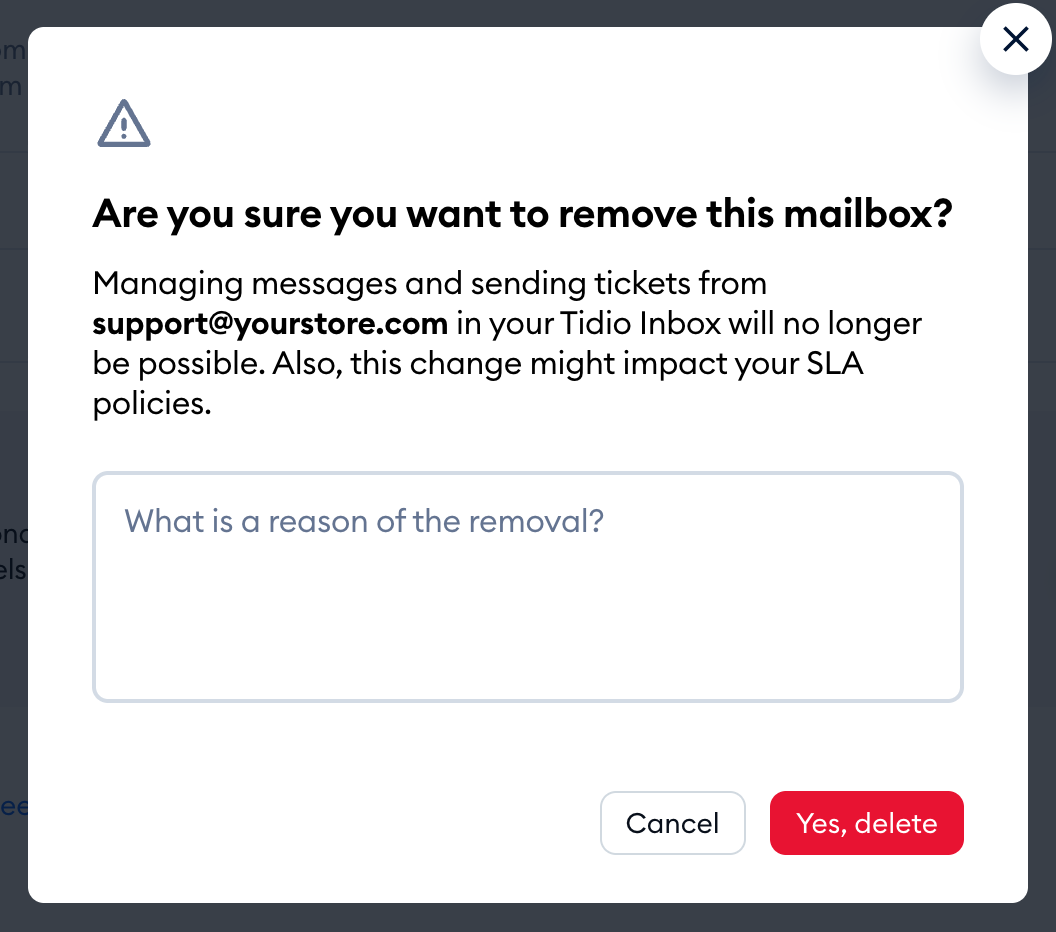
Tidio will ask: Are you sure you want to remove this mailbox? You can add the reason for the removal (optional), and confirm with Yes, delete:
Your mailbox will be removed from the list. This effectively cancels this particular Gmail integration.
Please note: if you've added your Gmail mailbox to Tidio with the Other provider option, deleting the mailbox alone does not disable forwarding! This method only works if you've used the dedicated Gmail option.
If you used the Other provider option to integrate, that means you manually copied and pasted your unique Tidio forwarding address into Gmail's forwarding settings. To remove the connection fully, you need to remove your unique Tidio forwarding address from your Gmail account's forwarding settings (see this section of our forwarding guide).
