Can't see a flow or the Tidio widget on your website? Start by checking the widget installation and visibility, then test your flow in a fresh private browsing session.
In this article, you'll learn:
Troubleshooting Widget Display
In the event that you cannot see the chat widget at all on your website, it may indicate an incorrect installation or hidden status for Tidio. Follow these steps to ensure the Tidio widget is visible:
- Check the widget visibility settings using our article about Changes Aren't Visible.
- If that didn't help, please check whether the Tidio widget was installed correctly by heading to our article about installing Tidio on your website and finding your platform.
- If you are unable to examine whether widget was installed correctly, please contact our support at support@tidio.net
Troubleshoot Flows visibility
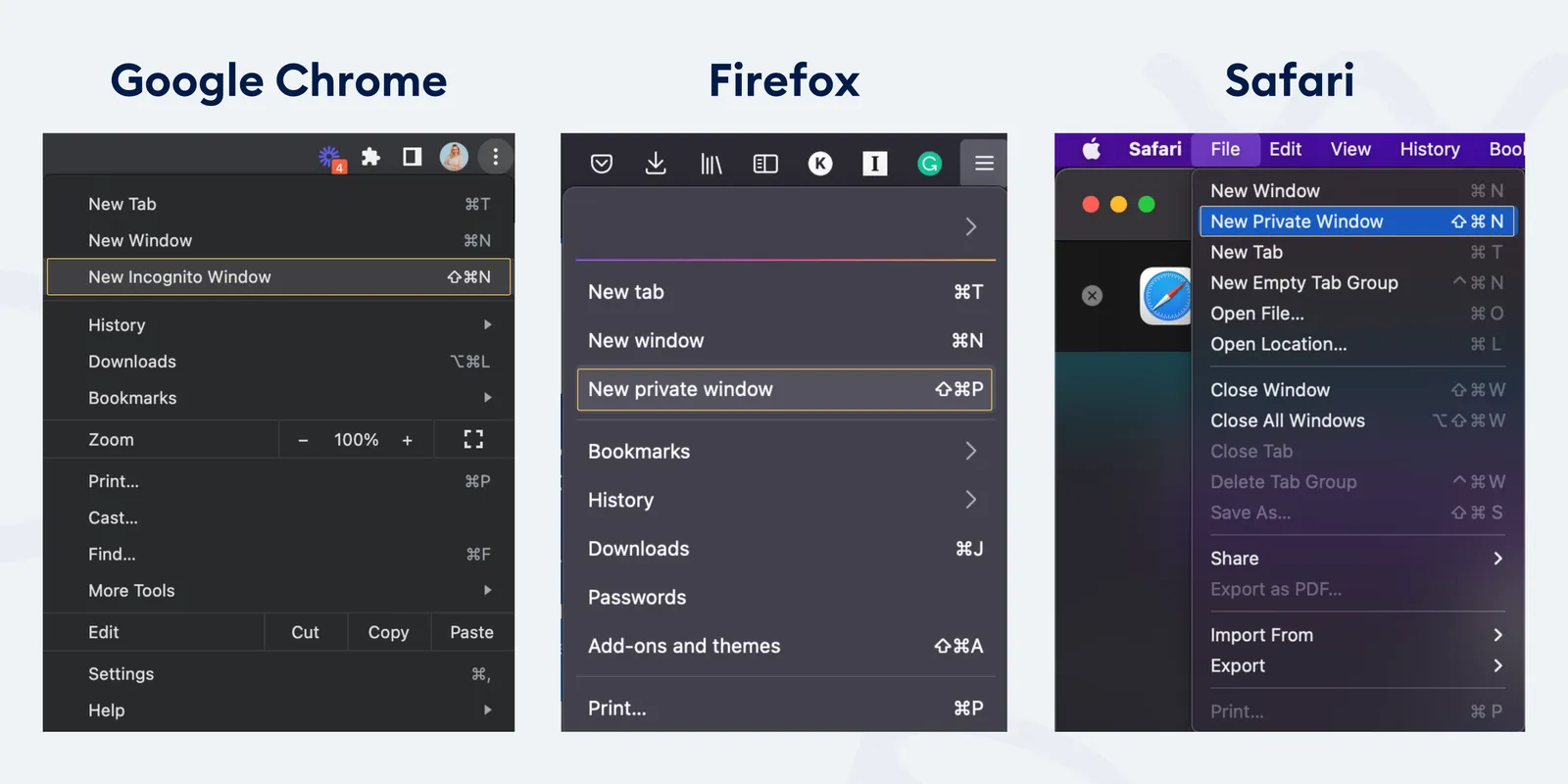
If your Flows are not appearing or showing outdated messages in the Tidio chat widget, your browser may be retaining data from earlier visits. Follow these steps to test the flows for new visitors in a new incognito window:
💡
Make sure you're opening a completely new incognito window. To do that - close all the previously open incognito windows and open a new one.
- In Google Chrome on your computer, open the three-dot menu in the top-right corner.
- Select "New Incognito window". Chrome starts a separate browsing session and clears that session's cookies and site data after all Incognito windows close. See Chrome's Incognito instructions. Other browsers use different names and menus for private browsing.
- Once the incognito window is open, check if the chat widget appears as intended. If the changes are still not reflected, reach out to our support team at support@tidio.net and provide them with a link to your website and your Public key (found in the Settings > Developer > Project data section). They will help you troubleshoot that.