The Service-Level Agreement (or SLA) is a market standard in customer service tools. It is an agreement between a service provider and their client; it defines the level of services offered, the metrics used to measure these services, and possible solutions (and penalties) in case the agreement is breached.
When it comes to customer support, the SLA can define the standards of support provided, such as quality, availability, and estimated response or solution times.
In Tidio specifically, SLA policies can be set up to determine the amount of time agents have to respond to incoming tickets - emails sent to your mailboxes, as well as tickets created from your chat widget, from the Tidio panel, and from Facebook and Instagram comments.
In this article, you will learn:
- The purpose of SLA policies in Tidio
- How to configure your project's SLA
- What using SLA looks like in practice
The purpose of SLA policies in Tidio
A project's SLA allows you to set timeframes for your agents' response times for tickets. The SLA is not communicated to the end-users (customers) in any way; it's a strictly internal policy for your support team.
Using SLA policies in Tidio lets you set a standard and become more efficient with your services, as agents will become more conscious of their own response times. In turn, team leaders can see at a glance which tickets are close to (or past) their deadline. Naturally, SLA policies can also be edited (or removed) if your processes change.
If your Tidio project is integrated with several external mailboxes, you can set different policies for each mailbox. On top of that, you can add different policies for tickets that are submitted by website visitors directly via your chat widget, for tickets that agents create themselves (from incoming chats, or from scratch) within the Tidio panel, and for tickets created from Facebook and Instagram comments.
Each SLA policy lets you determine a separate response time for the first reply and for all subsequent replies (the next reply).
Configuring your project's SLA
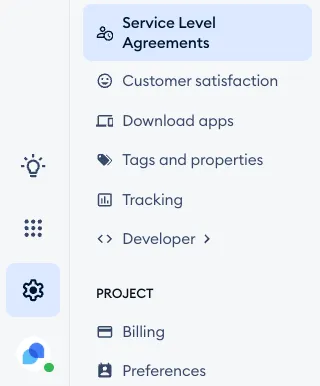
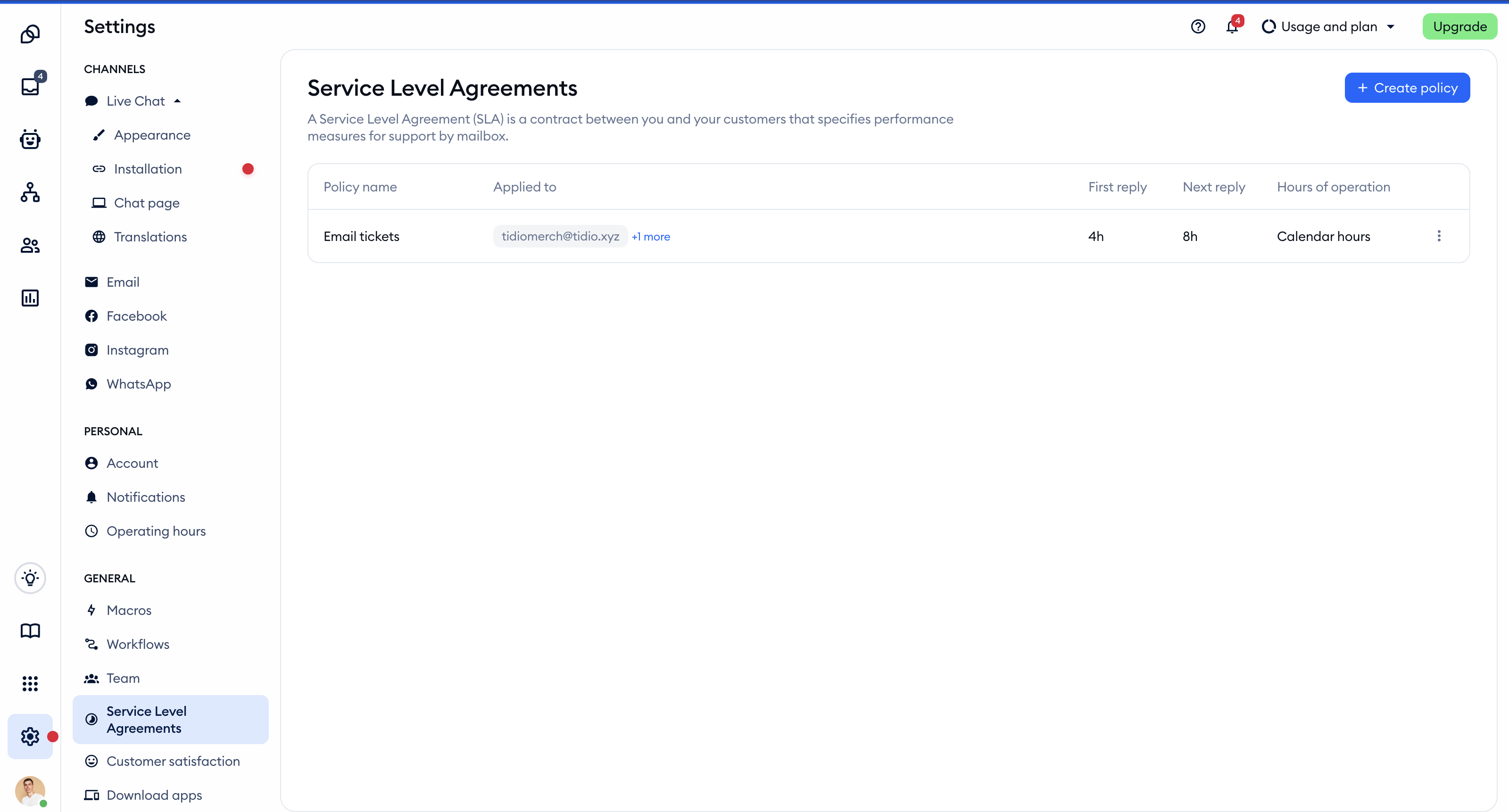
You can set up the SLA policies in the Settings > Service Level Agreements section in your Tidio panel:
In there, you will see your SLA policies (if you've already added any). The available information for each policy includes the policy name, which tickets the policy applies to, the response time for first and next replies, as well as the hours of operation. Please note that all SLA policies are based on calendar hours, not taking into account your team's online/offline schedule!
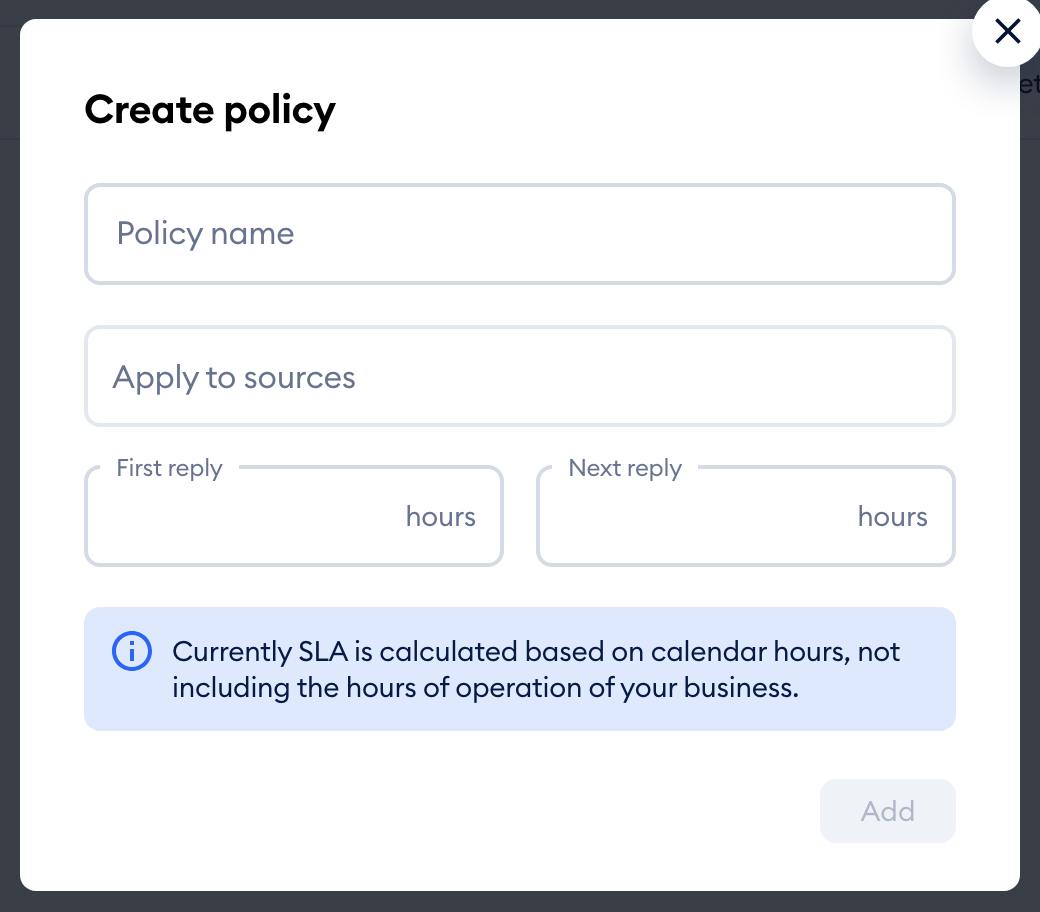
To add a new policy, click the Create policy button in the top-right:
A new window will pop up, letting you determine the policy's details: its Policy name, the sources it applies to (integrated mailboxes, tickets submitted via widget, tickets created from inside your Tidio panel, and tickets created from Facebook or Instagram comments), and response times for the First reply and Next reply (in hours):
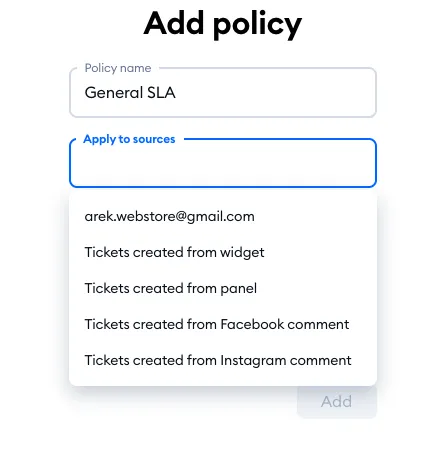
In the Apply to sources field, choose the source (or sources) from the list. You will see any mailboxes you've integrated with Tidio (once they're verified), as well as options for tickets either submitted by visitors through the widget on your website, or created by agents in the panel (this applies both to tickets created from existing chats and to tickets created from scratch). You will also see options for tickets created from Facebook or Instagram comments:
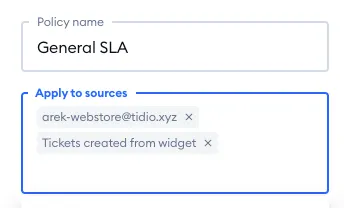
If you already have an SLA policy that uses a certain source, that source will no longer be available to select (and once every source is taken, the list says All sources have been selected). If available, however, you can select more than one source - and they will all be listed in the same field once you're done:
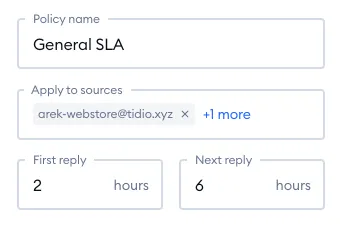
The last step is deciding about the response times - the First reply and the Next reply. You need to put in the amount of time (in whole hours) that will become part of the new policy, and hit the Add button:
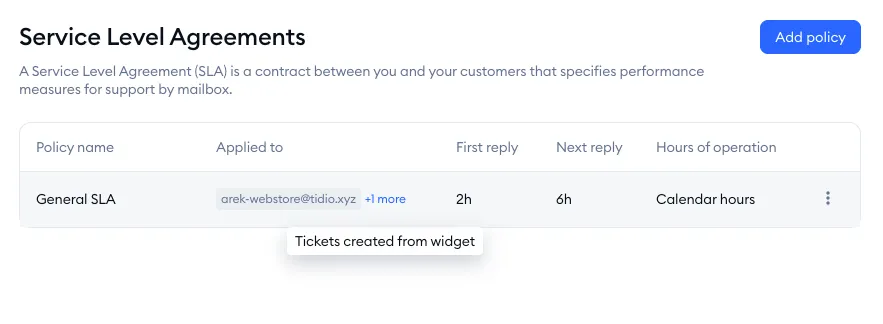
Once the new policy is added, you will see it in the general SLA section, along with all the relevant information. If a given policy uses more than one source, you may not see them all immediately (due to size constraints), but it will become visible once you hover your mouse cursor over the sources:
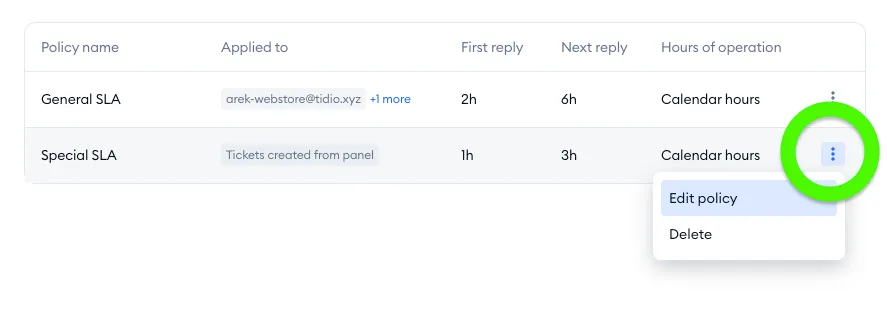
You can edit (or delete) any listed SLA policy by clicking on the options menu on the right, and choosing Edit policy or Delete:
Please note: a new policy will only apply to new tickets; tickets that had been received earlier will not be affected. Similarly, changing an existing policy will only affect new tickets as well, and not existing tickets that already have a certain SLA active.
Please note: the Create policy button and the options menu are only visible to agents who can change SLA policies. You can control this with the Service Level Agreements setting in an agent's permissions.
Using SLA policies in Tidio
Once you add an SLA policy, it will become active right away and will start affecting any new tickets that the policy applies to. For all such tickets, you will see an SLA tag in your folder (and in the SLA row of the ticket's details on the right); the marker indicates how much time is left to respond, or whether the SLA is breached or paused:
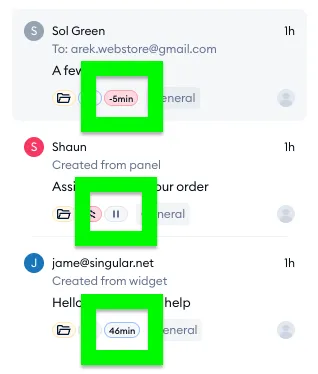
If no policy covers a ticket's source yet, the SLA row in the ticket's details shows a Create policy link instead, which takes you straight to the SLA settings.
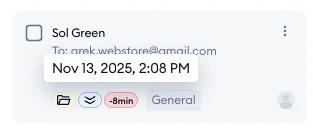
SLA breached
A red-tinted tag indicates that the SLA has been breached, and shows the amount of time that has passed since the breach. Hovering your mouse cursor over the icon will show the exact date and time of the breach:
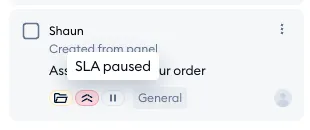
SLA paused
A grey tag (with the pause symbol) indicates that the SLA is currently paused - hovering over it shows SLA paused. This means it's a new ticket created by an agent directly, or the agent replied to an incoming ticket and is awaiting the customer's response.
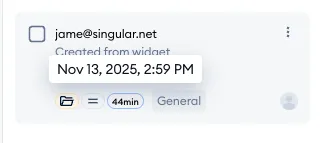
SLA active
A blue-tinted tag indicates that the SLA is active and there is still a specified amount of time left to respond. Hovering your mouse cursor over the icon will show the exact date and time when the SLA will be breached:
Please note: when an agent creates ticket from the Tidio panel (either from scratch or from an existing live chat), that ticket will start out as paused. The SLA will activate once a response from the customer is received.
