Do you want your flow to send a specific message (e.g. a discount code) only once to a particular visitor, but none of the current conditions matches your scenario? In this case, the best way is to label the person with a custom contact property and use it as a filter later on.
A good example would be sending a discount code to a user who abandoned the cart but has not made a purchase yet (i.e., if the client already bought something - don't send him the discount code when they abandon the cart on the next purchase). There are, of course, other variations available, too, covered at the end of the article.
In this article, you'll learn:
Create a flow
The first step is to create a custom contact property, this will be custom information you can save about your clients (so it can be used not only in flows but during a conversation as well, it's basically like adding a new field on the visitor details panel on the right side). For the sake of the example, we'll create a property called: "Has purchased"
You can do it via Settings > Fields: open the Contact properties tab and click on Create contact property. Fill in the Property Label (e.g. Has purchased), check the Internal Property Name, choose Text as the Property Type, and hit Create:
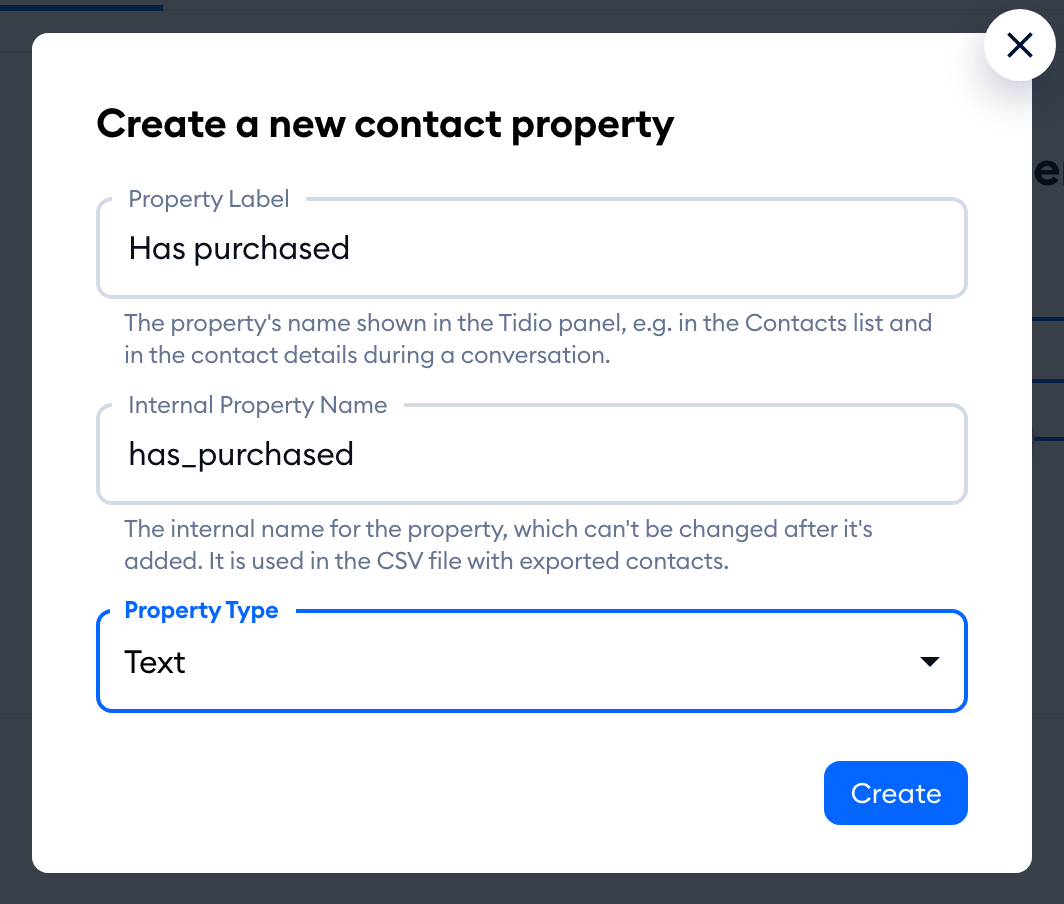 Fields > Contact properties, with "Has purchased" in Property Label, "has_purchased" in Internal Property Name, Text in Property Type, and the Create button" width="523" height="573" loading="lazy" decoding="async">
You can also add a new property straight from the flow editor - the property list in the Update contact property action has an Add new contact property option.
The next step is making the flow assign that property (and a correct value) once someone makes a purchase. This one can be done via the Flows section, by setting a Visitor opens a specific page trigger and specifying the address of your 'Thank you, your order has been completed' page.
If the URL is dynamic, set just a part of it (e.g. /order-completed/) and select Address contains in the trigger's settings (it's selected by default). Once that's done, connect the action called Update contact property and use the previously created Has purchased property, and make the action Set a yes value to it.
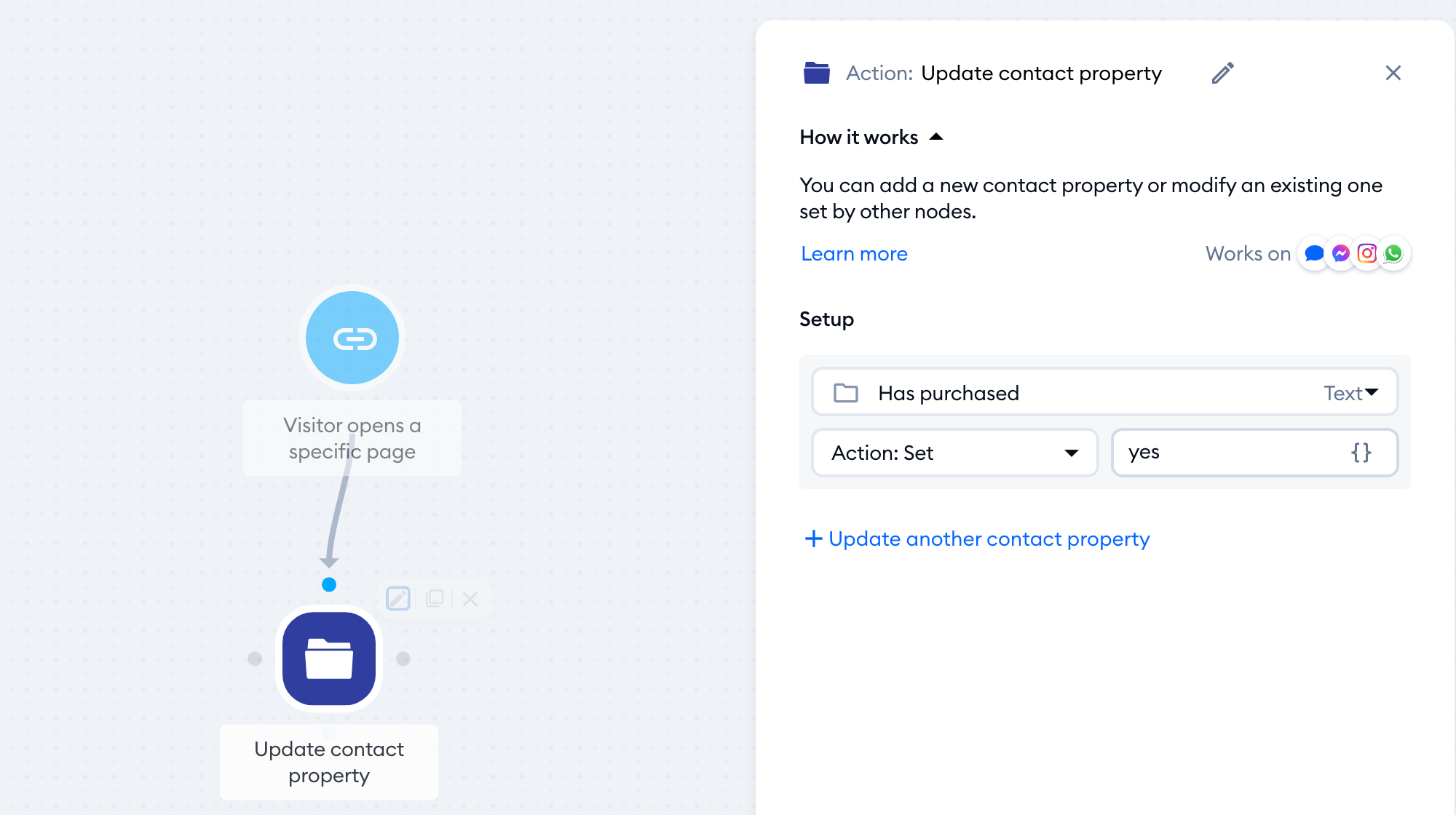
The logic:
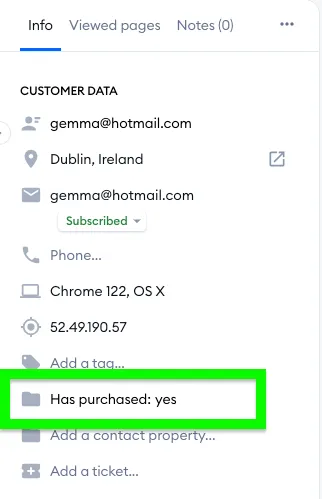
If the person reaches the page where the order is done, the chat will assign a Has purchased: yes info to that person, in this particular form:
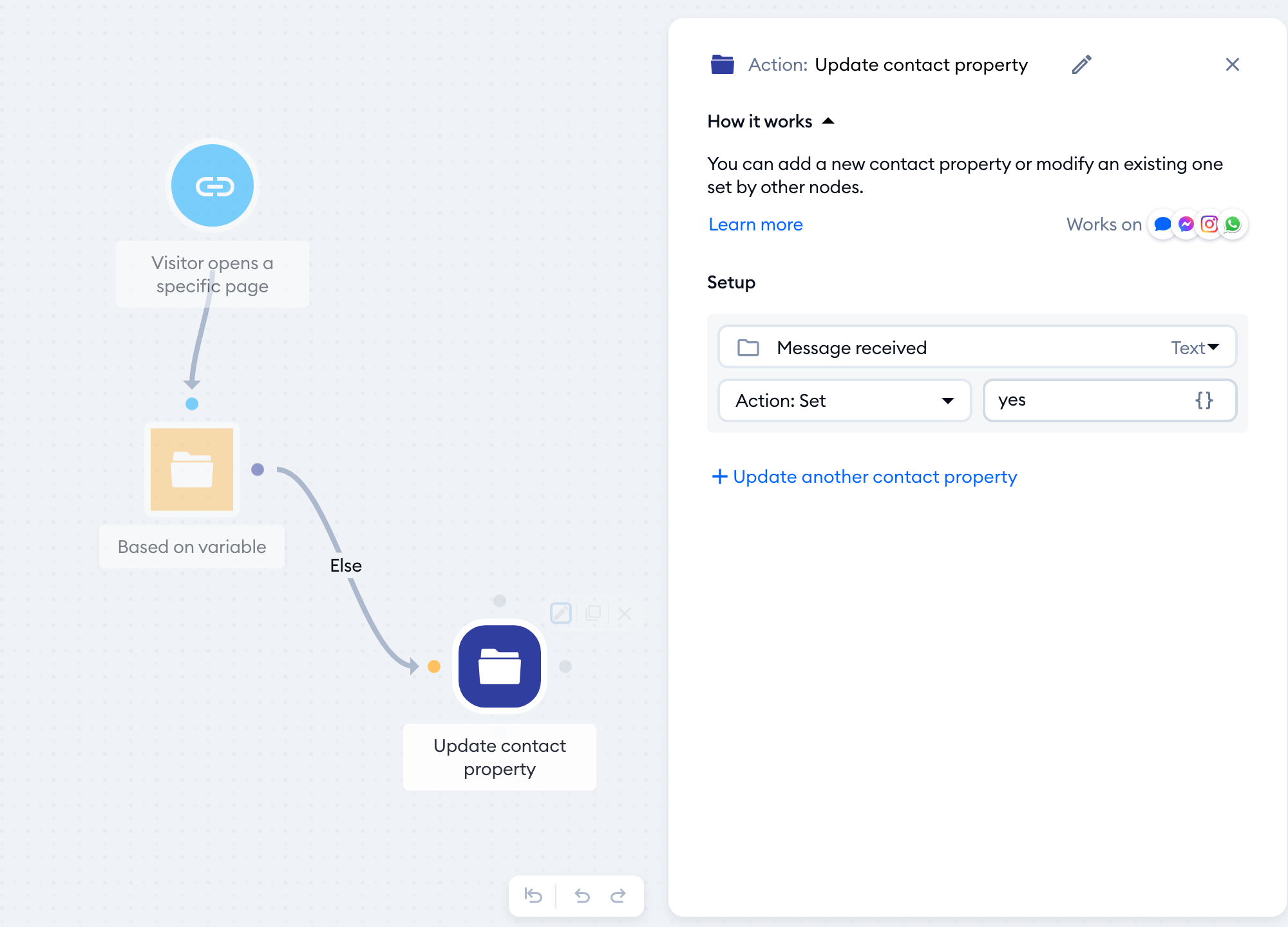
Now, head over to the abandoned cart flow (for example, the Cart abandoned flow), and at the very beginning of it (just after the trigger), add a Based on variable condition.
In it, select the Has purchased property and type the yes value. Then use the Else option when connecting the condition to the rest of the flow:
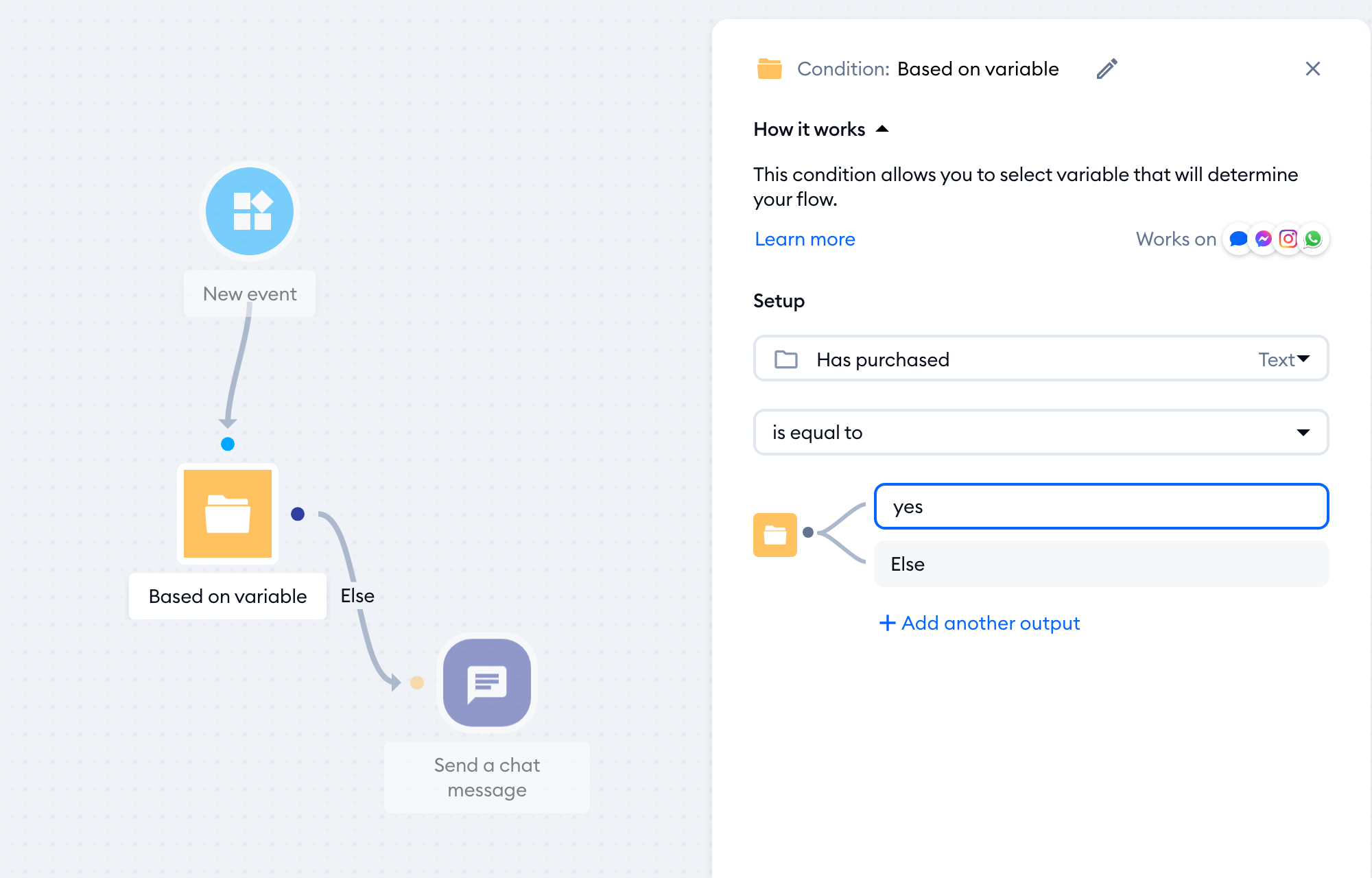
The logic:
If the person doesn't have a Has purchased: yes property assigned to them - the flow will move on according to the setup and send the discount code.
How to Use the Flow
Not sending an automatic message when the visitor has contacted you
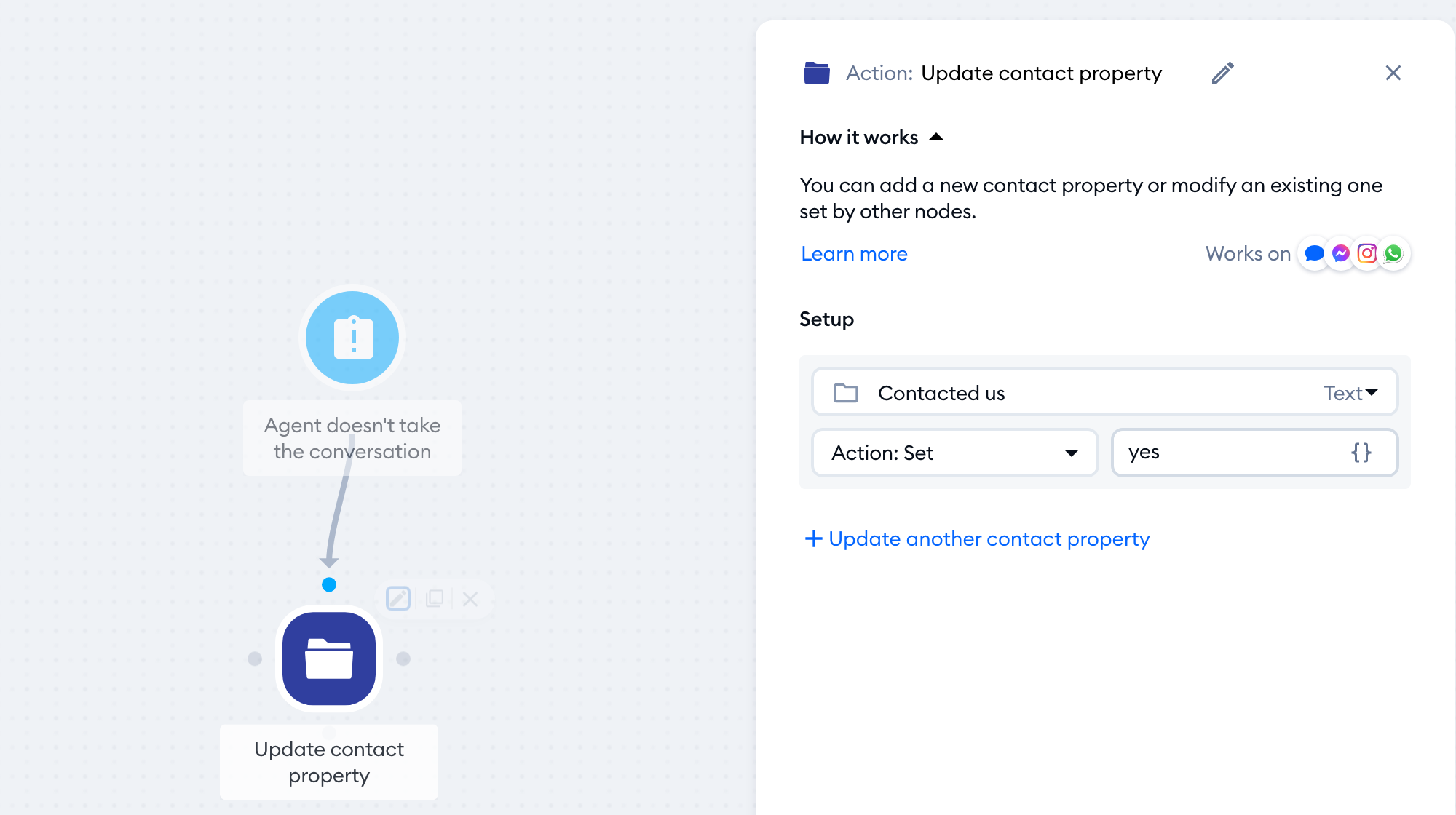
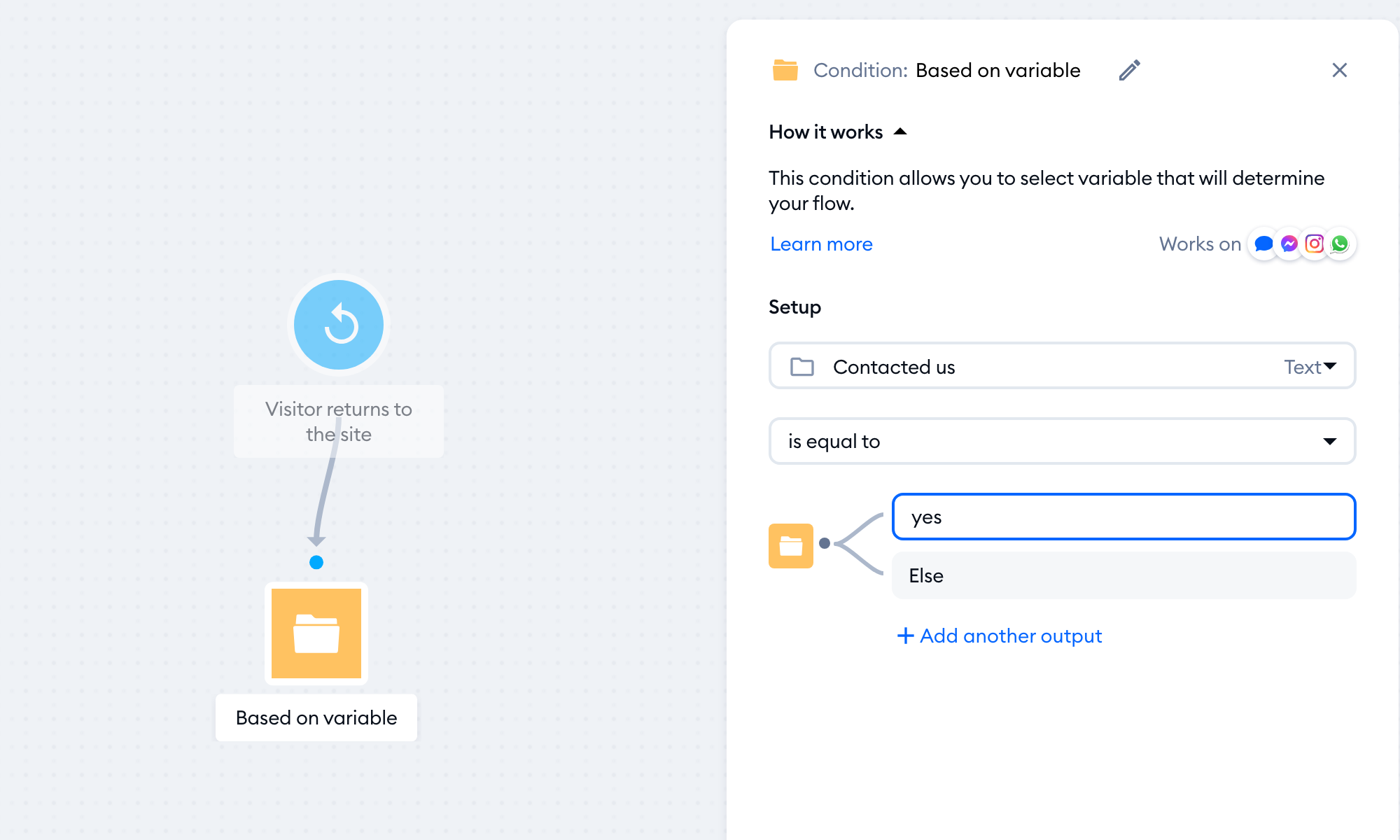
Suppose you'd like a specific message not to fire when someone has already contacted you. In that case, you can 'mark' that person with a flow that starts with the Agent doesn't take the conversation trigger and uses Update contact property to set a custom contact property (e.g. Contacted us) indicating that the person has reached out to you.
Once that's set, you can use the Based on variable condition to make the message or flow not fire if the person was in touch earlier.
Multiple flows using the same message
If you have different flows that send the same message, but you want it to be sent just once, you can mark visitors with a property like Message received, and set up each flow first to check if the person got the specific message already, and if not - send it to them.
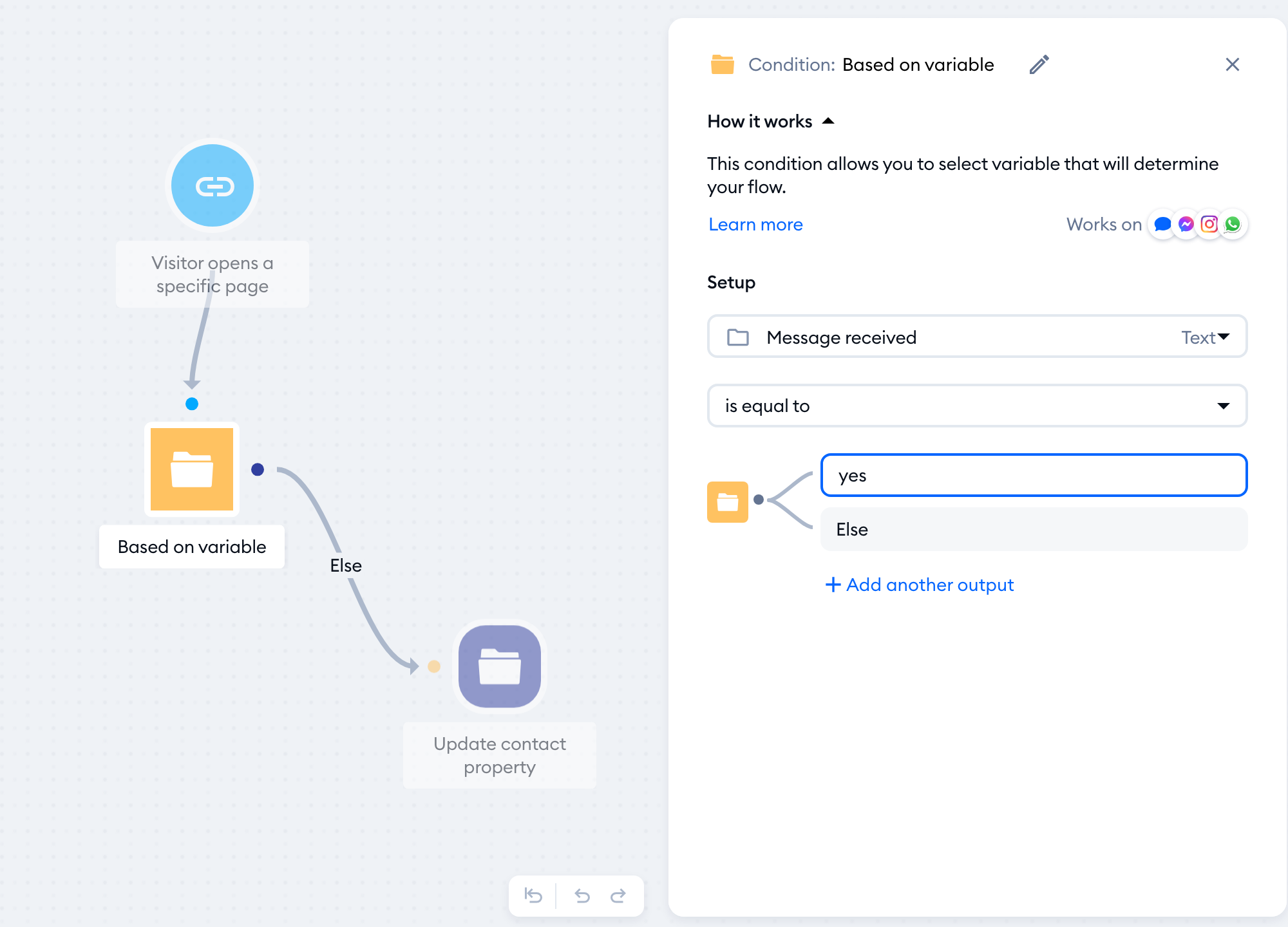
The Update contact property action should then add the label to the person.