See how to set or change your profile picture (avatar) visible in the Tidio chat widget installed on your website.
In this article, you'll learn:
Profile picture
In the Tidio widget, we differentiate between two kinds of pictures:
- The global view - when there's no agent assigned to the chat yet.
- Agent's picture - when an agent joins the conversation.
The global view is the first one your visitors will see when they enter your website; it will show all available agents.
If the visitor starts a chat by sending a message - the widget will move the agents' avatars to the header. You will be able to see a view of the first four agents' pictures that you have added to the chat admin panel.
Then, the widget will switch the global view to the picture of the person that picked up the chat in the chat admin panel, showing it in the header of the chat. You will also be able to see the name of the agent.
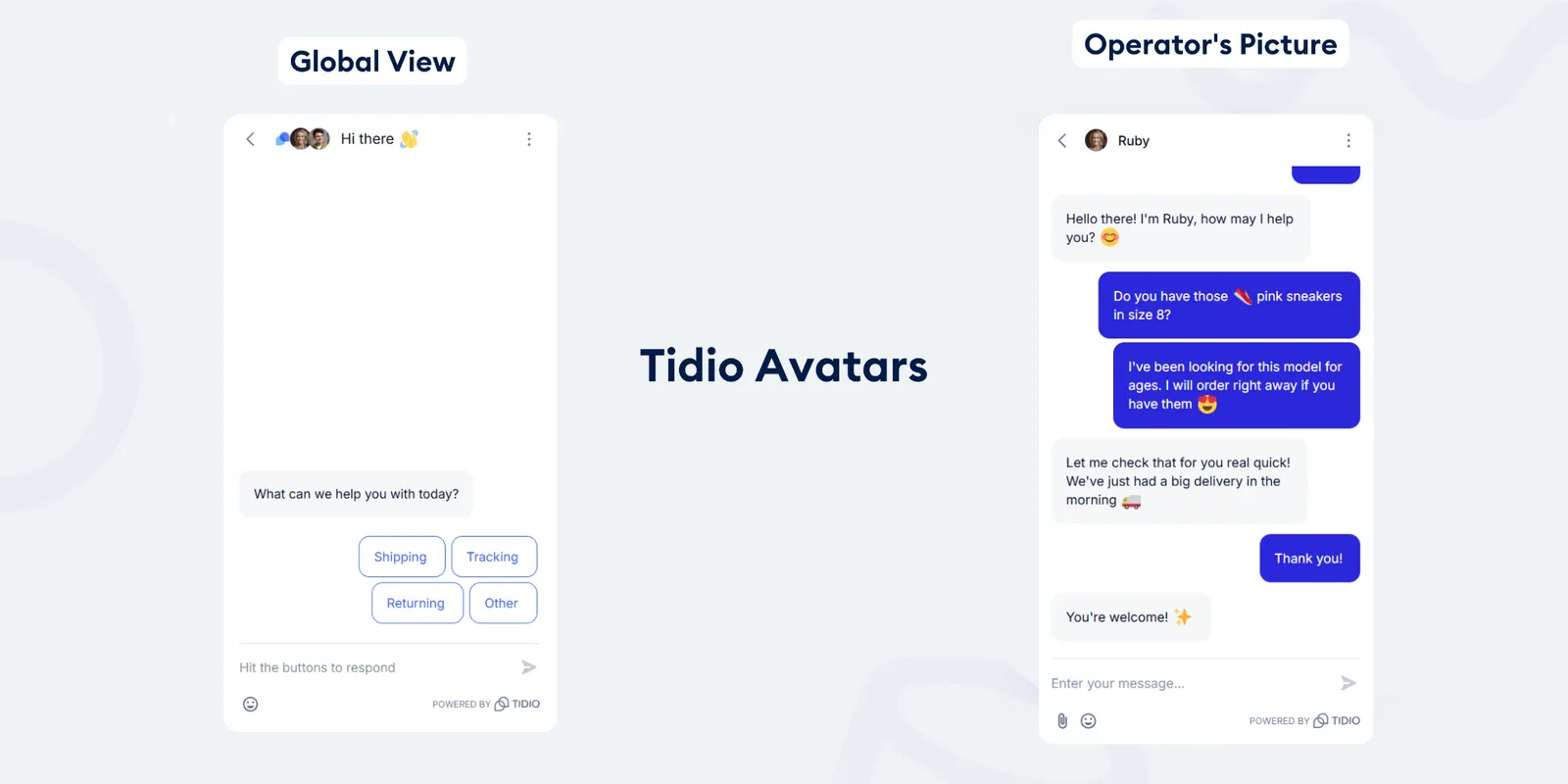
Each agent can change their own name and avatar. Admins can also change an agent's picture, name, region and email signature on their behalf - see Managing agents for that.
By clicking on the current picture in the bottom left corner of the chat admin panel, a sidebar will open and you should be able to click on your name, leading you to the Account section:
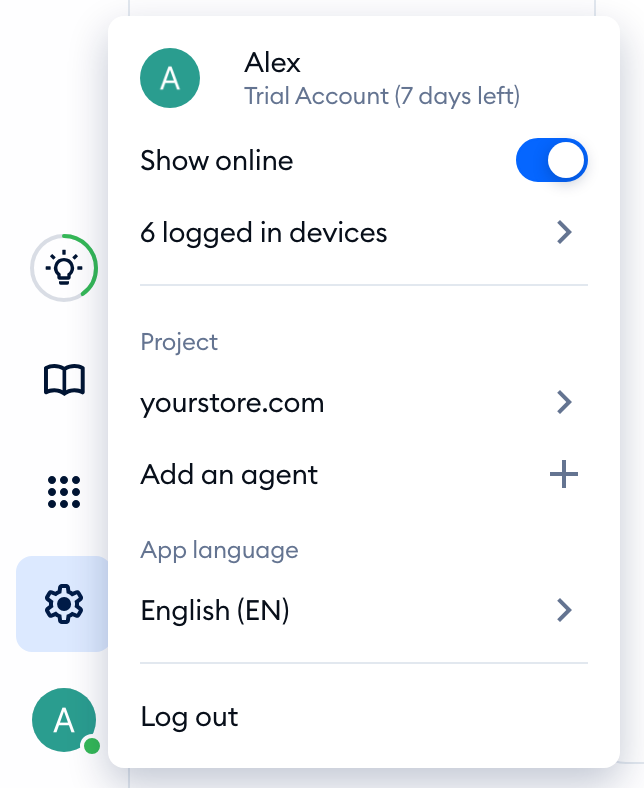
You can also access the settings manually via Settings > Personal > Account section.
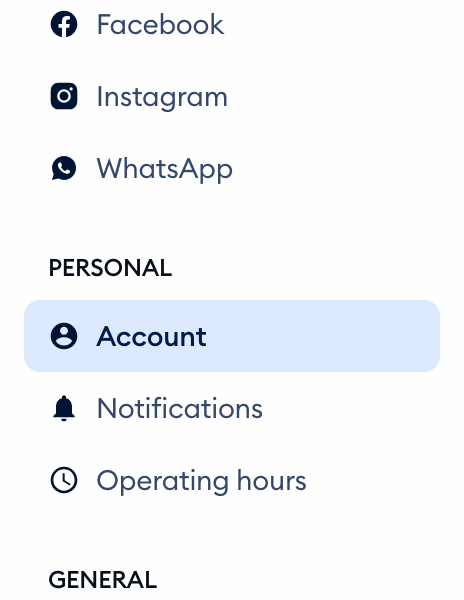
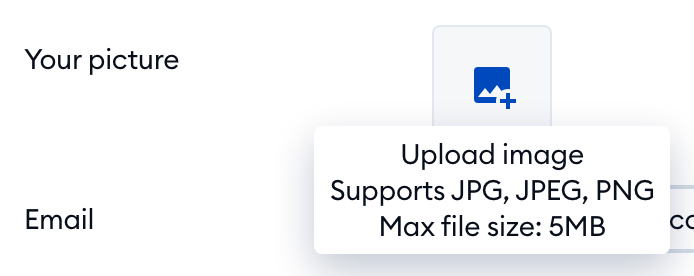
Once you're there, hover your mouse over the placeholder picture next to Your picture, and click on the image icon to upload your picture. The tooltip reminds you what you can upload: Supports JPG, JPEG, PNG and Max file size: 5MB. When the upload is done, you'll see Your picture has been changed.
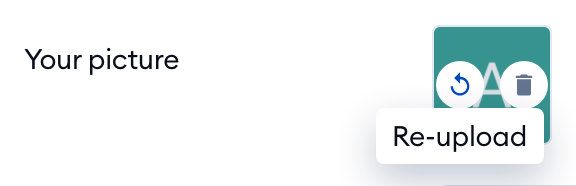
If you already have one but want to change it, hover over your picture and simply click the Re-upload button. To go back to the placeholder, click the trash icon (Remove) next to it.
Your picture can be a JPG, JPEG or PNG file of up to 5 MB, at least 200x200 px. We recommend a square image, so nothing gets cut off. If the file is bigger than 5 MB, you'll see File is too large to upload. Max file size: 5MB - simply pick a smaller file.
