Product Recommendations lets Lyro recommend products to your visitors when they ask for specific product advice.
This guide focuses on making Product Recommendations possible by connecting your product database via OpenAPI - an advanced resource for developers. If you are using Shopify or WooCommerce, we have dedicated integration methods that will allow you to use Product Recommendations for your store without OpenAPI. Please see our detailed guides on that method here (for Shopify) and here (for WooCommerce).
In this article, you'll learn:
- Who Product Recommendations (via OpenAPI) is available to
- How Product Recommendations work in practice
- What conversation types can be handled
- What developer resources are needed
- How to set up Product Recommendations in Tidio
- How to pause Product Recommendations
- What the limitations are
Who can use Product Recommendations (via OpenAPI)?
When integrated through OpenAPI, the Product Recommendations tool is platform-agnostic. That means anyone can use it, regardless of the platform they're using, as long as they can implement the available OpenAPI resources. This makes it a powerful tool at your disposal, although you will need your own developer to integrate it properly with your business. Once integrated, Product Recommendations can work with any e-commerce backend, whether it's a custom-built CMS or a plugin such as BigCommerce.
Product Recommendations lets your Lyro AI agent assist your visitors with product questions. For Lyro to answer these questions, you will need to connect your product database with your Tidio project - which is done through OpenAPI. This will allow your product database to be used as knowledge for Lyro. Please note that Lyro understands your product information in multiple different languages!
Your project needs product-recommendation access. The panel checks this access when you select the API setup option.
Please note: If product recommendations are not available on your project, selecting Add products via API opens a trial offer or an upgrade window. Follow the offer shown for your account.
Please note: Lyro can detect a visitor's current URL automatically, which allows you to use this information in product-related responses. This is especially valuable if Lyro is asked about a product that the visitor is currently viewing on your website. Lyro will be aware of the product being browsed and won't need to ask the visitor about the details first, nor use any previously-recorded data.
Product Recommendations in practice
Once you synchronize Lyro with your product database (we cover this later in the article), your AI agent will be able to guide your customers to the right products. Lyro will be proactive, asking questions that help find what the customer is looking for, and offering options and advice wherever appropriate.
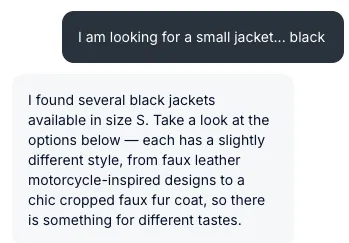
Any recommendation Lyro has will be presented in the form of cards, which can be scrolled horizontally inside the Tidio widget. The cards include pictures, product names, and prices. Each card can be clicked to visit the product page directly as well, in addition to the View details link.
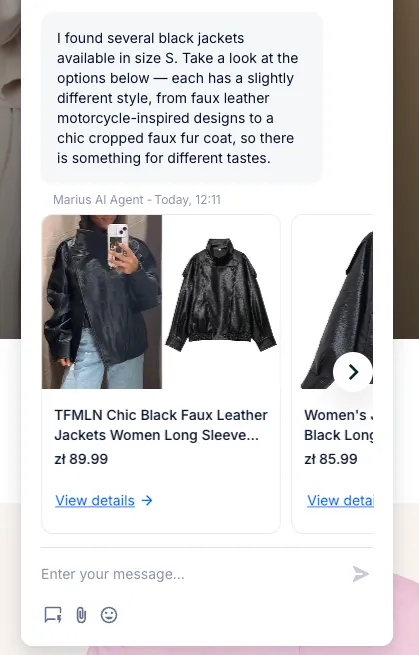
This helps your customers find products and make decisions quickly, without having to browse your store manually in search of the perfect item. If you're using Shopify or WooCommerce, please note that the View details link is replaced by the direct Add to cart button by default - and there is the additional setting of using either option, depending on your preference.
Conversation types handled by Product Recommendations
Using Product Recommendations, Lyro can help your visitors in the following ways:
- Specific product search - find a specific product
- Broad product recommendation - help choose products
- Product variant recommendation - find products with variant limitation
- Complementary product recommendation - find products that work well together (if mentioned in product description)
- Alternative product recommendation - find products with similar properties
- Product comparison - compare two (or more) products
- Price range recommendation - find products based on price point
- Seasonal product recommendation - find new products or products in collections
Developer documentation for OpenAPI
The first step is to share our official API documentation with your developer(s).
This article covers only the product part of the OpenAPI. That is the part of the documentation that's necessary for Product Recommendations to work, and requires product-recommendation access on your project.
Setting up Product Recommendations
To begin your setup, navigate to the Lyro AI Agent section in your Tidio panel, and open the Products tab:
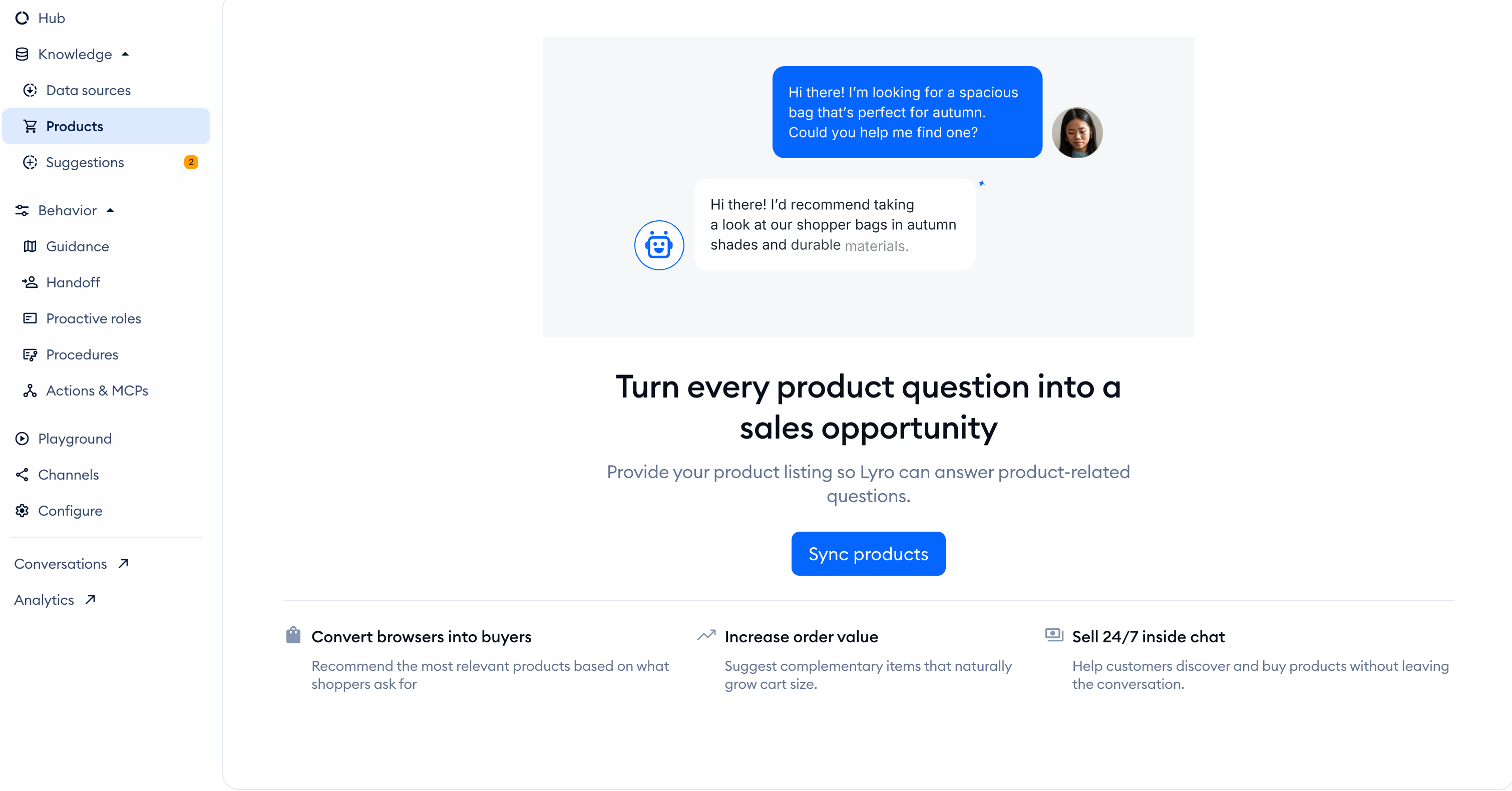
Inside, use the Sync products button to see the available options:
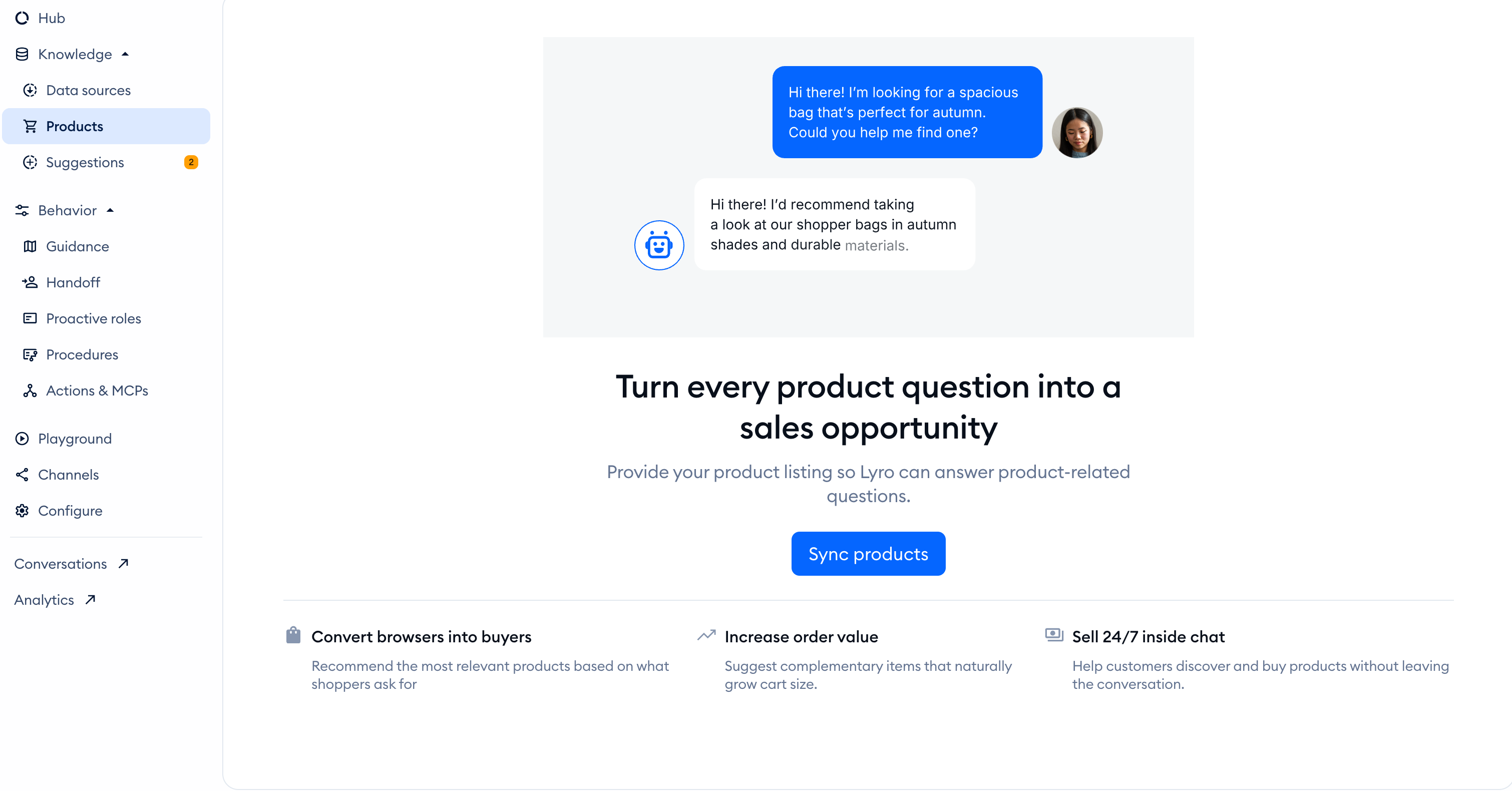
Inside, you will see the available options: WooCommerce product sync (which is described separately in this guide), Shopify product sync (described in this guide), Add products via API (covered here), and Product feed upload:
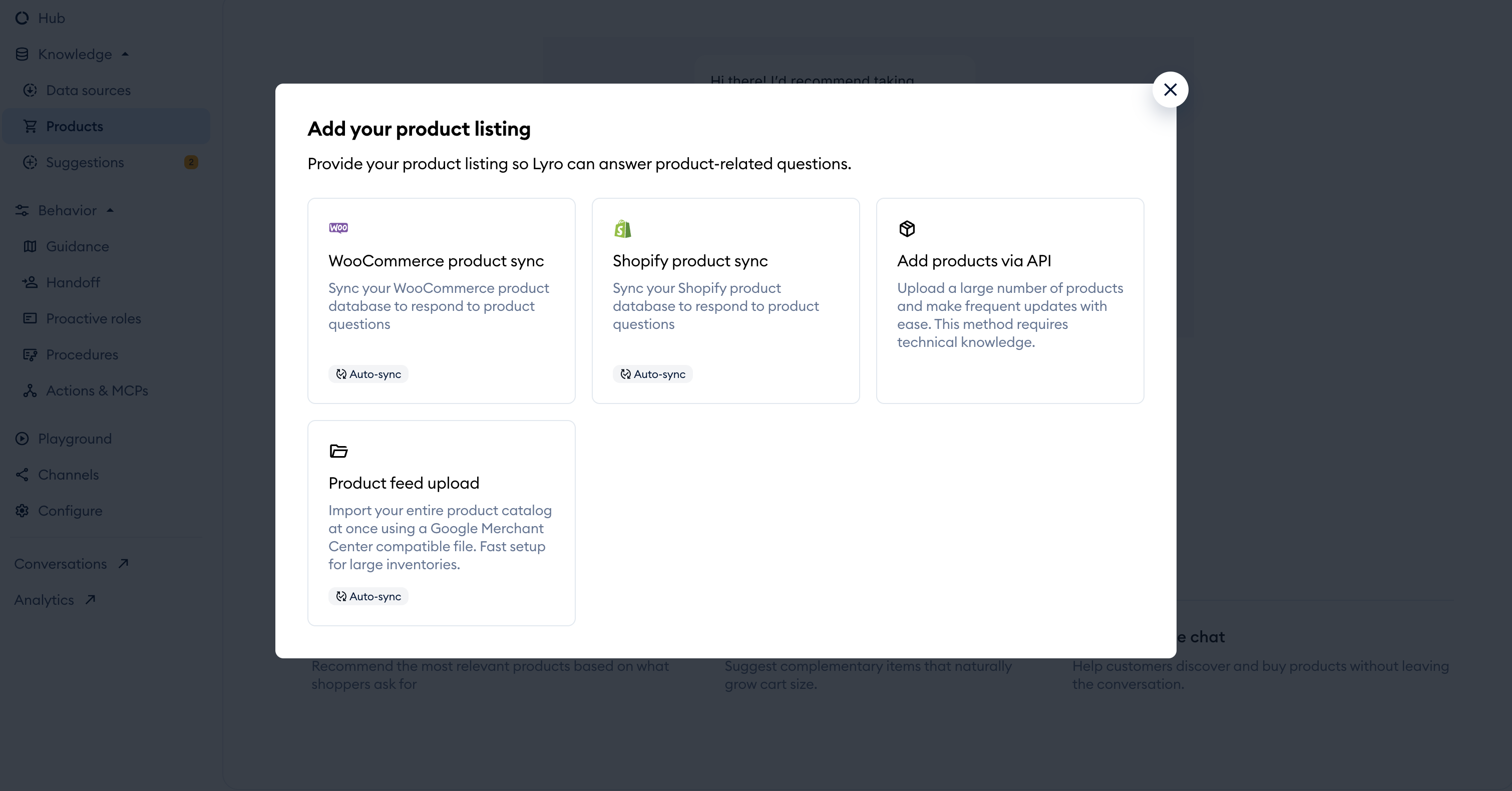
Once you click the Add products via API tile, you will see a popup where our API documentation is linked. The steps are Check our API documentation and Connect and upload. You can close the window and have your developer connect later:
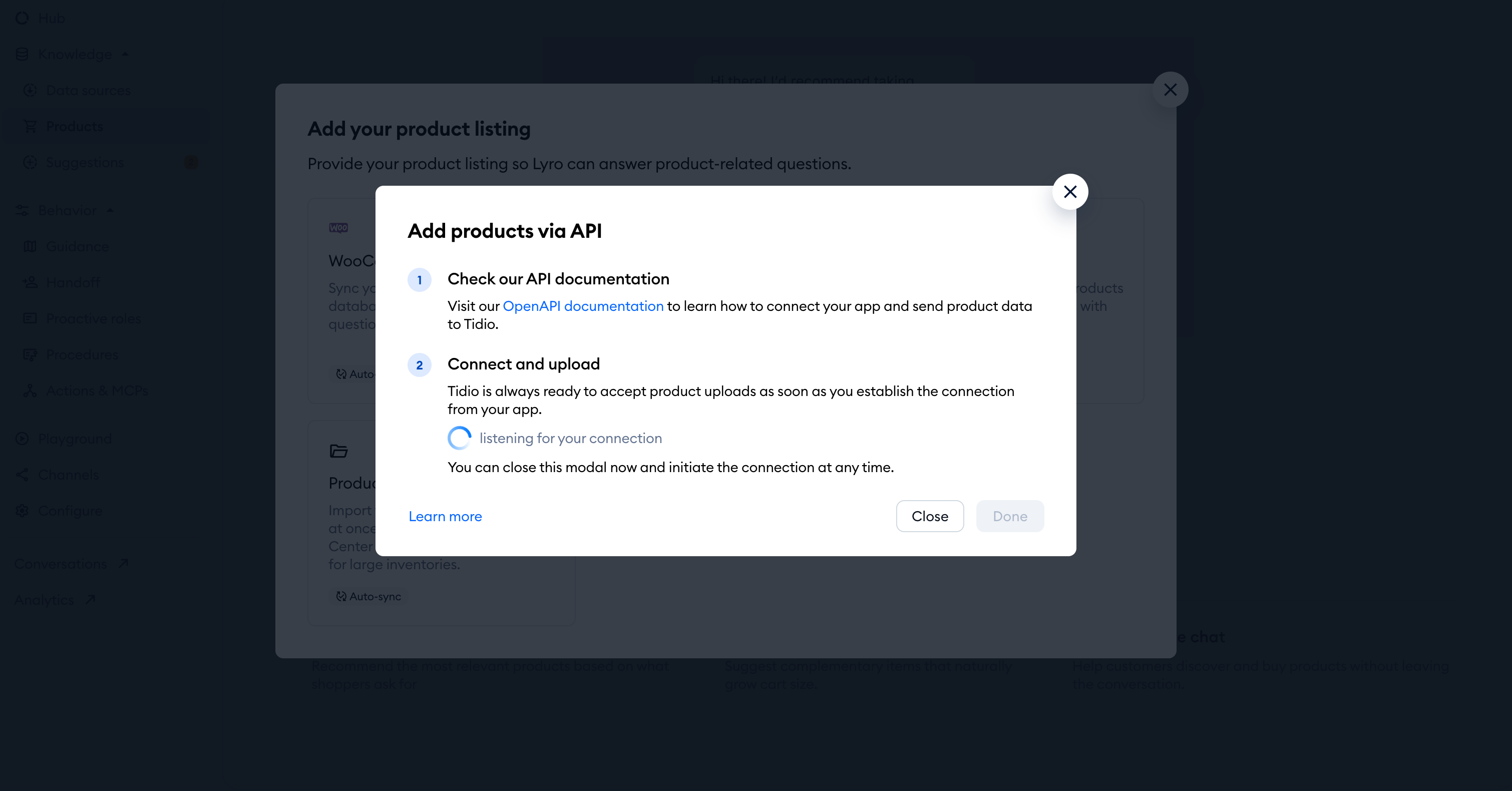
At this point, it is up to your developer(s) to configure and implement the necessary API, which will connect your product database with Lyro.
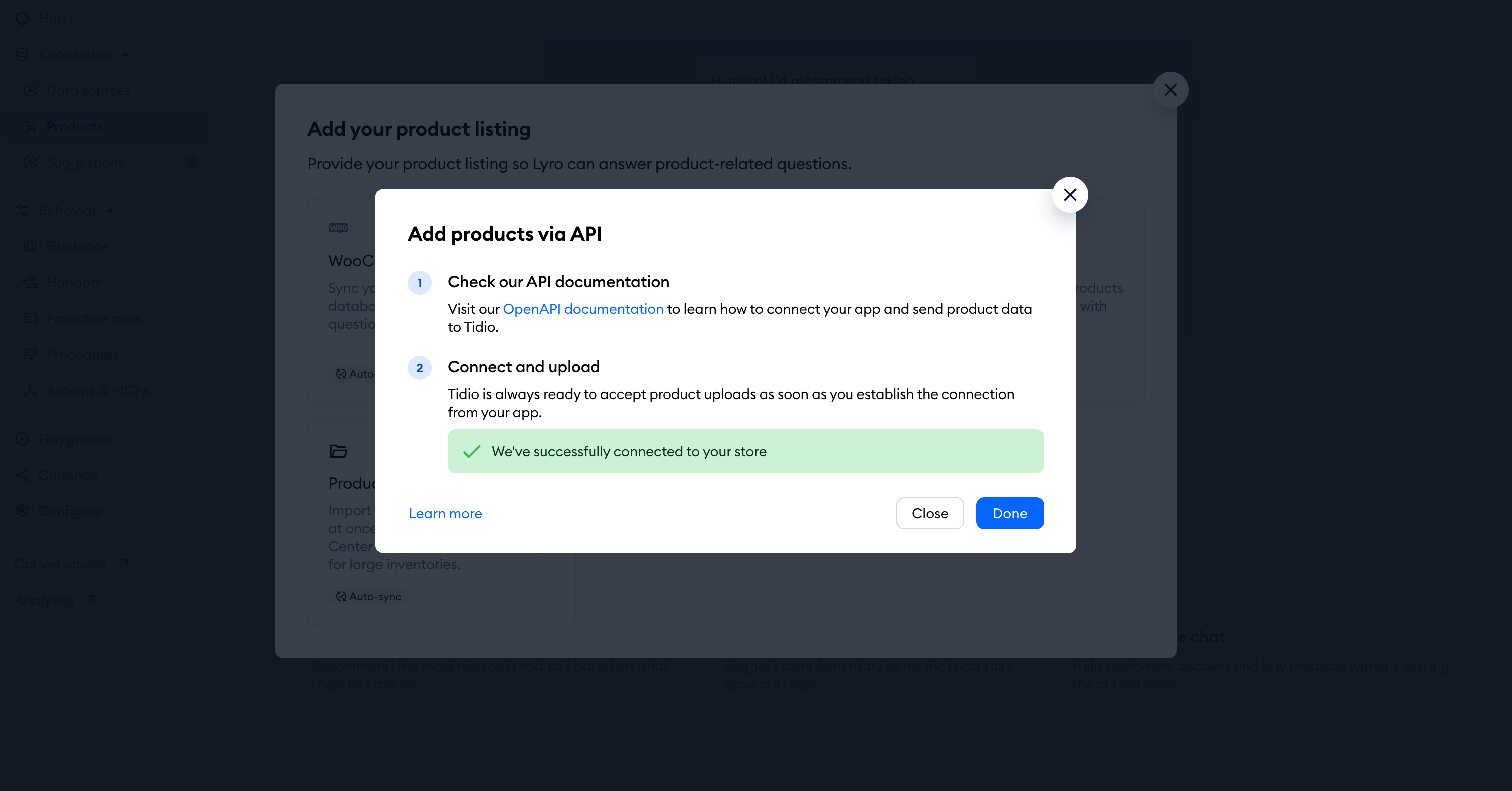
Once that is done and ready, you will be notified about it inside the popup - allowing you to hit the Done button and confirm the connection:
Finally, your product database will become visible in the Products tab, in the Product source table, along with sync counts and separate Lyro and Copilot switches.
Lyro and Copilot can use the uploaded products when their switches are enabled. This is a push-only API: your developer must upload product changes; Tidio does not fetch updates automatically from your database.
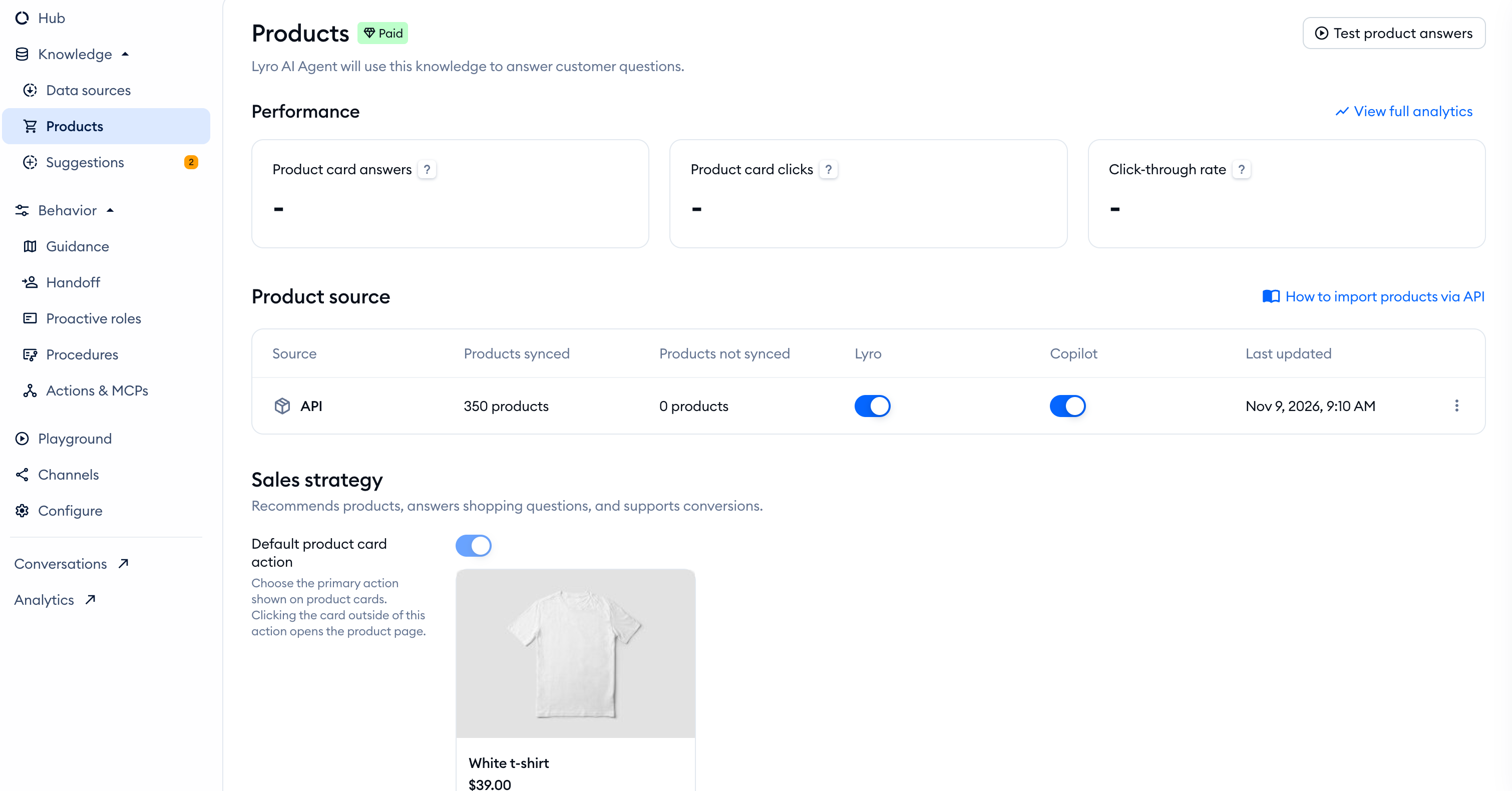
You can test Lyro's capabilities regarding Product Recommendations by using the Test product answers button in the upper-right of the Products section, after you've connected your database. If the button is disabled, add knowledge for Lyro in Data sources first. This lets you try the feature without actually enabling it for Lyro, allowing you to make sure everything is working as expected before going live.
Pausing Product Recommendations
You can temporarily disable Product Recommendations anytime, from within the Products tab inside your Lyro AI Agent section. Find your source in the Product source table. Switch off Lyro or Copilot in that row:
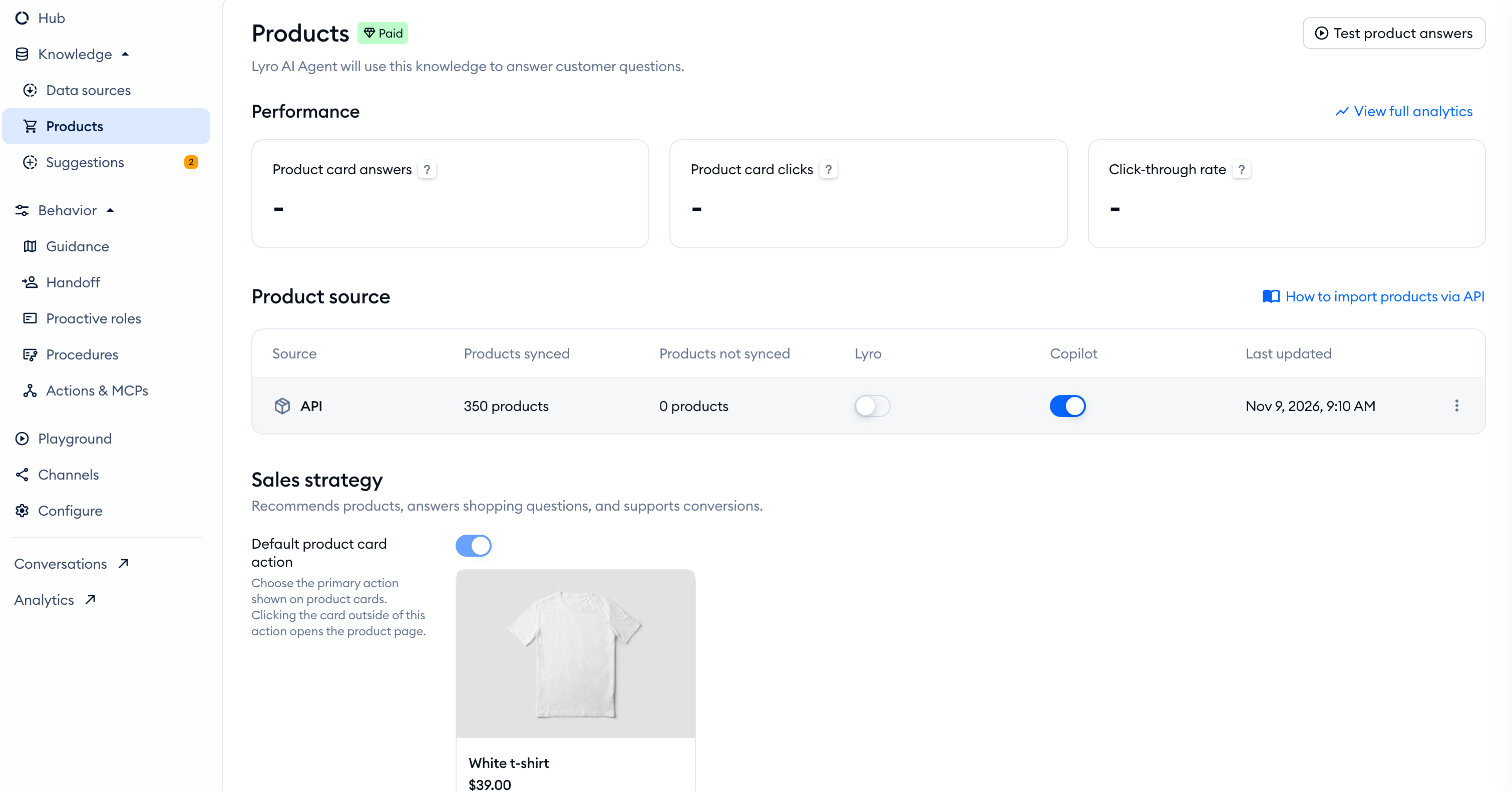
This allows you to keep Lyro (and/or Copilot) from using your Product Recommendations database. You can switch any of these options back on again whenever you like.
Product Recommendations limitations
Lyro AI Agent subscription
Product Recommendations requires access on your project. The setup tile may offer a product trial or ask you to upgrade.
Visitor currencies
Via API, you are able to set a default currency (e.g. USD) for your store, as well as a price for each of your products. However, for Lyro to display other currencies that are more appropriate to your different visitors (e.g. Euro), you will need to share both currency and currency_rate for each visitor, in real time, via Widget SDK (which is covered in our OpenAPI documentation). If this is not set up, Lyro will always use your default currency and pricing instead.
To remove the connection instead of pausing it, open the source row's three-dots menu and choose Delete source. Deletion is permanent. You can add new or previously deleted sources up to two times within 24 hours; if you reach this limit, wait before adding another source.
Further reading
See Widget SDK for visitor information, or learn how to create a good FAQ for Lyro.
