Connect Tidio with Salesforce to create and update contacts and save your Tidio conversations as notes.
In this article, you'll learn:
- How to integrate Tidio with Salesforce
- How adding and updating contacts in Salesforce works
- How sending chat transcripts from Tidio to Salesforce works
How to integrate Tidio with Salesforce
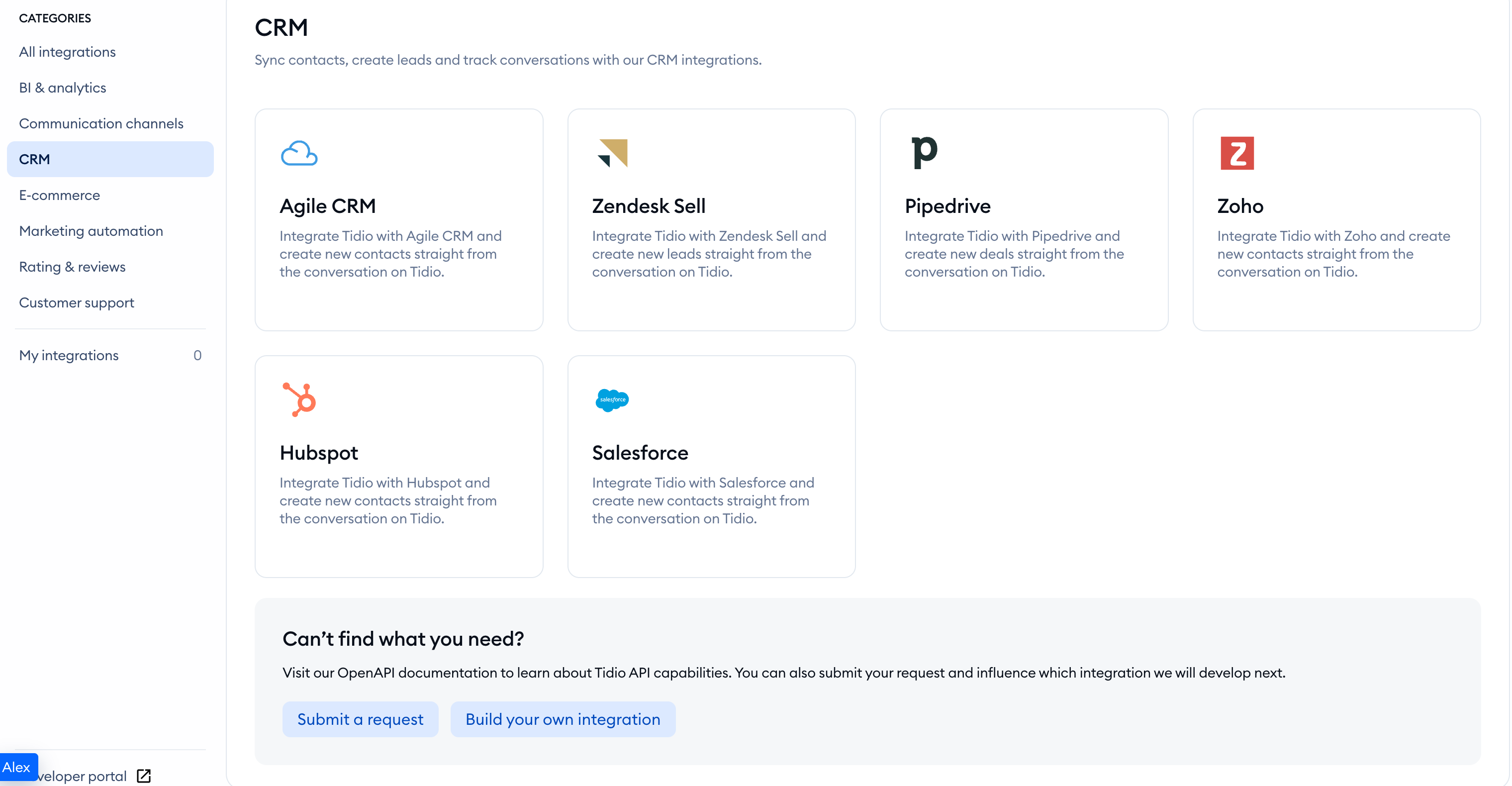
Open your Tidio admin panel and navigate to the Integrations section in the left sidebar. Then, click on the Salesforce tile.
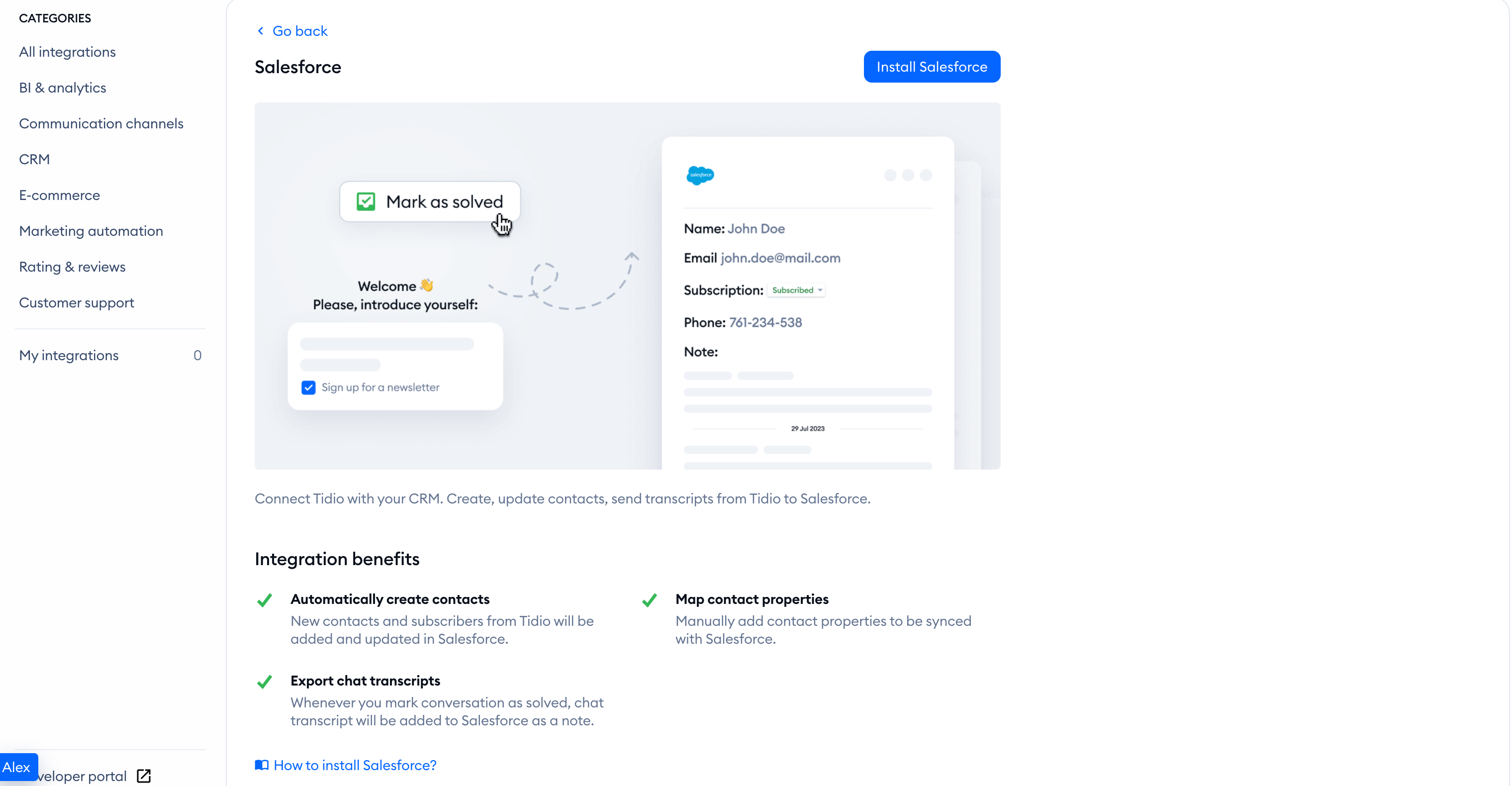
After that, click on Install Salesforce when you are ready.
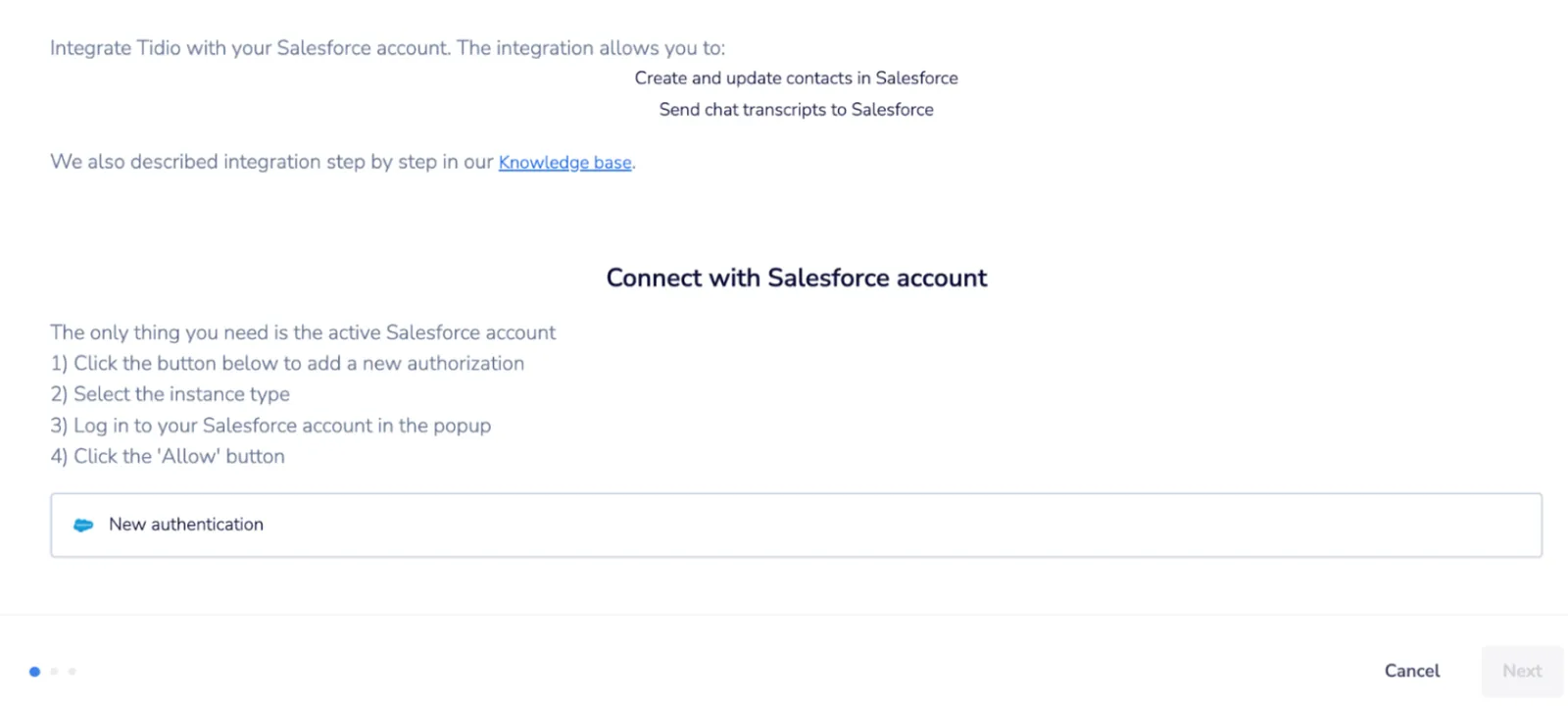
To integrate, you'll need to create a new connection. To do so, select New authentication:
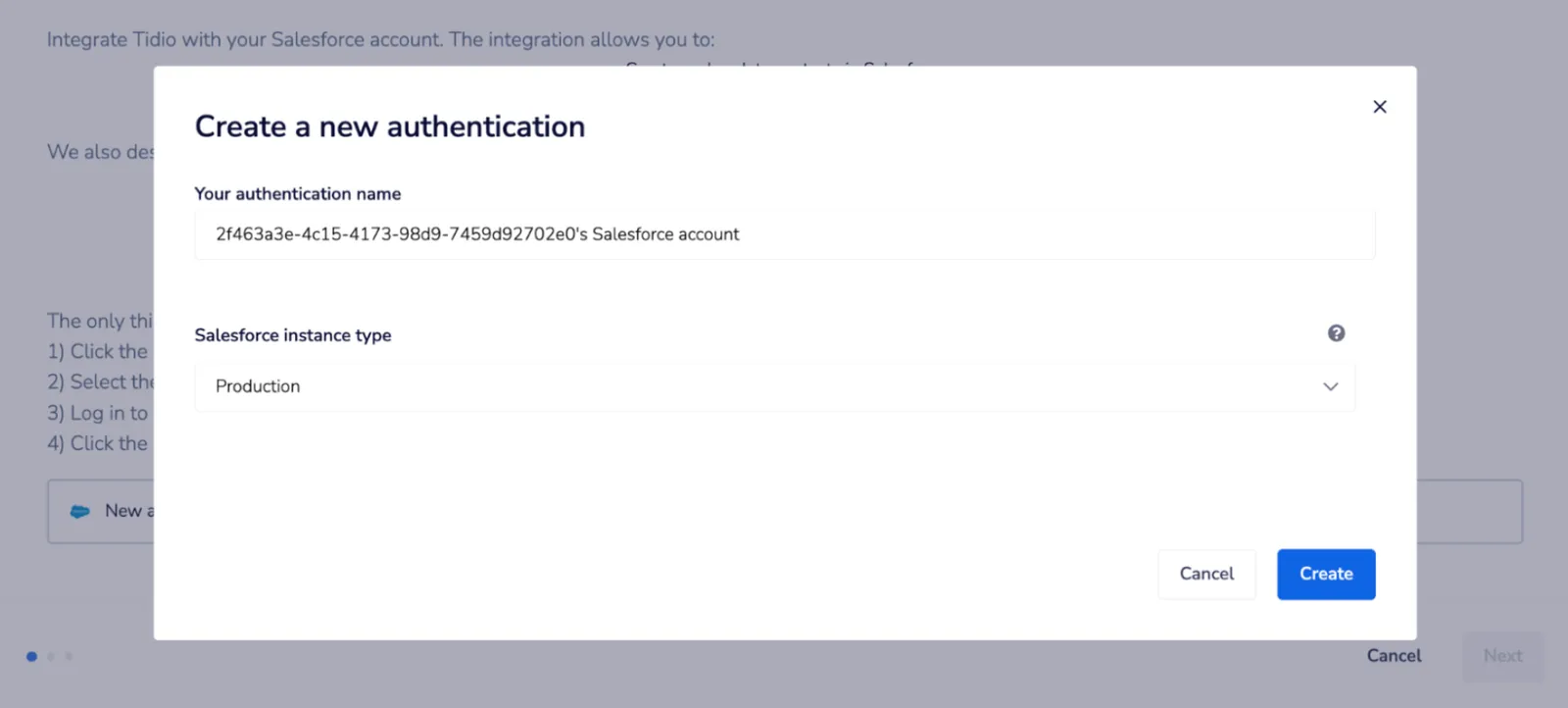
Next, select the Salesforce instance type that you want to connect with Tidio. You can choose from Production and Sandbox. When you're ready, click Create.
Now, the Authentication window should appear.
- Authenticate your connection.
- Select the account you want to connect with Tidio.
A green bracket indicates your authentication with Salesforce is set up properly.
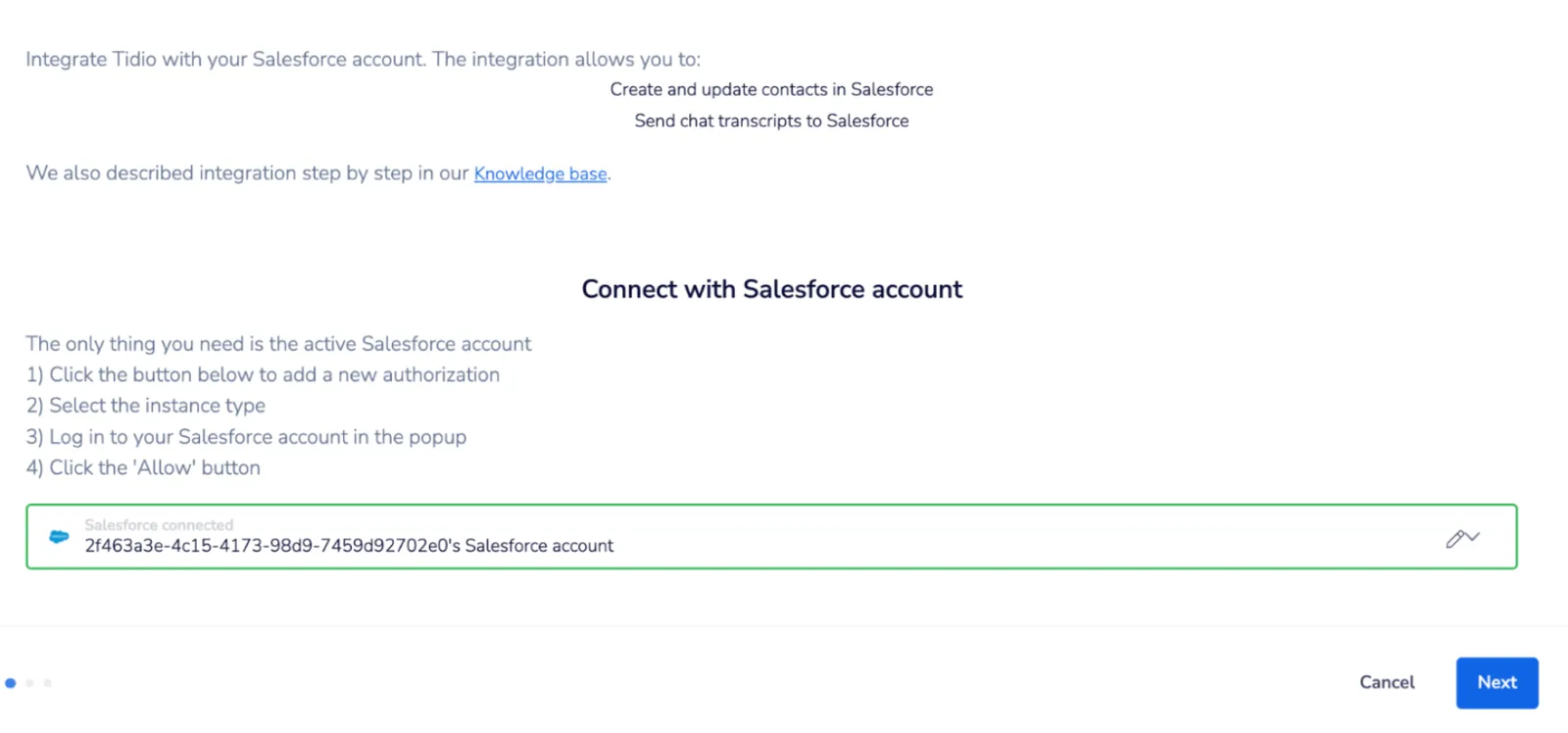
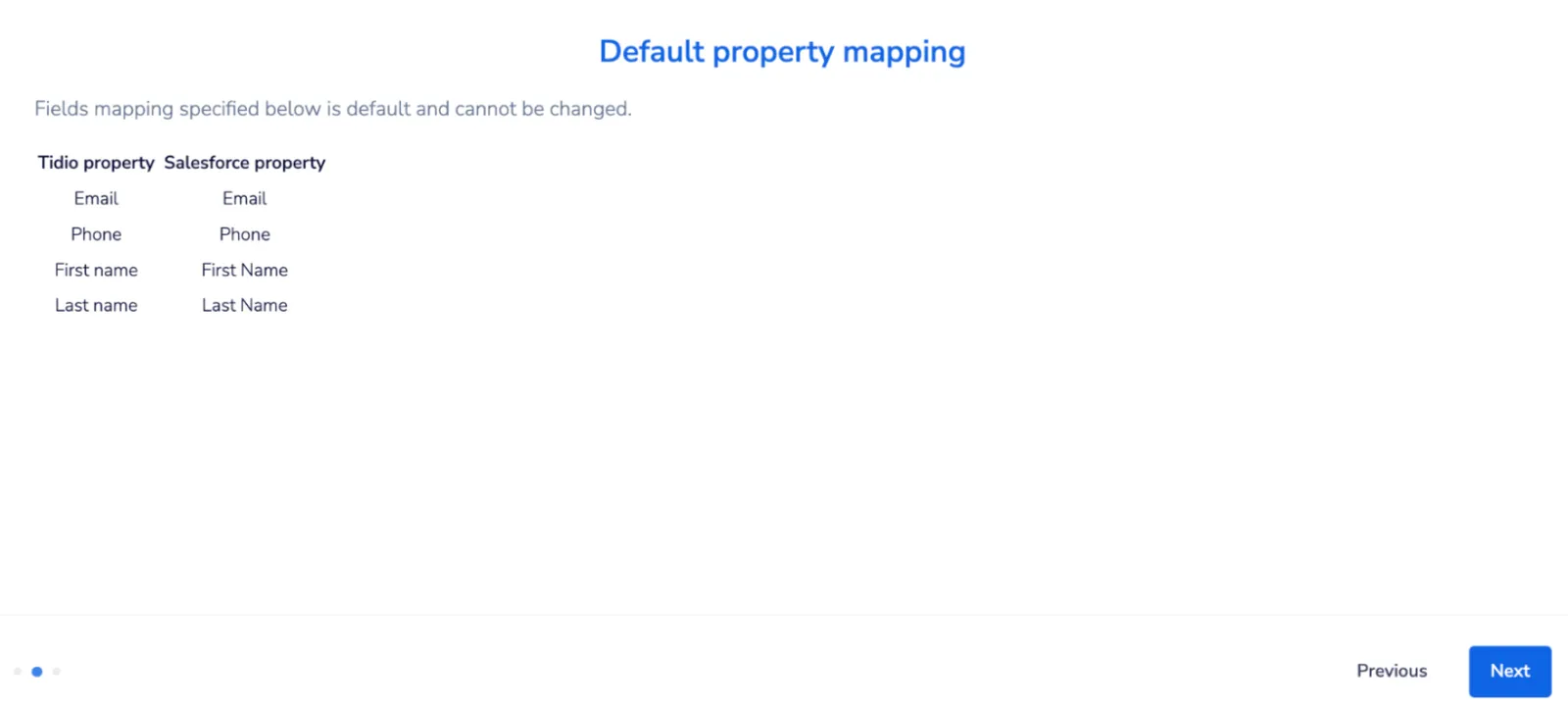
Press Next. You'll move on to default property mapping options:
Press Next. If you have custom Contact Properties in Tidio, you want to map them to the appropriate Salesforce fields:
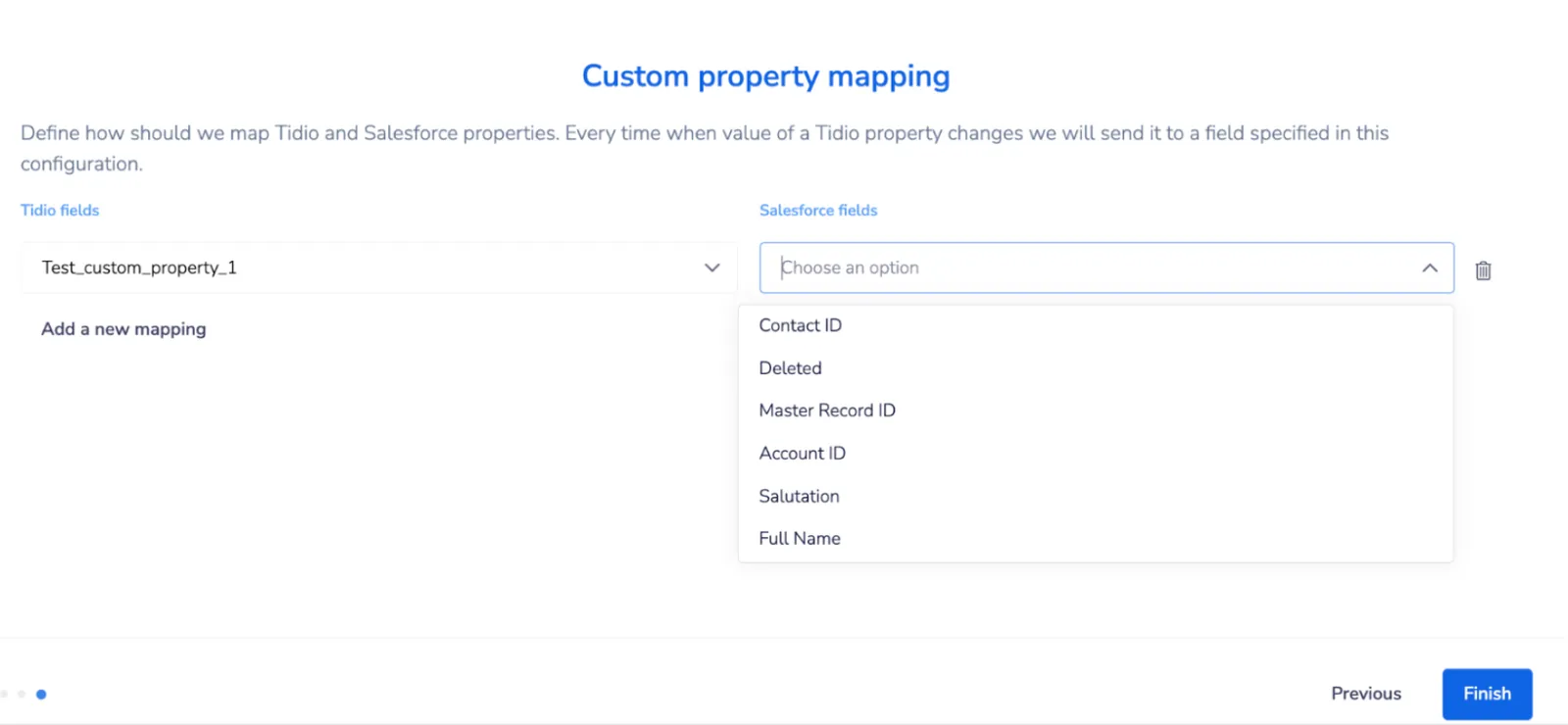
After you set all the properties mapping, press Finish.
You are all set! From now on:
- Every contact created or updated in Tidio will be created or updated in Salesforce.
- Every solved conversation will be saved in Salesforce as a note assigned to a contact.
How adding and updating contacts in Salesforce works
Every time a new subscriber is created or updated in Tidio, we will send it to your Salesforce account. If a contact with a given email address is not found, we will create one. If a contact already exists in your Salesforce account, then we will update it with data in Tidio.
You can also map custom contact properties to fields in Salesforce.
The default contact properties include:
- email address
- first and last name
- phone number
In case of a contact update, If we do not have a value for a property, then it will not be overwritten in Salesforce.
You can create or update contacts in Tidio in several ways:
- Through the Pre-Chat Survey
- Using Flows to collect contact information
- Changing it manually during a conversation
How sending chat transcripts from Tidio to Salesforce works
Every time you mark a conversation with a visitor as solved we will send a chat transcript to your Salesforce account so that you can keep track of all conversations.
The chat transcript is assigned to a contact in Salesforce. If there's no such contact, then it will be created. The transcript is added as a note.
There are two ways to send chat transcripts to Salesforce:
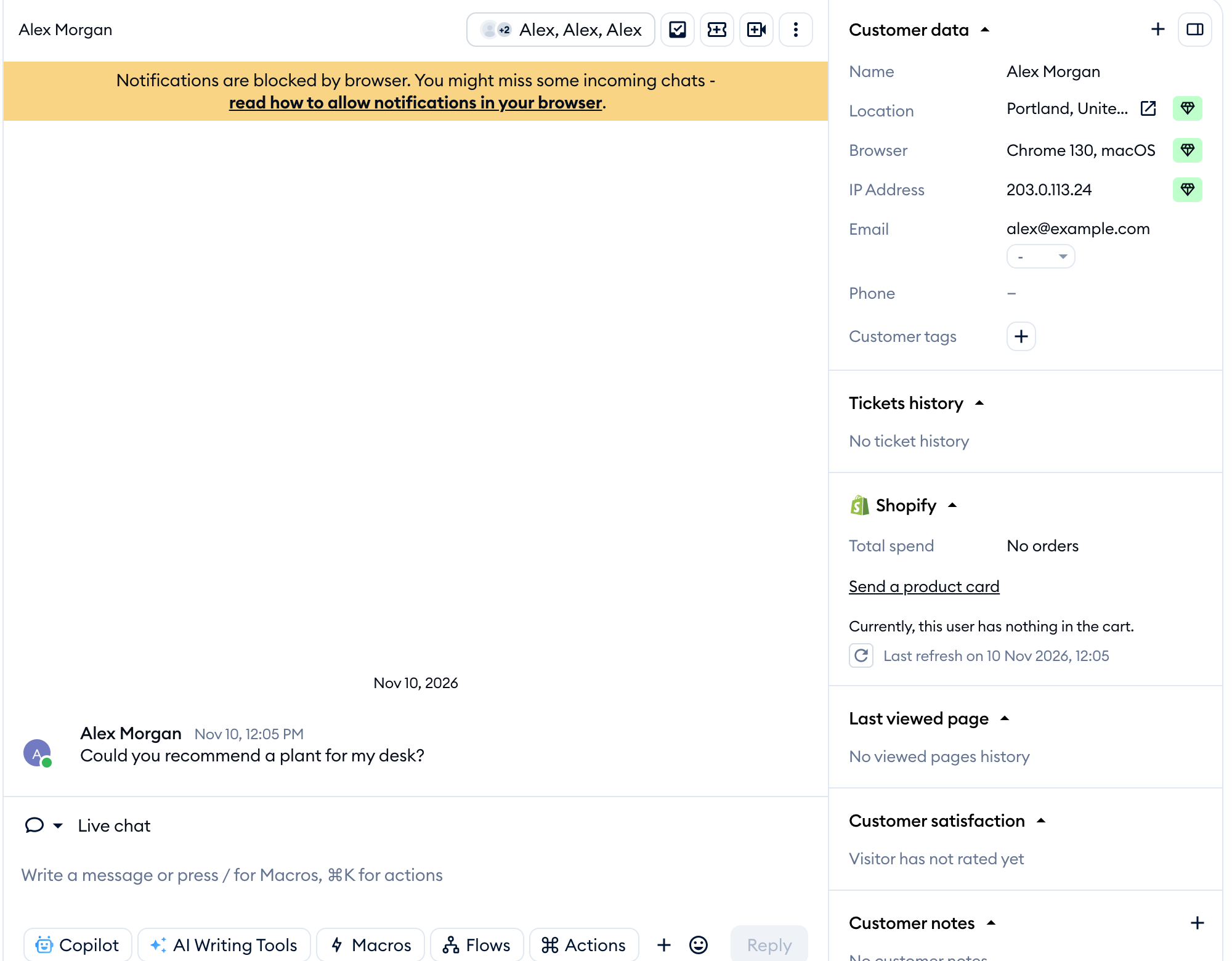
- By pressing Solve when you finish talking with a visitor:
-
By enabling the automatic solvingfeature in Settings > Workflows:
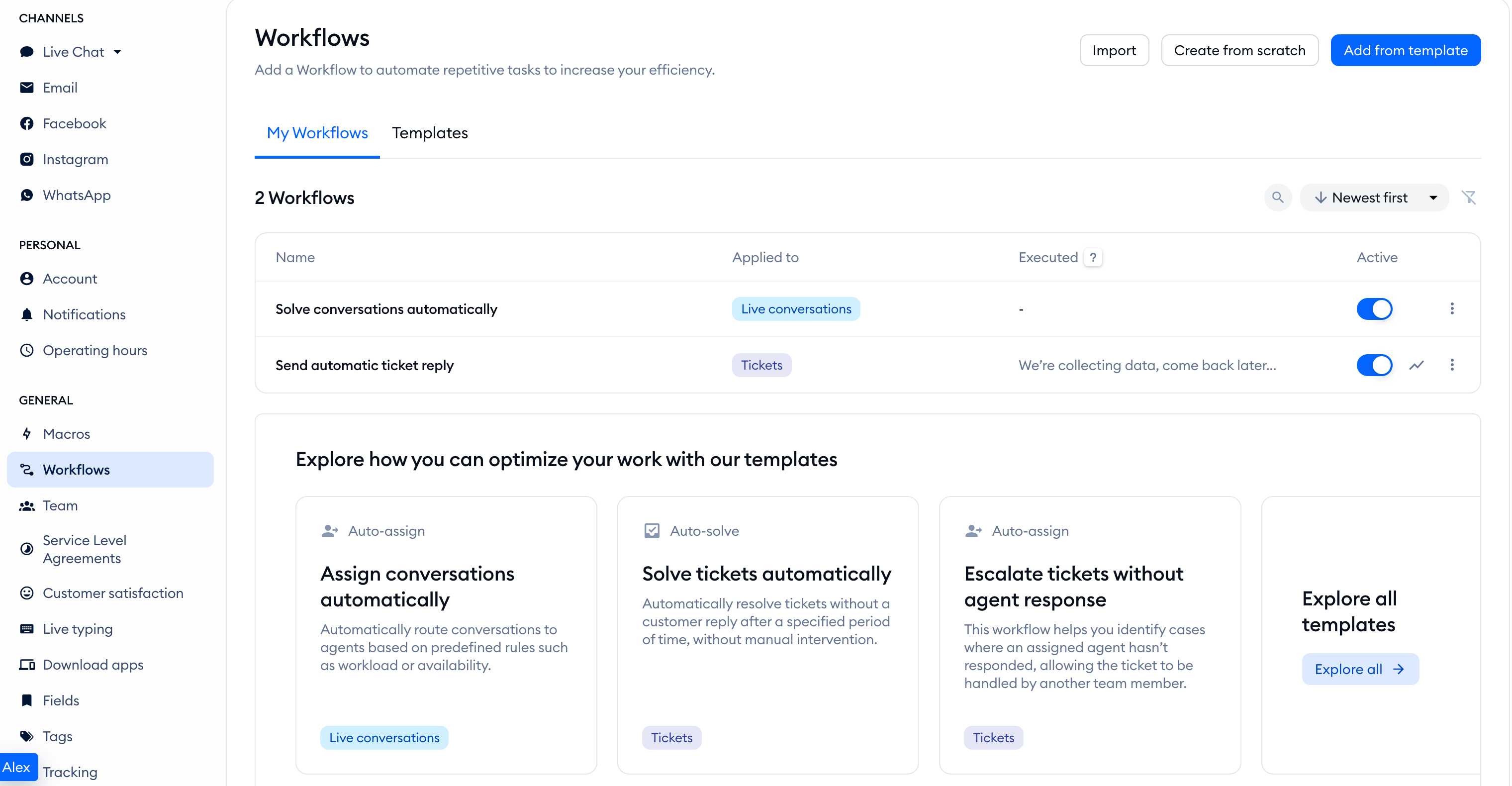
Please note: Workflows are available on the Growth plan and above. You can also use Solve manually without setting up a workflow.
Inside, you will find two main tabs: My Workflows and Templates. This is where you manage all your workflows in general - see a list of your added workflows, create new ones, or browse the available templates.
To enable automatic solving (for conversations and/or tickets), you will need to access the Templates tab:
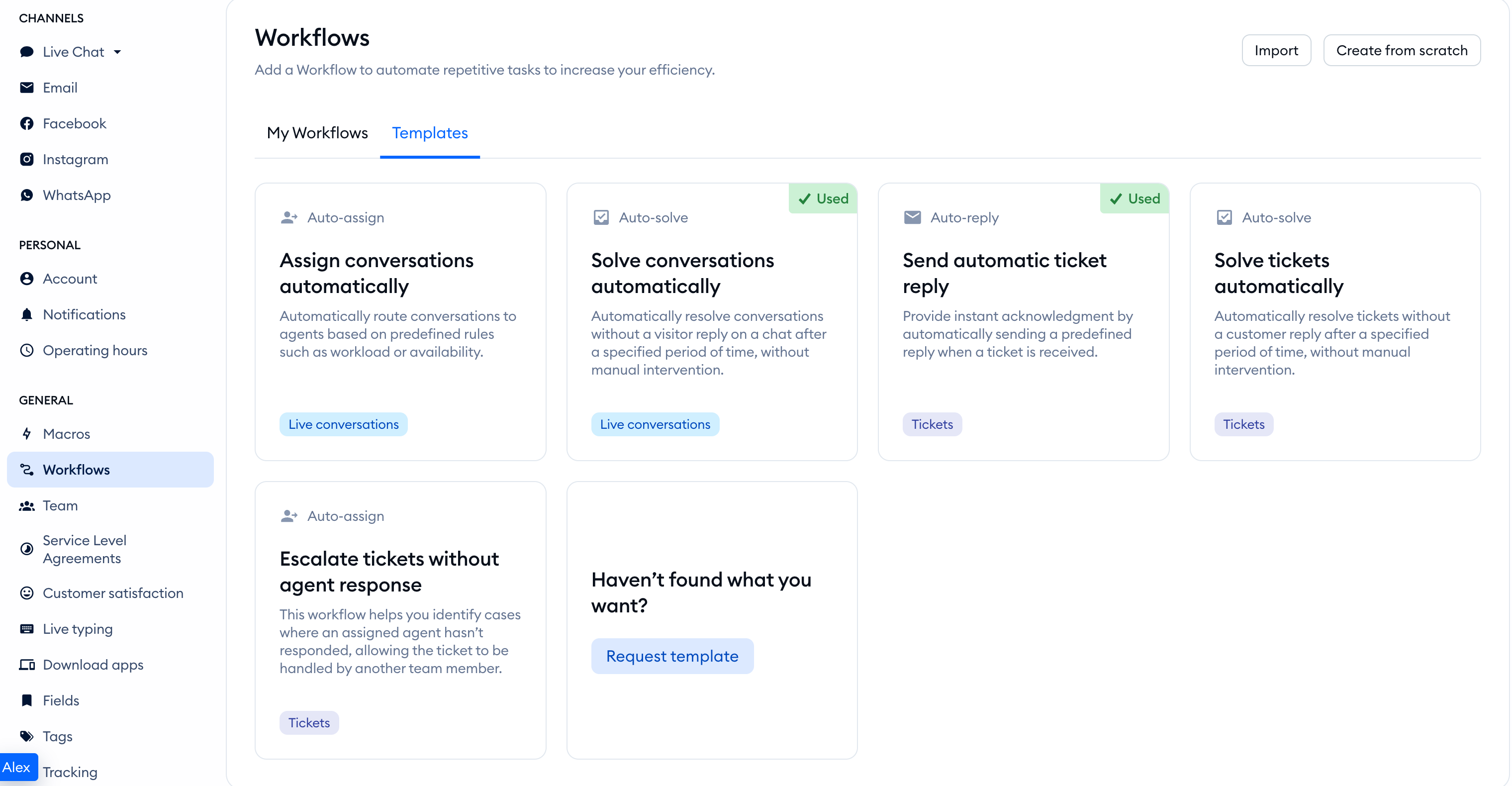
For the rest of the instructions, please see this dedicated guide on automatic solving.
