See how to install Tidio on your Weebly website.
In this article, you'll learn:
Install Tidio to your Weebly website
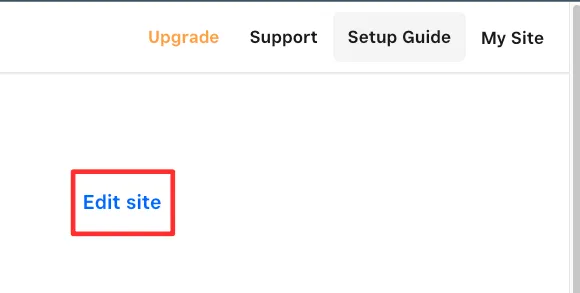
To install Tidio on your Weebly account, first log in to your Weebly account and open the site editor by clicking on Edit Site:
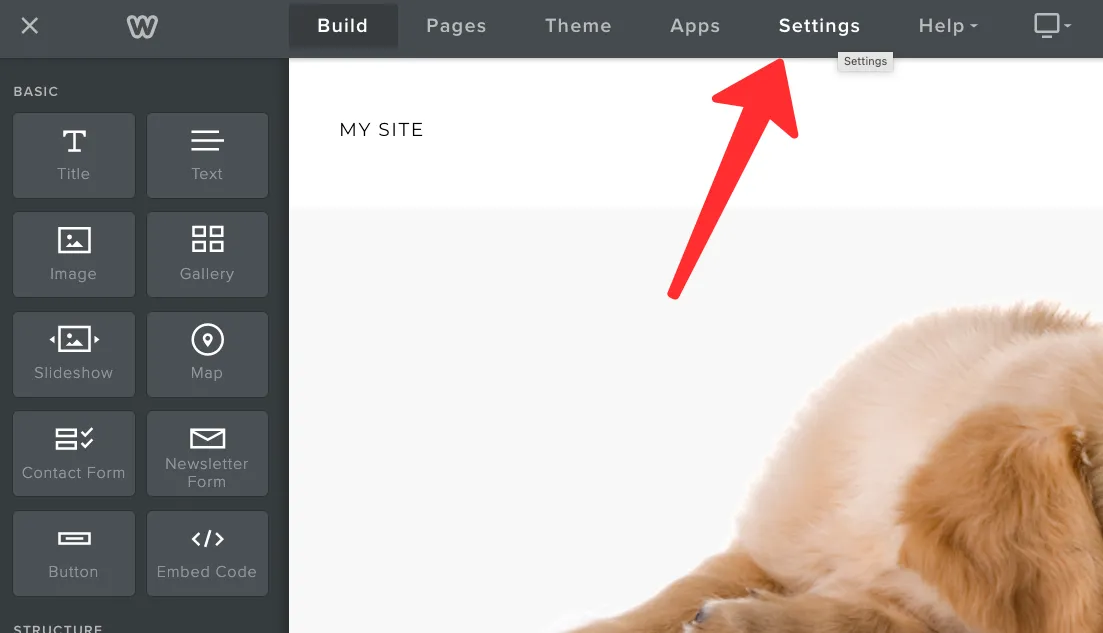
Once in the editor, navigate to Settings:
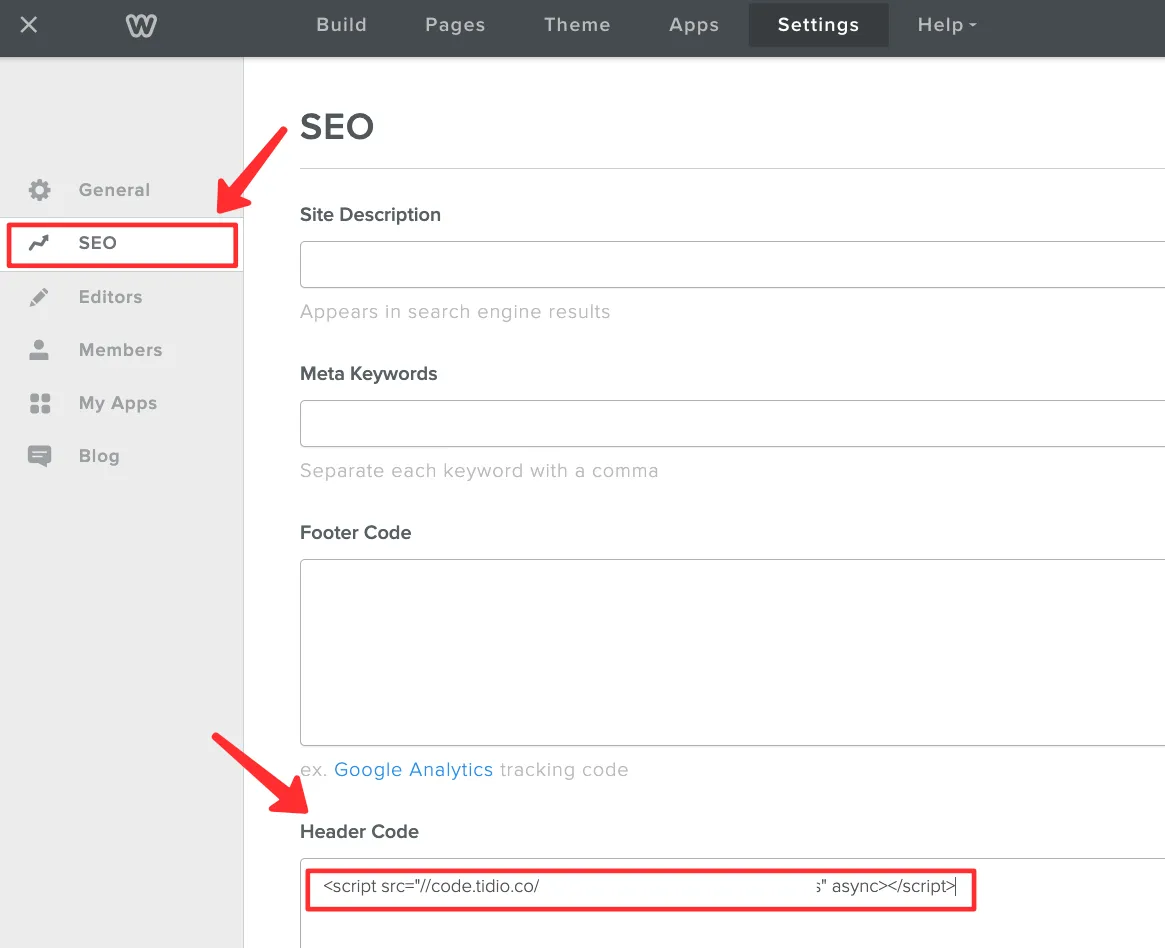
From there, click on SEO and paste your custom Tidio installation code into the Header Code section:
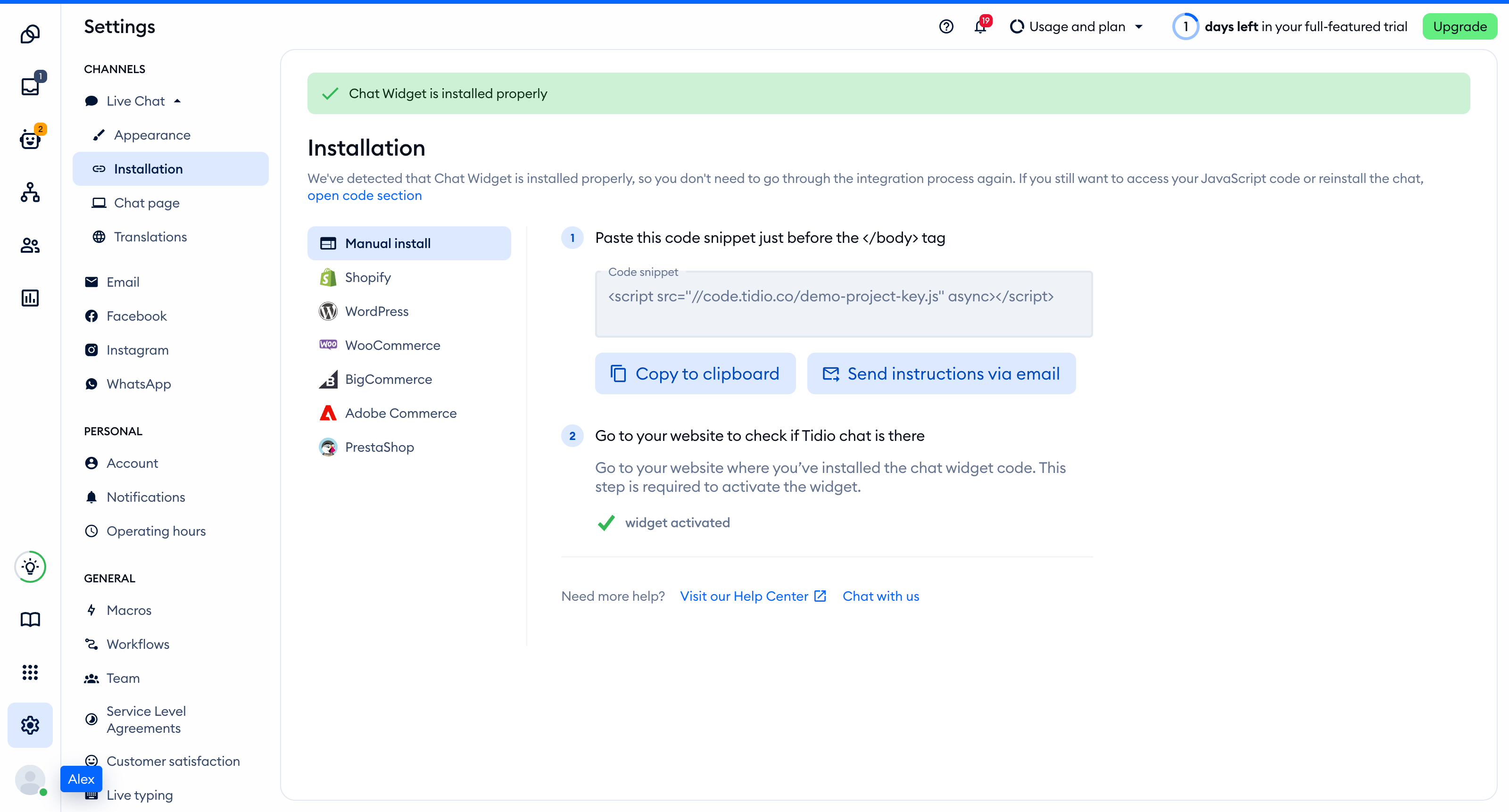
You can find the code by heading over to your Tidio admin panel and copying the manual installation code from Settings > Live Chat > Installation.
Install Tidio only on specific pages
If you want to add the code to specific pages only, go to site editor and select Pages.
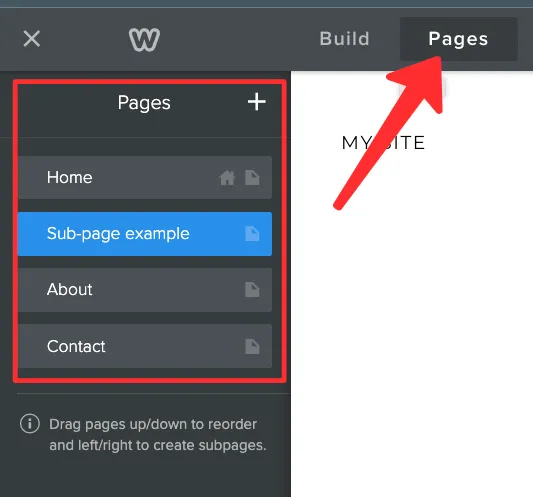
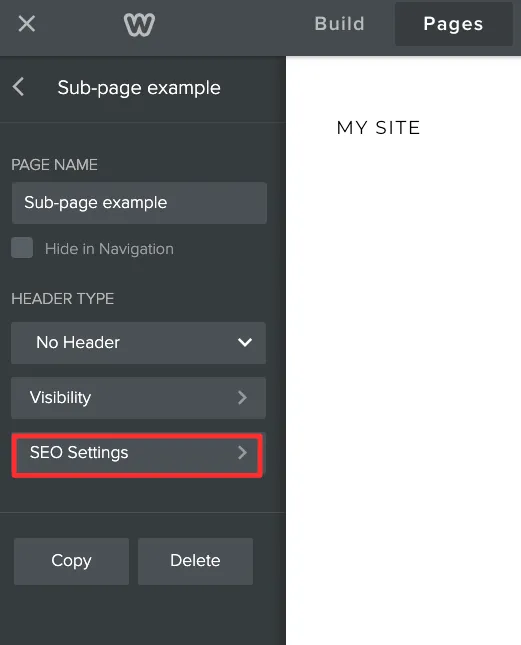
Choose the desired page, then go to SEO Settings and paste the manual installation code into the Header Code section:
Congratulations! You've successfully installed Tidio on your website!
