Install Tidio on your Site123 website by adding its plugin and copying your project's public key.
In this article, you'll learn:
Installation
If you don't have an account yet, sign up for a free one on www.tidio.com by clicking on the Get Started button or log in to an existing account.

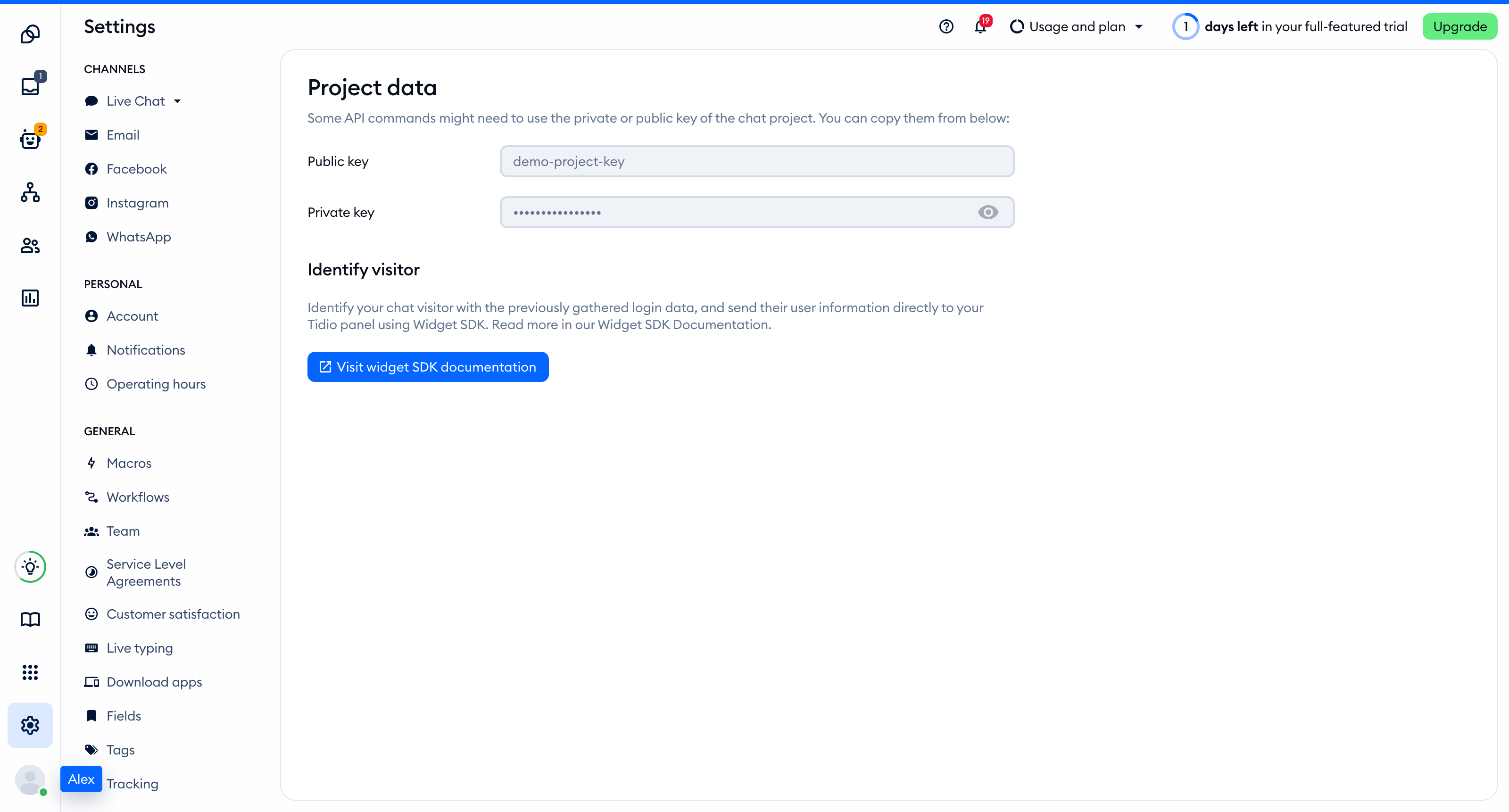
In the admin panel, go to Settings > Developer > Project data and copy the Public key:
Open your Site123 dashboard and go to the editor of your site. Find the Settings menu, expand the Plugins section, and click on Add New > Add New Plugin.
Select Tidio and click on Add. Paste the copied public key into the Application ID field, set Enable to Yes, and press Save.
That's it! The chat will be listed in your Plugins and will appear on your website as soon as you publish it.
