Add Tidio to a client-rendered React app by placing one script in Vite's HTML entry point. You do not need a Tidio npm package. Checked with React 19.3.1, Vite 8.3.8, and React Router 7.18.6 in declarative mode.
In this article, you'll learn:
- How to find your Public key
- How to add the widget
- How to check the installation
- How to identify logged-in visitors
- How to hide the widget on some pages
- How to troubleshoot the installation
Find your Public key
Log in to your Tidio panel and go to Settings > Developer > Project data. Click the Public key field to select its value, then copy it.
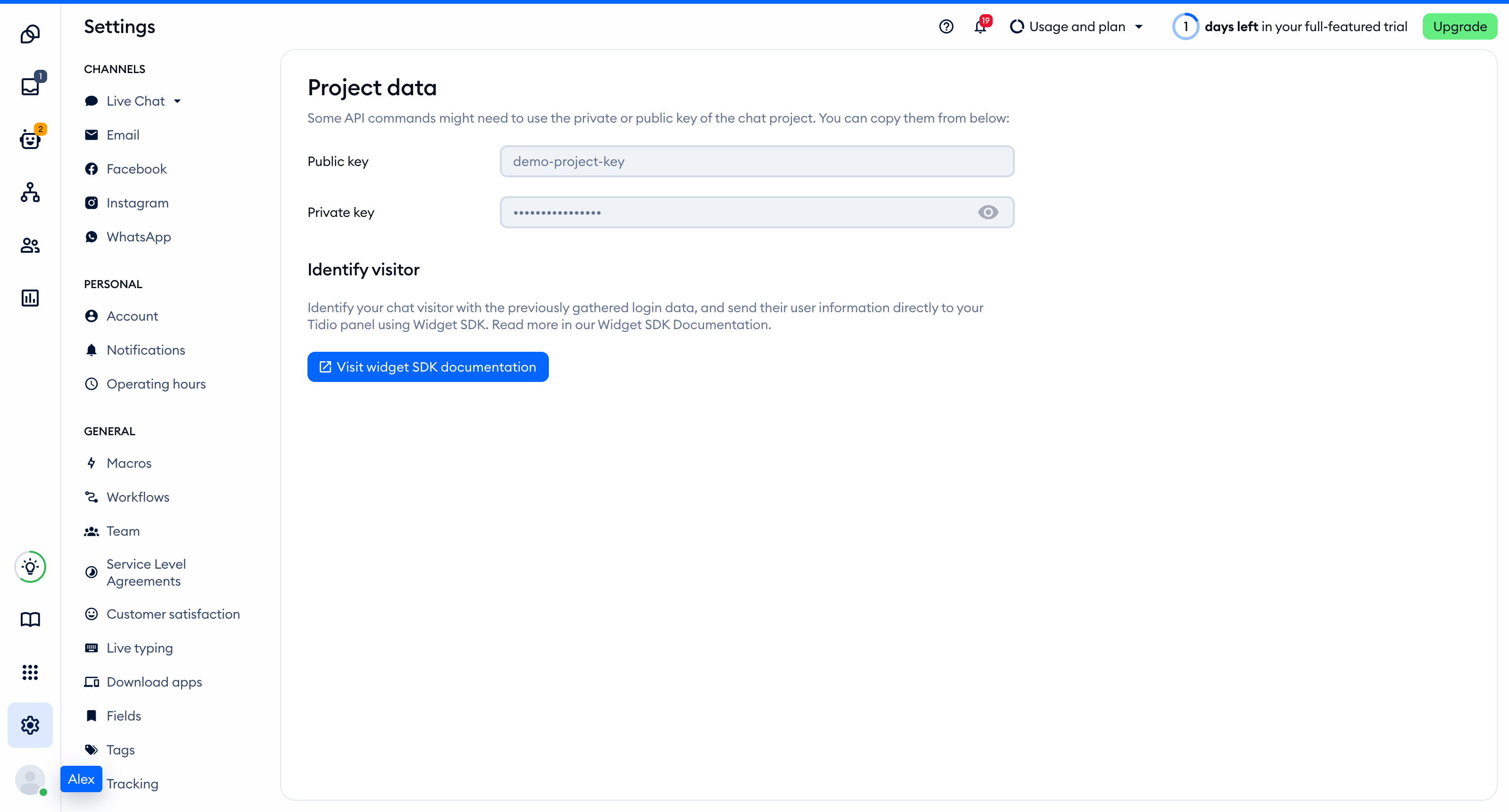
The Public key is part of the script address that every visitor's browser loads, so you can keep it in front-end code. The private key on the same page is different: never put it in your website.
You'll find the same key inside the installation code in Settings > Live Chat > Installation, under Manual install:
<script src="//code.tidio.co/YOUR_PUBLIC_KEY.js" async></script>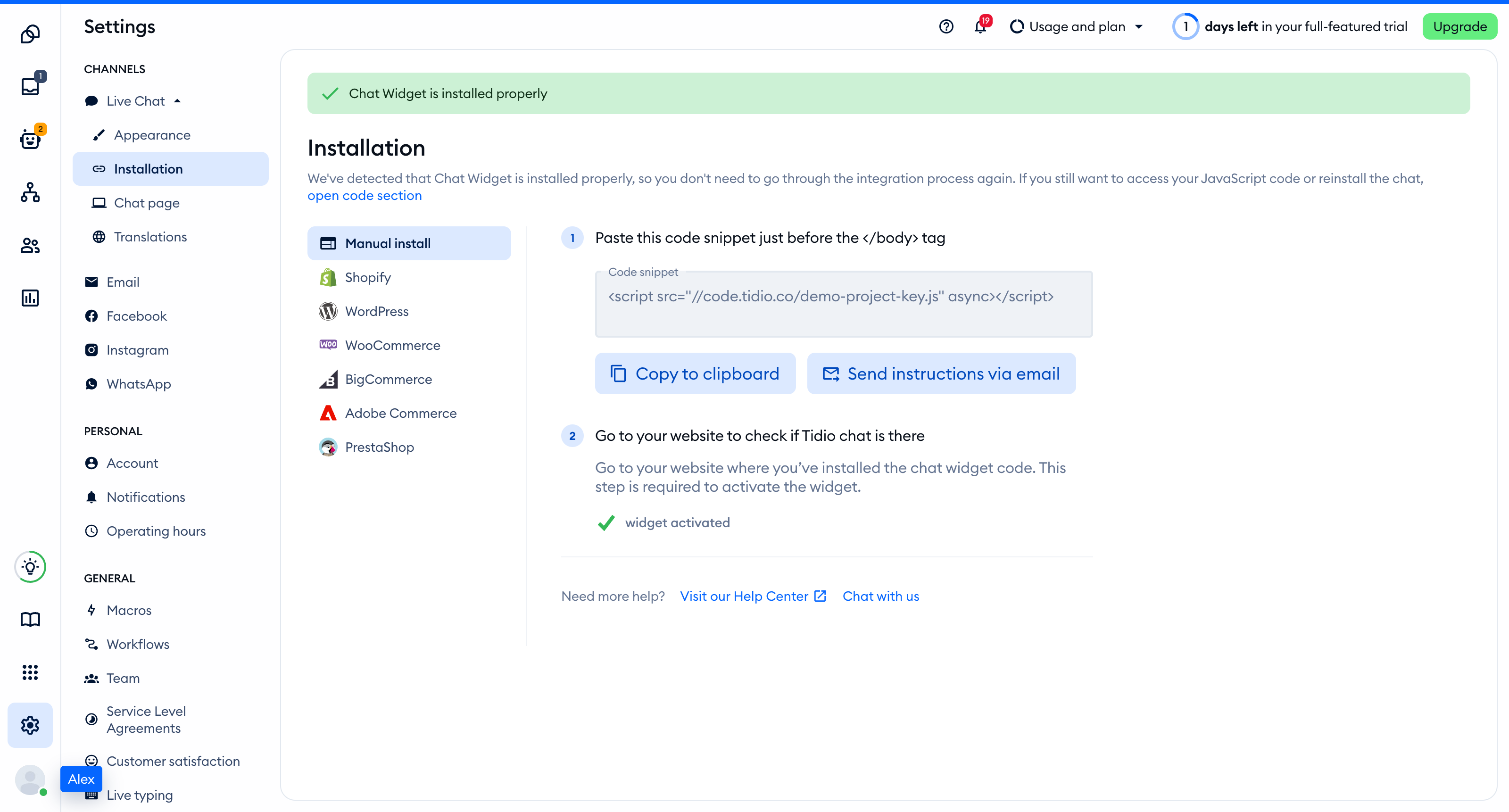
Add the widget to React
Create .env in your project root and replace the placeholder with your Public key:
VITE_TIDIO_KEY=YOUR_PUBLIC_KEYIn index.html, add this tag immediately before </body>, after the existing module script. Vite replaces %VITE_TIDIO_KEY% when it serves or builds the HTML.
<script src="https://code.tidio.co/%VITE_TIDIO_KEY%.js" async></script>Set the same public variable in your build environment before deploying. See Vite's environment variable documentation.
Load the script from a component instead
Use this alternative when you need to set visitor data before loading Tidio. Remove the Tidio tag from index.html, keep the same .env, and create src/TidioChat.tsx:
import { useEffect } from "react";
export type Visitor = { distinct_id?: string; email?: string; name?: string; phone?: string };
declare global {
  interface Document { tidioIdentify?: Visitor }
  interface Window { tidioChatApi?: {
    on(event: "ready", callback: () => void): void;
    display(visible: boolean): void;
    setVisitorData(visitor: Omit<Visitor, "distinct_id">): void;
    resetVisitor(): void;
  } }
}
export function TidioChat({ visitor }: { visitor?: Visitor }) {
  useEffect(() => {
    if (document.querySelector('script[src^="https://code.tidio.co/"]')) return;
    const key = import.meta.env.VITE_TIDIO_KEY;
    if (!key) throw new Error("Set VITE_TIDIO_KEY before starting the app");
    if (visitor) document.tidioIdentify = visitor;
    const script = document.createElement("script");
    script.src = `https://code.tidio.co/${key}.js`;
    script.async = true;
    document.body.appendChild(script);
  }, [visitor]);
  return null;
}
Import TidioChat in your root app and render <TidioChat /> once, outside your route components. The script stays in the document when the effect cleans up, and the existing-script check prevents a second insertion during StrictMode's development effect checks.
If an AI coding assistant edits this project for you, give it the prompt from Install Tidio with an AI coding agent.
Check the installation
Open your site in a regular browser window. The chat widget appears in the corner of the page and stays there when you move between pages. Headless and automated browsers may not show the widget, so do not rely on them for this check.
Loading a page with the widget is what activates it. After that, Settings > Live Chat > Installation in your Tidio panel says Chat Widget is installed properly.
Identify logged-in visitors
Use the component alternative above. Wait until your authentication check finishes before mounting it, then pass the authenticated visitor's data. Replace these example values with your own user ID, email, and name:
<TidioChat visitor={{ distinct_id: "unique_id", email: "contact@example.com", name: "John Doe" }} />The effect sets document.tidioIdentify before appending the script. Tidio uses this data to merge conversations for the same visitor. Changing the prop after the script is present does not identify a new visitor.
Add these exports to src/TidioChat.tsx. After the widget is ready, call updateVisitor from your successful login handler. Call resetVisitor from your logout handler on a shared browser:
export function updateVisitor(visitor: Omit<Visitor, "distinct_id">) {
  window.tidioChatApi?.setVisitorData(visitor);
}
export function resetVisitor() {
  delete document.tidioIdentify;
  window.tidioChatApi?.resetVisitor();
}
setVisitorData updates visitor data but does not merge conversations. Logout removes the old identification data before the widget restarts. Use the ready pattern in the next section before calling these account functions.
Hide the widget on some pages
This example uses React Router in library, declarative mode, not framework mode. Follow its installation instructions and put your app inside BrowserRouter. Create src/TidioVisibility.tsx beside TidioChat.tsx:
import { useEffect } from "react";
import { useLocation } from "react-router";
import "./TidioChat";
export function TidioVisibility() {
  const { pathname } = useLocation();
  useEffect(() => {
    let active = true;
    const apply = () => { if (active) window.tidioChatApi?.display(pathname !== "/checkout"); };
    if (window.tidioChatApi) {
      apply();
      window.tidioChatApi.on("ready", apply);
    } else document.addEventListener("tidioChat-ready", apply);
    return () => { active = false; document.removeEventListener("tidioChat-ready", apply); };
  }, [pathname]);
  return null;
}
Render <TidioVisibility /> once inside BrowserRouter, outside your routes. It hides the widget on /checkout and shows it elsewhere. With the HTML installation, keep TidioChat.tsx for its types but do not render its loader component.
Hiding the widget does not stop Flows from triggering. See Show the widget only on specific pages.
Troubleshooting
- If the script fails to load, check that
VITE_TIDIO_KEYcontains your Public key. Restart the development server after changing it, and rebuild for deployment. - If you see two widgets or duplicate script requests, keep only one installation method. Remove any older Tidio script before adding the component.
- If your site uses a Content Security Policy, allow
code.tidio.coinscript-srcand follow the full Tidio CSP host list. - If an automated test loads the script but shows no widget, check the site in a regular browser window.