See how easy it is to install Tidio on your Panierdachat website. The chat will need to be installed manually, but the process is pretty simple.
In this article, you'll learn:
Installation
If you want to create a new account, go to www.tidio.com, click on Get Started, or log in to your existing Tidio account.

After registering a Tidio account, you should automatically be redirected to your panel. You can also visit www.tidio.com and click "Log in" in the upper-right corner of the page and log into your Tidio panel.
In the panel, go to Settings > Developer > Project data section.
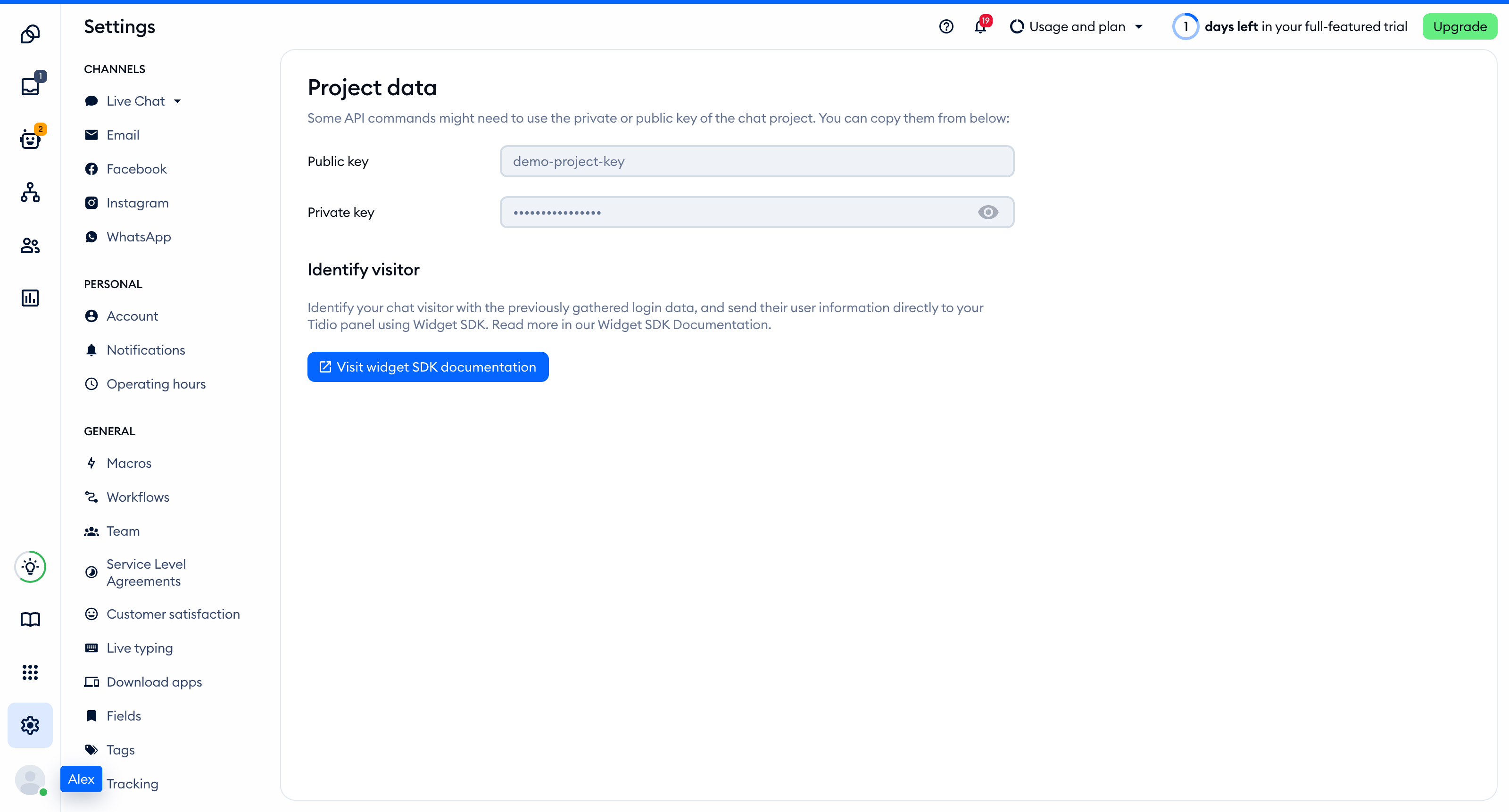
Copy the Public key from that section - you'll need it later in the integration process.
Log into your Panierdachat account.
After you've logged in, go to the Marketing section in the vertical side menu. When the Marketing feature list pops up, click on "Live chat."
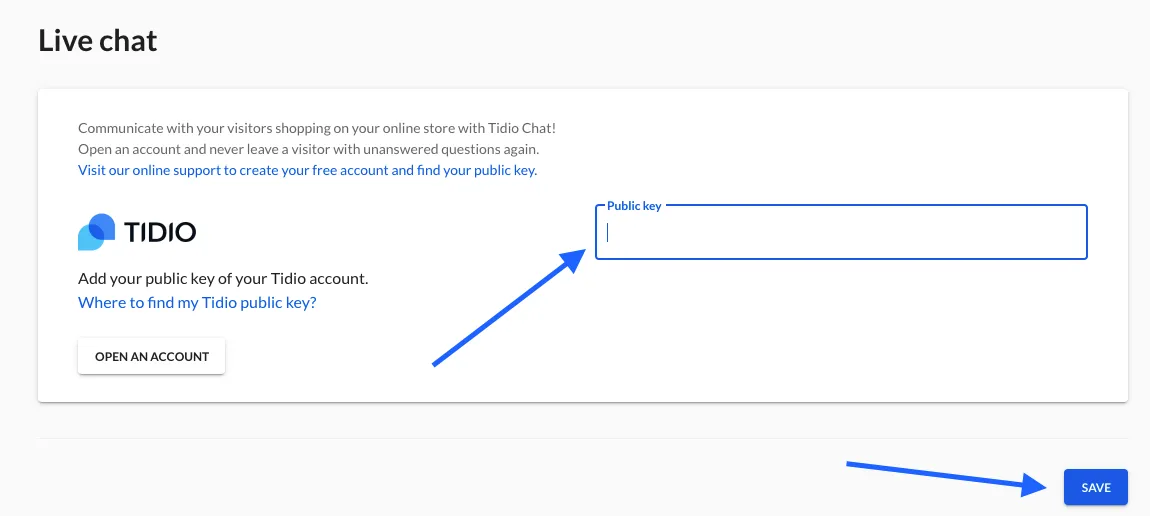
Next, paste the Public key (which you've copied from Settings>Developer) into the field on the right side of the screen, and click Save.
Done! You've successfully installed the chat on your website!
Your Panierdachat website should be integrated with Tidio Chat from now on. When you visit your site, you should see the Tidio Chat widget in the bottom-right corner of the page.
