Add Tidio to your Nuxt app with one useHead script entry in the root component. You do not need a package for Tidio. Checked with Nuxt 4.6.4 and Vue 3.5.45, with a production server-rendered build.
In this article, you'll learn:
- How to find your Public key
- How to add the widget to Nuxt
- How to check the installation
- How to identify logged-in visitors
- How to hide the widget on some pages
- How to troubleshoot the installation
Find your Public key
Log in to your Tidio panel and go to Settings > Developer > Project data. Click the Public key field to select its value, then copy it.
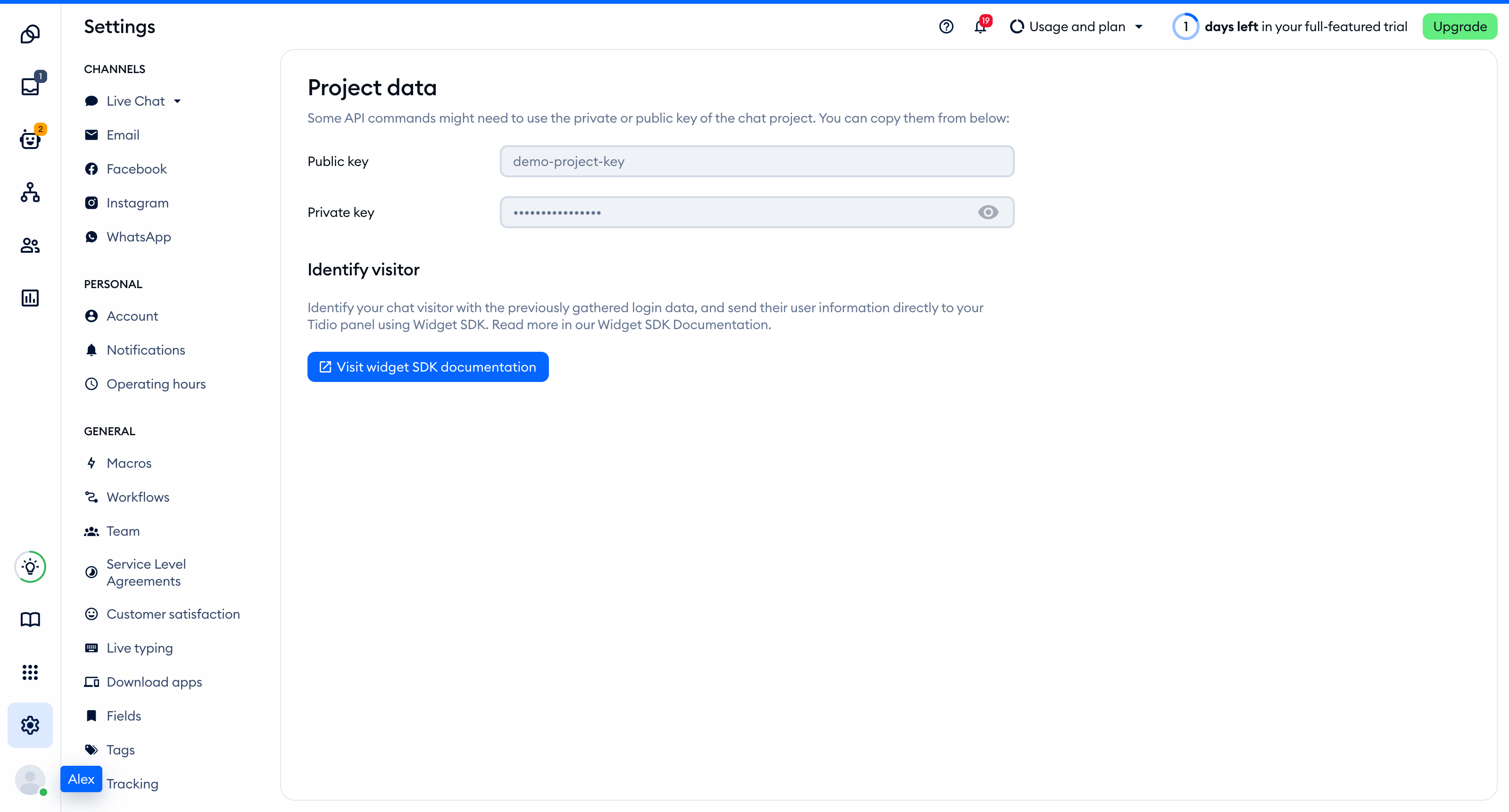
The Public key is part of the script address that every visitor's browser loads, so you can keep it in front-end code. The private key on the same page is different: never put it in your website.
You'll find the same key inside the installation code in Settings > Live Chat > Installation, under Manual install:
<script src="//code.tidio.co/YOUR_PUBLIC_KEY.js" async></script>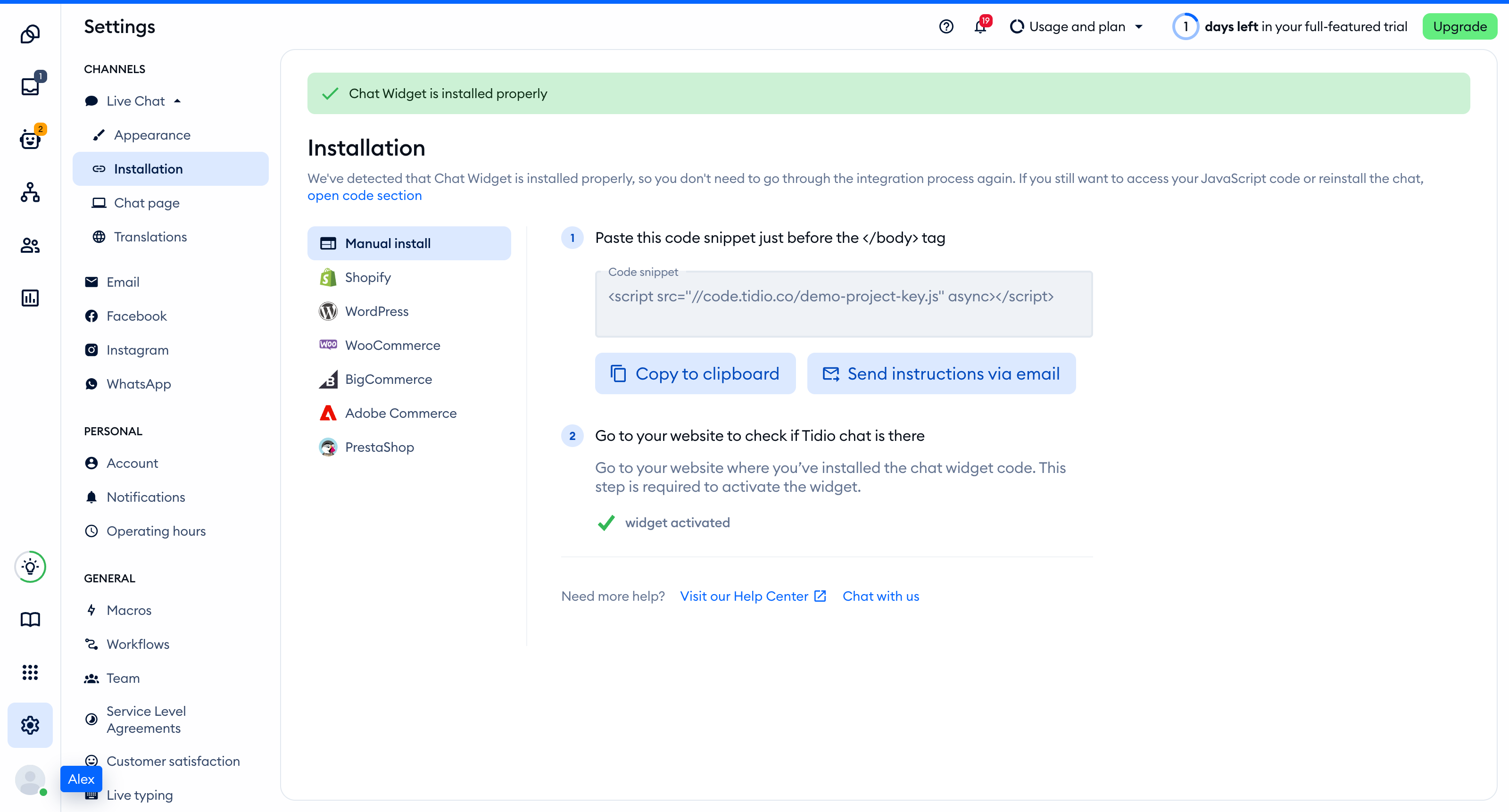
Add the widget to Nuxt
Add this public runtime configuration to nuxt.config.ts, next to your existing options:
export default defineNuxtConfig({
  runtimeConfig: { public: { tidioKey: '' } },
})
Set the matching environment variable in .env. Nuxt reads it in development and when you build or generate the site:
NUXT_PUBLIC_TIDIO_KEY=YOUR_PUBLIC_KEYOn a deployed server, set NUXT_PUBLIC_TIDIO_KEY in the server environment too, because the built server does not read .env. For static output, set it when you generate the site.
Call useHead in app/app.vue, not in a page component. The tagPosition: 'bodyClose' option puts the script at the end of the body. This root component has example navigation. Keep your own layout.
<script setup lang="ts">
const config = useRuntimeConfig()
useHead({
  script: [{
    key: 'tidio',
    src: `https://code.tidio.co/${config.public.tidioKey}.js`,
    async: true,
    tagPosition: 'bodyClose',
  }],
})
</script>
<template>
  <div>
    <nav><NuxtLink to="/">Home</NuxtLink> <NuxtLink to="/checkout">Checkout</NuxtLink></nav>
    <NuxtPage />
  </div>
</template>
If an AI coding assistant edits this project for you, give it the prompt from Install Tidio with an AI coding agent.
Check the installation
Open your site in a regular browser window. The chat widget appears in the corner of the page and stays there when you move between pages. Headless and automated browsers may not show the widget, so do not rely on them for this check.
Loading a page with the widget is what activates it. After that, Settings > Live Chat > Installation in your Tidio panel says Chat Widget is installed properly.
Identify logged-in visitors
To identify the visitor before Tidio loads, remove the useHead script entry above and create app/plugins/tidio.client.ts. Nuxt runs .client.ts plugins only in the browser. This plugin is then the only place that loads the script.
Replace the example identity with your authenticated user's data. If your app loads the session asynchronously, wait for it in the plugin before you set the identity and append the script. For a signed-out visitor, leave out the document.tidioIdentify line.
type Visitor = { distinct_id?: string; email?: string; name?: string; phone?: string }
declare global {
  interface Document { tidioIdentify?: Visitor }
  interface Window {
    tidioChatApi?: {
      on(event: 'ready', callback: () => void): void
      display(visible: boolean): void
      setVisitorData(visitor: Omit<Visitor, 'distinct_id'>): void
      resetVisitor(): void
    }
  }
}

export default defineNuxtPlugin(() => {
  document.tidioIdentify = { distinct_id: 'unique_id', email: 'contact@mail', name: 'John Doe' }
  const ready = ref(false)
  const onReady = () => { ready.value = true }
  if (window.tidioChatApi) window.tidioChatApi.on('ready', onReady)
  else document.addEventListener('tidioChat-ready', onReady, { once: true })
  const updateVisitor = (visitor: Omit<Visitor, 'distinct_id'>) => {
    if (ready.value) window.tidioChatApi?.setVisitorData(visitor)
  }
  const logOut = () => {
    delete document.tidioIdentify
    if (ready.value) window.tidioChatApi?.resetVisitor()
  }
  const route = useRoute()
  watch([() => route.path, ready], () => {
    if (ready.value) window.tidioChatApi?.display(route.path !== '/checkout')
  }, { immediate: true })
  const config = useRuntimeConfig()
  const script = document.createElement('script')
  script.src = `https://code.tidio.co/${config.public.tidioKey}.js`
  script.async = true
  document.body.appendChild(script)
  return { provide: { tidio: { ready, updateVisitor, logOut } } }
})
In the component that handles login and logout, get $tidio from useNuxtApp, as this app/app.vue does. Call updateVisitor after a login once ready is true. It updates visitor data but does not merge conversations. Only the document.tidioIdentify set before the script loads does that. On logout, logOut removes the identity and then calls resetVisitor, which restarts the widget. The plugin runs only in the browser, so $tidio is undefined during server rendering and the buttons render disabled.
<script setup lang="ts">
const { $tidio } = useNuxtApp()
</script>
<template>
  <div>
    <nav><NuxtLink to="/">Home</NuxtLink> <NuxtLink to="/checkout">Checkout</NuxtLink></nav>
    <button :disabled="!$tidio?.ready.value" @click="$tidio.updateVisitor({ email: 'new@example.com' })">Update visitor</button>
    <button :disabled="!$tidio?.ready.value" @click="$tidio.logOut">Log out</button>
    <NuxtPage />
  </div>
</template>
Hide the widget on some pages
The client plugin above already has the route watcher. Replace /checkout with the route where you want the widget hidden. The watcher waits for the widget's ready event and runs again after every client-side navigation. If you only need this rule, leave out the document.tidioIdentify line.
const route = useRoute()
  watch([() => route.path, ready], () => {
    if (ready.value) window.tidioChatApi?.display(route.path !== '/checkout')
  }, { immediate: true })
It calls display(false) on /checkout and display(true) on every other route. Hiding the widget does not stop Flows from triggering. To load the widget only on a list of addresses instead, see Show the widget only on specific pages.
Troubleshooting
- If the script fails to load, check that
NUXT_PUBLIC_TIDIO_KEYholds your Public key and not the placeholderYOUR_PUBLIC_KEY. - If you see two widgets or duplicate script requests, remove one installation. Use either the
useHeadentry or the client plugin, not both. - If server rendering reports that
windowordocumentis not defined, move that code into the.client.tsplugin. - If your site uses a Content Security Policy, allow
code.tidio.coinscript-srcand add the other hosts from the Content Security Policy page of the developer documentation. - If an automated browser loads the script but shows no widget, check again in a regular browser window.