Add Tidio to your Eleventy site through a shared Nunjucks layout. You do not need a package for Tidio. Checked with Eleventy 3.1.8.
In this article, you'll learn:
- How to find your Public key
- How to add the widget to Eleventy
- How to check the installation
- How to identify logged-in visitors
- How to hide the widget on some pages
- How to troubleshoot the installation
Find your Public key
Log in to your Tidio panel and go to Settings > Developer > Project data. Click the Public key field to select its value, then copy it.
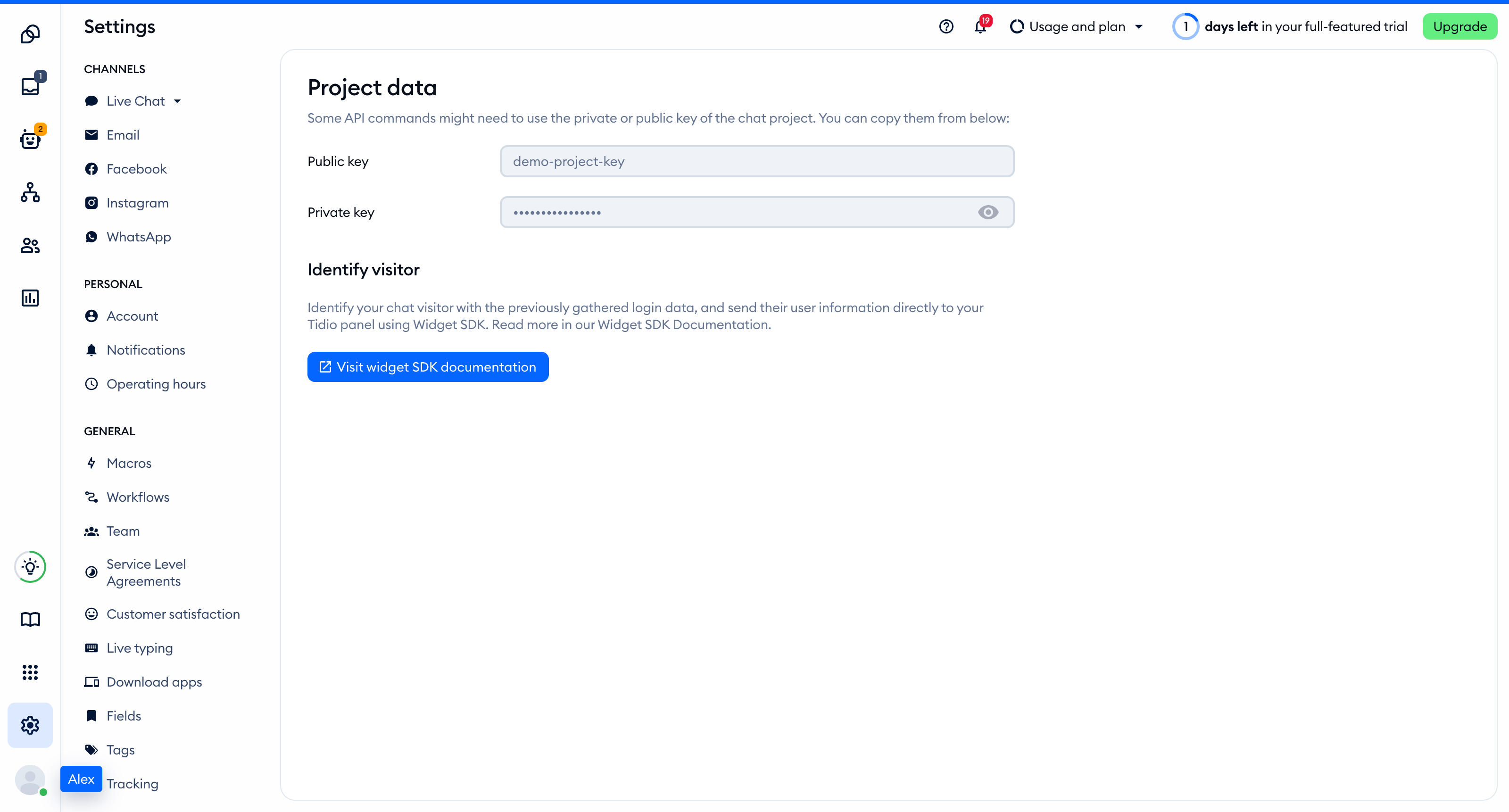
The Public key is part of the script address that every visitor's browser loads, so you can keep it in front-end code. The private key on the same page is different: never put it in your website.
You'll find the same key inside the installation code in Settings > Live Chat > Installation, under Manual install:
<script src="//code.tidio.co/YOUR_PUBLIC_KEY.js" async></script>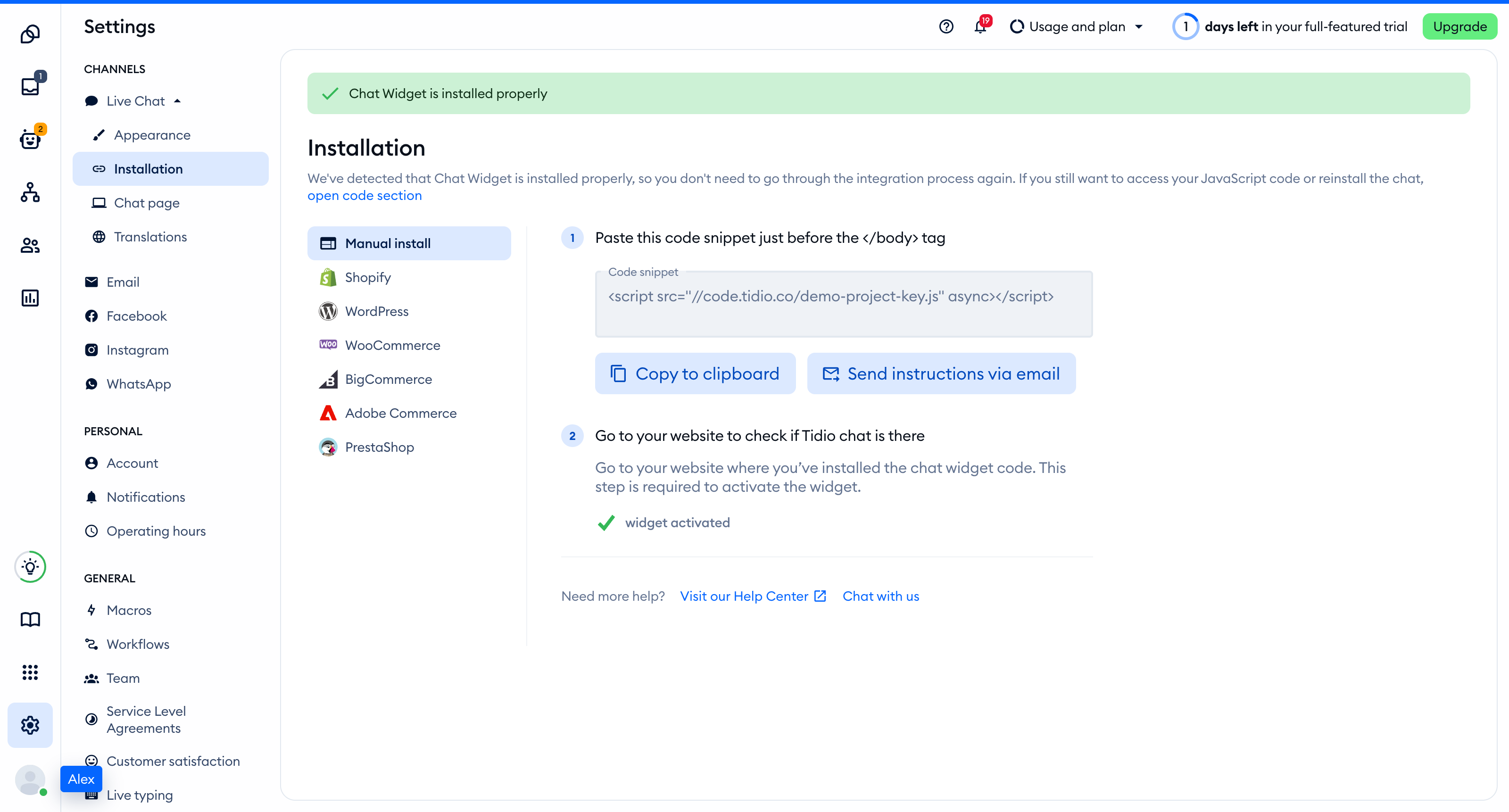
Add the widget to Eleventy
Add the script just before </body> in your shared _includes/base.njk layout. Replace YOUR_PUBLIC_KEY with your Public key. Keep your existing head elements and layout content. A minimal layout looks like this:
<!doctype html>
<html lang="en">
  <head>
    <meta charset="utf-8">
    <meta name="viewport" content="width=device-width, initial-scale=1">
    <title>{{ title }}</title>
  </head>
  <body>
    {{ content | safe }}
    <script src="https://code.tidio.co/YOUR_PUBLIC_KEY.js" async></script>
  </body>
</html>
Set layout: base.njk in each page's front matter, or use your existing shared layout. For example, index.njk can start with:
---
layout: base.njk
title: Home
---
<h1>Home</h1>
Eleventy builds a multi-page site. With ordinary links, each page loads the script once in a new document. Do not add another Tidio script to individual pages that already use this layout.
Eleventy has no convention for public environment variables, so this example puts the Public key directly in the layout.
Run npx @11ty/eleventy to build the site, then deploy the generated _site directory. If you changed the output directory in your configuration, deploy that directory instead.
If an AI coding assistant edits this project for you, give it the prompt from Install Tidio with an AI coding agent.
Check the installation
Open your site in a regular browser window. The chat widget appears in the corner of the page and stays there when you move between pages. Headless and automated browsers may not show the widget, so do not rely on them for this check.
Loading a page with the widget is what activates it. After that, Settings > Live Chat > Installation in your Tidio panel says Chat Widget is installed properly.
On this multi-page site, the next page loads its own widget rather than keeping the previous page's script.
Identify logged-in visitors
Do not put visitor identity in Eleventy's generated HTML. Everyone who opens a static page receives the same file. Use your existing browser authentication code to get the current visitor instead.
Replace the original Tidio script in _includes/base.njk with this inline loader. Call startTidio(user) from your authentication code after the session resolves on each page. Pass the current visitor's distinct_id, email and name, or null for a signed-out visitor. Do not pass session tokens.
<script>
  function startTidio(user) {
    if (document.getElementById('tidio-script')) return;
    if (user) {
      document.tidioIdentify = {
        distinct_id: user.distinct_id,
        email: user.email,
        name: user.name
      };
    }
    const script = document.createElement('script');
    script.id = 'tidio-script';
    script.src = 'https://code.tidio.co/YOUR_PUBLIC_KEY.js';
    script.async = true;
    document.body.appendChild(script);
  }
</script>
The loader sets document.tidioIdentify before inserting the script. Initial identification can merge conversations for the same visitor. Use this loader instead of the original script, not alongside it.
For a later login on the same page, call setVisitorData from your login handler after the widget's ready event. Replace the example values with your session data. This updates visitor data but does not merge conversations:
window.tidioChatApi.setVisitorData({
  email: 'visitor@example.com',
  name: 'Example visitor'
});
After logout, remove the identification data before resetting the widget. Call this from your logout handler after the widget is ready:
delete document.tidioIdentify;
window.tidioChatApi?.resetVisitor();
Hide the widget on some pages
Add this inline script in _includes/base.njk before the Tidio script or identification loader. It hides the widget on both /checkout and /checkout/, and shows it elsewhere. Each page runs its own ready callback after a full-page navigation.
<script>
  function updateTidioVisibility() {
    const path = window.location.pathname.replace(/\/+$/, '') || '/';
    window.tidioChatApi.display(path !== '/checkout');
  }
  if (window.tidioChatApi) {
    window.tidioChatApi.on('ready', updateTidioVisibility);
  } else {
    document.addEventListener('tidioChat-ready', updateTidioVisibility);
  }
</script>
Hiding the widget does not stop Flows from triggering. To load the widget only on a list of addresses instead, see Show the widget only on specific pages.
Troubleshooting
- If a page has no widget, check that its front matter selects the layout containing the script.
- If the widget loads twice, remove the duplicate installation. Use either the original script or the identification loader.
- If a change does not appear on your site, rebuild and deploy the generated files. Check that the script address contains your Public key instead of
YOUR_PUBLIC_KEY. - If checkout still shows the widget, check its actual pathname against the visibility rule.
- If your Content Security Policy blocks Tidio, allow
code.tidio.coinscript-srcand check the full list of required hosts. Authorize inline scripts with a nonce or hash. - If an automated browser shows no widget, check the published site in a regular browser window.