Add Tidio to your Django site through a shared template. You do not need a package for Tidio. This guide uses full-page navigation with ordinary links. Checked with Django 6.1.3.
In this article, you'll learn:
- How to find your Public key
- How to add the widget to Django
- How to check the installation
- How to identify logged-in visitors
- How to hide the widget on some pages
- How to troubleshoot the installation
Find your Public key
Log in to your Tidio panel and go to Settings > Developer > Project data. Click the Public key field to select its value, then copy it.
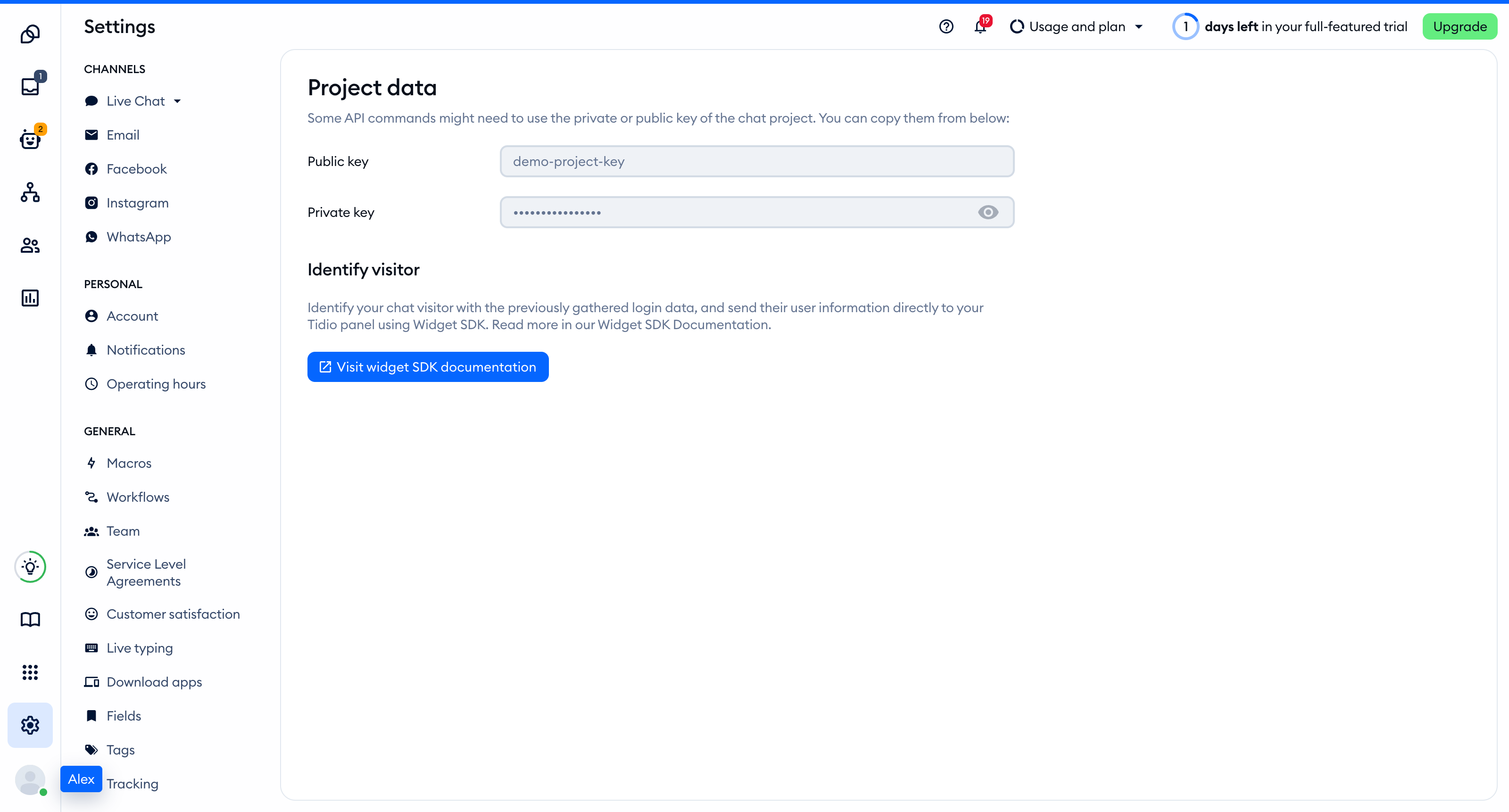
The Public key is part of the script address that every visitor's browser loads, so you can keep it in front-end code. The private key on the same page is different: never put it in your website.
You'll find the same key inside the installation code in Settings > Live Chat > Installation, under Manual install:
<script src="//code.tidio.co/YOUR_PUBLIC_KEY.js" async></script>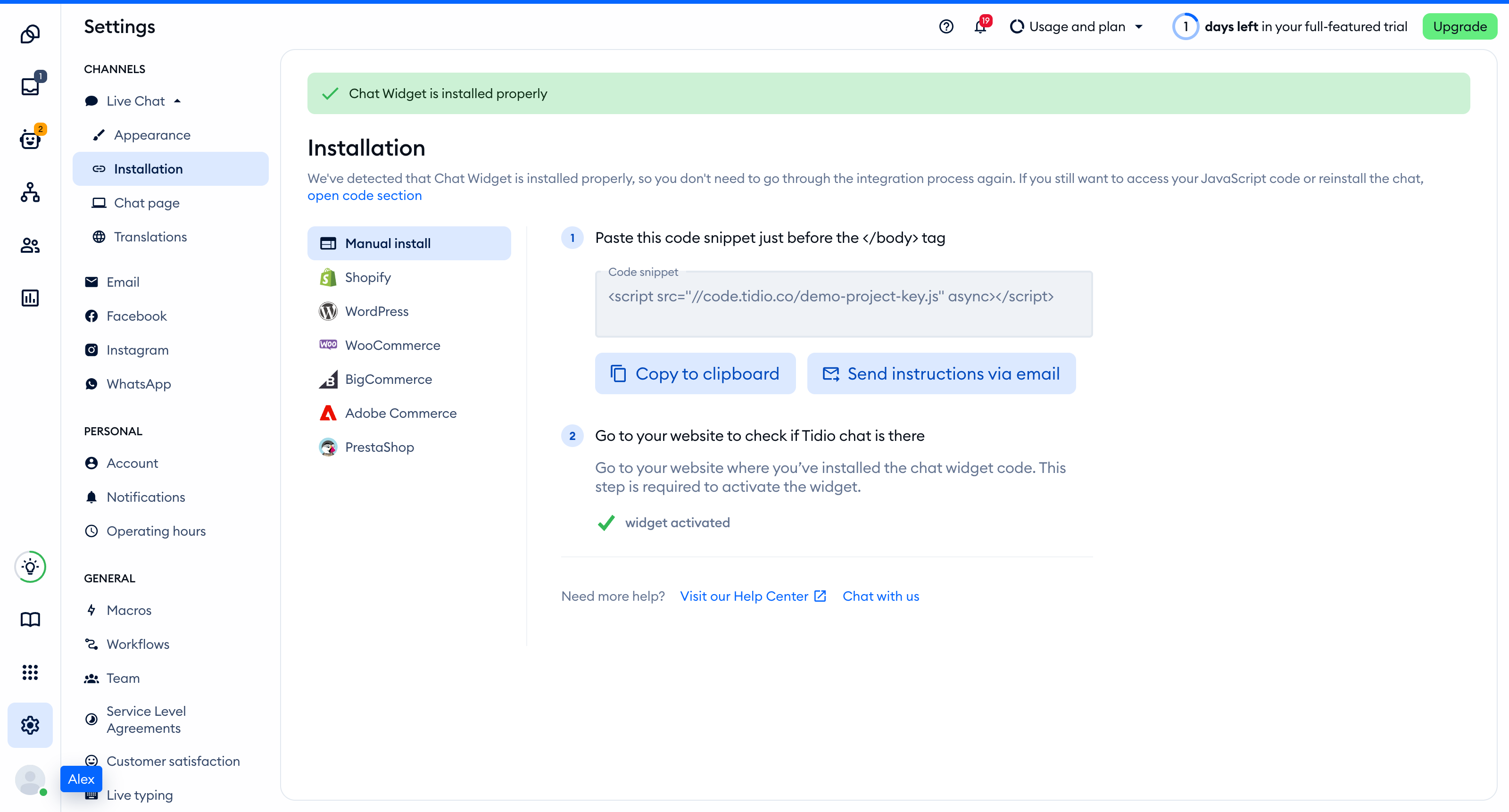
Add the widget to Django
Set TIDIO_PUBLIC_KEY=YOUR_PUBLIC_KEY in your server's environment. Replace the placeholder with your Public key. In your project's settings.py, read it with:
import os

TIDIO_PUBLIC_KEY = os.environ["TIDIO_PUBLIC_KEY"]
This example names the Django project package config. Replace that name with yours. Create config/tidio_context.py:
from django.conf import settings


def tidio(request):
    return {"tidio_public_key": settings.TIDIO_PUBLIC_KEY}
After your existing TEMPLATES setting, add the shared template directory and context processor. Keep your existing processors, including Django's authentication processor:
TEMPLATES[0]["DIRS"] = [BASE_DIR / "templates"]
TEMPLATES[0]["OPTIONS"]["context_processors"].append("config.tidio_context.tidio")
If DIRS already lists directories, add BASE_DIR / "templates" to that list instead of replacing it. Add the widget once before </body> in templates/base.html. Keep your existing page content and head elements. A minimal layout looks like this:
<!doctype html>
<html lang="en">
<head><title>My site</title></head>
<body>
  {% block content %}{% endblock %}
  <script src="https://code.tidio.co/{{ tidio_public_key }}.js" async></script>
</body>
</html>
Have each page template extend base.html and render it through render(request, ...) so the context processor runs. For example:
{% extends "base.html" %}
{% block content %}
<h1>Home</h1>
{% endblock %}
Restart your server after changing the environment variable. With ordinary links, Django renders a full page and each page loads the widget script once. Do not add another Tidio script to child templates.
If you use htmx, keep navigation between these pages as full-page loads. Set hx-boost="false" on navigation links if a parent enables boosting, and do not replace the body through other htmx requests. A body swap can remove the widget. This sample does not support client-side body replacement.
If an AI coding assistant edits this project for you, give it the prompt from Install Tidio with an AI coding agent.
Check the installation
Open your site in a regular browser window. The chat widget appears in the corner of the page and stays there when you move between pages. Headless and automated browsers may not show the widget, so do not rely on them for this check.
Loading a page with the widget is what activates it. After that, Settings > Live Chat > Installation in your Tidio panel says Chat Widget is installed properly.
On this multi-page site, each page loads its own widget in a new document.
Identify logged-in visitors
Use your authenticated Django user on the server. Replace config/tidio_context.py with this version. It prepares identity data only for a signed-in visitor:
from django.conf import settings


def tidio(request):
    context = {"tidio_public_key": settings.TIDIO_PUBLIC_KEY}
    if request.user.is_authenticated:
        context["tidio_identity"] = {
            "distinct_id": str(request.user.pk),
            "email": request.user.email,
            "name": request.user.get_full_name(),
        }
    return context
Add this immediately before the existing Tidio script in templates/base.html. Django's json_script filter escapes the data for HTML. Do not concatenate user values into JavaScript or mark them with safe:
{% if user.is_authenticated %}
{{ tidio_identity|json_script:"tidio-identity" }}
<script>
  document.tidioIdentify = JSON.parse(
    document.getElementById('tidio-identity').textContent
  );
</script>
{% endif %}
This sets document.tidioIdentify before the widget loads. Never cache a page containing one visitor's identity for other visitors. Keep Django's authentication middleware and authentication context processor enabled.
For a later login without a page reload, call setVisitorData from your login handler after the widget's ready event. Use data from your authenticated session. This updates visitor data but does not merge conversations:
window.tidioChatApi.setVisitorData({
  email: user.email,
  name: user.name
});
After logout, remove the identification data before resetting the widget. Call this from your logout handler after the widget is ready:
delete document.tidioIdentify;
window.tidioChatApi?.resetVisitor();
Hide the widget on some pages
Add this before the Tidio script in templates/base.html. It hides the widget on /checkout and /checkout/, and shows it elsewhere. Each full-page navigation runs the ready callback in a new document:
<script>
  function updateTidioVisibility() {
    const checkout = /^\/checkout\/?$/.test(window.location.pathname);
    window.tidioChatApi.display(!checkout);
  }
  if (window.tidioChatApi) {
    window.tidioChatApi.on('ready', updateTidioVisibility);
  } else {
    document.addEventListener('tidioChat-ready', updateTidioVisibility);
  }
</script>
Hiding the widget does not stop Flows from triggering. To load the widget only on a list of addresses instead, see Show the widget only on specific pages.
Troubleshooting
- If the script address has no key, check
TIDIO_PUBLIC_KEYin the server environment and register the context processor on the template backend you use. - If only some pages show the widget, check that their templates extend the shared layout.
- If navigation removes the widget, disable body-swapping navigation as described above. Use ordinary full-page links.
- If the widget loads twice, remove duplicate installations from child templates, tag managers or plugins.
- If your Content Security Policy blocks Tidio, allow the hosts listed in the Content Security Policy guidance. The executable inline scripts for identification and visibility need a nonce or hash in
script-src. - If the widget is absent, check your browser console and retry without a content blocker.