Add Tidio to your Angular app with one script in the root HTML document. You do not need an npm package for Tidio. Checked with Angular 22.3.0 and Angular CLI 22.2.7, including server-side rendering.
In this article, you'll learn:
- How to find your Public key
- How to add the widget to Angular
- How to check the installation
- How to identify logged-in visitors
- How to hide the widget on some pages
- How to troubleshoot the installation
Find your Public key
Log in to your Tidio panel and go to Settings > Developer > Project data. Click the Public key field to select its value, then copy it.
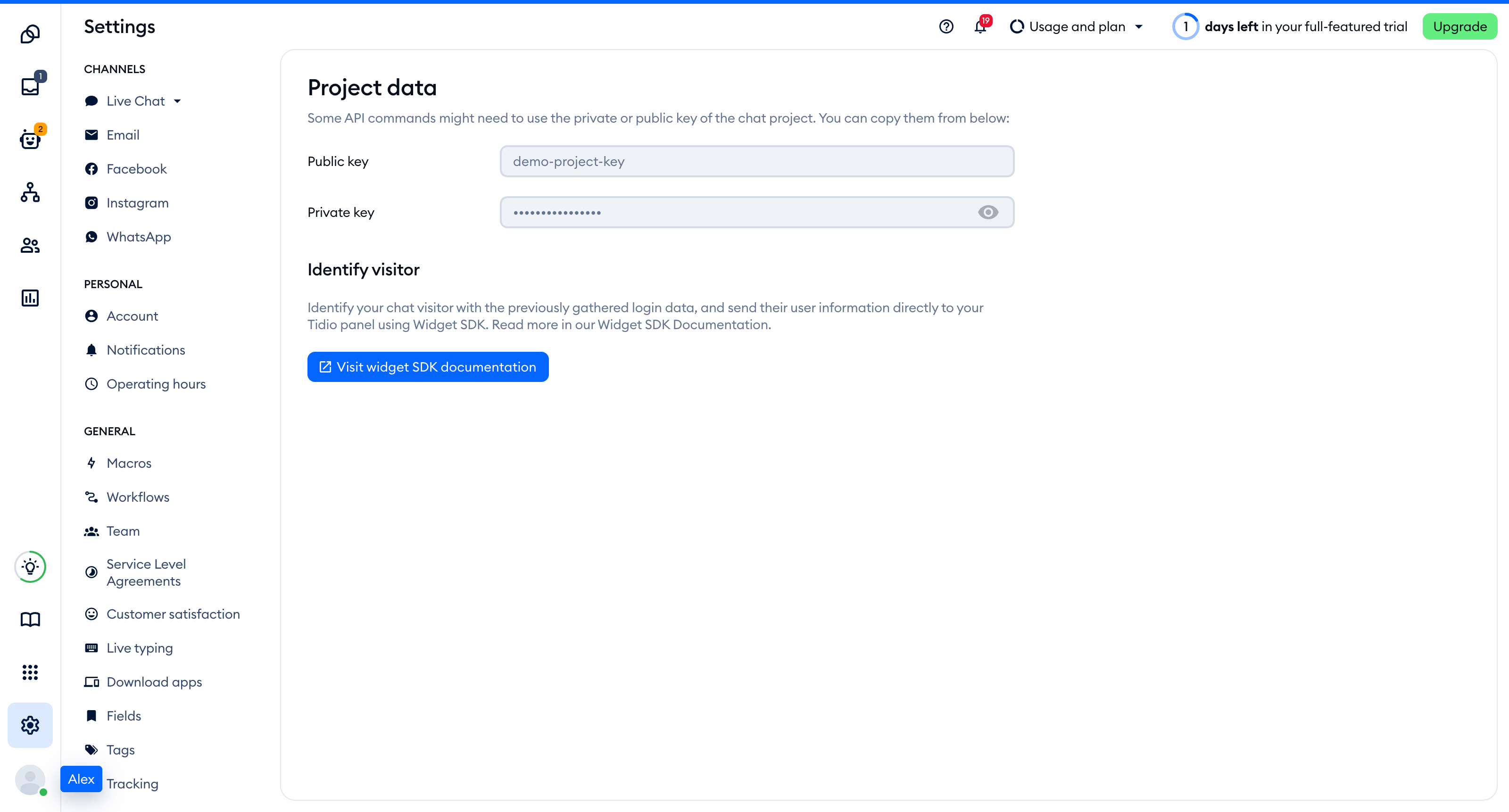
The Public key is part of the script address that every visitor's browser loads, so you can keep it in front-end code. The private key on the same page is different: never put it in your website.
You'll find the same key inside the installation code in Settings > Live Chat > Installation, under Manual install:
<script src="//code.tidio.co/YOUR_PUBLIC_KEY.js" async></script>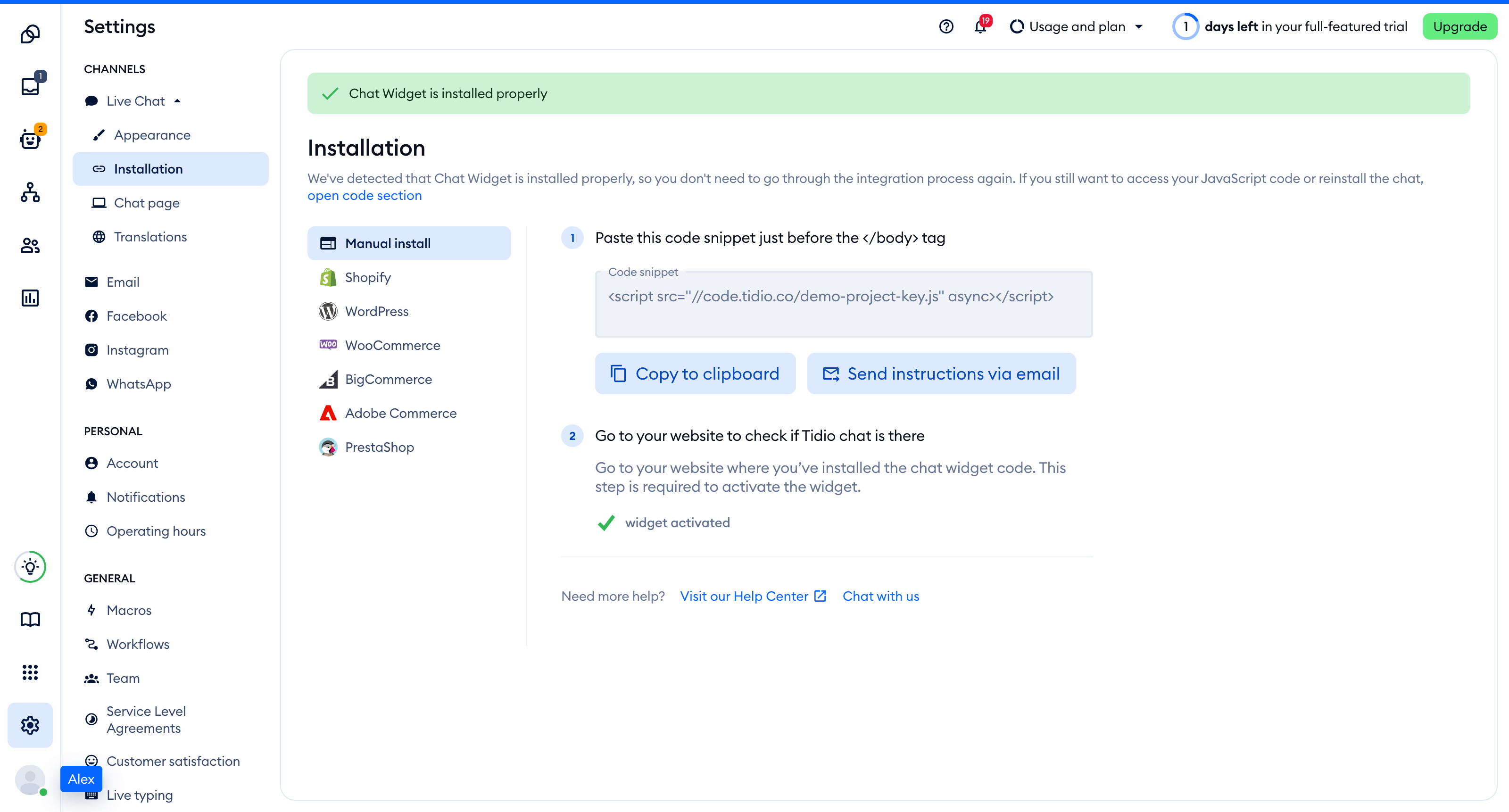
Add the widget to Angular
Open src/index.html and add the script immediately before </body>. Replace YOUR_PUBLIC_KEY with your Public key. Keep your existing head content and root component selector. A complete example is:
<!doctype html>
<html lang="en">
<head>
  <meta charset="utf-8">
  <title>Client</title>
  <base href="/">
  <meta name="viewport" content="width=device-width, initial-scale=1">
  <link rel="icon" type="image/x-icon" href="favicon.ico">
</head>
<body>
  <app-root></app-root>
  <script src="https://code.tidio.co/YOUR_PUBLIC_KEY.js" async></script>
</body>
</html>
The default Angular template has no public environment-variable prefix convention, so keep this public key in index.html. Do not add the script to routed components. The root document stays loaded during client-side navigation.
If an AI coding assistant edits this project for you, give it the prompt from Install Tidio with an AI coding agent.
Check the installation
Open your site in a regular browser window. The chat widget appears in the corner of the page and stays there when you move between pages. Headless and automated browsers may not show the widget, so do not rely on them for this check.
Loading a page with the widget is what activates it. After that, Settings > Live Chat > Installation in your Tidio panel says Chat Widget is installed properly.
Identify logged-in visitors
To identify a visitor before loading Tidio, remove the Tidio script from src/index.html and let this service load it instead. Create src/app/tidio.service.ts. It sets document.tidioIdentify before inserting the script and includes the route visibility rule explained below:
import { Injectable, inject } from '@angular/core';
import { NavigationEnd, Router } from '@angular/router';
type Visitor = { email?: string; name?: string; phone?: string };
type Identity = Visitor & { distinct_id?: string };
declare global {
  interface Document { tidioIdentify?: Identity; }
  interface Window {
    tidioChatApi?: {
      on(event: 'ready', callback: () => void): void;
      display(visible: boolean): void;
      setVisitorData(visitor: Visitor): void;
      resetVisitor(): void;
    };
  }
}
@Injectable({ providedIn: 'root' })
export class TidioService {
  private router = inject(Router);
  private started = false;
  private ready = false;
  start(visitor?: Identity) {
    if (this.started) return;
    this.started = true;
    if (visitor) document.tidioIdentify = visitor;
    const onReady = () => { this.ready = true; this.updateVisibility(); };
    if (window.tidioChatApi) window.tidioChatApi.on('ready', onReady);
    else document.addEventListener('tidioChat-ready', onReady);
    this.router.events.subscribe(event => {
      if (event instanceof NavigationEnd && this.ready) this.updateVisibility();
    });
    const script = document.createElement('script');
    script.src = 'https://code.tidio.co/YOUR_PUBLIC_KEY.js';
    script.async = true;
    document.body.appendChild(script);
  }
  updateVisitor(visitor: Visitor) {
    if (this.ready) window.tidioChatApi?.setVisitorData(visitor);
  }
  logout() {
    delete document.tidioIdentify;
    if (this.ready) window.tidioChatApi?.resetVisitor();
  }
  private updateVisibility() {
    const path = this.router.url.split(/[?#]/)[0];
    window.tidioChatApi?.display(path !== '/checkout');
  }
}
Initialize the service once from the root component, src/app/app.ts. This standalone example shows the calls alongside navigation links. Keep your own template and routes when you integrate it. The buttons demonstrate Tidio calls, not an authentication system:
import { afterNextRender, Component, inject } from '@angular/core';
import { RouterLink, RouterOutlet } from '@angular/router';
import { TidioService } from './tidio.service';
@Component({
  selector: 'app-root',
  imports: [RouterLink, RouterOutlet],
  template: `<a routerLink="/">Home</a> <a routerLink="/checkout">Checkout</a>
    <button (click)="tidio.updateVisitor({email: 'contact@mail', name: 'John Doe'})">Log in</button>
    <button (click)="tidio.logout()">Log out</button><router-outlet />`,
})
export class App {
  protected tidio = inject(TidioService);
  constructor() {
    afterNextRender(() => this.tidio.start({distinct_id: 'unique_id', email: 'contact@mail', name: 'John Doe'}));
  }
}
Replace the example identity with your authenticated visitor's data. All identity fields are optional. If your app restores a session asynchronously, wait for that result inside the browser callback before calling start. For an anonymous visitor, call start() without an argument.
Tidio uses the initial identity to merge conversations for the same visitor. For a login after the widget loads, call updateVisitor with the visitor's email and name. This calls setVisitorData, which updates visitor data but does not merge conversations. Call logout after the widget loads when your app logs the visitor out. It removes the identity before resetVisitor, because the restart reads the identity again. These methods do not queue calls made before the widget is ready.
For server-rendered apps, keep initialization inside afterNextRender, which Angular runs only in the browser. Call the service's other methods only from browser-side authentication handlers. Do not access window or document during server rendering. See Angular's server-rendering guidance.
Hide the widget on some pages
The service above waits for Tidio's ready event, applies the current route, then listens for Angular's NavigationEnd events. Its updateVisibility method hides the widget on /checkout and shows it on every other path, ignoring query strings and fragments:
  private updateVisibility() {
    const path = this.router.url.split(/[?#]/)[0];
    window.tidioChatApi?.display(path !== '/checkout');
  }
Change /checkout to the path you want to hide. This rule uses the service-loaded installation, not a second script in index.html. Hiding the widget does not stop Flows from triggering. See Show the widget only on specific pages for other visibility options.
Troubleshooting
- Check that you replaced
YOUR_PUBLIC_KEYwith the Public key from the correct Tidio project. - If you see two widgets or duplicate script requests, remove duplicate installations. Use either the script in
index.htmlor the service, never both. - If server rendering reports that
windowordocumentis undefined, move browser-only initialization intoafterNextRender. - If your Content Security Policy blocks the widget, allow
code.tidio.coinscript-srcand check the complete Tidio CSP host list. - If the script loads but an automated test shows no widget, check the deployed site in a regular browser window.