Have you ever wondered how often visitors terminate your flows by typing instead of using the provided buttons or quick replies? The actionable Handoff metric is here to help you understand and optimize your flow interactions.
In this article, you'll learn:
- What Handoff is
- How to measure Handoff
- Where to find Handoff metric
- How to improve the flows based on the Handoff metric
What is Handoff?
Handoff is the percentage of flow executions terminated (aborted) by the visitors in the selected dates - the last 30 days by default (e.g. the visitor sent a message instead of clicking on the flow's options).
Example
- The flow has been triggered and executed 100 times - Executed: 100
- 20 visitors interacted with the flow - Engagement: 20%
- 10 visitors sent a message instead of using the flow's buttons - Handoff: 10%
How to measure Handoff?
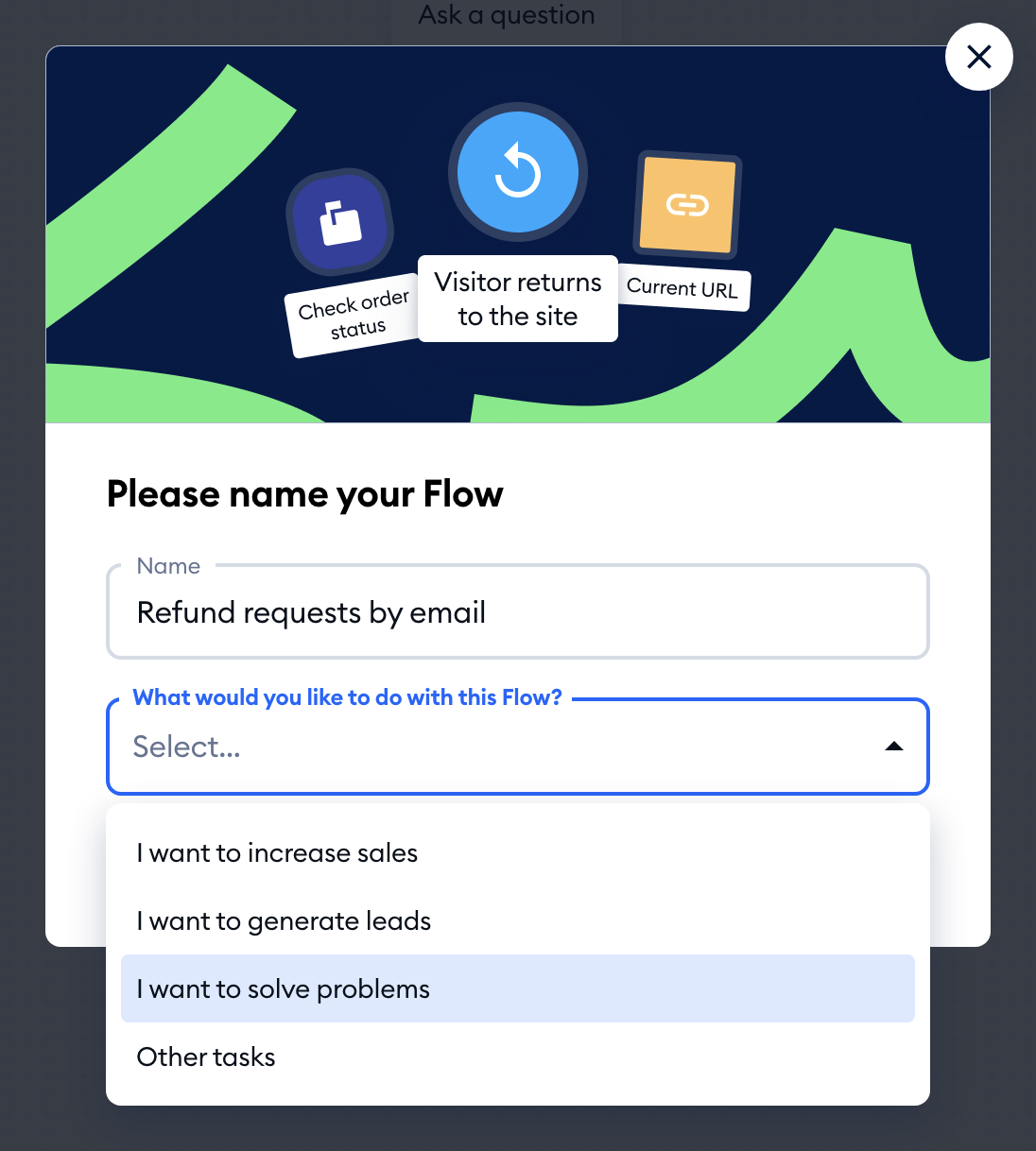
When you activate a new flow, the Please name your Flow window asks What would you like to do with this Flow?. Handoff analytics are available for flows saved with the I want to solve problems goal - your support flows (the other choices are I want to increase sales, I want to generate leads and Other tasks).
Where to find the Handoff statistics?
To see the handoff metric of a flow, head over to the Flows section, click on the flow's name in My Flows, and open the Handoff tab of its statistics window. Handoff isn't a column in the flows list anymore - the list shows Executed and Engagement only.
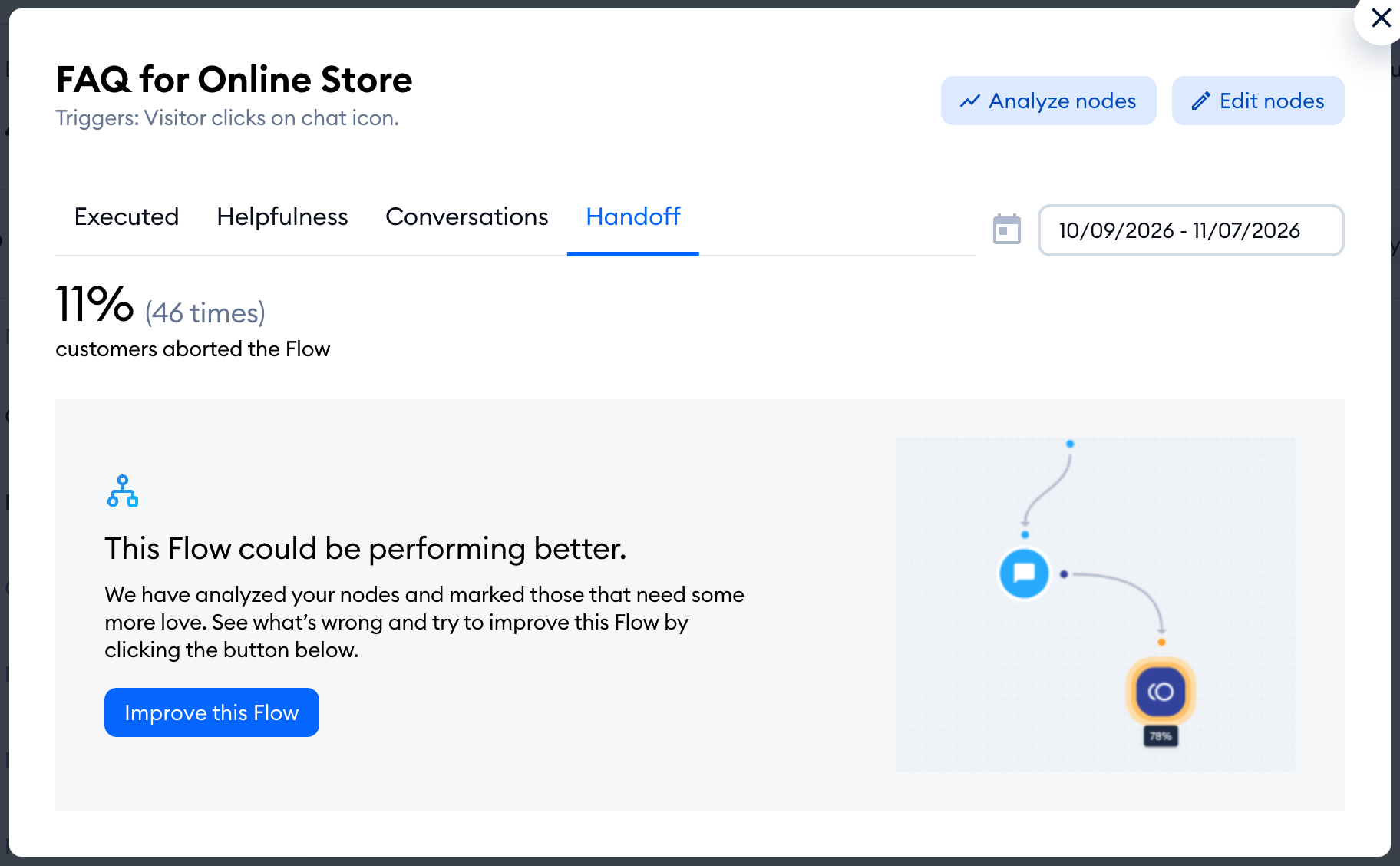
The tab shows the handoff percentage and how many times visitors aborted the flow. If there's room for improvement, you'll see This Flow could be performing better. with the Improve this Flow button, which takes you straight to the flow's handoff analysis. If no one aborted the flow, you'll see Your Flow rocks! instead, and while there isn't enough data yet - We’re collecting data.
We know that flows are never fail-proof. That's why we introduced the actionable handoff metric to help you understand when the flow may need an update.
How to improve flows?
To fully automate your customer service, you may consider decreasing the flow's handoff metric.
Decreasing the handoff metric may help your live chat agents get more free from answering the repetitive questions from your website visitors. Well-built flow can answer repeating queries for you, which can also help you reduce your first response and resolution time and increase your customers' satisfaction score.
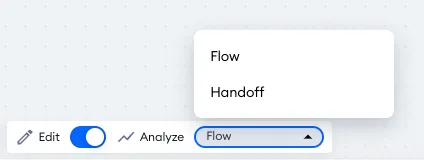
You can view the Handoff analytics from the flows' statistics in the Flows section or directly via the Analyze mode inside the flow editor: switch from Edit to Analyze, and choose Handoff (instead of Flow) in the list next to it. Just like in Flow analysis, you can pick the dates - the last 30 days by default, up to 90 days back.
In Handoff mode, you can see the points in your flow where visitors abandoned the interaction (e.g. sent a chat message instead of using the flow further). This way you can identify moments that may need improvement.
Similarly to Flow analysis, the numbers are shown in percentages:
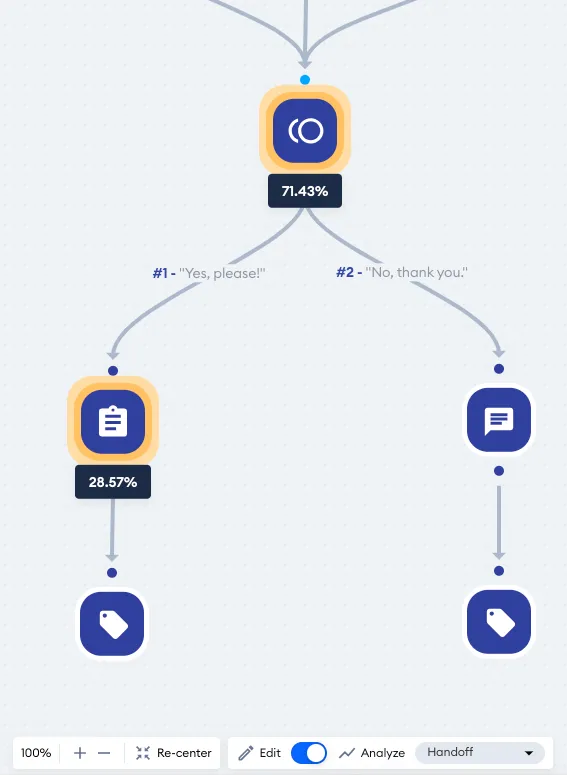
You can improve the flow by:
- Adding new Quick Replies / Buttons to the analyzed flow that correspond to the mentioned phrases
- Creating an NLP Flow (a flow with a Visitor Says trigger) with the mentioned phrases
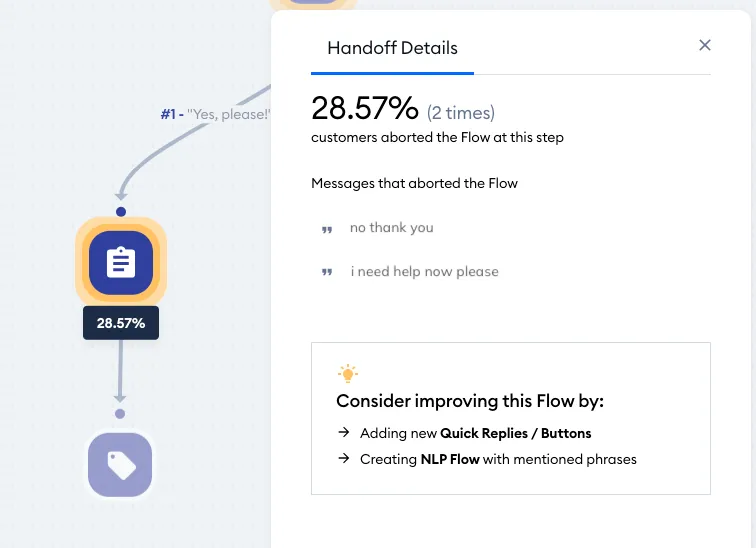
When you click on a specific node where handoff took place, the Handoff Details panel opens with some more details, and even advice (Consider improving this Flow by:). What you may find useful are the actual chat messages that caused the flow to be abandoned, under Messages that aborted the Flow:
After you change the flow, give it some time to collect new data, then check the Handoff tab again to see whether your changes helped. For Engagement, the flows list even shows the result before your change next to the current one (hover over the value and look for vs before change).
