Do you spend most of your time replying to the same inquiries over and over again? Are you in love with Tidio's Macros feature, but sometimes you need to prepare longer messages with links or even entire articles in your database?
Save your time and automate the most repetitive answers with flows during live conversations!
In this article, you'll learn:
Starting a flow during a conversation
You can start a prepared flow inside a live conversation to help your customer during your interaction.
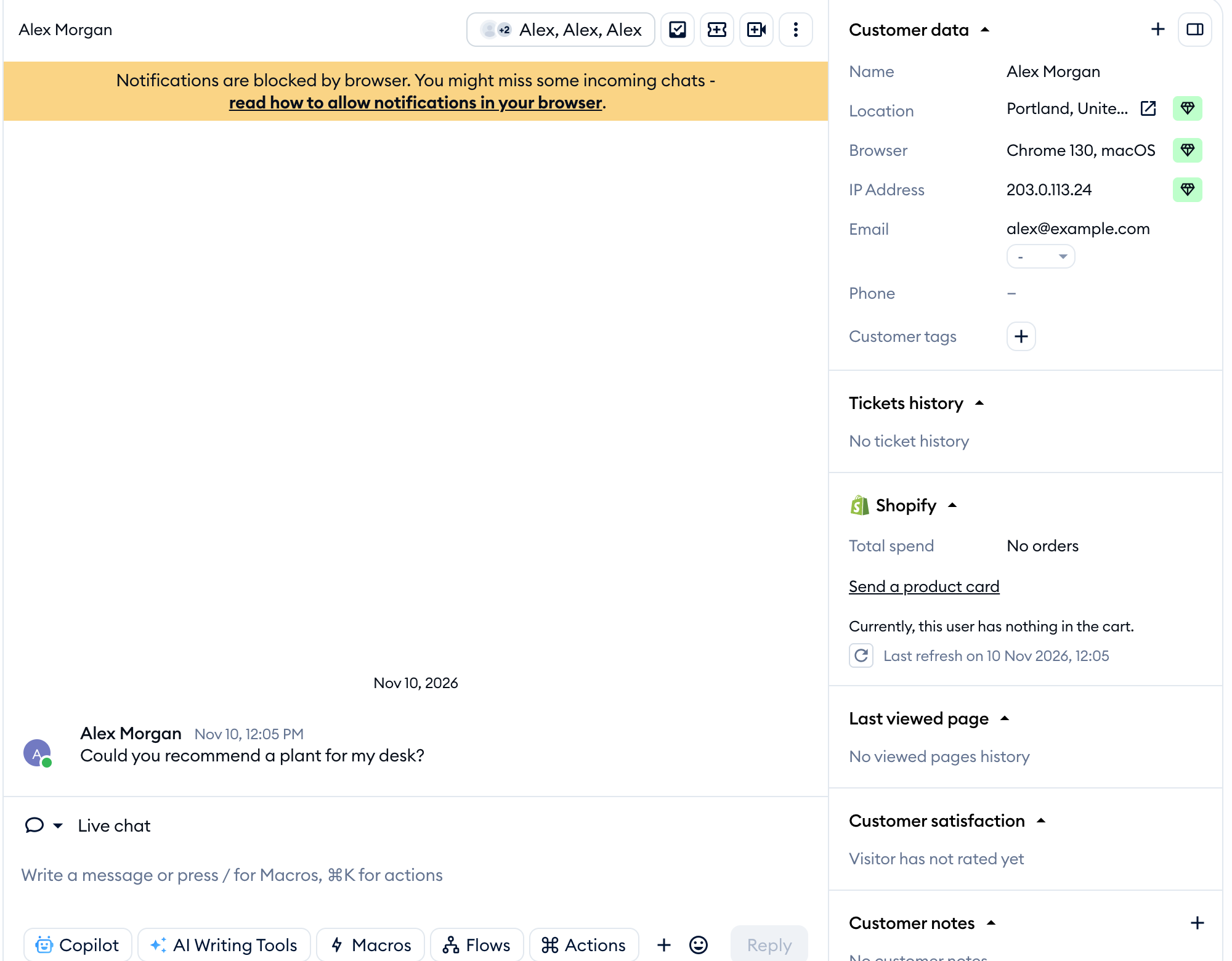
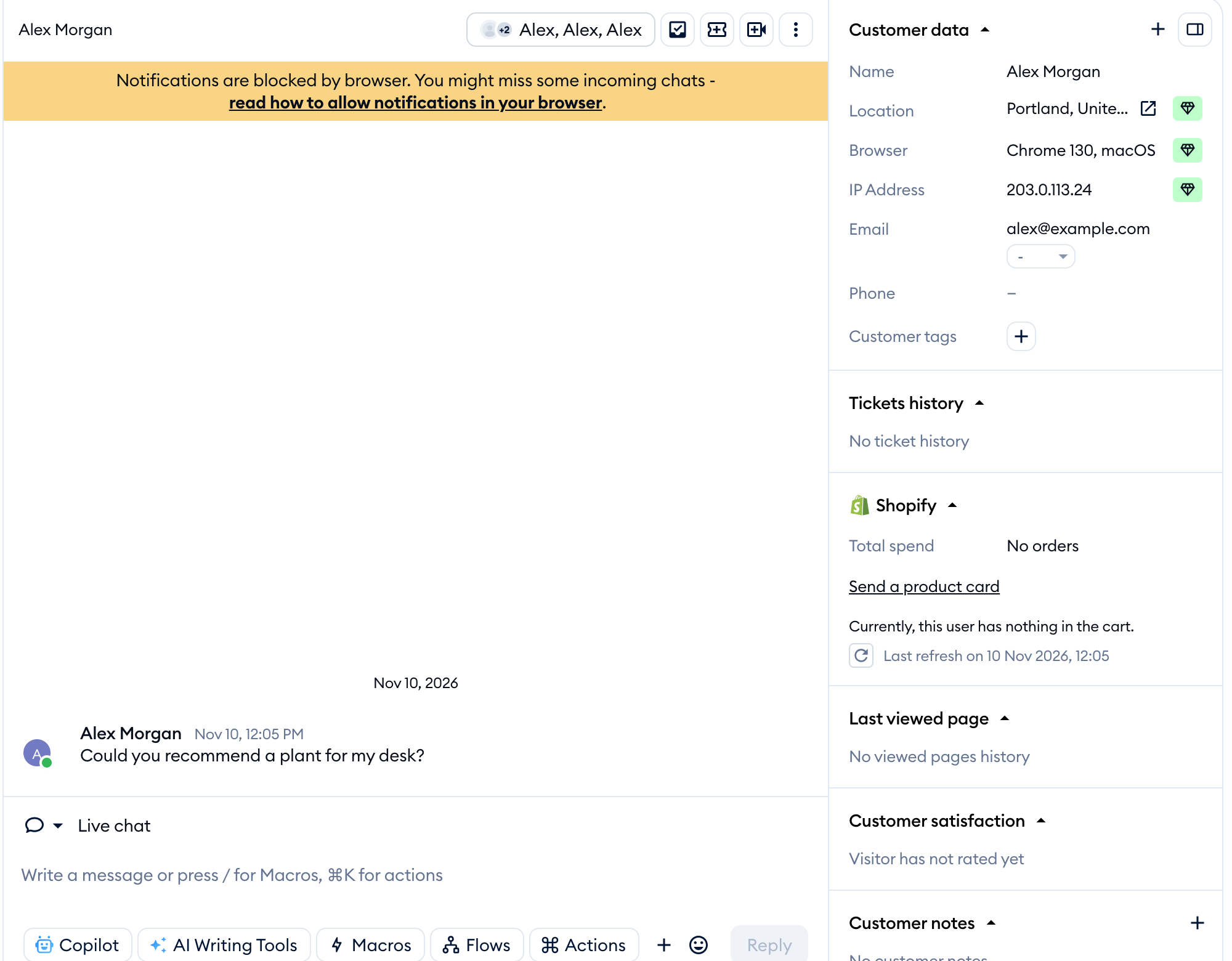
You can trigger a flow while you chat by opening the Flows list at the bottom:
A window will pop up, and you can then choose a flow from the list, if any such flow is available:
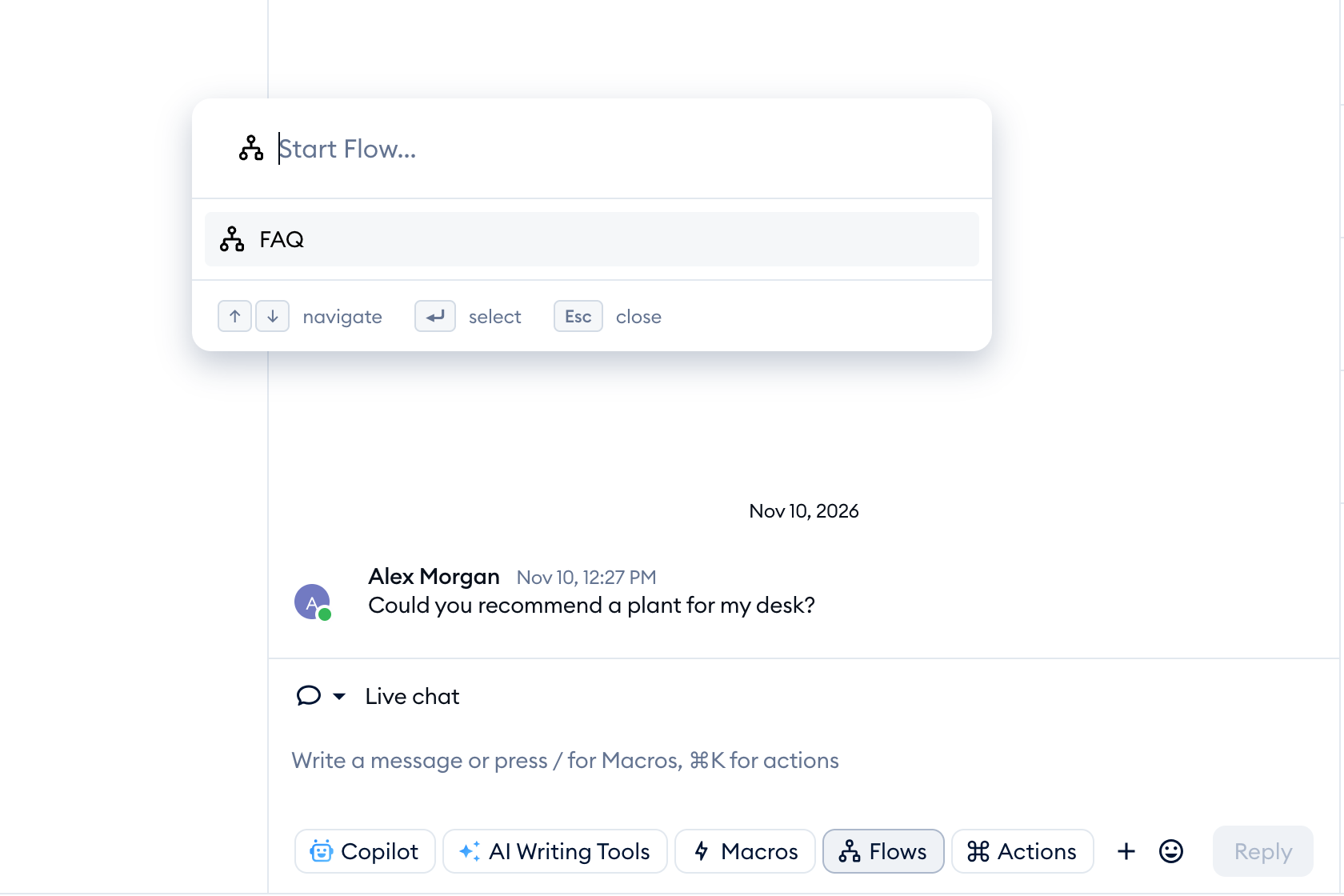
Similarly to using macros, you browse a basic list of all flows that use the trigger called 'Agent starts the Flow', and you can search for specific flows by name for quicker navigation.
Please note: selecting a flow starts it without a confirmation step. If you have exceeded your Flows quota, Tidio shows a quota alert instead.
You can also open Actions and choose Start Flow, or press Cmd + Alt + / on macOS or Ctrl + Alt + / on Windows.
Creating flows for conversations
In the Flows section, you will find new, ready-to-use flow templates that you can use during live conversations with the customers. Of course, you can also create your own flows for this purpose (described further below).
Template availability can vary. Examples you may find include:
- Automate Repetitive Answers
- Measure Customer Satisfaction
- Where Is The Package? (Shopify only)
Create your own flow for conversations
To create your own flow for conversations, use the Agent starts the Flow trigger in the flow editor. Add it to the map, click on it and enter a button name, such as FAQ. This is the name you will search for in the Flows list during a conversation:
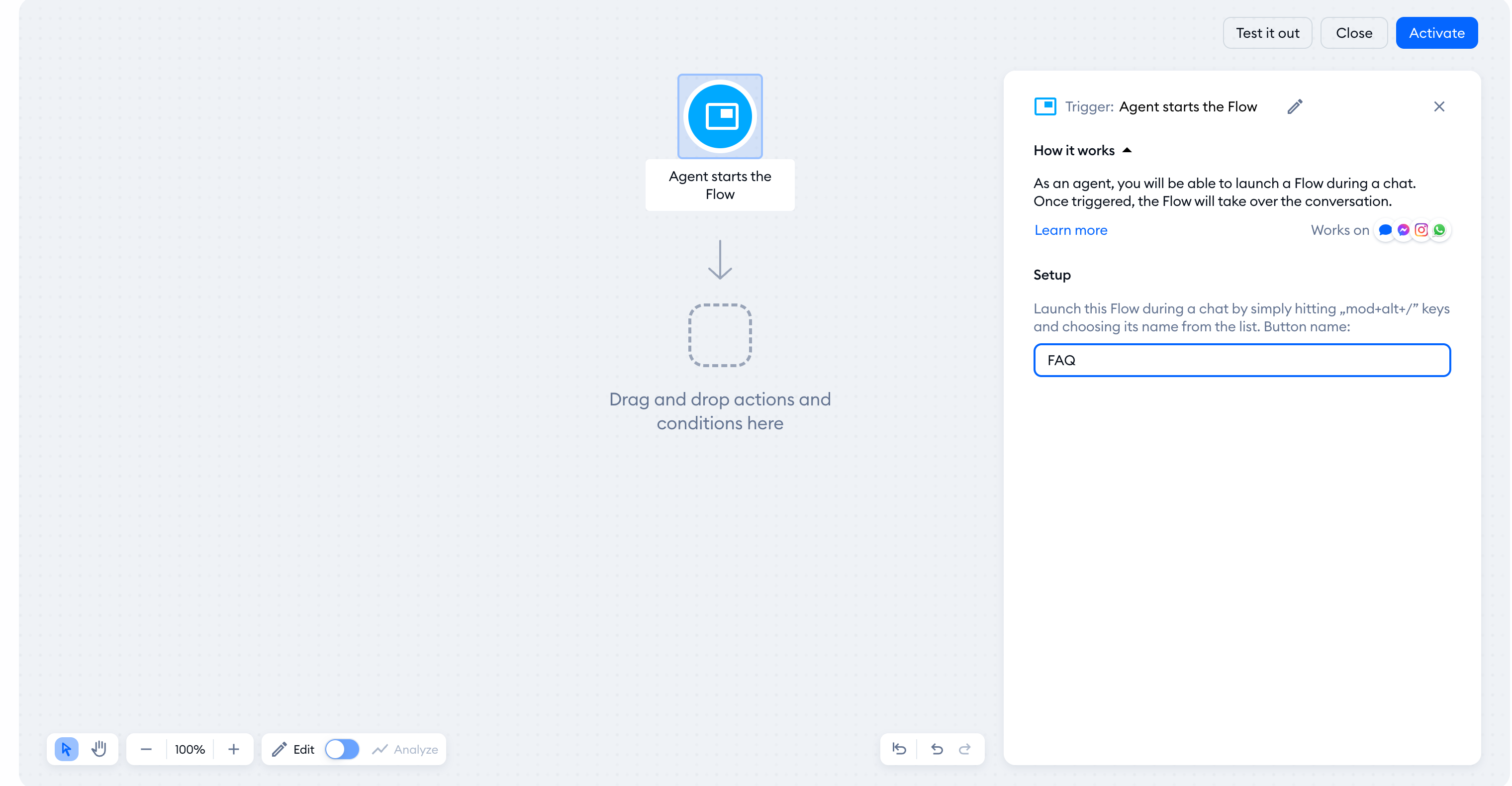
Once you activate your new flow with that trigger, you will be able to find the flow by name - in the Flows list, while chatting. Access it by clicking the Flows icon in the bottom-left of your message input field: