Are you looking to stay updated with important statistics and insights from your Tidio account? Look no further! In this article, we'll guide you through the simple process of enabling email reports, making it easier for you to keep track of your data.
In this article, you'll learn:
- How to enable email reports
- What data you will see in your reports
- How else you can get your data out of Tidio
Reports
Reports are automatically enabled in your Tidio admin panel. However, if you wish to disable them, change the frequency of receiving them, or add email addresses to which they should be sent, follow the following steps.
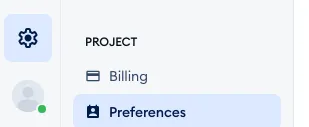
Navigate to Settings > Project > Preferences in your Tidio admin panel, and find the Reports section:
Please note: you'll only see the Reports section if your permissions include Project reports. For more, please see Permissions.
In there, you can enable (or disable) the reports with the Enable: switch, and decide about how your reports work:
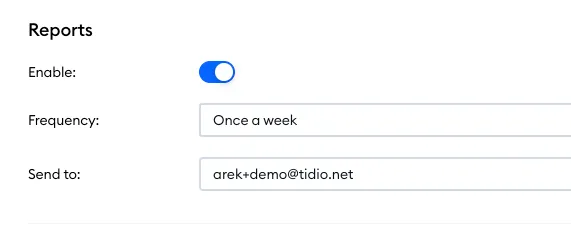
If the Send to: field is empty when you turn the reports on, Tidio fills in your own email address.
There are a few options to choose from in the Frequency: drop-down. You can choose to receive the reports:
- Everyday
- Every 3 days
- Once a week
- Once a month
You can also add more recipients to the Send to: field so that the report is sent to more agents or employees. This way you can decide who receives these reports if necessary. To add multiple email addresses, separate each one with a comma (,). Your changes are saved as soon as you click outside the field.
If one of the addresses isn't correct, you'll see Something went wrong. Please make sure that all the email addresses are correct. - simply fix the address and click outside the field again.
Report example
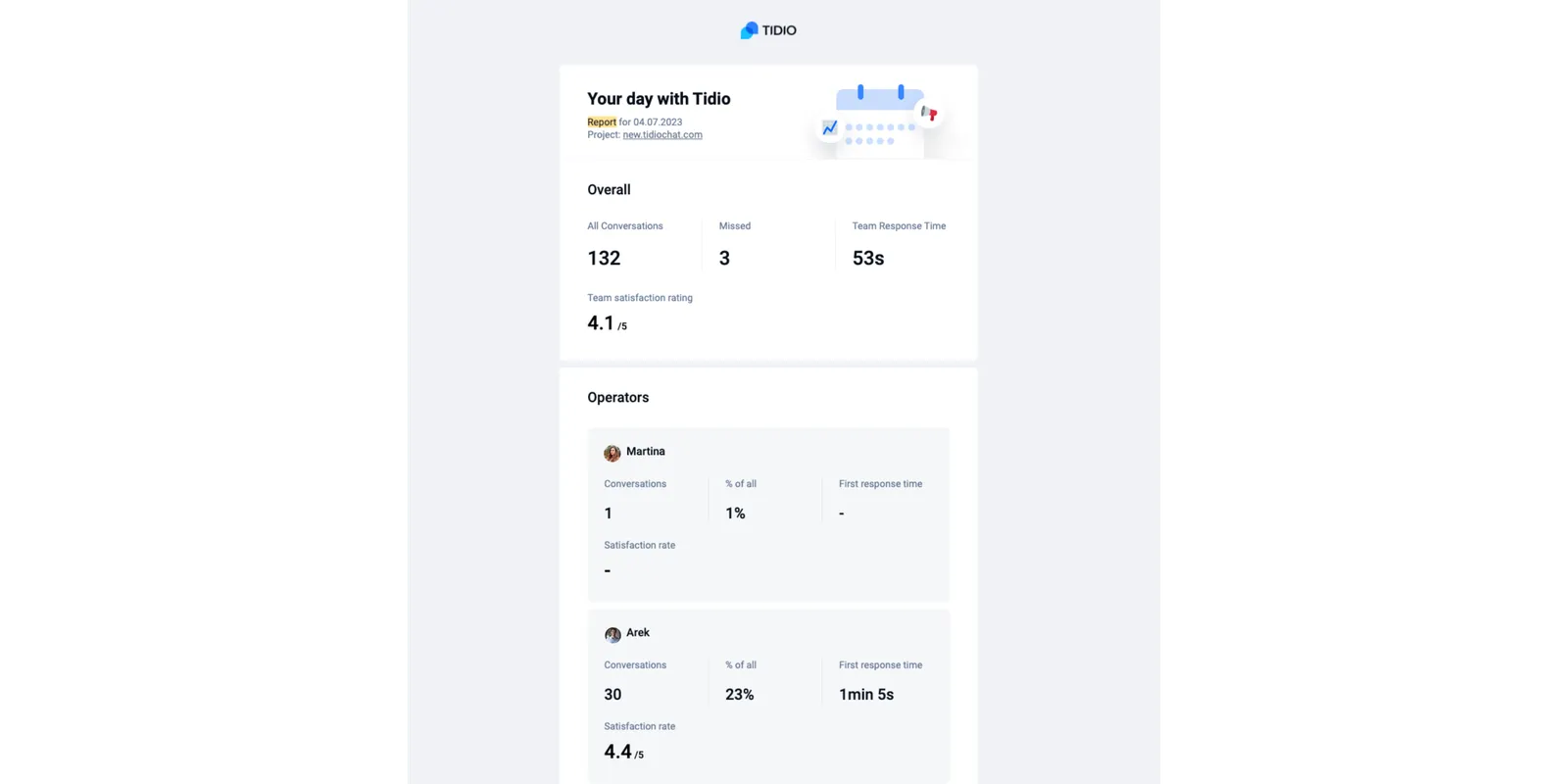
Below you can see an example of the beginning of a report. Each report consists of the team's overall performance and separate reports for each agent. At the end of each report, you'll see an option to open the analytics section of the tidio panel to learn in-depth about each metric.
Other ways to get your data
Email reports give you a quick summary. When you need more, here's where to look:
- The Analytics section - all your metrics in the panel, with charts and date ranges. See The Analytics section.
- A CSV export of your live conversations - in Analytics > Human support > Live conversations, click on Export at the top. Tidio prepares a CSV file for the dates, channels and agents you picked, and sends it to your email address.
- The Analytics API - to bring your Tidio data into your own BI tool, if your plan includes it. See Analytics API - use your Tidio data anywhere.
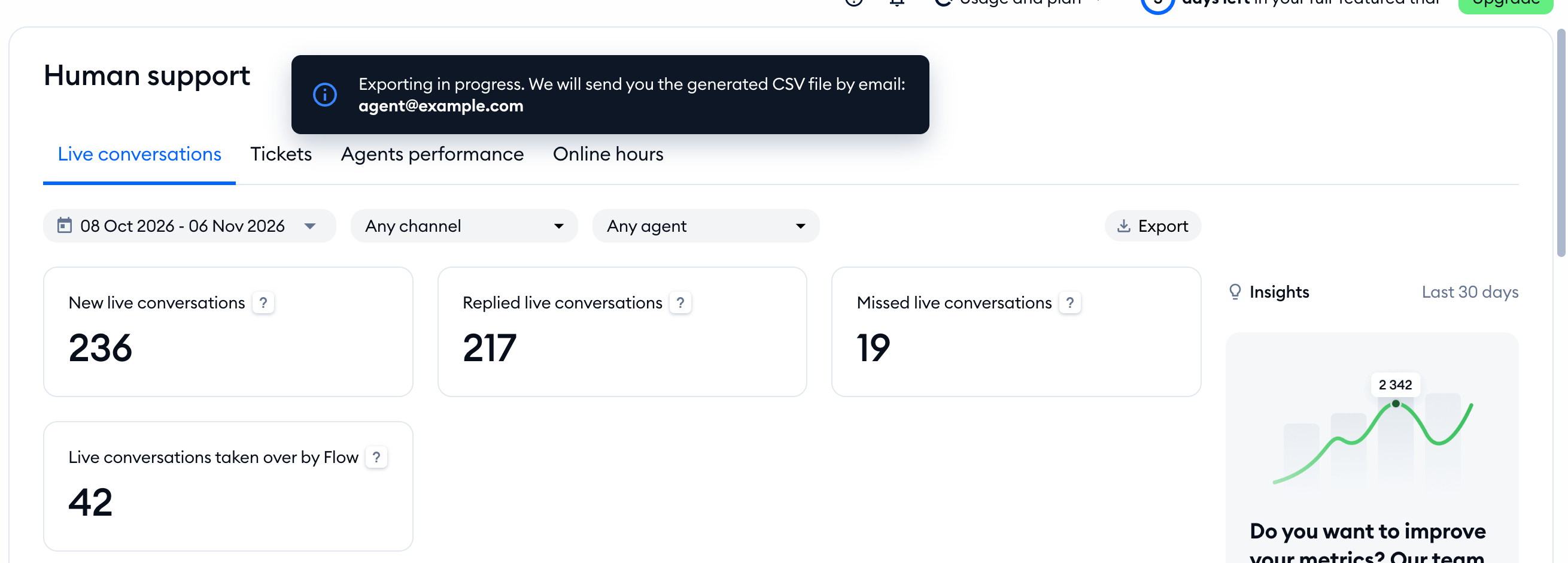
Please note: Human support is part of advanced analytics, available on the Growth plan and above.
