You can answer users' new messages automatically when you cannot pick up the chats on time. It is best to avoid the situation when visitors see that the chat is online, but no response comes back to them after they write their questions.
In this article, you'll learn:
Create an Autoresponder
To begin creating the flow, please head on to the Flows section (accessed on the left of your Tidio panel). Once inside, open the My Flows list and find the Create from scratch button in the top-right:
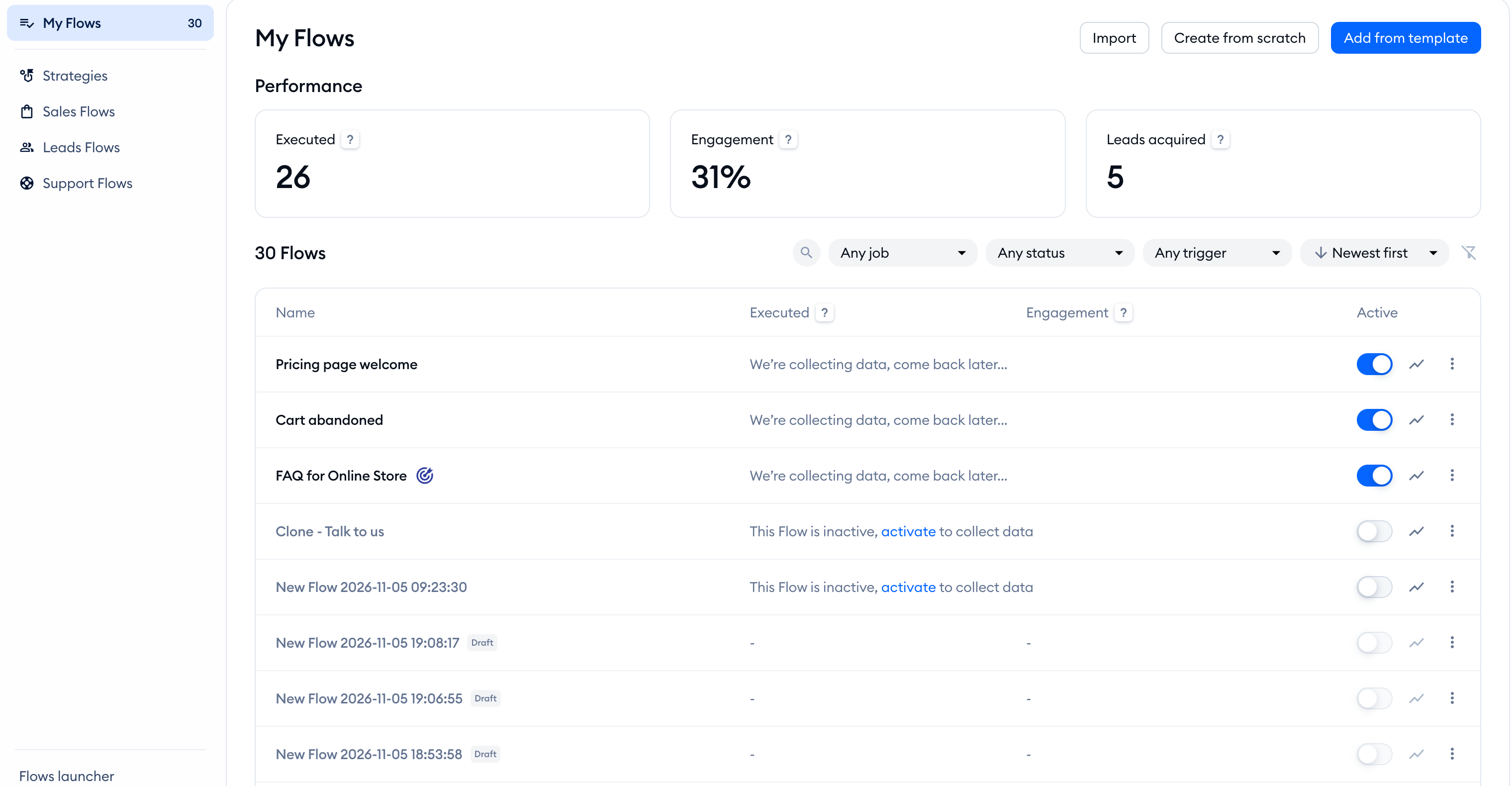
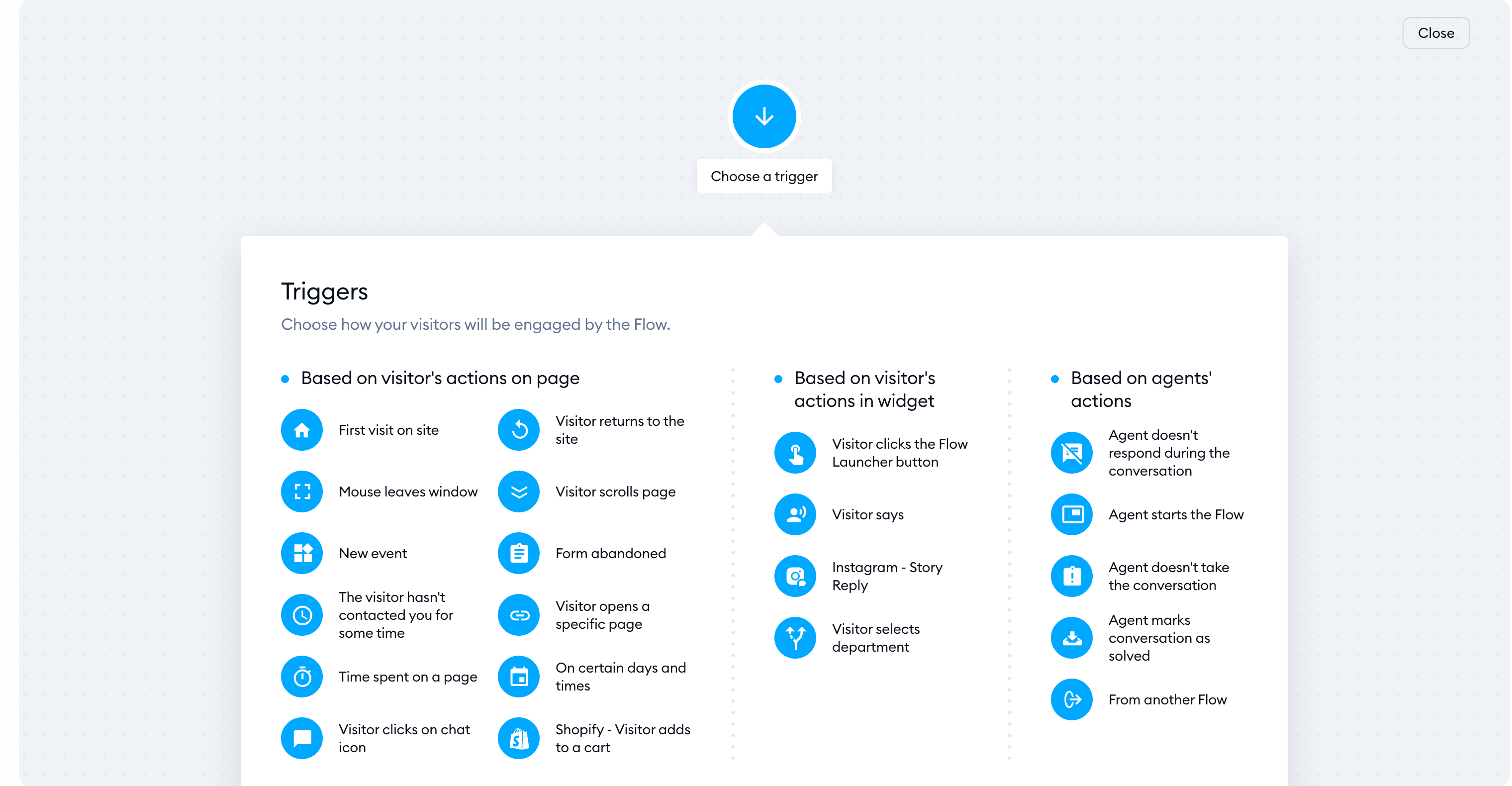
Clicking this button opens the flow editor, allowing you to begin setting up the flow. At first, you will be asked to pick the trigger for your new flow. For this flow, you'll need to choose a trigger called Agent doesn't take the conversation.To learn more, visit our article, where we explain how triggers work.
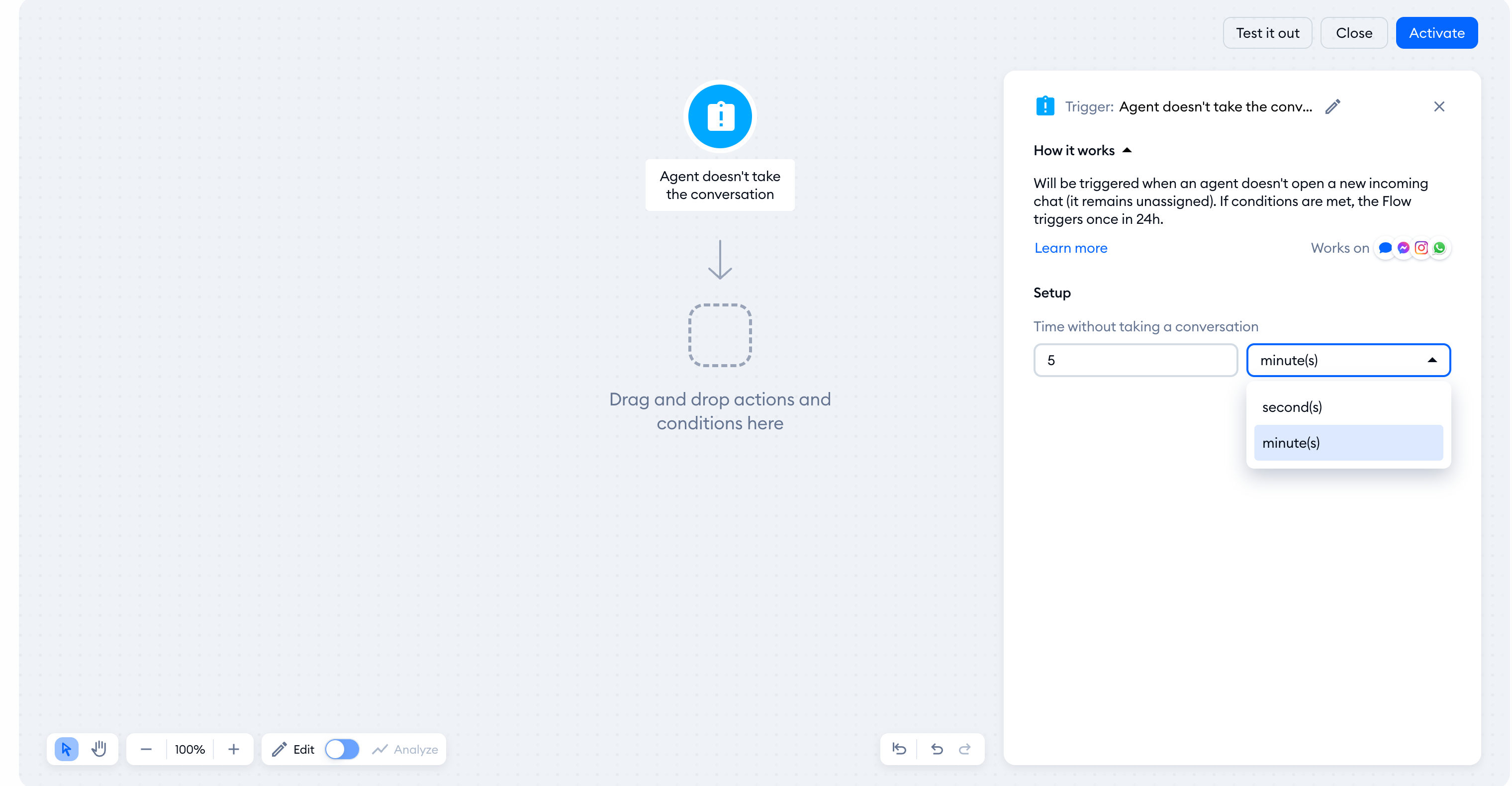
This trigger starts the flow when a new incoming chat remains unassigned for the time you choose. Set a value from 1 to 3,600 and choose seconds or minutes. The default is 5 minutes. If its conditions are met, the flow triggers once in 24 hours. To set the time, click on the trigger, and a menu like the one visible below will show up.
Now that the time is set, you can add the message your visitors will see when the flow is triggered. We recommend creating a message that will inform your visitors that the agents are busy at the moment, and they will reply to the messages as soon as possible.
Choose the Send a chat message node from the panel on the right and drag it into the editing grid to add the message. After doing that, connect it with the trigger you've chosen at the beginning. Now, click on the node to edit the message you wish to send to your visitors.
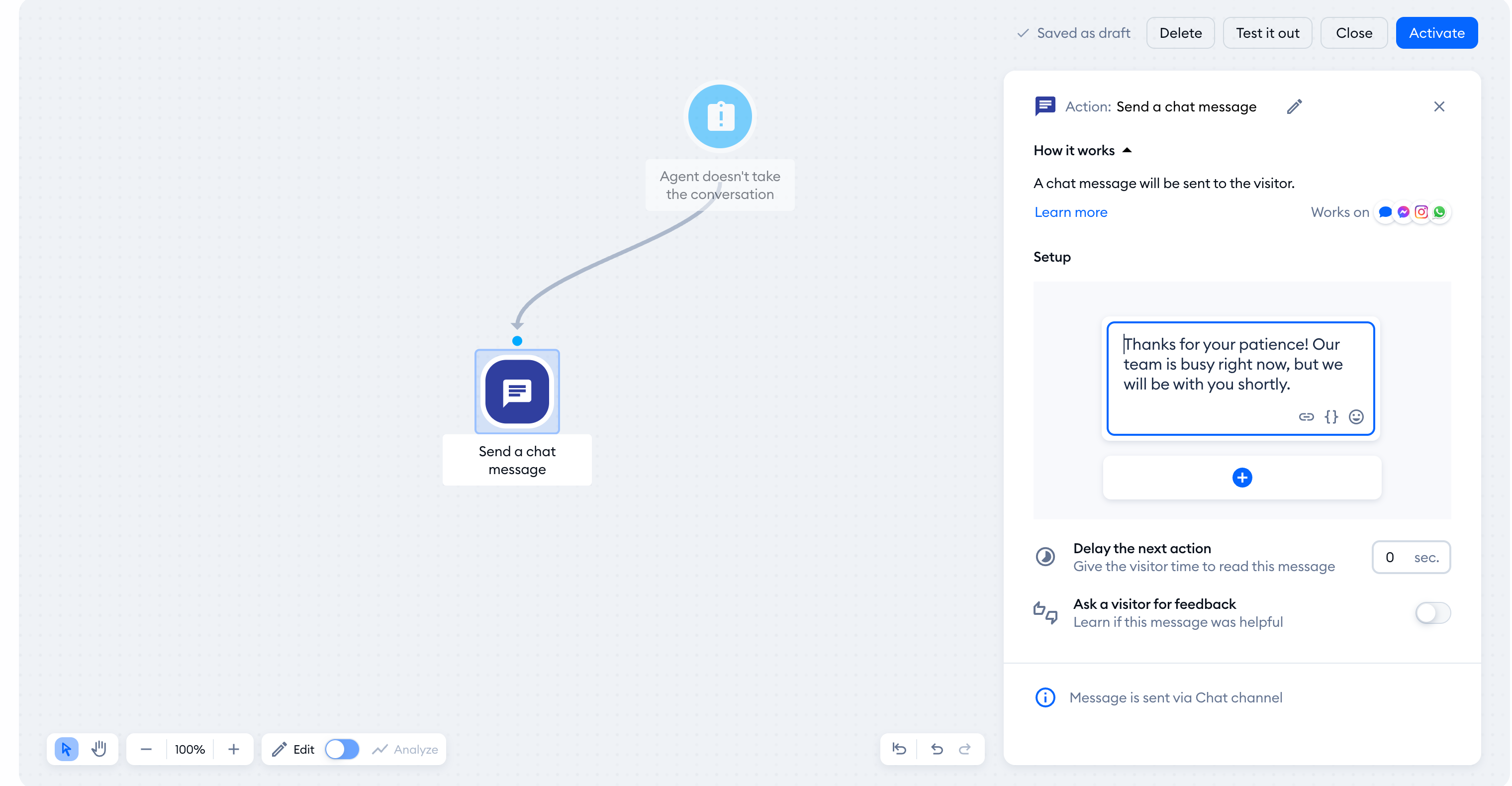
After the text is good to go, you can save and activate the new flow with the Activate button in the top-right corner.
