If you're not receiving any notifications for new conversations or messages, this article will help you troubleshoot it.
In this article, you'll learn:
- How to check the notification settings in the Tidio app
- How to ensure Tidio notifications on Apple devices are enabled
Tidio notification settings
When you don't receive any notifications from Tidio, the first thing you should do is check the notification settings inside your Tidio mobile app.
To check the notification settings in the Tidio app:
- Open the Tidio app on your Apple device
- Head to Settings > Notifications > Notification Troubleshooting section
Our troubleshooting guide inside the Tidio Mobile App should be able to find the root of the issue and provide you with helpful information. Please follow the instructions you see on the troubleshooting screen.
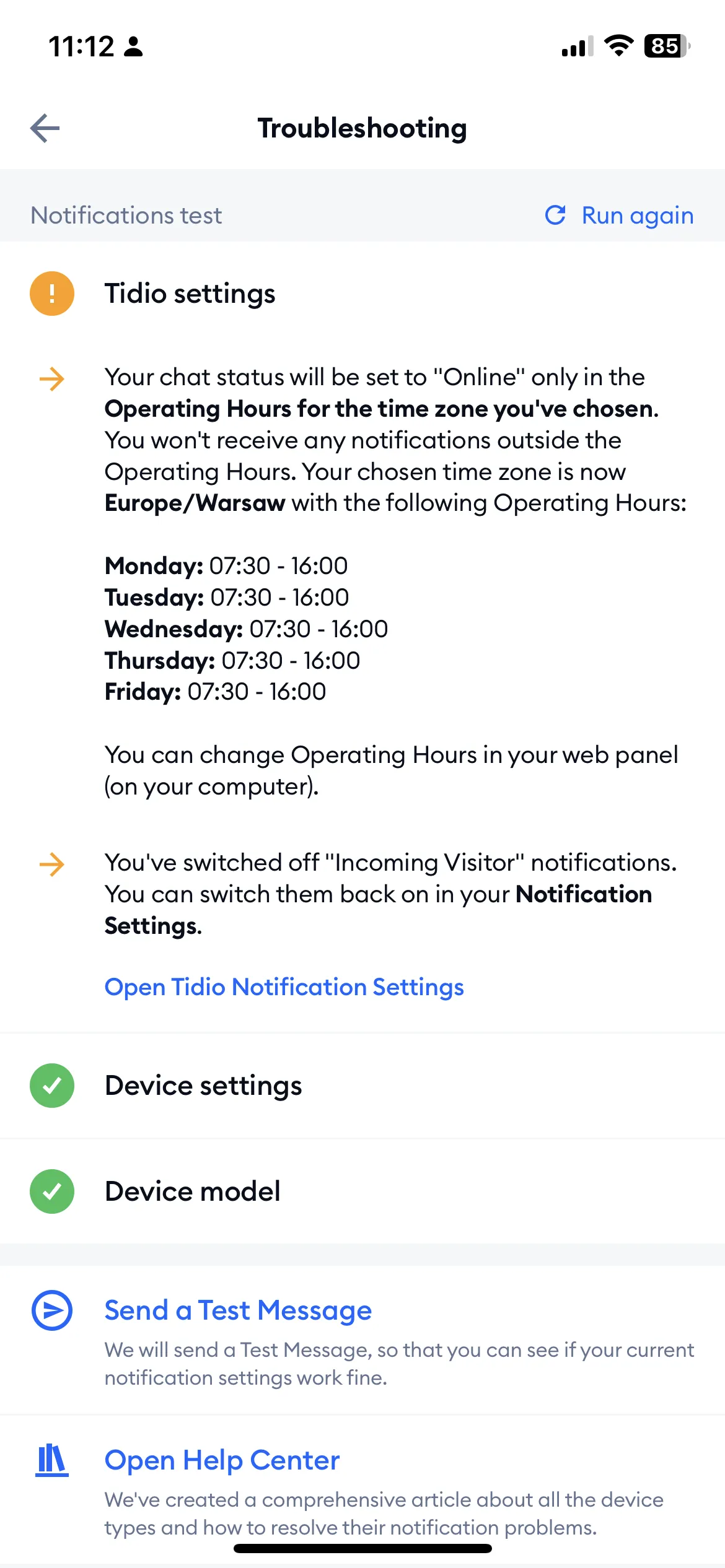
If troubleshooting shows that your chat status is Offline, change it in your Tidio settings. Your Operating Hours can also set you offline; you will not receive notifications outside those hours. Review your schedule and time zone in Tidio on your computer.
After making changes, tap Run again to repeat the checks. Tap Send a Test Message to test your notification settings. If you still have trouble, check your iPhone settings below.
Apple notification settings
On your iOS device, go to your Settings and select Notifications.
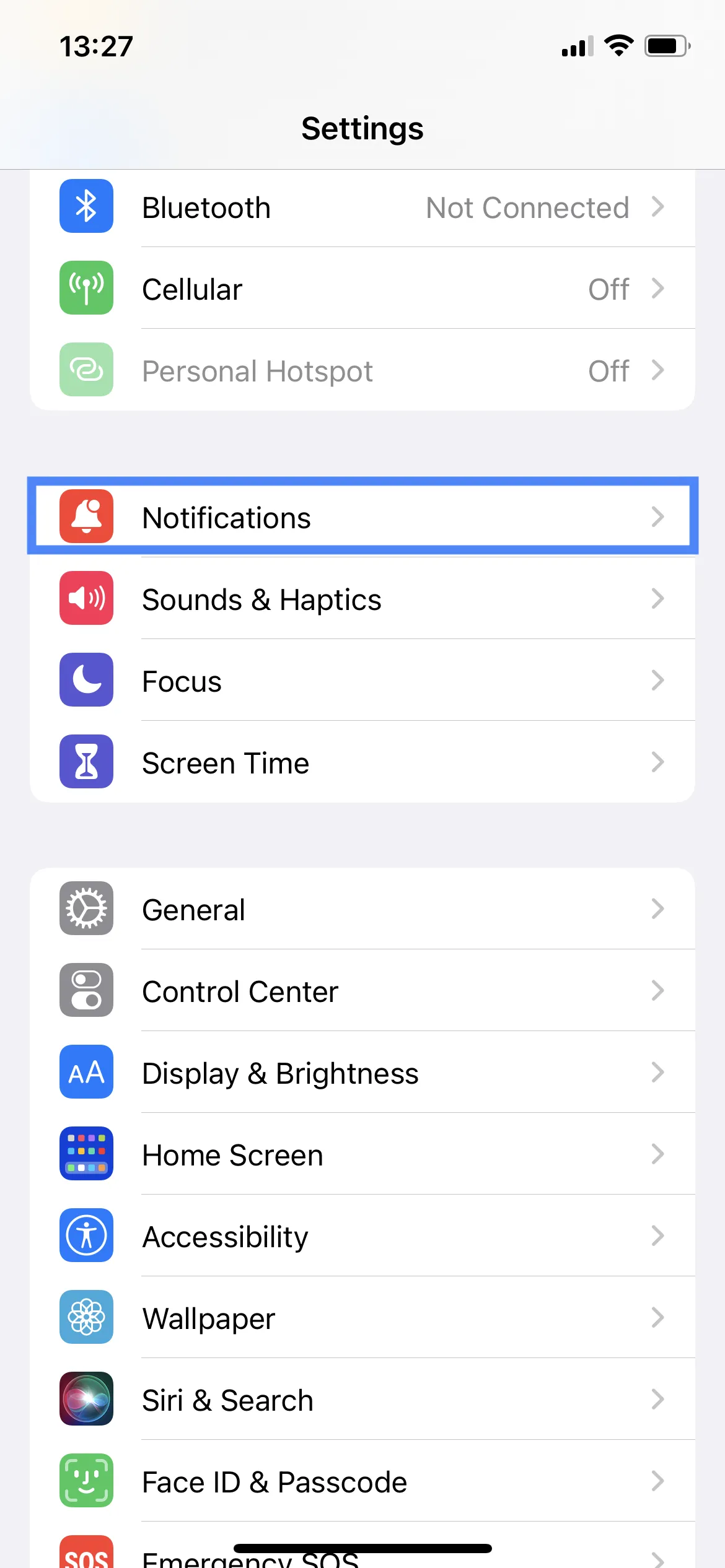
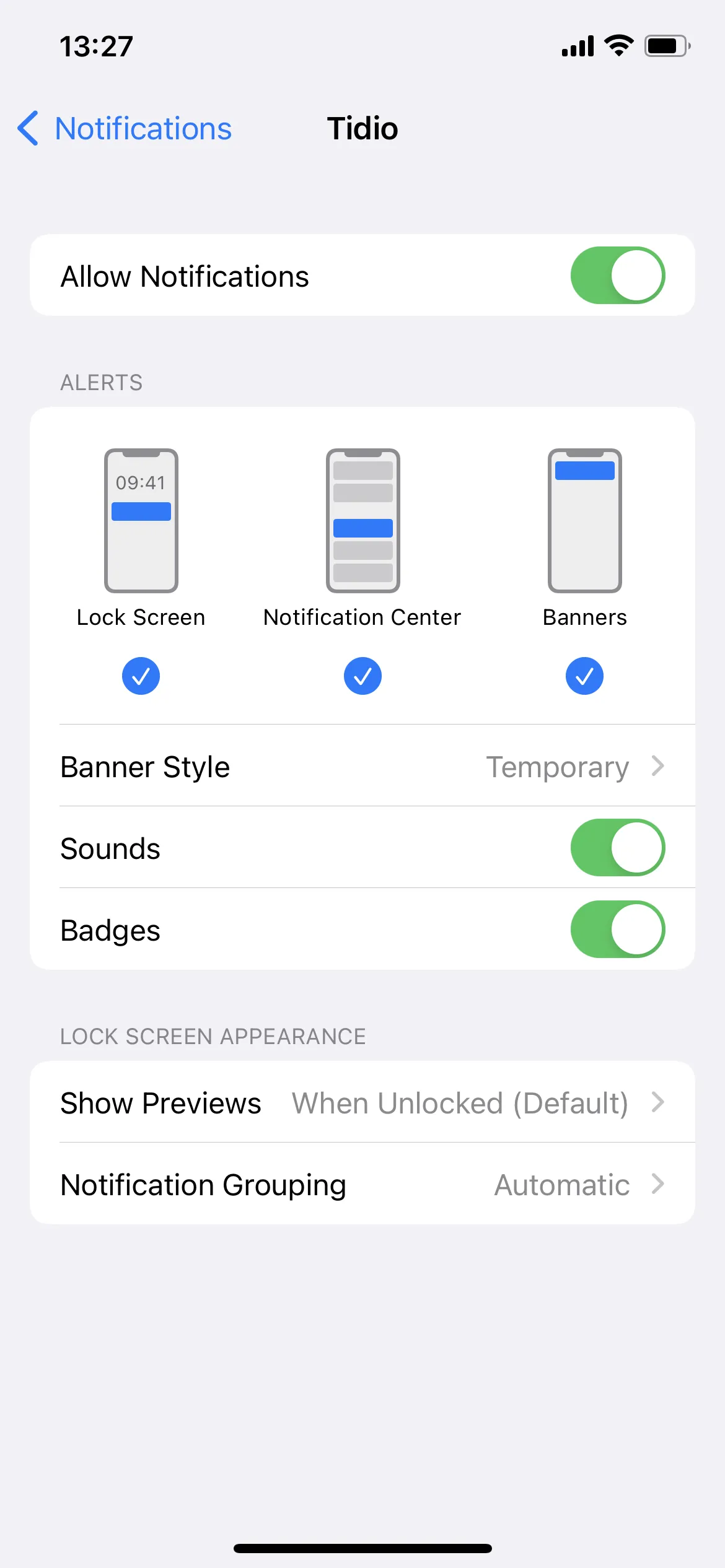
Select Tidio, turn on Allow Notifications, and choose the alerts and sounds you want:
I can't hear incoming notifications.
If you see notifications but cannot hear them, check Silent mode and your alert volume. On models with a Ring/Silent switch, move it toward the front of the phone. On models with an Action button, press and hold it if it is assigned to Silent mode. Also check whether a Focus is silencing Tidio notifications.
If any of the following troubleshooting steps don't work, please get in touch with Tidio support to dive into the case deeper.
