If you'd like to open the chat widget right when someone visits your website, you can implement a JavaScript code that will let you do that.
In this article, you'll learn:
- What codes should be implemented
- How to install the script on WordPress
- How to install the script on Shopify
The available codes
Copy your own installation code from Settings > Live Chat > Installation. Replace the example installation line below with that code. If a plugin already installs Tidio, keep that installation and add only the second script, rather than loading the widget twice:
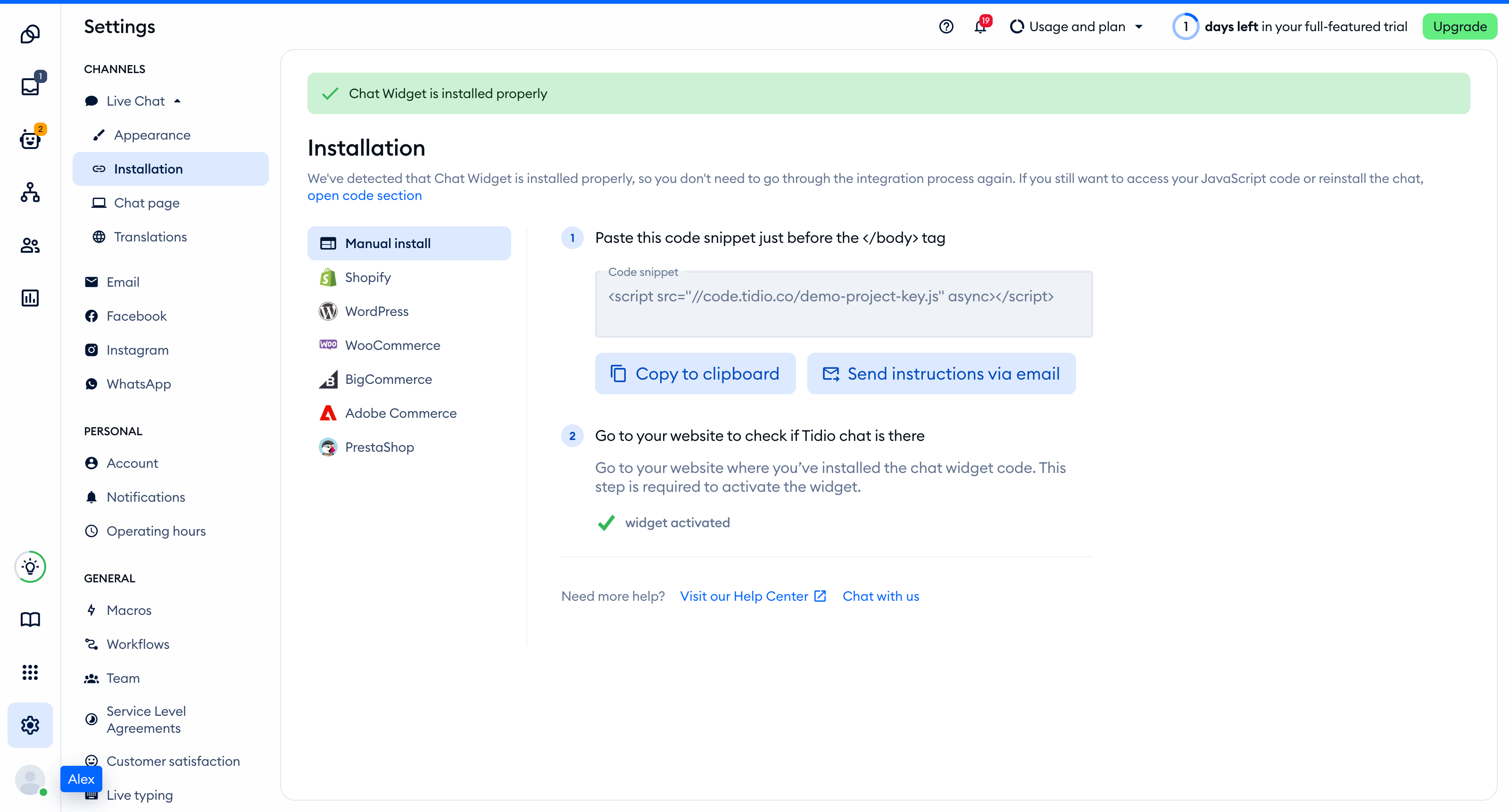
You can also find the Public key in Settings > Developer > Project data.
Add one of the following scripts before the closing </body> tag of your website, just as you'd paste the Tidio installation code itself.
This method will work with the plugin installation too!
The script below will work both for mobile and desktop views of your website.
<script src="//code.tidio.co/fouwfr0cnygz4sj8kttyv0cz1rpaayva.js" async></script>
<!-- Swap your javascript code above -->
<script>
   (function() {
    function onTidioChatApiReady() {
      (function() {
          window.tidioChatApi.open();
      })();
    }
    if (window.tidioChatApi) {
      window.tidioChatApi.on("ready", onTidioChatApiReady);
    } else {
      document.addEventListener("tidioChat-ready", onTidioChatApiReady);
    }
  })();
</script>
The following alternative skips browsers whose user-agent text matches its list of mobile devices. It does not check the viewport width or reliably identify every mobile device, so it is not a guarantee of desktop-only opening:
<script src="//code.tidio.co/fouwfr0cnygz4sj8kttyv0cz1rpaayva.js" async></script>
<!-- Swap your javascript code above -->
<script>
  (function() {
    function isMobile() {
      try {
        return !!(
          navigator.userAgent &&
          /Android|webOS|iPhone|iPod|BlackBerry|IEMobile|Opera Mini/i.test(
            navigator.userAgent
          )
        );
      } catch (e) {
        return false;
      }
    }

    function onTidioChatApiReady() {
      (function() {
        if (!isMobile()) {
          window.tidioChatApi.open();
        }
      })();
    }
    if (window.tidioChatApi) {
      window.tidioChatApi.on("ready", onTidioChatApiReady);
    } else {
      document.addEventListener("tidioChat-ready", onTidioChatApiReady);
    }
  })();
</script>
How to install the script on WordPress
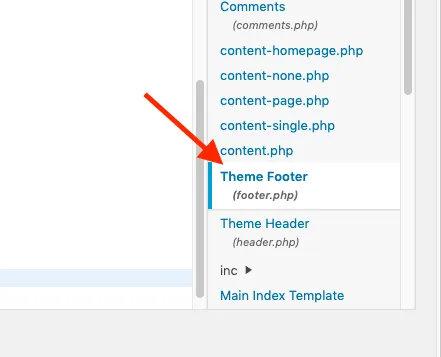
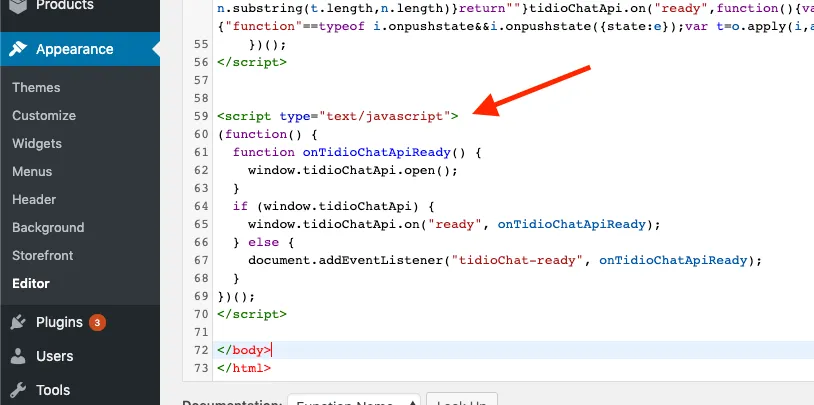
For a classic WordPress theme that has footer.php, open Appearance > Theme File Editor and select that file. Back up your theme first and use a child theme so a theme update does not overwrite your changes. Paste the script above the closing </body> tag, then click Update File and refresh your website. If the editor or file is unavailable, ask your developer to add the script using your site's supported method. The images below show an older WordPress interface.
How to install the script on Shopify
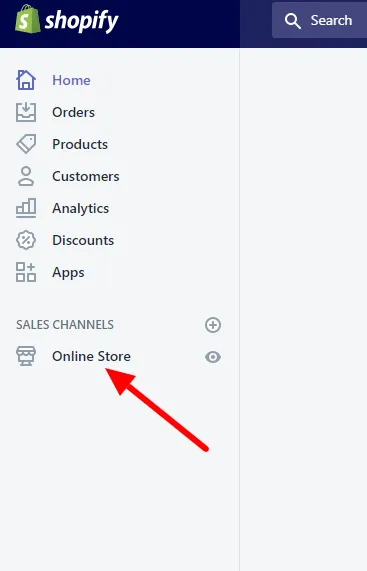
Go to your Shopify panel and select the Online Store tab.
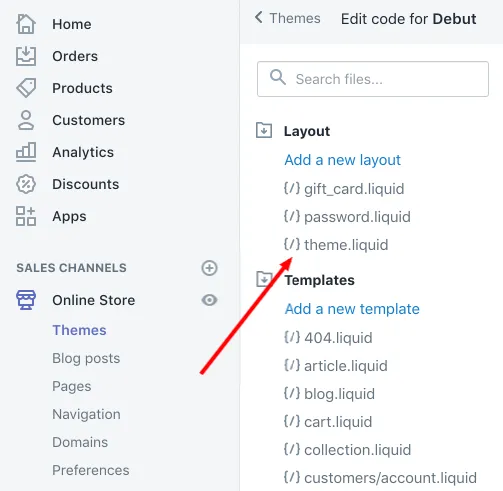
On the theme you want to edit, open the three-dots menu and select Edit code. The older screenshot below labels this menu Actions.
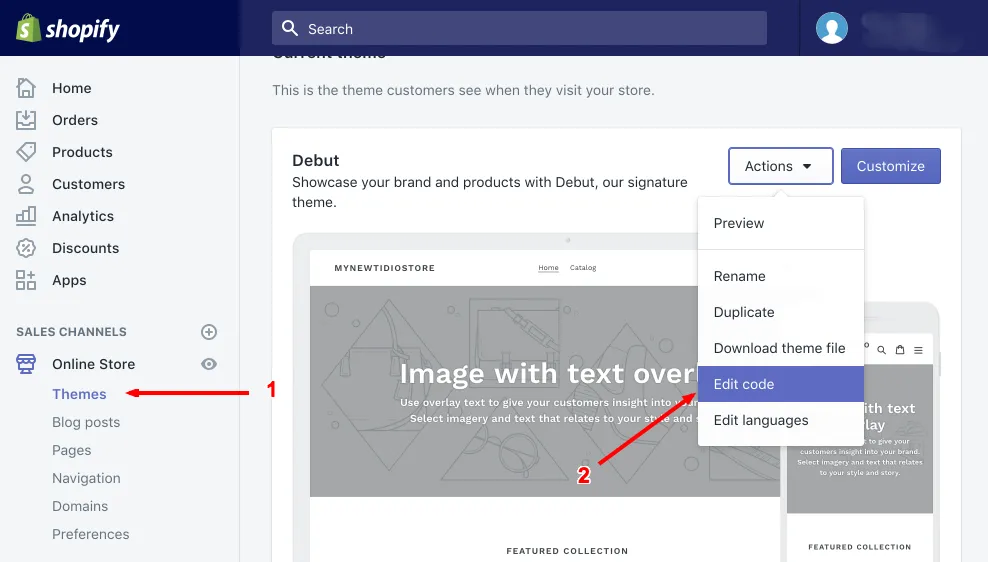
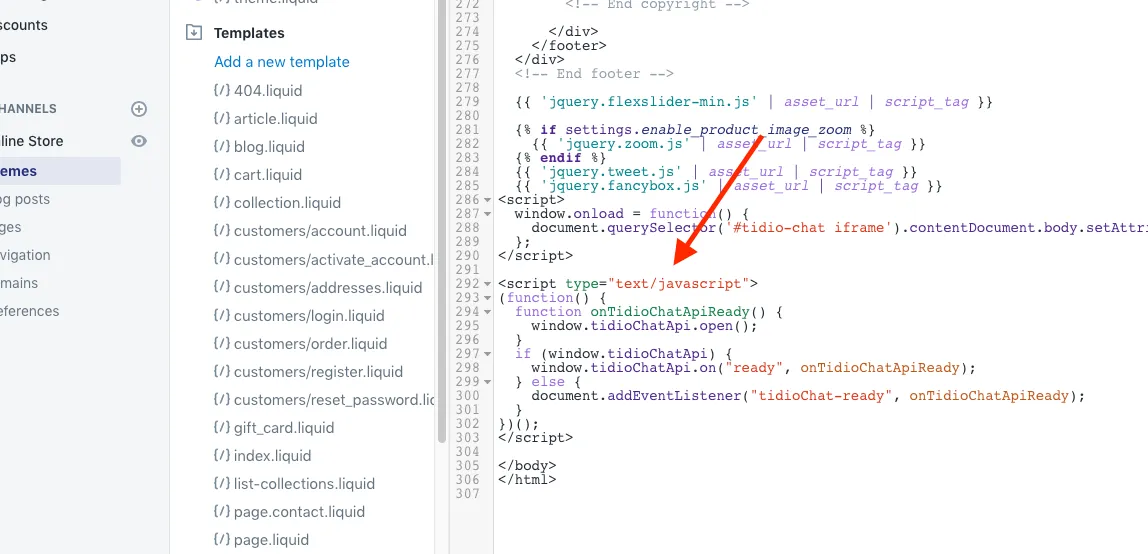
Choose theme.liquid in the layout folder and paste the script before the closing </body> tag. The screenshot below shows where to look. Save your changes and refresh your website when you are finished.