See how to integrate Tidio with your Klaviyo account and add subscribers to your Klaviyo list.
In this article, you'll learn:
How to integrate Tidio with Klaviyo
Open your Tidio admin panel and navigate to the Integrations section in the left sidebar. Then, click on the Klaviyo tile.
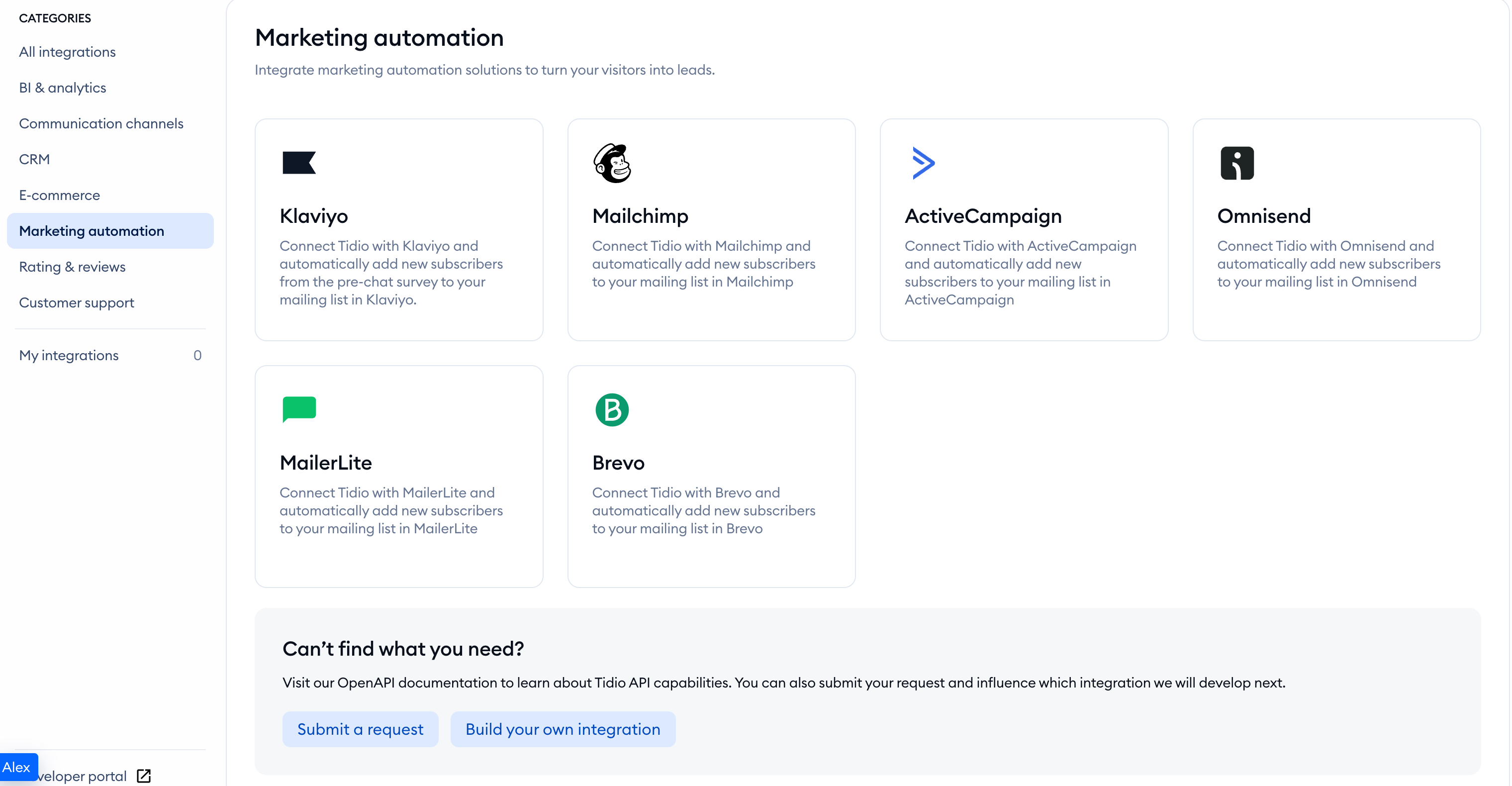
You'll see a window with a summary of all integration benefits. To proceed, click on the blue Install Klaviyo button.
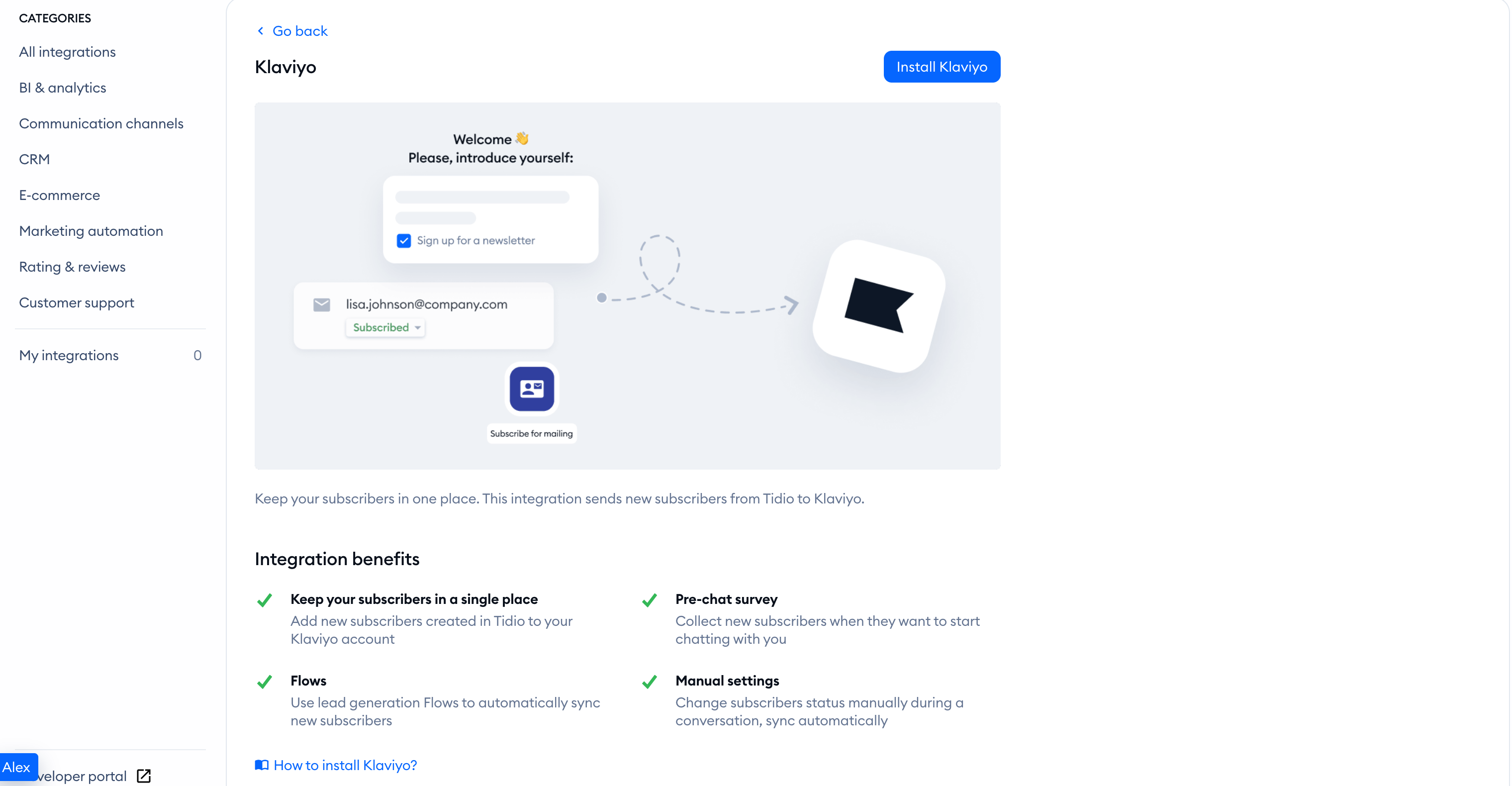
Now, create a new connection by selecting New authentication(green bracket).
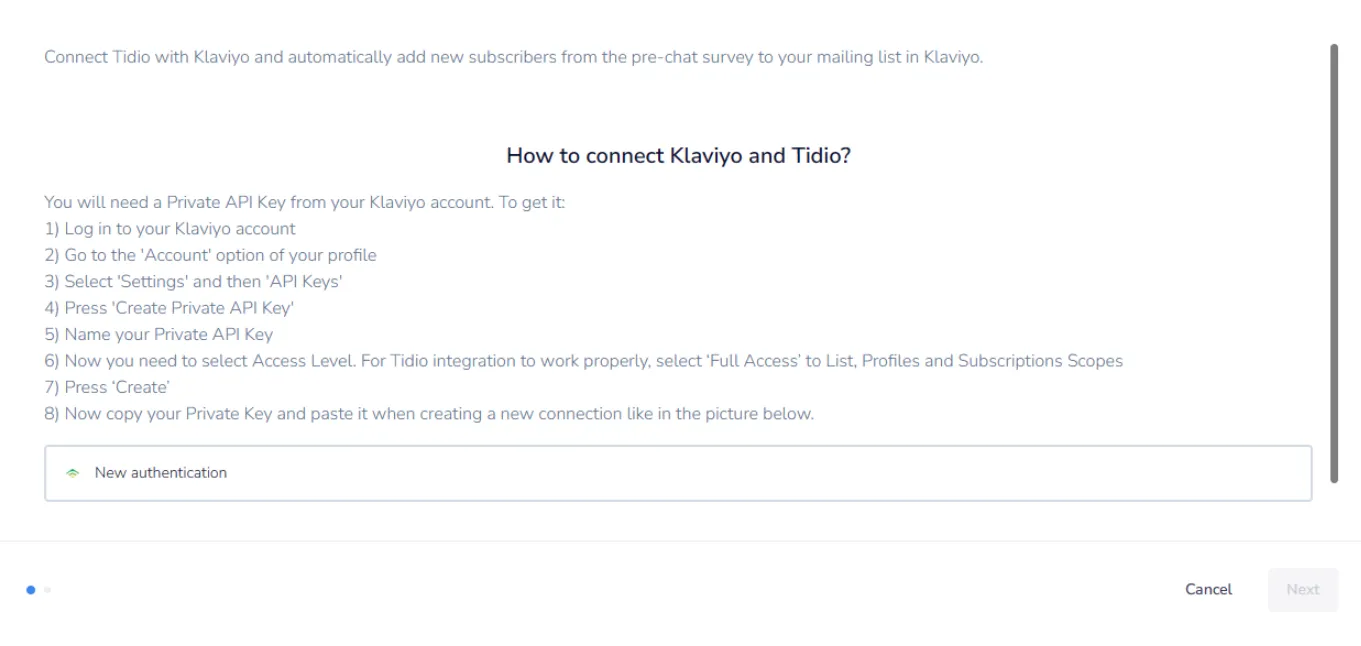
Now you need to authenticate the connection with the API key from Klaviyo. To get the unique API key:
- Log in to your Klaviyo account
- Click your organization name in the bottom-left corner
- Select Settings and then API keys
- Press Create Private API Key
- Name your Private API Key
- Under Select Access Level, choose Custom Key and give Read/Write Access to the Lists, Profiles, and Subscriptions scopes
- Press Create
- Copy your Private Key and paste it when creating a new connection like in the picture below.
Now, your authentication with Klaviyo is done.
Next, select Klaviyo's List ID from the drop-down field, and click on the Finish button. New subscribers will be added to this list.
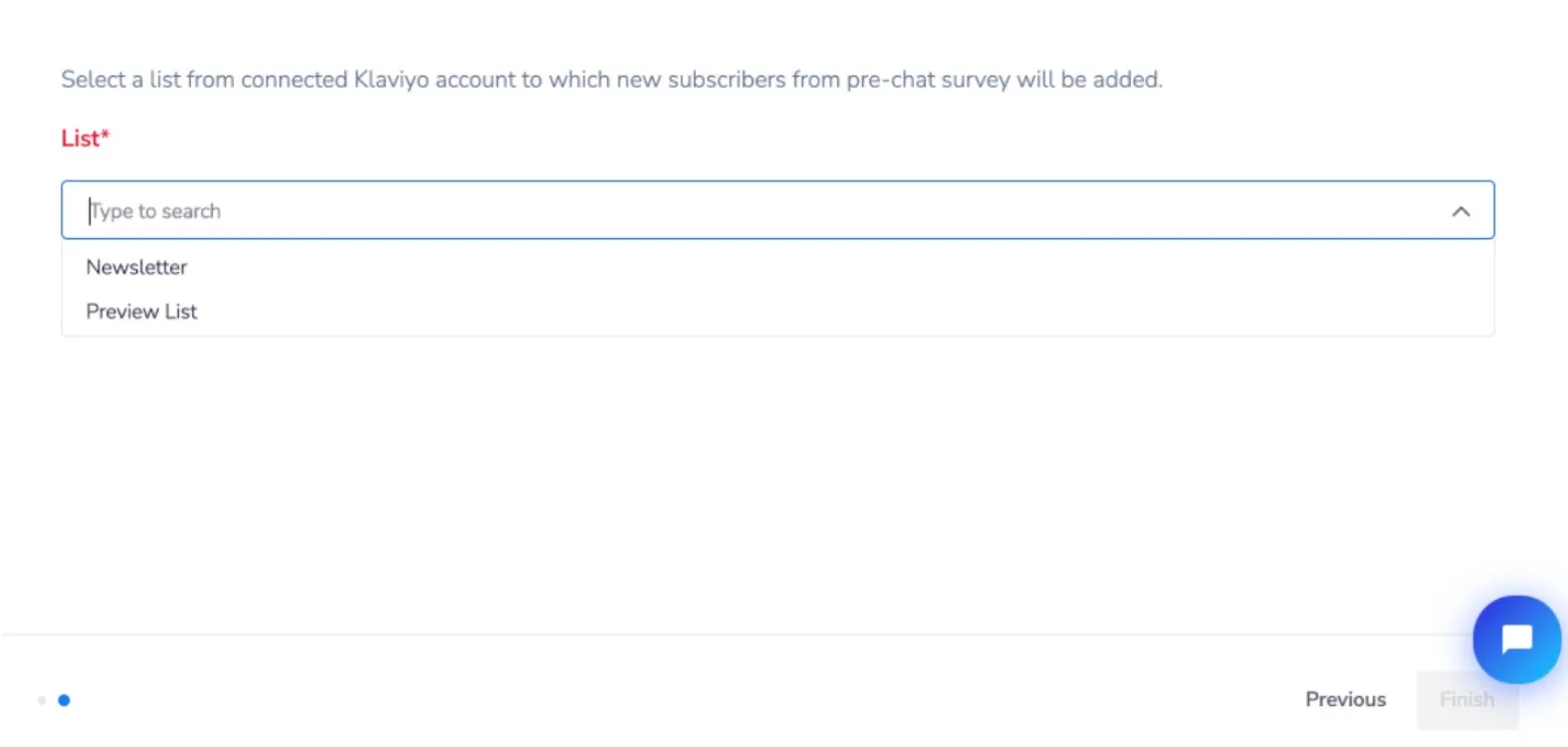
You are all set. Your integration with Klaviyo is ready. Now, you can add new subscribers from Tidio to Klaviyo.
How to add new subscribers from Tidio to Klaviyo
You can add new subscribers from Tidio to Klaviyo in three ways:
- Via Pre-Chat Survey
- Via a manual status update
- Via flow
Let's see how each of them works.
Please note: While Klaviyo is connected, Ask your visitor for newsletter permission stays enabled in your pre-chat survey settings. You cannot turn this checkbox off while the integration needs it.
Pre Chat Survey
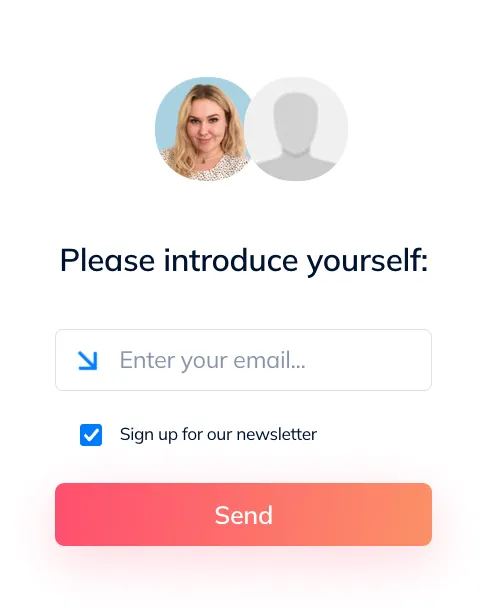
When you have the Pre-Chat Survey enabled and a user provides their email address and communication consent (newsletter subscription), the email will be automatically added to your Klaviyo list.
Manual status update
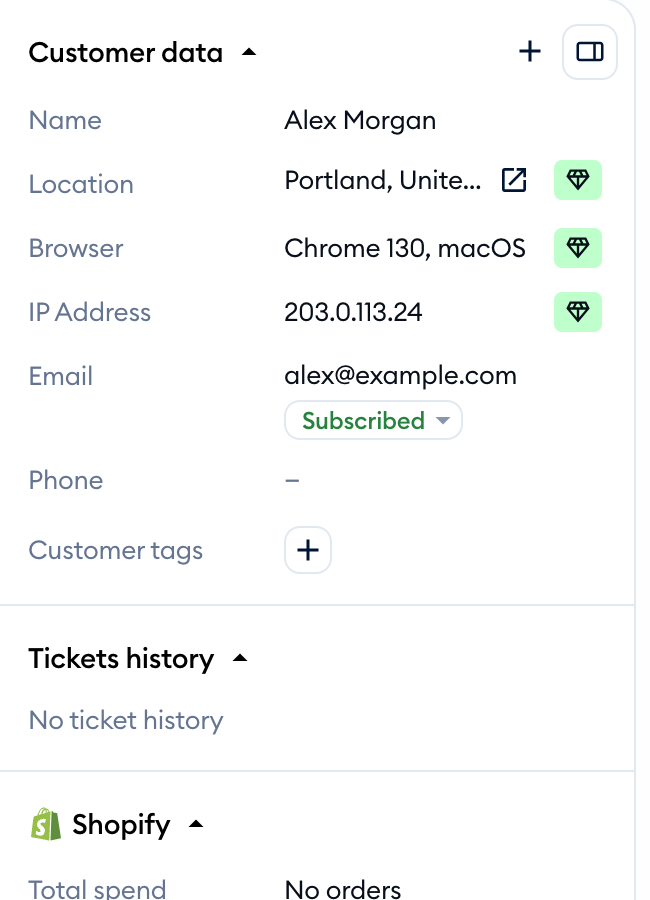
You can change a user's subscriber status manually in the visitor's details tab or contact list. When you change it to Subscribed, we will pass the user's email to Klaviyo.
Flow
You can also add subscribers to Klaviyo using a flow and the Subscribe for Mailing node. When you collect an email address using such a flow, we pass it automatically to your Klaviyo list.