We know that tracking the performance of your website to understand how visitors interact with your site and make informed decisions to improve the user experience is crucial for every business owner. Tidio has made it easy for you to integrate Tidio with your Google Analytics 4 (GA4) property to gain valuable insights into your website's performance.
In this article, you'll learn:
- How to integrate Tidio with GA4
- How to migrate from Tidio's Universal Analytics integration to GA4 integration
- Where to find Google ID Tag?
- What Tidio events are sent to GA4
- What Tidio parameters are available in GA4
- How to test the integration in GA4
How to integrate Tidio with GA4
Please note: The Google Analytics integration in Tidio connects to GA4.
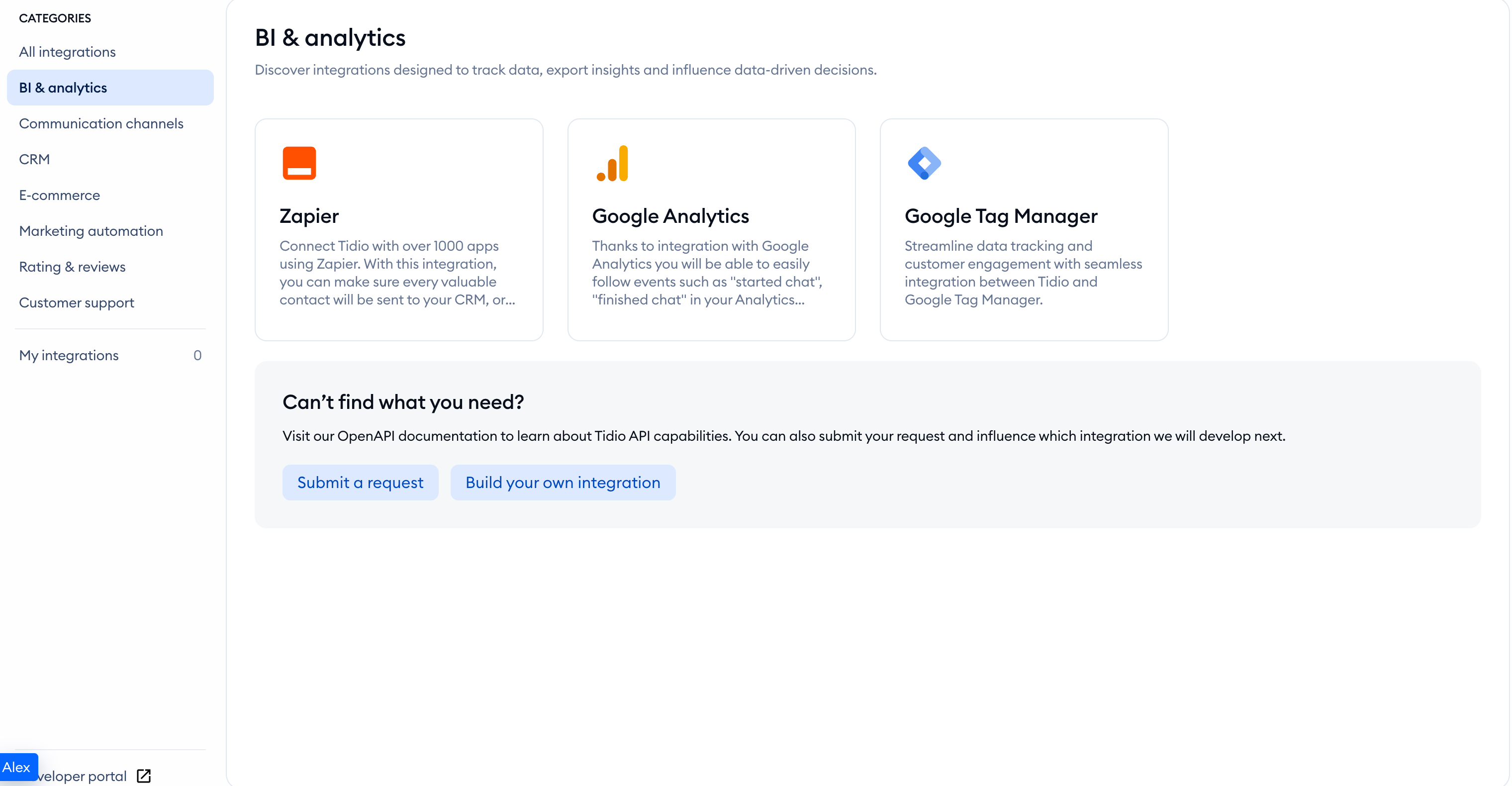
To enable the integration with Google Analytics (GA4) in Tidio, open your Tidio admin panel and navigate to the Integrations section in the sidebar. Then, click on the Google Analytics tile.
Enter your Google tag ID, if you want to send events to a specific property, and click Connect Google Analytics.
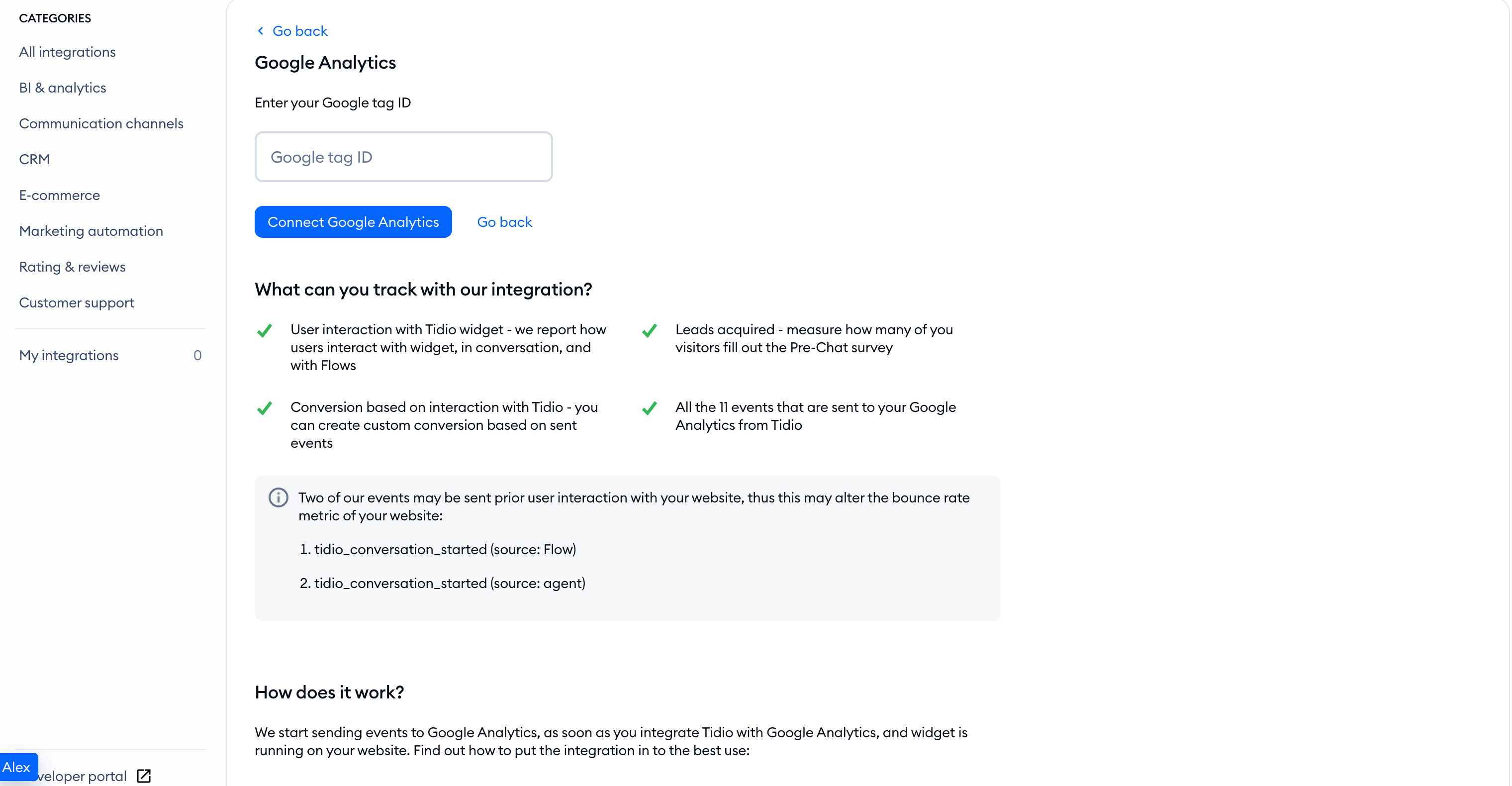
When you provide your Google tag ID, events from Tidio will be sent only to that property, ensuring the quality of integration. If you do not provide one, events will be sent to every single Google Analytics property added to your website.
If you leave the ID empty, you'll see Google tag ID is missing. Choose Connect anyway to continue without an ID, or Add Google tag ID to return to the field.
How to migrate from Tidio's Universal Analytics integration to GA4 integration
If you are following an older Universal Analytics setup, use the current GA4 connection above. If Google Analytics is already active, you can change the Google tag ID and click Connect Google Analytics to save it without uninstalling.
Where to find Google ID Tag?
Please keep in mind that when you provide your Google tag ID, events from Tidio will be sent only to that property. If you do not provide one, events will be sent to every single Google Analytics property added to your website. Please check Google Analytics Help Center for the most up-to-date information about finding Google ID Tag.
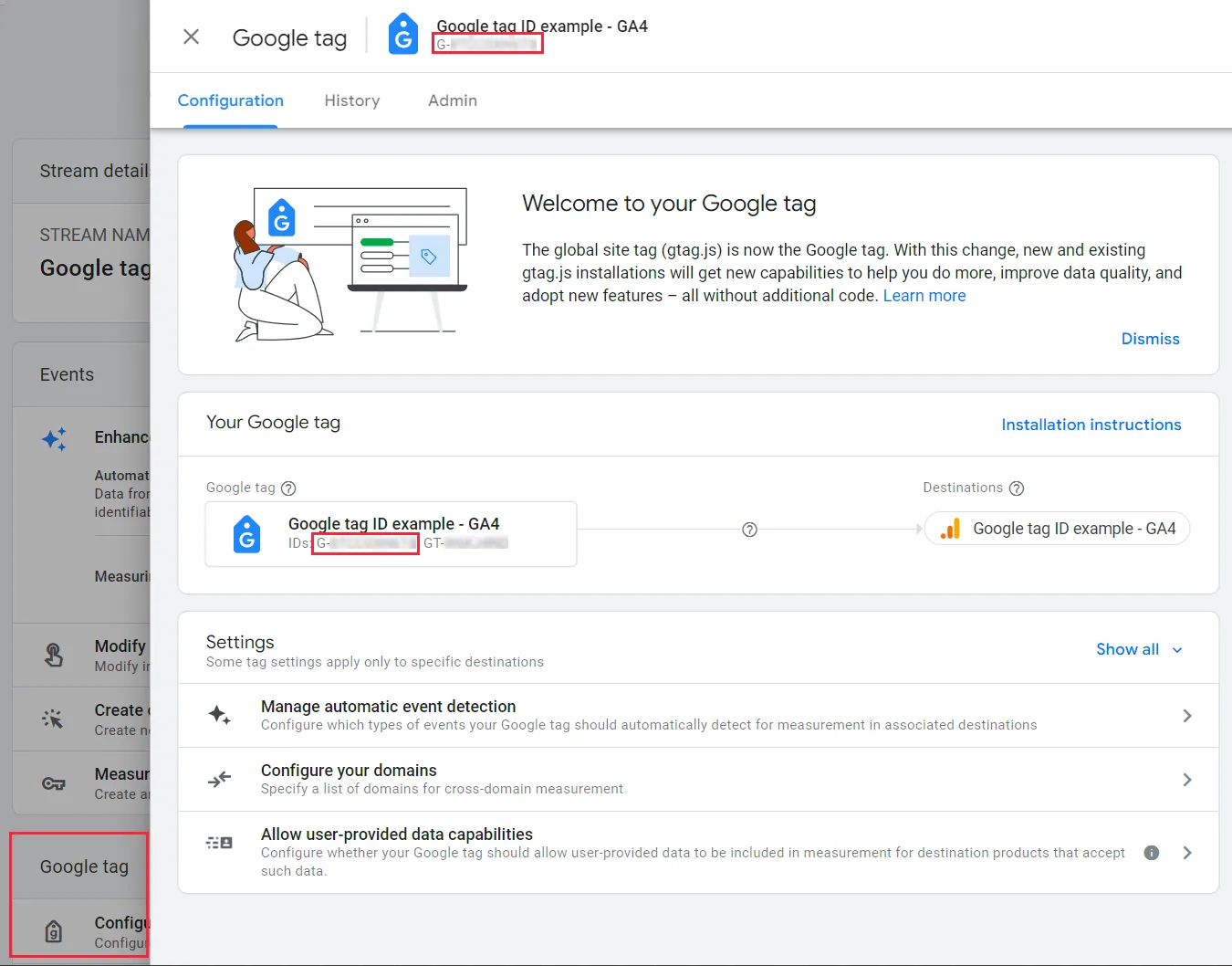
To find your Google tag ID, which typically begins with "G-", follow these simple steps:
- Sign in to your Google Analytics account.
- Click on the Admin button.
- Select your GA4 property using the property selector.
- Click on Data streams.
- Choose the data stream for which you require the ID.
- Under Stream details, copy the Measurement ID.
What Tidio events are sent to GA4
There are several different events that are tracked by the integration. Below we describe the events you can expect to see in your GA4 account. To see the events tracked by Tidio navigate to your GA4 property and go to Reports > Engagement > Events.
See the Tidio event reference below:
| Name | Description |
|
tidio_conversation_started |
Tracks the first message in the thread that is sent by the visitor, agent, or flow. |
|
tidio_conversation_rated |
Tracks the visitor who has rated a conversation using emojis. |
|
tidio_conversation_reply |
Tracks a reply in the thread that has been posted. It can be done either by a flow or an agent. |
|
tidio_prechat_finished |
Tracks a visitor who has submitted the pre-chat survey. |
|
tidio_prechat_started |
Tracks Pre-chat survey displayed to a visitor. |
|
tidio_widget_visitor_started_bot |
Tracks a visitor who started a flow intentionally. |
|
tidio_widget_close |
Tracks a visitor who closed the Tidio widget. |
|
tidio_widget_mute_notifications |
Tracks a visitor who mutes notifications. |
|
tidio_widget_open
|
Tracks a visitor who opens the Tidio widget. |
|
tidio_conversation_ {{custom_event}}
|
Tracks custom events sent by the flows after execution of Send an event to Google Analytics. |
GA4 Event Parameters
Event parameters are additional pieces of information that are attached to an event. By using event parameters, you can gain deeper insights into user behavior and better understand how users interact with the chat widget on your website.
See the Tidio event parameter reference below:
| Parameter name | Description |
thread_id |
This parameter informs you about the ID of a thread started. Please keep in mind that thread_id is currently passed with rated events only. |
visitor_id |
This parameter informs you about the ID assigned to a visitor by the Tidio widget. |
message_type |
This parameter informs you about the type of message node used in a flow. Is added if source = "chatbot" |
chatbot_name |
This parameter informs you about the name of the flow that sent a message to a visitor. Is added if source = "chatbot". |
consent_given |
This parameter checks if the pre-chat survey asks your website visitors for a marketing consent. |
phone |
This parameter checks if the pre-chat survey asks your website visitors for their phone number. |
| name | This parameter checks if the pre-chat survey asks your website visitors for their names. |
| This parameter checks if the pre-chat survey asks your website visitors for your email. | |
rating |
This parameter checks visitors' ratings of the conversation. |
| source | This parameter refers to who is responsible for a message sent to the widget. |
|
This parameter checks if any of the agents added to the project is online or offline. |
How to test the integration in GA4
Testing the integration between Tidio and Google Analytics 4 is an essential step to ensure that data is being accurately tracked and reported.
Once you have integrated Tidio with your GA4 property, play with the widget on your website to trigger one of the events from the list above.
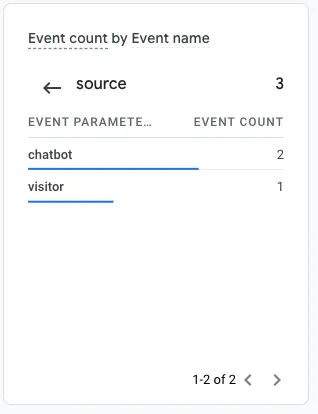
In Google Analytics, open Reports > Realtime. Look for your Tidio events in the Event count by Event name card. Events may take a few minutes to appear.
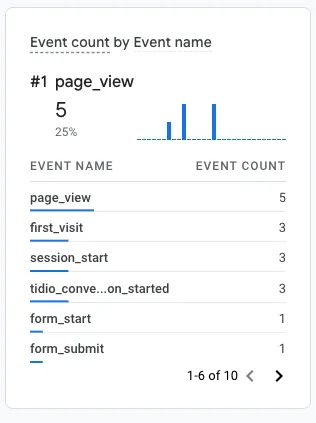
When you click on tidio events, parameters added to those events will appear. In Google Analytics 4, parameters are additional pieces of information that can be attached to events to provide more context and detail about user behavior on your website or app.
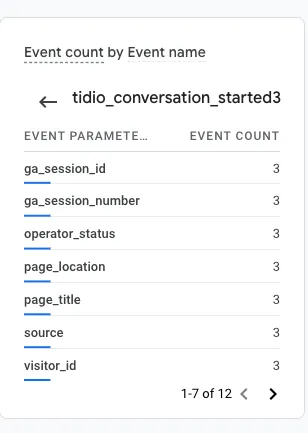 .
When you click on a parameter name, you will see values that have been sent to those events in those parameters.