Add Tidio to your Unbounce landing pages with Script Manager for a custom domain, or add it to an individual page in the Classic Builder. Choose one method so each page loads the widget once.
In this article, you'll learn:
- How to copy your Tidio code
- How to add the code to Unbounce
- How to check the installation
- How to troubleshoot the installation
Copy your Tidio code
- Log in to your Tidio panel.
- Go to Settings > Live Chat > Installation.
- Choose Manual install.
- Click Copy to clipboard.
Your code has this form. Use the code you copied, or replace YOUR_PUBLIC_KEY with your project's Public key:
<script src="//code.tidio.co/YOUR_PUBLIC_KEY.js" async></script>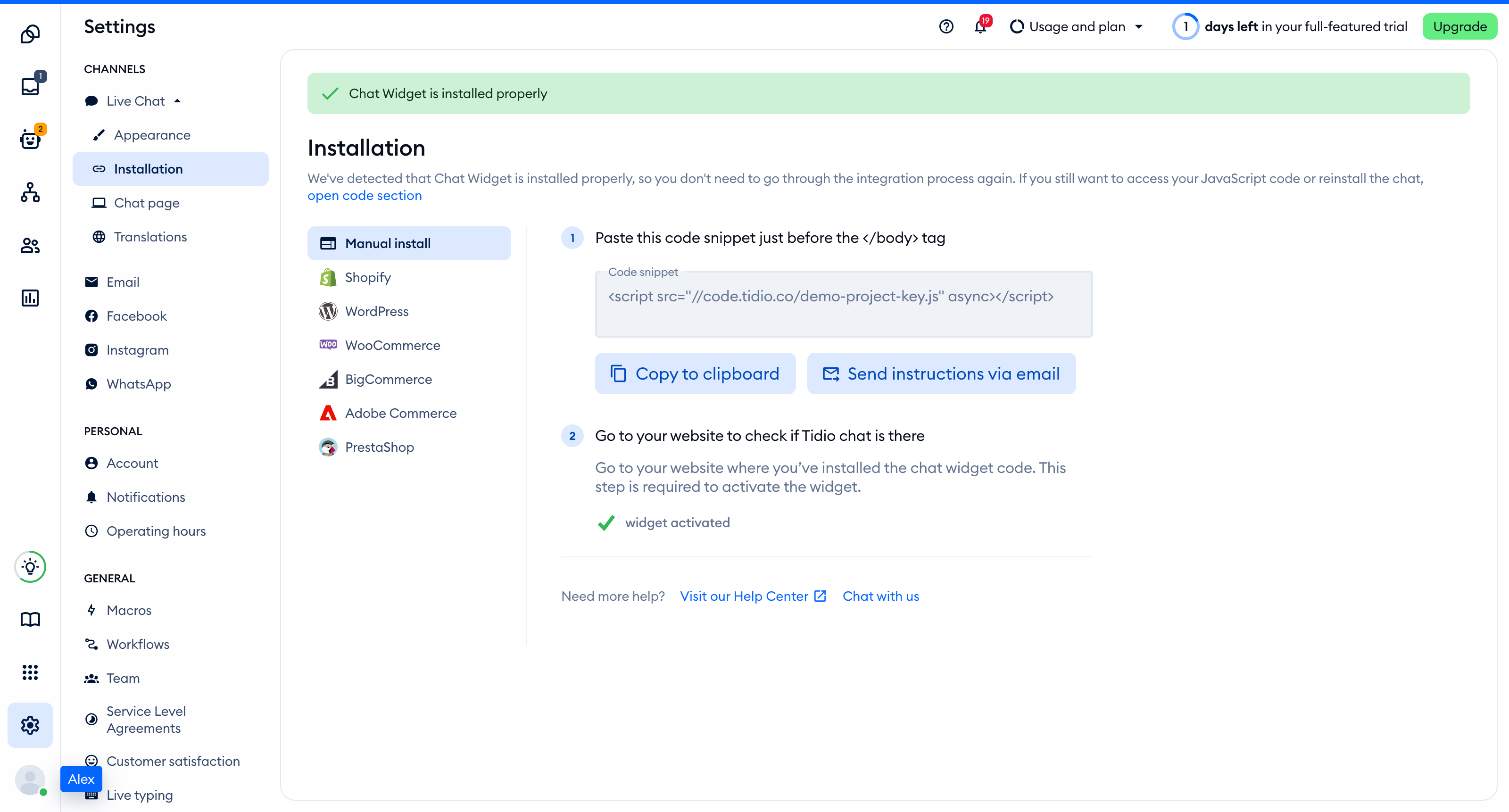
Add the code to Unbounce
Add the script across a custom domain
Script Manager applies code to all pages on the custom domains you select, including new pages you publish there later. It requires your own custom domain and does not work with the test domain unbouncepages.com.
- Open Settings in the left menu, then select Script Manager.
- Click Add a Script, name your script Tidio, and continue to the script details.
- Set Placement to Before Body End Tag.
- Use Included on to choose the main landing pages.
- Paste your complete Tidio script into the code editor. Keep its opening and closing tags.
- Select the custom domains where you want the widget to appear.
- Click Save Changes.
Remove any page-level Tidio copies before using the domain-level installation. Save and republish the pages where you remove those copies.
See Unbounce's Script Manager instructions for domain selection and script scope.
Add the script to an individual Classic Builder page
Use this method when you want to manage the script on a page instead of across a custom domain. Do not also add Tidio through Script Manager for that page's domain.
- Open your landing page in the Classic Builder and click Javascripts at the bottom left.
- Enter Tidio in Script Name.
- Set Placement to Before Body End Tag, then paste the complete Tidio script.
- Click Done, then Save.
- Click Publish or Republish to make the page changes live.
This placement puts the script before the closing body tag. Custom JavaScript does not run in the Classic Builder or its preview. See Unbounce's custom JavaScript instructions.
Check the installation
Open your site in a regular browser window. The chat widget appears in the corner of the page and stays there when you move between pages. Headless and automated browsers may not show the widget, so do not rely on them for this check.
Loading a page with the widget is what activates it. After that, Settings > Live Chat > Installation in your Tidio panel says Chat Widget is installed properly.
Check the published Unbounce landing page after saving your script or publishing your page-level changes.
Troubleshooting
- If the widget appears on only one page or variant, check whether you added a page-level script. Use Script Manager for all pages on a selected custom domain.
- If a domain has no widget, check its checkbox in Script Manager and the Included on setting. The test domain
unbouncepages.comcannot use Script Manager. - If page-level changes are missing, click Done and Save, then Republish. Do not use the Classic Builder preview to test custom JavaScript.
- If you see two widgets or duplicate script requests, remove the page-level copy and keep only the domain-level installation. Republish the edited pages.
- If the script is in the wrong field, move the complete snippet to Javascripts or Script Manager and set Placement to Before Body End Tag.
- If the widget does not load, replace
YOUR_PUBLIC_KEYwith your Tidio project's Public key.