Did you know you can install the Tidio chat widget on multiple websites? This allows you to provide seamless live chat support across all your web properties. In this article, we will guide you through the process of installing the same Tidio chat on another website.
If you'd like to use a separate chat on each website - please follow the article explaining how to manage multiple projects instead. However, keep in mind that you may need to log into each panel separately.
Install the same Tidio chat on another website
To begin, navigate to Settings > Live Chat > Installation section to find your unique JavaScript code. If your chat is already installed on your first website, click on the open code section link first. Choose the Manual install tab. Then, hit Copy to clipboard.
Once you have copied the JavaScript code, go to the other website where you want to install the Tidio widget. Open the website's HTML code and find the closing </body> tag - it's usually at the very bottom of the file.
Paste the copied JavaScript code just before the closing </body> tag, and save your changes. If you're unsure about the placement, you can refer to our JavaScript installation tips or seek assistance from your web developer.
You can also read more about installing Tidio via javascript code in our main installation article.
Please note: to share one chat between your websites, use the same JavaScript code on each of them - this way, they keep the same chat appearance, agents, and panel settings. The Tidio apps and plugins (Shopify, WordPress, WooCommerce and BigCommerce) work differently: when you install one, you log in to Tidio and Choose a project to connect, or create a new one. A project that's already connected with a different platform is listed under Not available projects - integrated with different platform, and a project connected with Shopify can't be chosen again. So, for every additional website, we recommend the code.
Allowing the chat on your other domains
Don't see the widget on your new website? Check your Trusted domains. Head over to Settings > Live Chat > Appearance and open the Visibility and position section. If Trusted domains is set to Show only on listed domains, the widget appears only on the domains in that list - so type your new website's domain, press Enter, and hit Save:
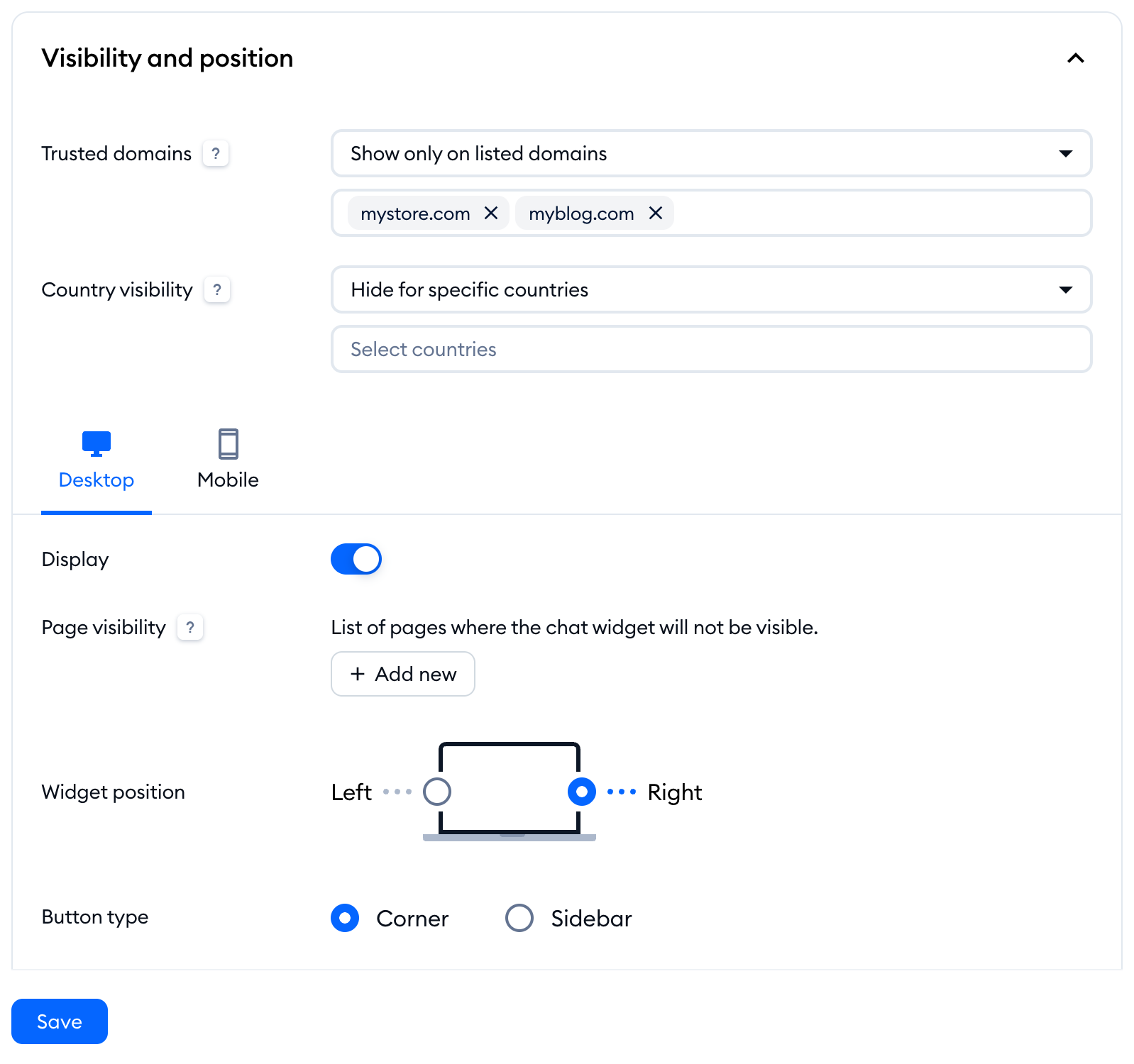
If it's set to Show on every domain, you don't need to change anything. You can read more about this option in Disable Tidio on specific pages.
