Learn how to install Tidio on your OpenCart store through JavaScript installation.
In this article, you'll learn:
Javascript Installation
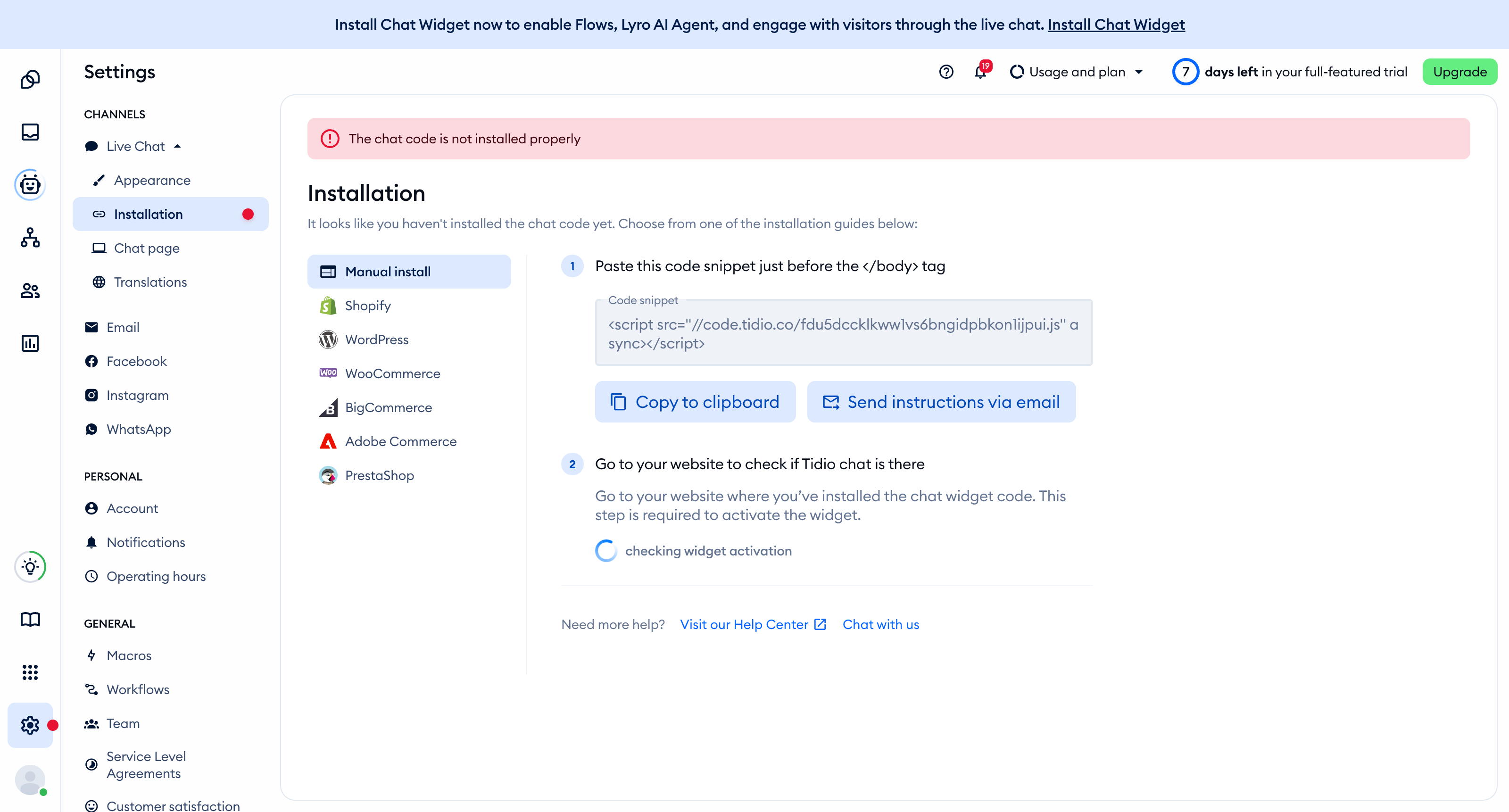
Log into Tidio and go to Settings > Live Chat > Installation to find your account's javascript code. Choose the Manual install tab and click on Copy to clipboard to copy the code (if Tidio has already detected the chat widget on your website, click on open code section first). You'll need to paste it into OpenCart's backend later on.
Log into your OpenCart admin panel and go to the Extensions section. The section has a subsection named the same way, please enter it.
Choose Analytics from the extension type and then click on the blue edit button.
Paste the Tidio javascript into the Google Analytics code window and make sure the status is enabled
Save the changes in the upper right corner. That's it! Make sure to save your changes, and Tidio should be installed on your OpenCart store.
