Add Tidio to a Leadpages page with an HTML block. This guide uses the current Leadpages editor in Manual Mode and installs the widget on the page you edit.
In this article, you'll learn:
- How to copy your Tidio code
- How to add the code to Leadpages
- How to check the installation
- How to troubleshoot the installation
Copy your Tidio code
- Log in to your Tidio panel.
- Go to Settings > Live Chat > Installation.
- Choose Manual install.
- Click Copy to clipboard.
Your code has this form. Use the code you copied, or replace YOUR_PUBLIC_KEY with your project's Public key:
<script src="//code.tidio.co/YOUR_PUBLIC_KEY.js" async></script>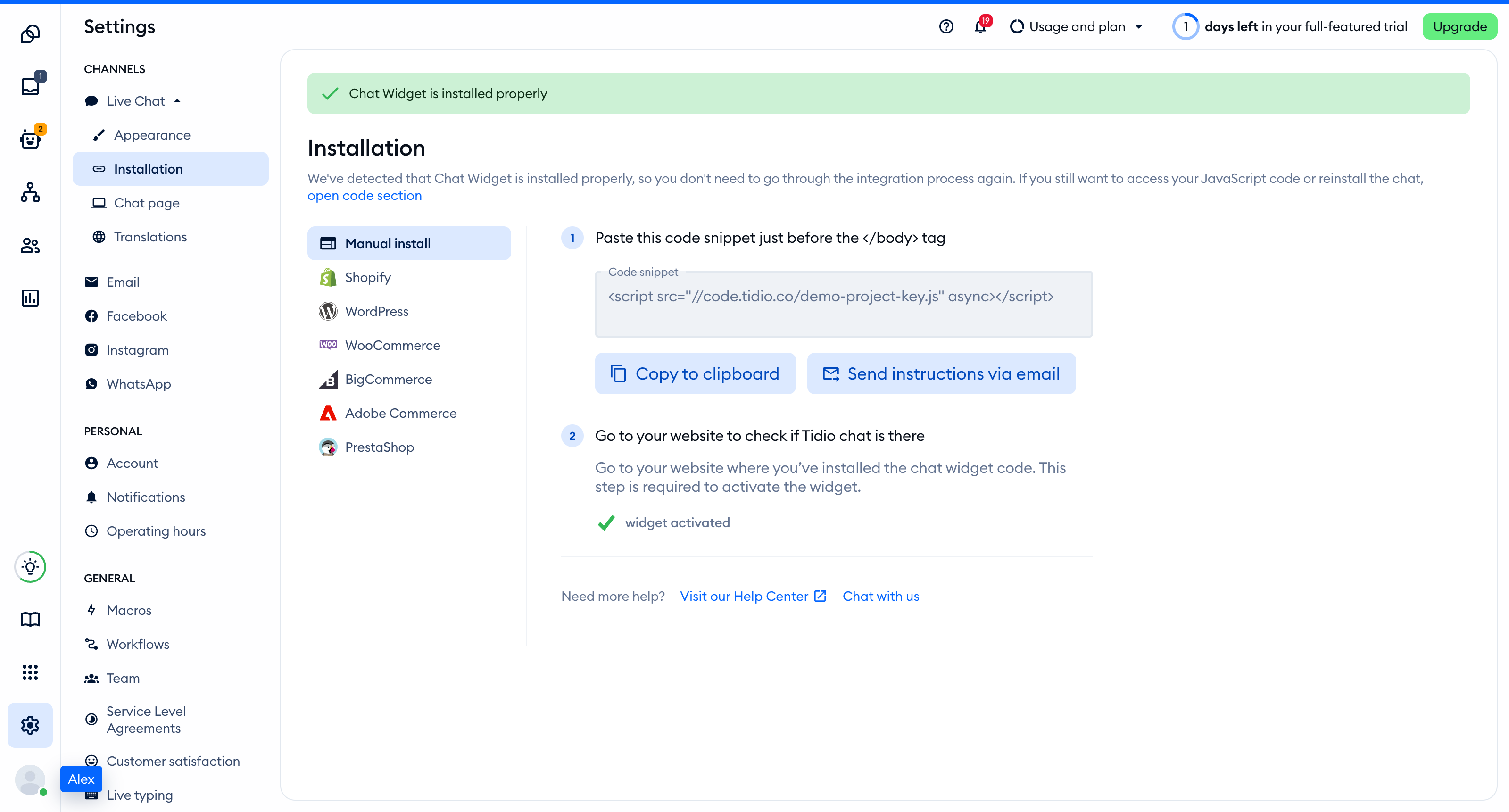
Add the code to Leadpages
Leadpages documents the Embed / HTML block for your own code and third-party widgets. Use one block for Tidio on each page where you want chat.
- Open your page in the builder and click Manual Mode at the top of the left panel.
- Open the Add tab.
- Drag an Embed / HTML block onto the page.
- Add the complete Tidio script to the block's code. Keep the opening and closing script tags.
- For a new page, click Publish. For an existing live page, click Update.
- Check the publishing destination. You can use your Leadpages domain or a custom domain you have connected.
- Press and hold Hold to publish until publishing completes. The button changes to Live.
Repeat the installation on other pages where you want chat. Do not add a second copy to a page that already loads Tidio.
Leadpages also lists Scripts & Pixels under Manage for tracking codes and scripts. Check for an existing Tidio installation there before adding a page block.
The More (...) menu in the builder's top bar also lets you add tracking scripts to the page. You can paste the Tidio script there instead of using a block. Use one of the two places on a page, not both.
For the editor controls, see Editing Your Page in Manual Mode. For the publishing steps, see Publishing, Unpublishing & Managing Pages.
Check the installation
Open your site in a regular browser window. The chat widget appears in the corner of the page and stays there when you move between pages. Headless and automated browsers may not show the widget, so do not rely on them for this check.
Loading a page with the widget is what activates it. After that, Settings > Live Chat > Installation in your Tidio panel says Chat Widget is installed properly.
Check each published Leadpages page where you added the code, not just the editor preview.
Troubleshooting
- If your edits do not appear on the live page, click Update and complete Hold to publish. A Draft changes badge means you still have unpublished edits.
- If the widget appears on one page but not another, check the other page for its own Tidio block. This guide installs the code page by page.
- If you see duplicate script requests, keep one Tidio installation per page. Check both your HTML blocks and Scripts & Pixels.
- If the code appears as text, check that you used Embed / HTML rather than a text block.
- If the widget shows inside the page content instead of in the corner, remove the block and add the script through the tracking scripts in More (...) instead.
- If the widget does not load, check that the script uses your project's Public key instead of
YOUR_PUBLIC_KEY.