See how easy it is to install Tidio on your Jimdo website. The chat will need to be installed manually, but the process is pretty simple.
In this article, you'll learn:
- How to create a Tidio account
- How to install Tidio on Jimdo
- How to use the alternative installation method
Creating an Account
If you do not have an account yet, please go to www.tidio.com and select Get Started in the top right corner.
A setup panel will appear. Please enter your email address and password you'd like to use as well as your desired website URL address and click on Create a Free Account.
Now, open the Install Chat Widget wizard: click on Install widget on the Chat card of the Getting started page, or on Install Chat Widget in the bar at the top of the panel. Adjust your chat widget's appearance in the first step and hit Continue.
In the second step, Install your Chat Widget, choose Manual install from the list of platforms. Copy the JavaScript code to your clipboard with the Copy to clipboard button.
If you would like your developer to take care of it, click on Send instructions via email, fill out their Email address, click Send instruction, and we will send an email to your developer with the installation instructions.
You can find the JavaScript code in the Settings > Live Chat > Installation section anytime (if Tidio has already detected the chat widget on your website, click on open code section first):
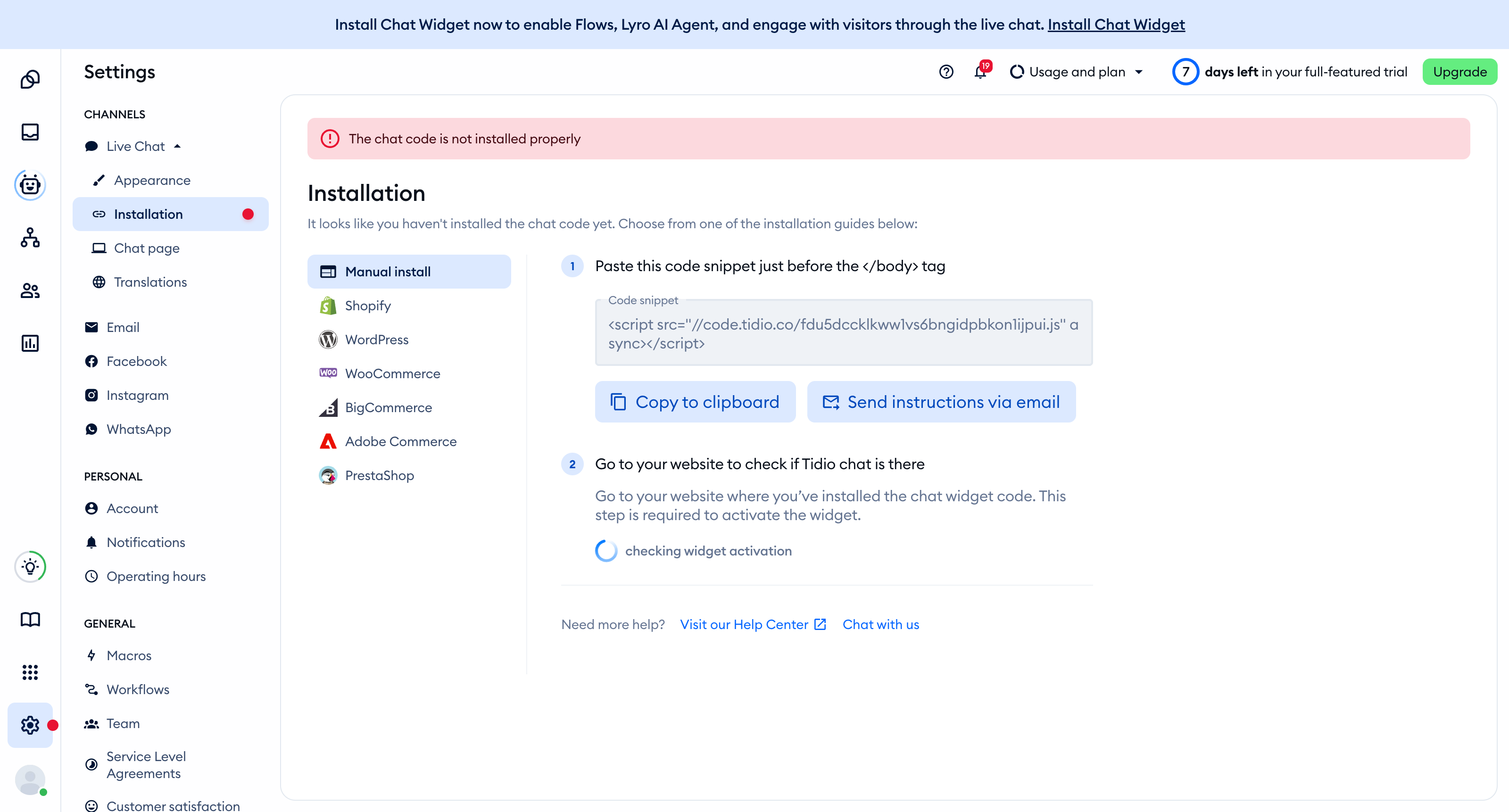

Installation
Once you've copied the code, please go back to your Jimdo editor panel and head over to Menu > Settings > Edit Head.
Paste in the chat code you copied from the Tidio Chat panel to the box and Save the changes.
That's it! Refresh your website, and the chat widget is installed on your Jimdo website. Now you can go back to your Tidio Chat panel and customize your chat to your preferences.
Alternative Installation
Alternatively, you can install Tidio Chat by implementing the JavaScript code snippet as a new element on your website (Add Element > More Elements and Add-ons >Widget / HTML). You can find a detailed guide from our friends at Jimdo.
