Add Tidio to your HighLevel website or funnel with its tracking code settings. If you search for GoHighLevel, these are the HighLevel settings you need. You can install the widget across a whole website or funnel, or on one page.
In this article, you'll learn:
- How to copy your Tidio code
- How to add the code to HighLevel
- How to check the installation
- How to troubleshoot the installation
Copy your Tidio code
- Log in to your Tidio panel.
- Go to Settings > Live Chat > Installation.
- Choose Manual install.
- Click Copy to clipboard.
Your code has this form. Use the code you copied, or replace YOUR_PUBLIC_KEY with your project's Public key:
<script src="//code.tidio.co/YOUR_PUBLIC_KEY.js" async></script>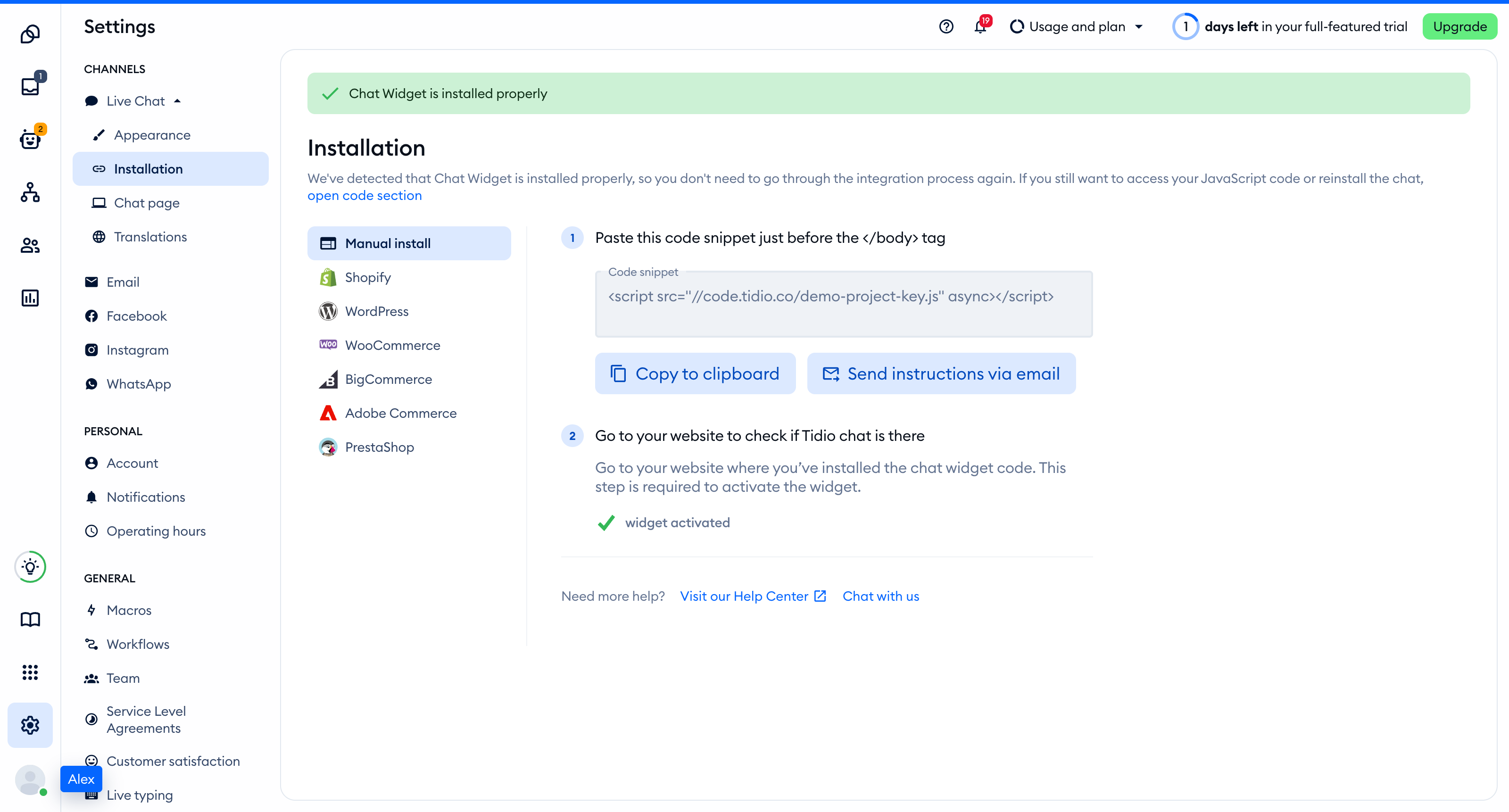
Add the code to HighLevel
Use the website or funnel settings to load Tidio across all pages in that website or funnel. These settings do not apply to every website in your account.
- Go to Sites, then choose Funnels or Websites.
- Open the funnel or website where you want chat.
- Click the Settings tab.
- Find Body tracking code and paste the complete Tidio script. Keep any unrelated code already in the field.
- Click Save to apply the code.
- Open the published pages of that funnel or website to check the installation.
HighLevel also provides Head tracking code. Use only the body field for this installation, not both fields.
Add Tidio to one page instead
If you want chat on only one page, use the page-level settings instead of the website or funnel settings:
- Open the page or funnel step in the builder.
- Click Tracking Code.
- Paste the Tidio script into Footer Tracking.
- Click Save and check the published page.
Do not combine the page-level installation with the website or funnel installation. Keep one copy of the Tidio script on each page.
For both installation locations and how saving applies the code, see HighLevel's Add Tracking Code/Script to Funnels and Websites.
Check the installation
Open your site in a regular browser window. The chat widget appears in the corner of the page and stays there when you move between pages. Headless and automated browsers may not show the widget, so do not rely on them for this check.
Loading a page with the widget is what activates it. After that, Settings > Live Chat > Installation in your Tidio panel says Chat Widget is installed properly.
Check the published HighLevel pages where you expect chat, including another funnel step if you used funnel-wide settings.
Troubleshooting
- If chat appears on only one page, check whether you used Footer Tracking in the page builder. Use Body tracking code in the website or funnel settings for all its pages.
- If a cloned page has no widget, check its page-level code. HighLevel excludes page-level tracking code when you clone a page. Website-wide or funnel-wide tracking still applies.
- If you cannot find the code in the browser's page source, check the live page with browser developer tools instead. HighLevel can inject tracking code dynamically, so static page source may not contain it.
- If the script loads twice, remove the duplicate from the page or website settings. Check for copies in both head and body fields too.
- If the published pages do not show your change, return to the code field and click Save. Check that you edited the intended website or funnel.
- If the widget does not load, replace
YOUR_PUBLIC_KEYwith the Public key for your Tidio project.