If you are a subscriber of the Plus package in Tidio, you get the specialized option of importing external tickets (e.g. from a system like Zendesk) into your Tidio project. This guide explains how to prepare your data, upload it, and check the import results.
In this article, you'll learn:
- How to upload your tickets and check the results
- What format is used for the import
- What the detailed data structure is
- What a valid single line looks like in the file
- What a valid entire JSONL file looks like
- How the file is validated before import
- Tips that can improve your experience
Uploading tickets and checking the results
Please note: The Tickets import tab must be enabled for your project. If you don't see it, contact Tidio support to check access before preparing a large import.
Once your JSON Lines file is ready, head over to Settings > Email > Tickets import. Click the Tickets import button and select your .jsonl file. The file can be up to 1 GB:
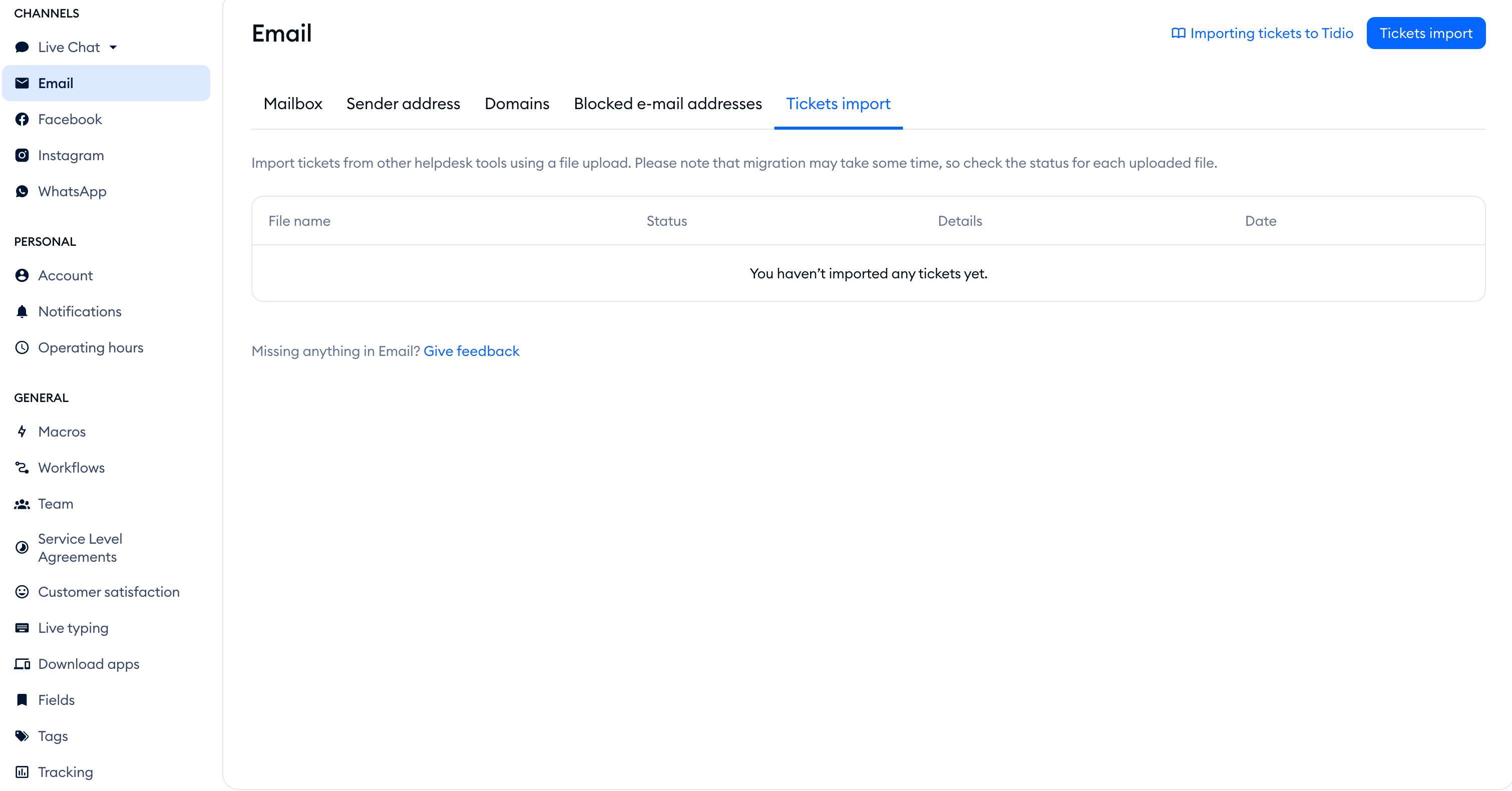
Stay on the page while the file uploads. Tidio confirms when the upload succeeds and the import process starts. This doesn't mean every ticket has finished importing yet.
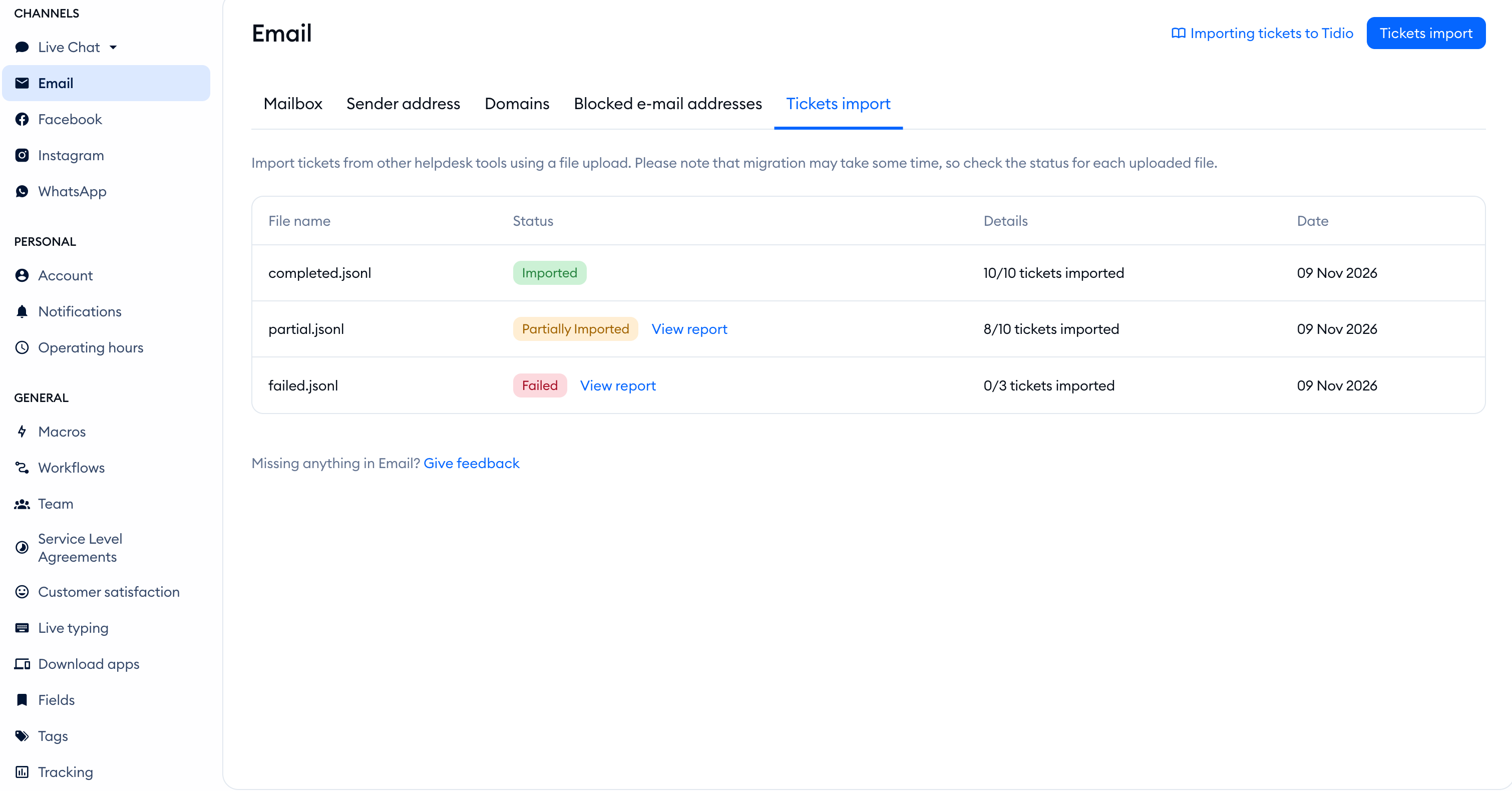
The list shows File name, Status, Details, and Date. Check the status for each uploaded file:
- In Progress: the file is still being processed.
- Imported: the import has completed.
- Partially Imported: some tickets were imported, but others failed.
- Failed: the import failed.
Once processing finishes, the Details column shows how many tickets were imported out of the total:
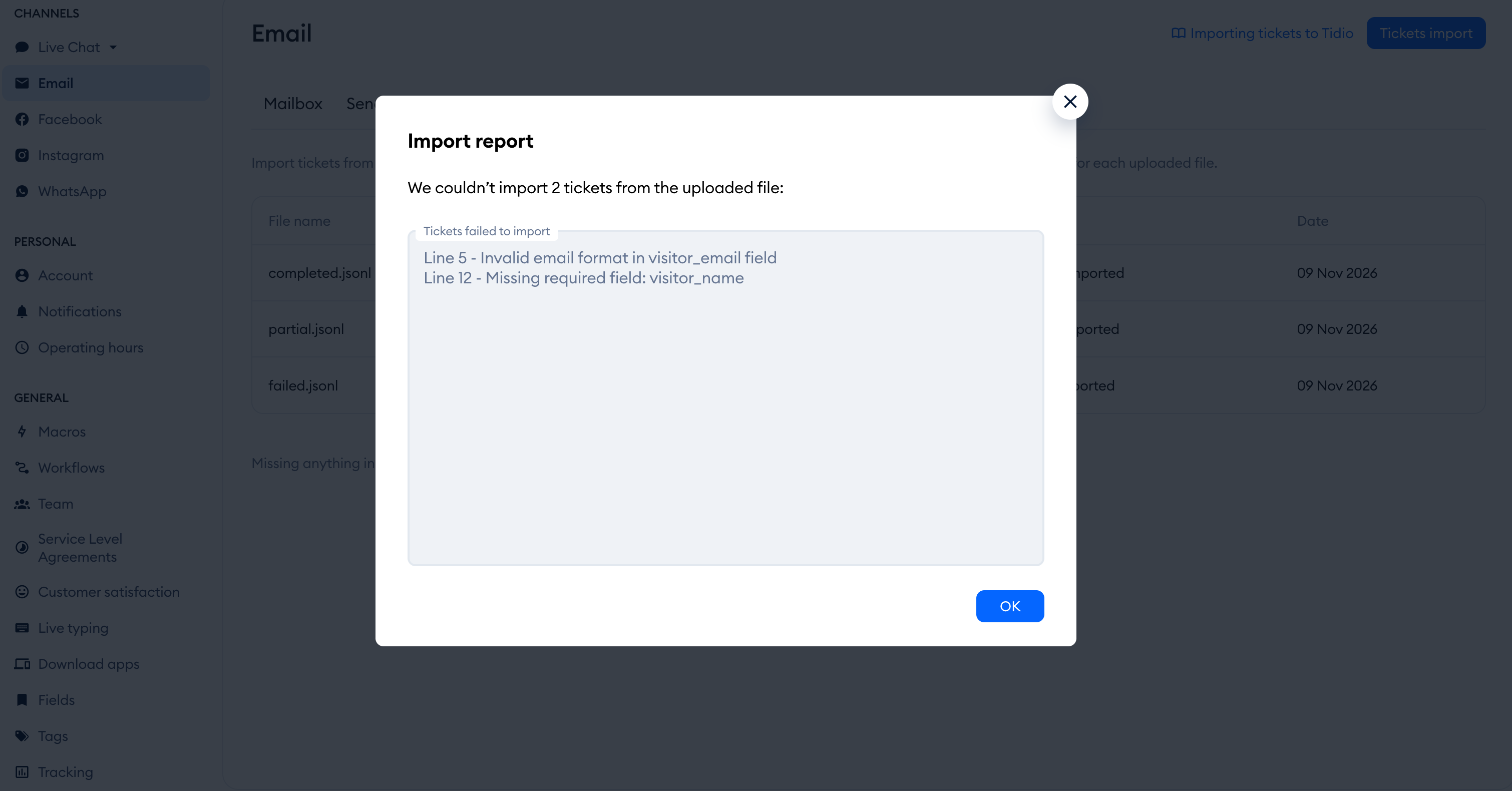
For a failed or partially imported file, click View report. The Import report window lists the affected line numbers and error details under Tickets failed to import. Use these details to find the tickets that need correcting:
File format
The tickets import feature allows you to upload ticket data from external sources. Your data must be in JSON Lines format (.jsonl file extension), where each line contains a single, complete JSON object representing one ticket.
Format
JSON Lines (JSONL)
Structure
Each line in the file must be a separate, valid JSON object representing a single ticket.
Encoding
UTF-8 is recommended.
File size limit
Up to 1 GB.
Data structure
Each ticket object must contain specific fields. Below is the detailed schema for the ticket object and its nested components:
- Ticket object (root)
- Contact object
- Message object
- Message Author object
- Message Recipients object
- Attachment object
1. Ticket object (root)
The root object represents the ticket itself.
| Field | Type | Required? | Description |
contact |
object | yes | Details of the contact associated with the ticket. See Contact object. |
status |
string | yes | The current status of the ticket. Allowed values: open, pending, solved. |
subject |
string | yes | The subject line of the ticket. |
messages |
array | yes | A list of messages in the ticket. Must contain at least one message. See Message object. |
createdAt |
string | no | Creation date and time in ISO 8601 format (e.g., 2023-10-27T10:00:00Z). |
operatorEmail |
string | no | Email address of the operator assigned to the ticket. Must be a valid email of an existing operator in Tidio. |
mailbox |
string | no | The mailbox email address associated with the ticket. Must be a valid email. |
priority |
string | no | Priority level of the ticket. Allowed values: low, normal, urgent. If not set, then default value is normal. |
departmentName |
string | no | Name of the department the ticket belongs to. Must be the name of an existing department in Tidio. |
2. Contact object
This object represents the customer or contact person for the ticket.
| Field | Type | Required? | Description |
email |
string | yes | The contact's email address. Must be a valid email. |
name |
string | no | The contact's full name. |
3. Message object
This object represents an individual message within the ticket thread.
| Field | Type | Required? | Description |
author |
object | yes | The author of the message. See Message Author object. |
htmlContent |
string | yes | The content of the message in HTML format. |
recipients |
object | no | The recipients of the message. See Message Recipients object. |
plainTextContent |
string | no | The content of the message in plain text. |
createdAt |
string | no | Creation date and time of the message in ISO 8601 format. |
type |
string | no | The visibility type of the message. Allowed values: public, internal. If not set, then default value is public. |
attachments |
array | no | A list of files attached to the message. See Attachment object. |
4. Message Author object
This object represents details about who sent the message.
| Field | Type | Required? | Description |
type |
string | yes | The type of author. Allowed values: operator, contact. |
email |
string | yes | The email address of the author. |
5. Message Recipients object
This object represents details about who received the message.
| Field | Type | Required? | Description |
to |
string | yes | The primary recipient's email address. |
cc |
string | no | Carbon copy recipient email address. |
bcc |
string | no | Blind carbon copy recipient email address. |
6. Attachment object
This object represents details about files attached to the message.
| Field | Type | Required? | Description |
publicUrl |
string | yes | A publicly accessible URL where the attachment file can be downloaded. Local file uploads are not supported. |
contentId |
string | no | Content ID for inline images (CID). |
filename |
string | no | The name of the file (e.g., invoice.pdf). |
Example line
Below is an example of a single line in the import file (formatted for readability, but should be on a single line in the actual file):
{
  "contact": {
    "email": "customer@example.com",
    "name": "John Doe"
  },
  "status": "open",
  "subject": "Issue with my order #12345",
  "priority": "urgent",
  "createdAt": "2023-10-25T14:30:00Z",
  "messages": [
    {
      "author": {
        "type": "contact",
        "email": "customer@example.com"
      },
      "htmlContent": "<p>Hi, I haven't received my order yet.</p>",
      "plainTextContent": "Hi, I haven't received my order yet.",
      "createdAt": "2023-10-25T14:30:00Z",
      "type": "public",
      "recipients": {
        "to": "support@company.com"
      }
    },
    {
      "author": {
        "type": "operator",
        "email": "agent@company.com"
      },
      "htmlContent": "<p>Hello John, let me check that for you.</p>",
      "createdAt": "2023-10-25T15:00:00Z",
      "type": "public",
      "recipients": {
        "to": "customer@example.com"
      },
      "attachments": [
        {
          "publicUrl": "https://example.com/files/screenshot.png",
          "filename": "screenshot.png"
        }
      ]
    }
  ]
}
Example JSONL file
Below is an example of contents of a valid JSONL file. Notice that each ticket is on a separate line and is a valid JSON object.
{"contact": {"email": "alice@example.com", "name": "Alice Smith"}, "status": "open", "subject": "Login issues", "priority": "urgent", "createdAt": "2023-11-01T09:00:00Z", "messages": [{"author": {"type": "contact", "email": "alice@example.com"}, "htmlContent": "<p>I cannot login.</p>", "recipients": {"to": "john@example.com"}}]}
{"contact": {"email": "bob@example.com", "name": "Bob Jones"}, "status": "solved", "subject": "Refund request", "priority": "normal", "createdAt": "2023-11-02T10:30:00Z", "messages": [{"author": {"type": "contact", "email": "bob@example.com"}, "htmlContent": "<p>Please refund order #999.</p>", "recipients": {"to": "jane@example.com"}}, {"author": {"type": "operator", "email": "jane@example.com"}, "htmlContent": "<p>Refund processed.</p>", "recipients": {"to": "bob@example.com"}}]}
{"contact": {"email": "charlie@example.com"}, "status": "pending", "subject": "Feature inquiry", "messages": [{"author": {"type": "contact", "email": "charlie@example.com"}, "htmlContent": "<p>Do you support SSO?</p>", "recipients": {"to": "sales@tidio.com"}}]}
The validation process
Before importing, the system reads and validates the entire file.
-
Pre-validation
The system validates all tickets in the file before importing any data.
-
Error threshold
If 100 or more tickets are found to be invalid, the validation process stops, the import
fails, and no tickets are imported.
-
Complete failure
If the file contains fewer than 100 tickets and all of them are invalid, the import fails,
and no tickets are imported.
Tips for success
-
Start small
Test with a small file containing 2-3 tickets before importing large datasets.
-
Validate JSON syntax
Use a JSON validator to check each line before importing.
-
Check email addresses
Make sure email addresses follow standard email format rules.
-
Test required fields first
Create a minimal ticket with only required fields, then add optional fields as
needed.
-
Review error messages
If your import fails, carefully review the error messages to identify and fix issues in
your data.
