You've probably heard the word 'portal' before. A portal provides access from one place to another - it acts as a direct link. At Tidio, portals is what we call the act of triggering one flow from another.
Currently, there are two different ways of creating a portal. The first (and more flexible) method makes use of the dedicated action called To another Flow (and the trigger From another Flow). The second method uses the action called Decision (Quick Replies), and makes it work with the trigger Visitor says to create a working portal.
In this article, you'll learn:
Creating a portal - method #1
To create a working portal, you need two flows: one will act as the source, while the other will act as the target.
The source flow requires the To another Flow action in order to allow a connection with the target flow of your choice. Select a different flow from the target list. When editing a flow that another flow already targets, keep its From another Flow trigger: the editor requires it before you can activate changes.
To another Flow - the action
The available target flows will be listed in a dropdown menu inside the To another Flow action:
When you select a target flow in the To another Flow action, you get the option to directly open that flow in the editor - by clicking on Open selected Flow. This lets you view and customize the target flow, if necessary:
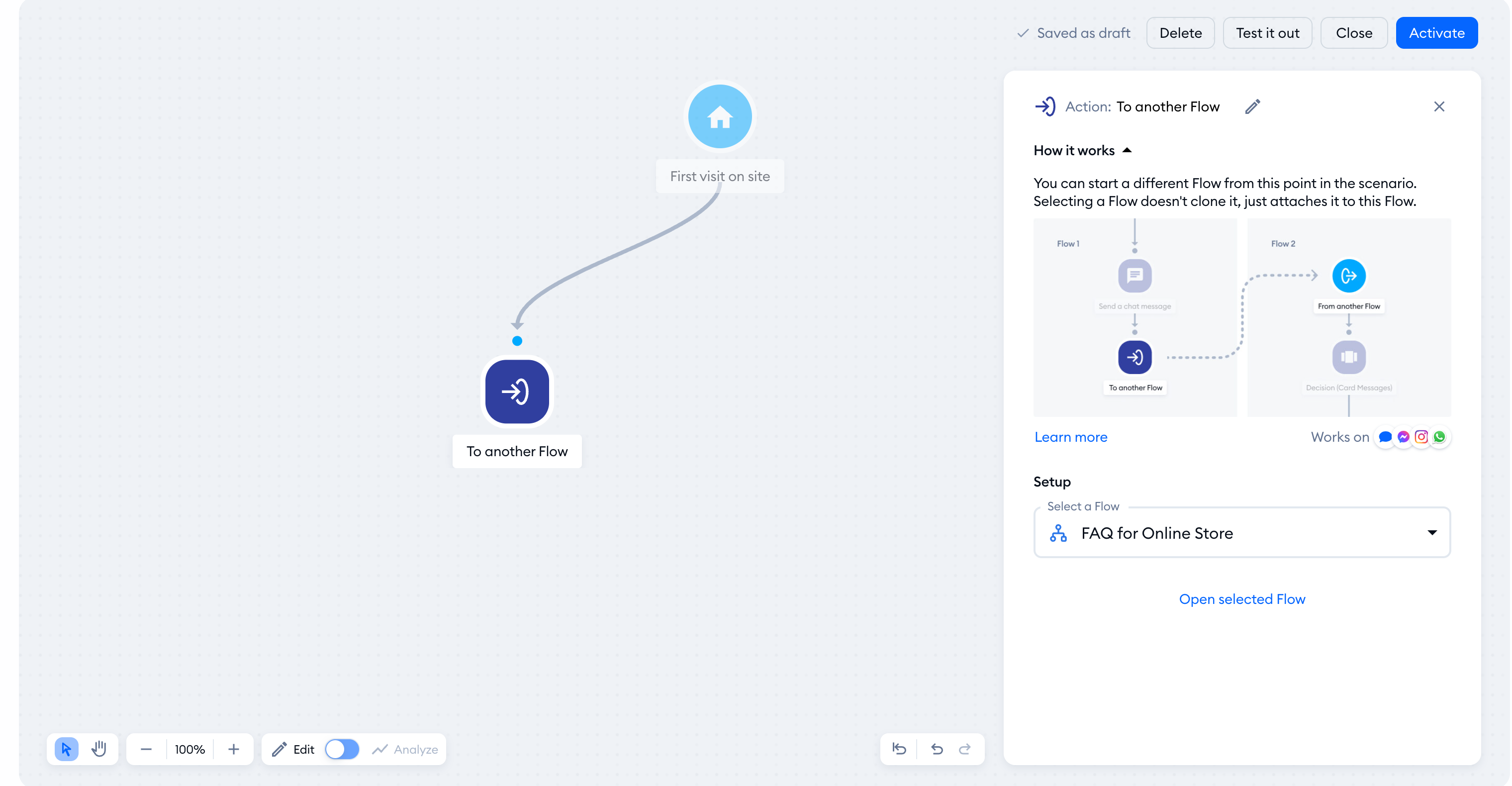
In practice, the target flow will be triggered when your website visitor reaches the To another Flow action while using the source flow. Effectively, reaching this step in the flow ends the visitor's interaction with the source flow, and the target flow takes over. Ideally, this transition won't even be noticeable for the visitor!
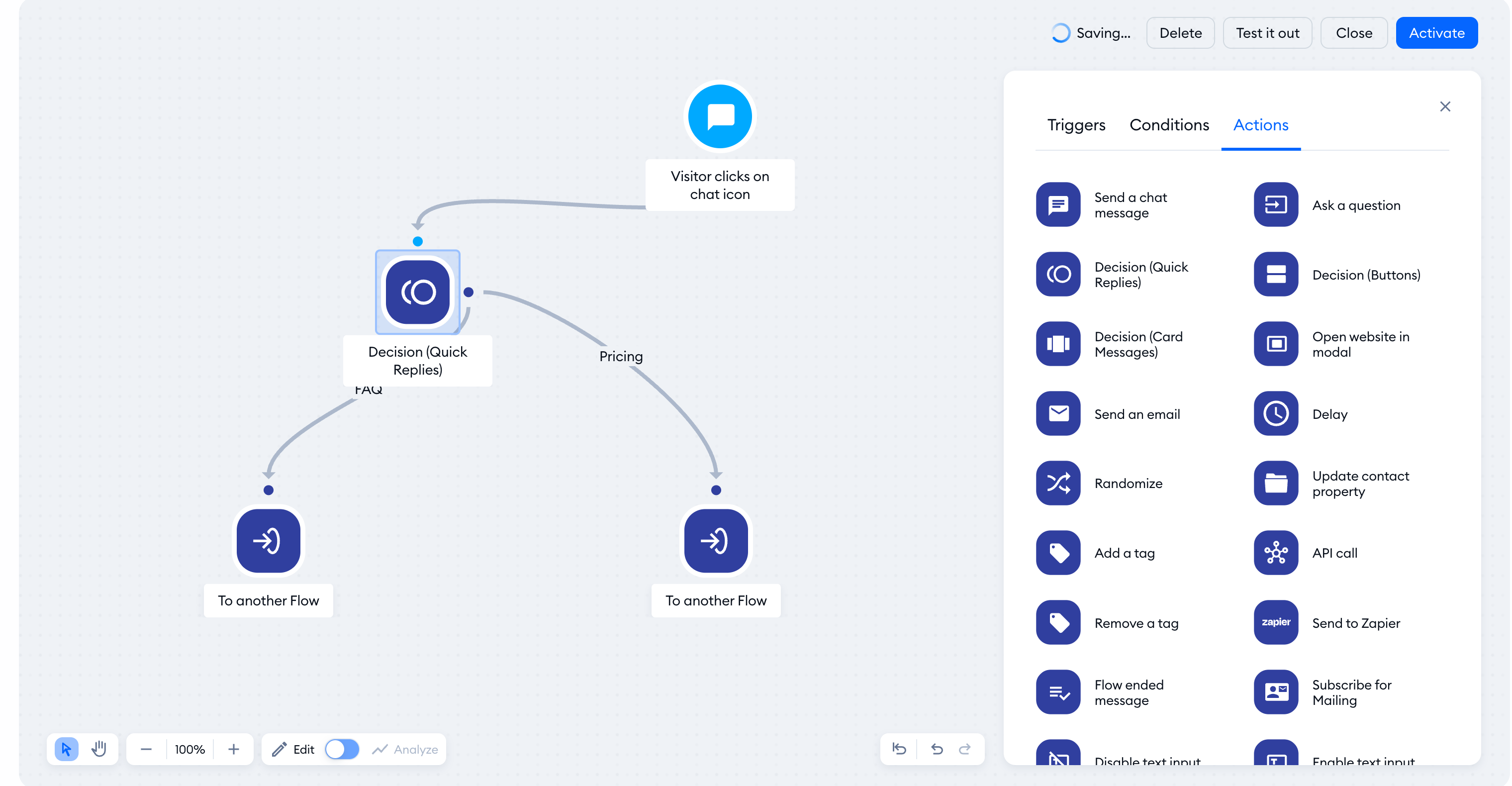
From another Flow - the trigger
There also exists a dedicated trigger called From another Flow. The editor requires this trigger when you save a target flow that is already linked from another flow. With this dedicated portal trigger, you can create a unique flow that won't work any other way - it would only be launched if a source flow targets it specifically, with its To another Flow action.
A practical example
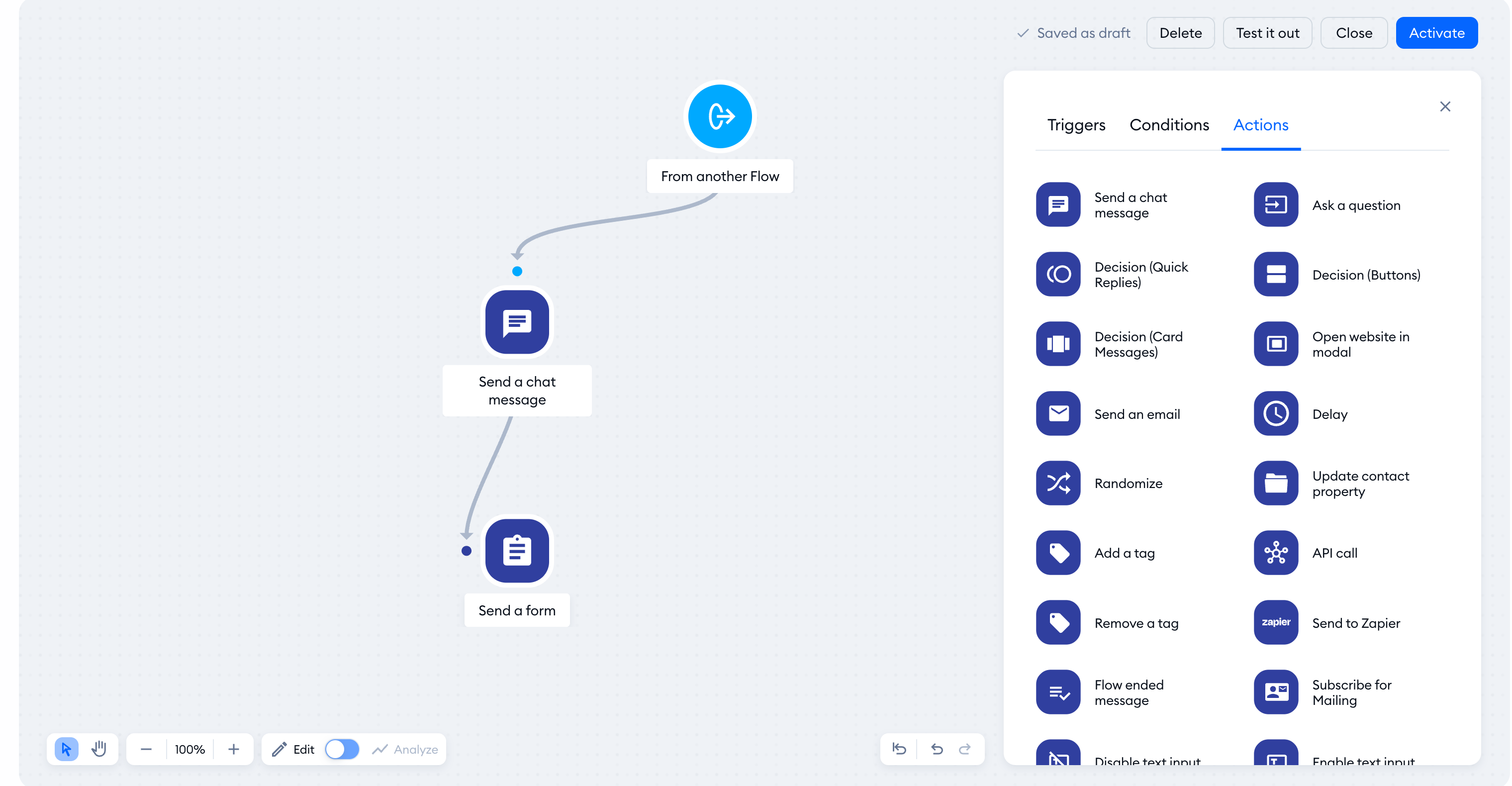
The source flow pictured below allows the visitor to select one of two options, each leading to a different To another Flow action. Each of these actions is linked to a completely separate flow that already exists in the Tidio account.
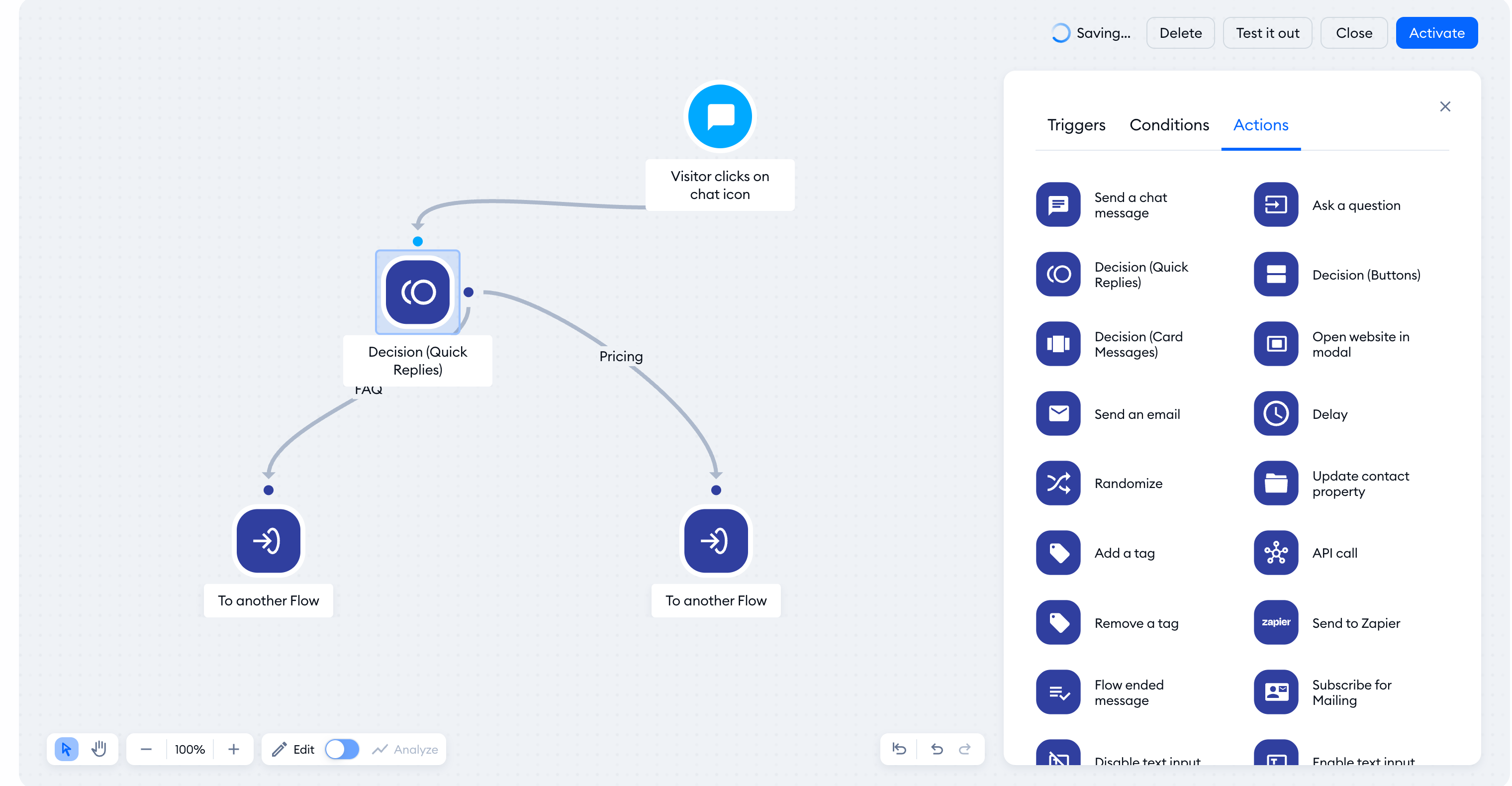
The source flow shown above can trigger any other flow that you currently have in your list.
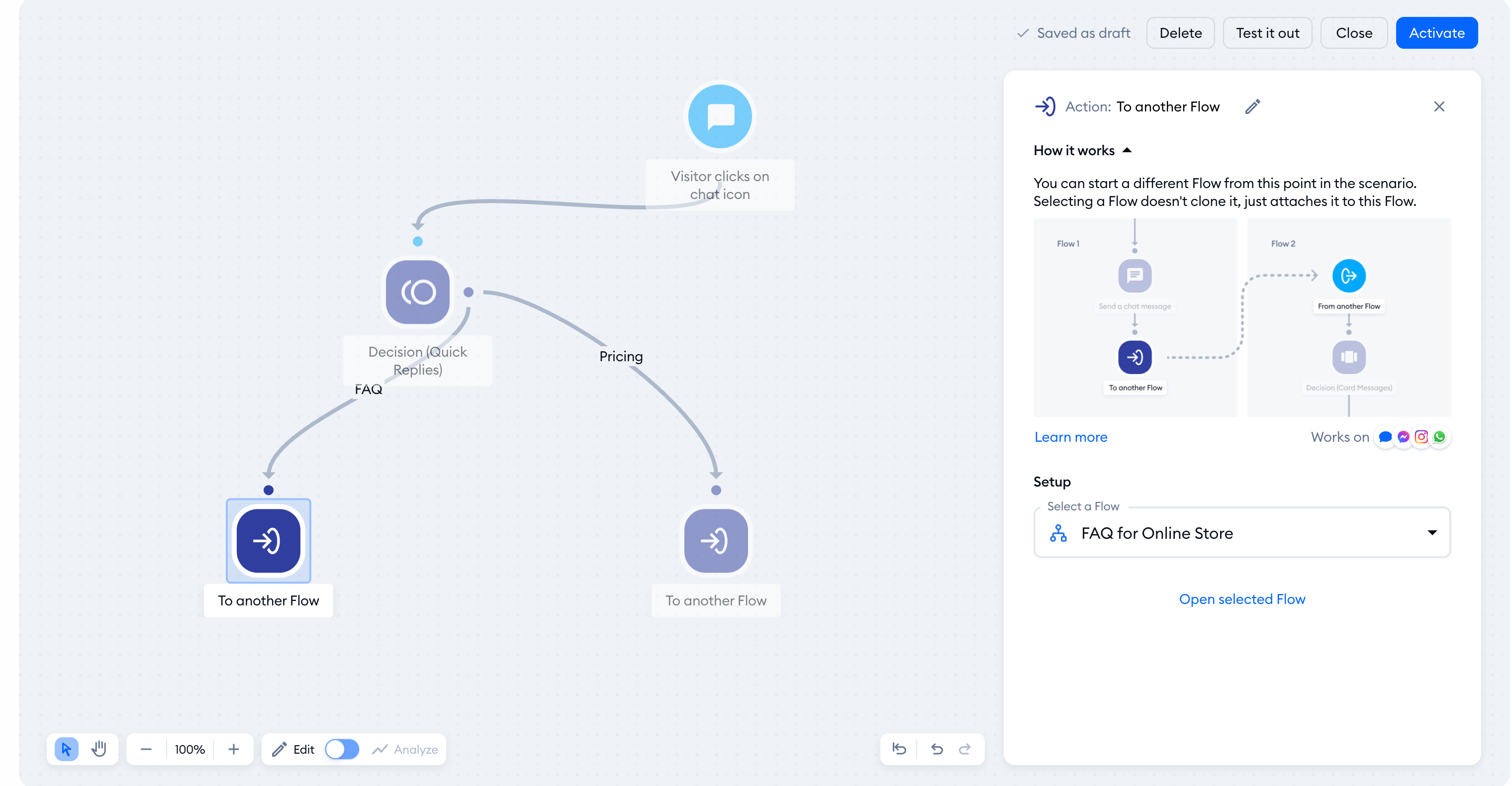
The particular To another Flow action below is linked to the 'FAQ' flow - a flow that is normally triggered by clicking on the Tidio chat icon. Thanks to this setup, the FAQ flow can also be triggered by the portal:
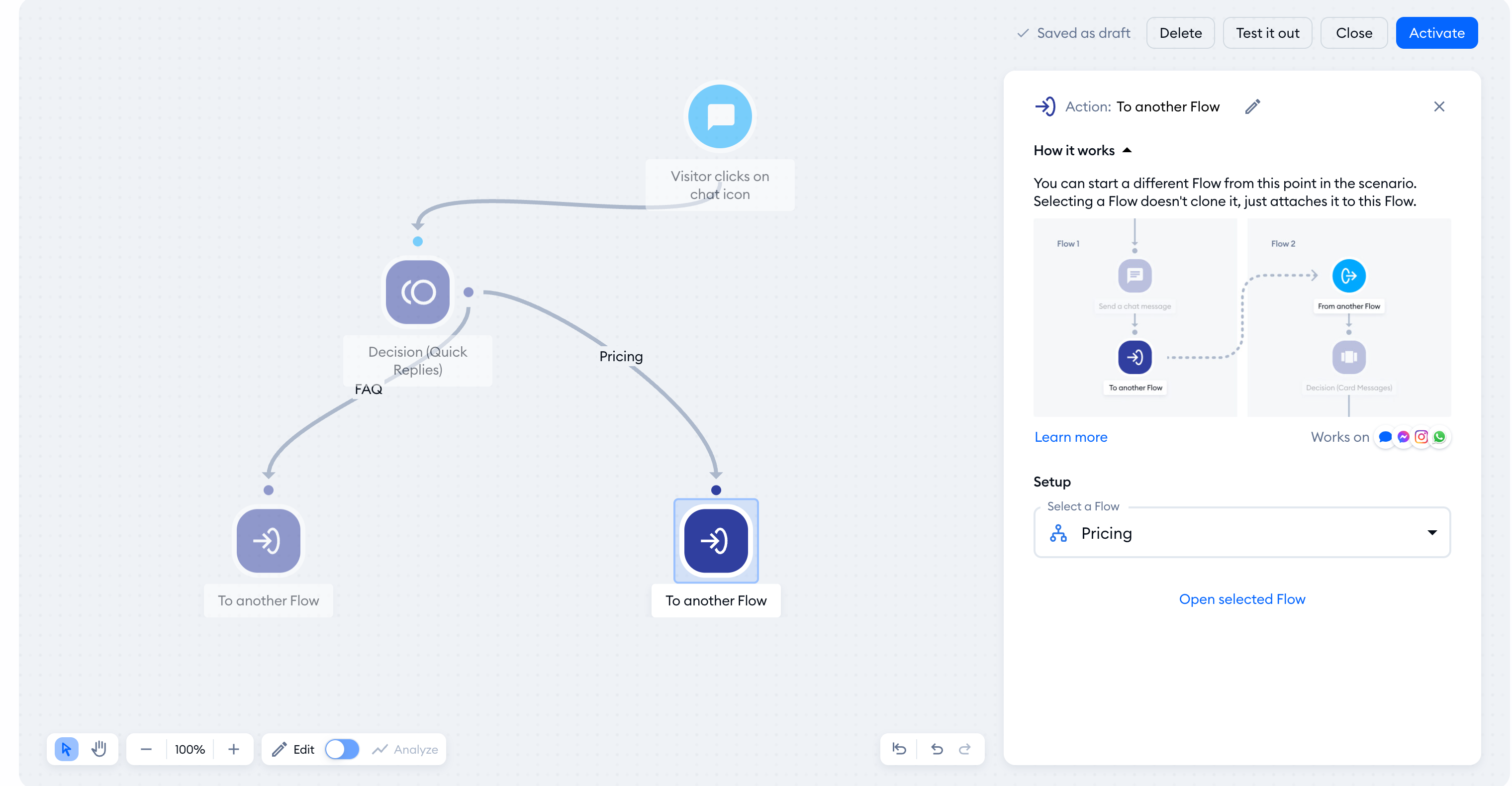
The second To another Flow action is linked to a different flow - one called 'Returns policy' in this example. This specific flow uses only one trigger: From another Flow. This means the 'Returns policy' flow starts through a portal rather than a visitor event. Other source flows can also target it.
Below you can see this portal in action. After finishing the source flow's flow, the separate target flow is started and takes over:
Creating a portal - method #2
Please note: This method needs access to the Visitor says trigger. If it is not included in your plan, the editor shows an upgrade prompt. You can use the dedicated portal method above instead.
This method brings similar results, but uses a different action as well as different trigger in the two flows you're connecting. This used to be the only method in the past, before we've introduced the dedicated To another Flow action (described in method #1 above). In this method, however, you are required to use a specific combination of action and trigger.
Decision (Quick Replies) and Visitor says - working together
The source flow requires the Decision (Quick Replies) action in order to allow a connection with the target flow. The target flow, which you want to launch from the source flow, needs to use the Visitor says trigger. Please note that other decision actions will not work here!
In practice, the target Visitor says flow can be triggered when your website visitor clicks on one of the buttons inside the Decision (Quick Replies) action - as long as the button is not connected to any other actions:
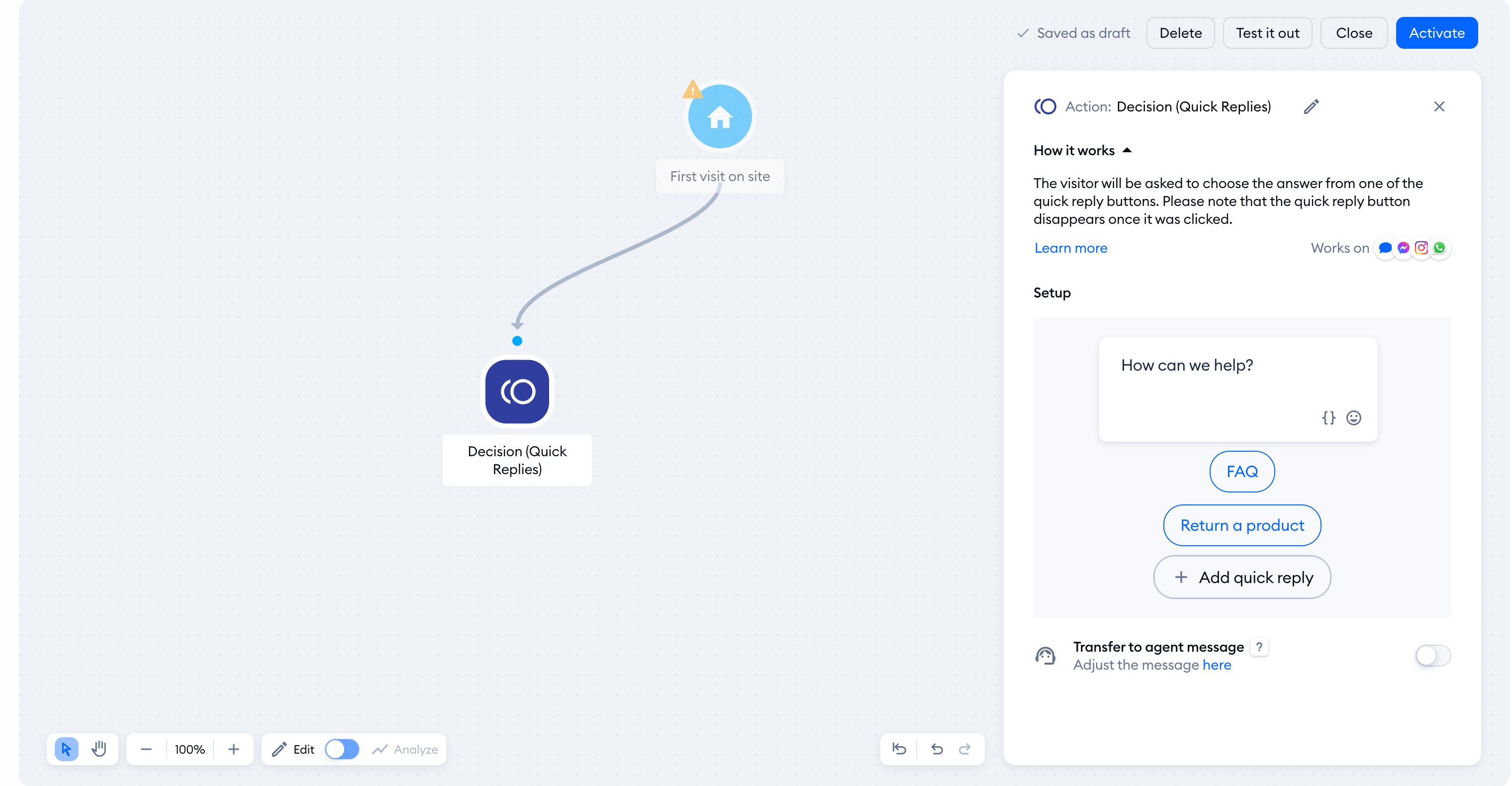
To make the portal complete, the target flow's Visitor says trigger needs to include the exact same text that is used in the Decision (Quick Replies) button:
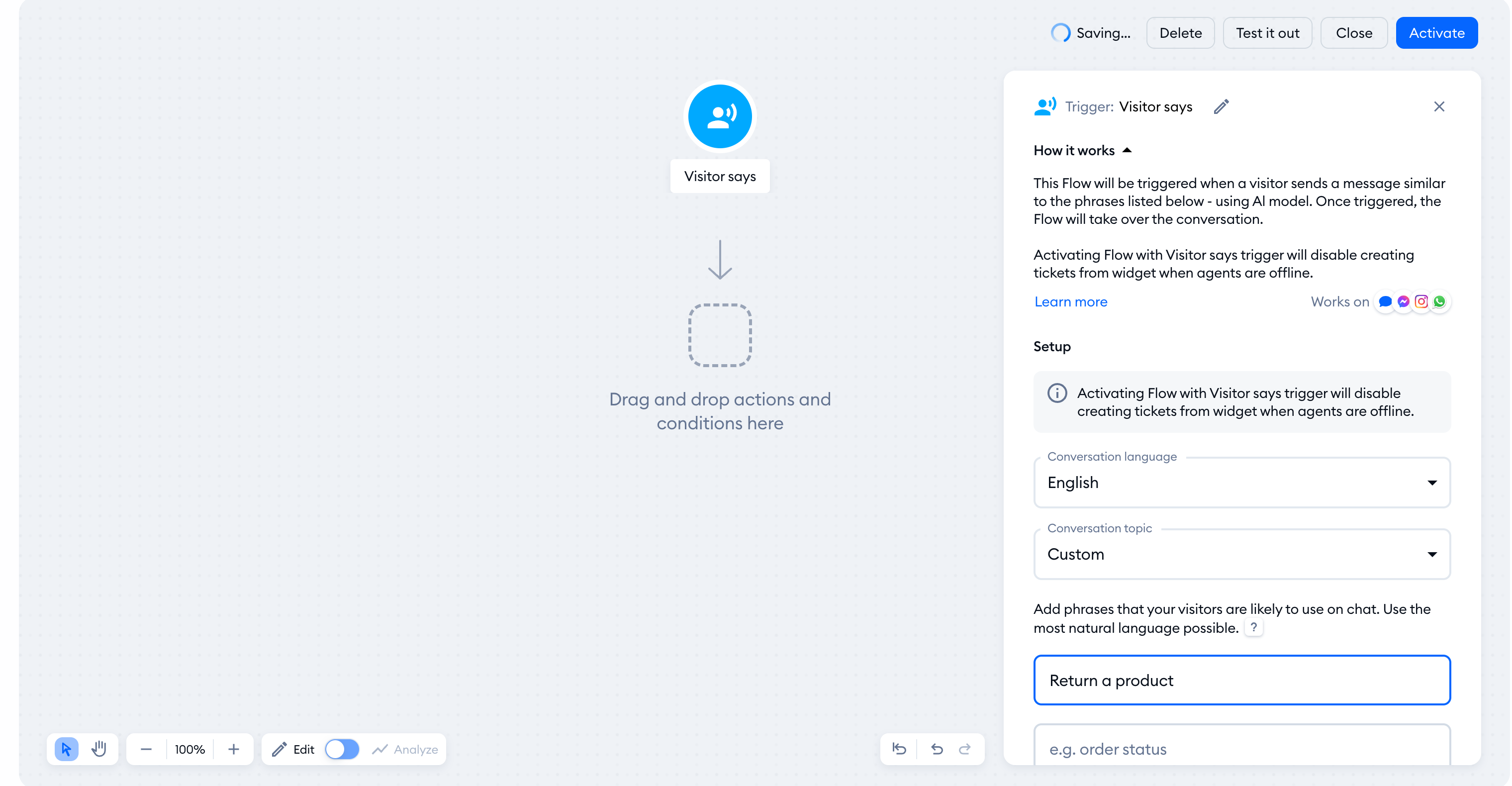
When a visitor clicks that button, it basically acts like a message sent by that visitor; the target Visitor says flow will recognize that message and trigger accordingly.
A practical example
Pictured below, you can see a flow with the Decision (Quick Replies) action - that's the source flow in this example. The two buttons in the Decision node are not connected to any other action - the flow effectively ends there.
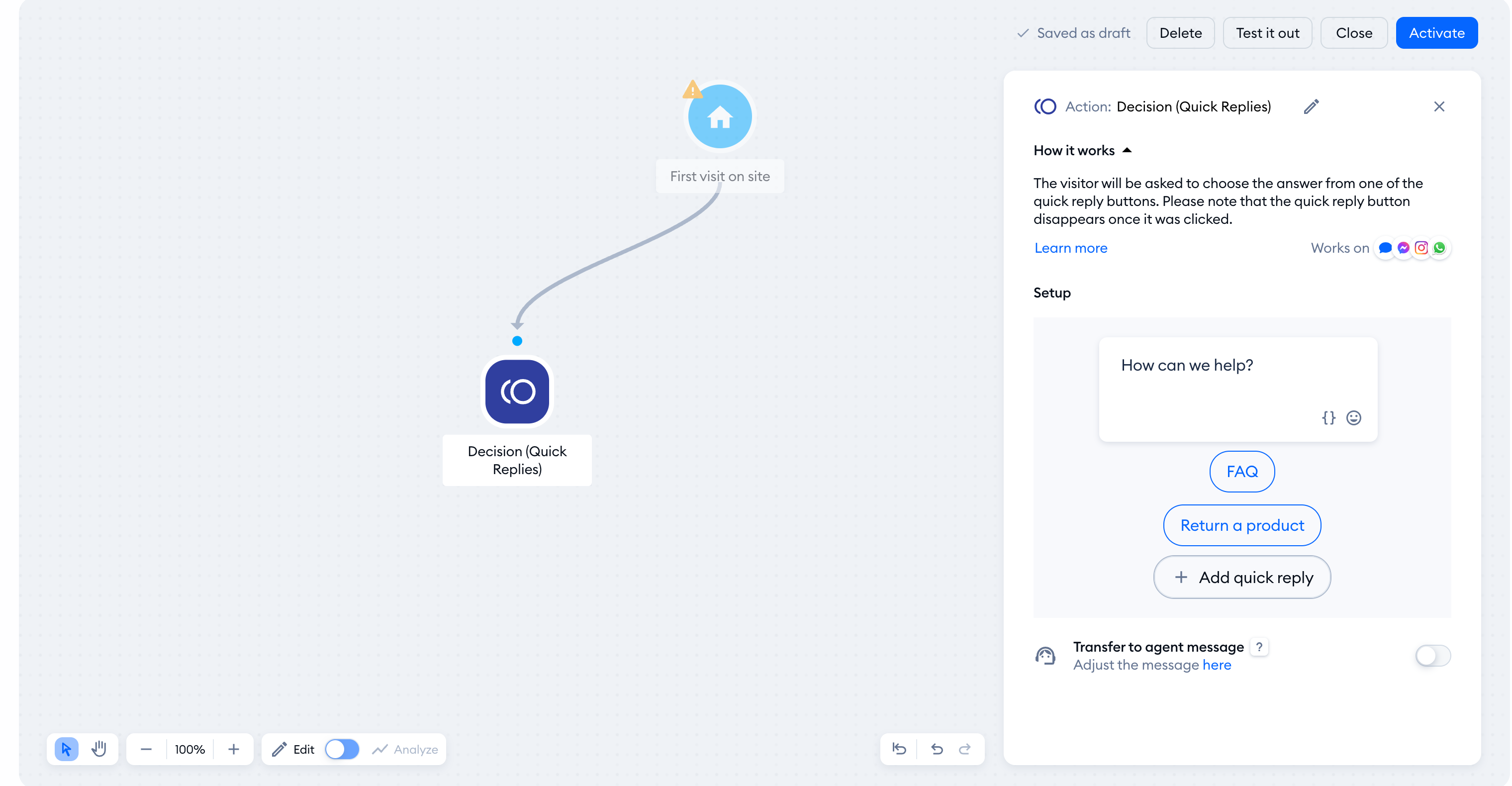
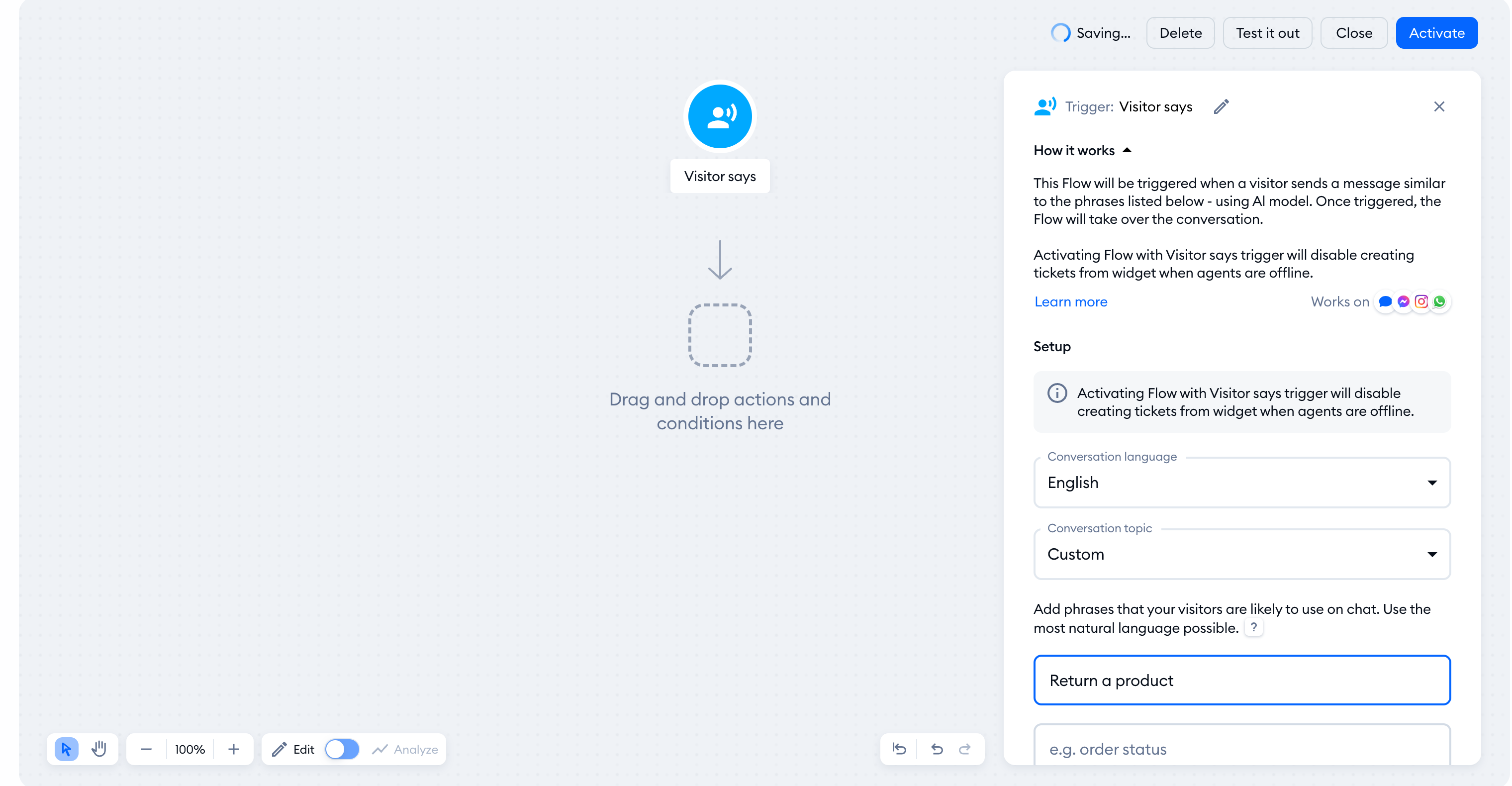
The flow above (the source flow) can trigger another flow with the Visitor says trigger (the target flow), as long as the trigger includes the exact same message as the button from the first flow.
Below you can see the target flow setup - with the Visitor says trigger, which includes the same phrase as one of the buttons in the source flow.
Below you can see this portal in action. After clicking on the button - the source flow triggers the target flow: