If your website is hosted on Cloudflare, you may be using a firewall for security. However, this might cause some issues when trying to add your website content to Lyro. You may see "Your website is blocking our webpage scanner, please check your server configuration. This article might help." while trying to add your website's URLs as data sources, if a firewall blocks the scanner. This message alone does not identify Cloudflare as the cause.
In this short guide, you will learn how to add an exception in Cloudflare's firewall, allowing Lyro to scrape your website content for use as data sources.
In this article, you'll learn:
Access your rules
Log into your Cloudflare admin panel and choose your website. Open Security rules, then select Create > Managed rules. The images below show the previous dashboard layout:
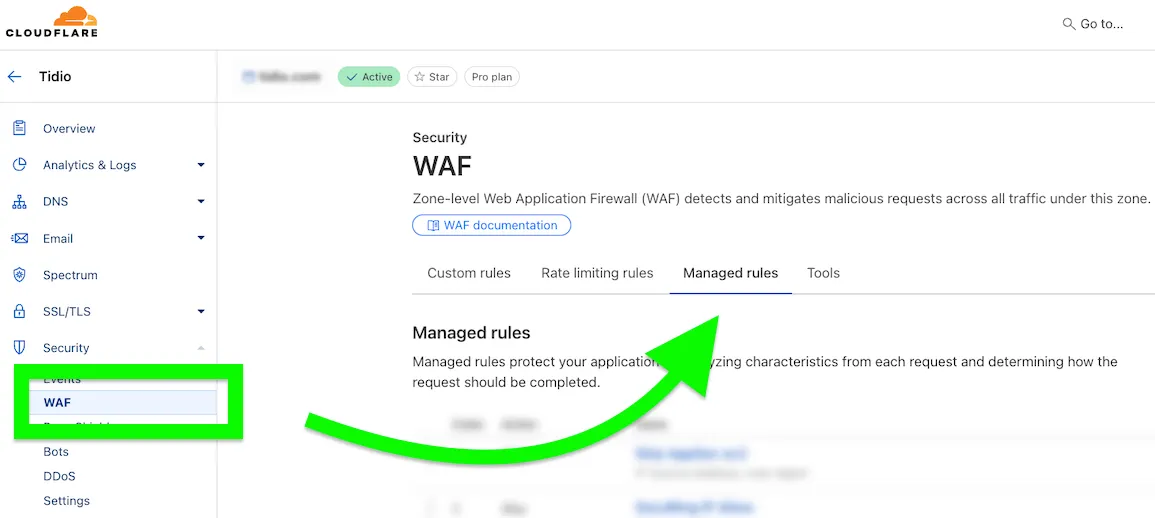
In the previous layout, the equivalent action was Add exception:
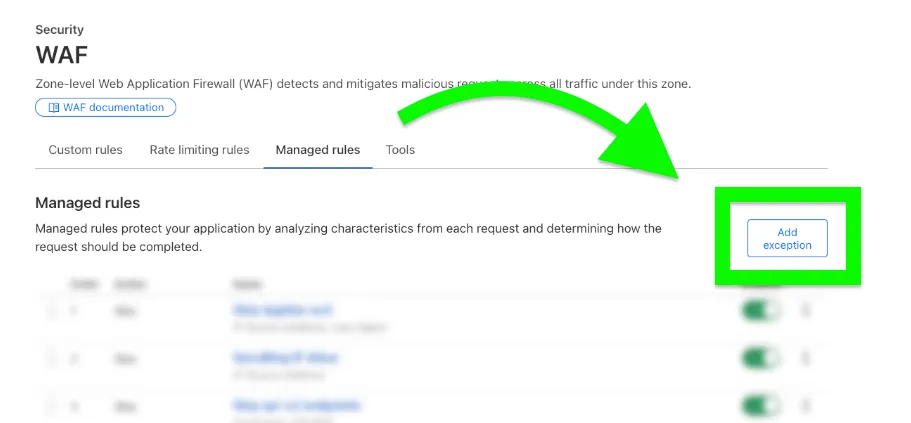
Add a new exception
Now, you need to create the actual exception that will let Lyro's scraper scan your website. Use Exception name to name your new exception so that you can easily identify it later.
Under When incoming requests match, match the request header x-tidio-lyro-scraper to true. The image below shows the earlier expression builder:
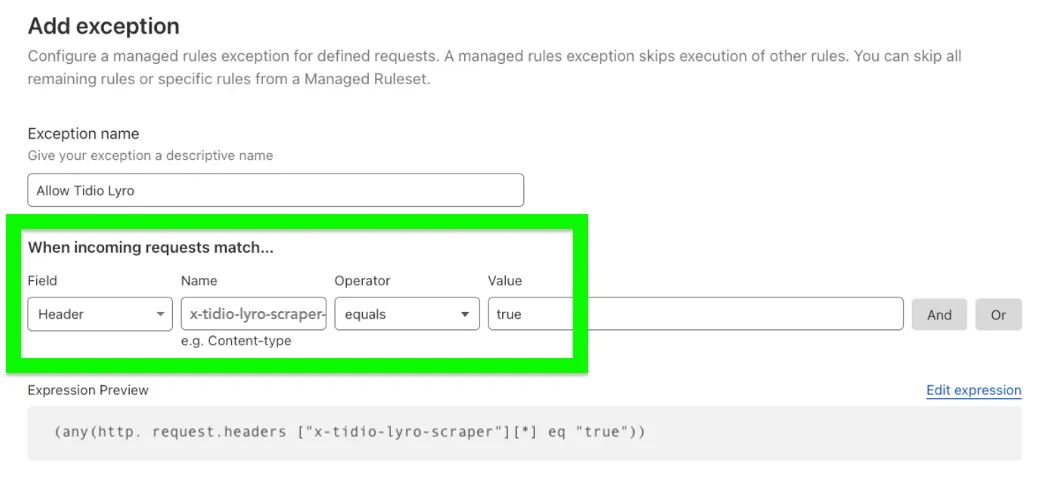
You can use this filter expression:
(any(http.request.headers["x-tidio-lyro-scraper"][*] eq "true"))
Deploy your new exception
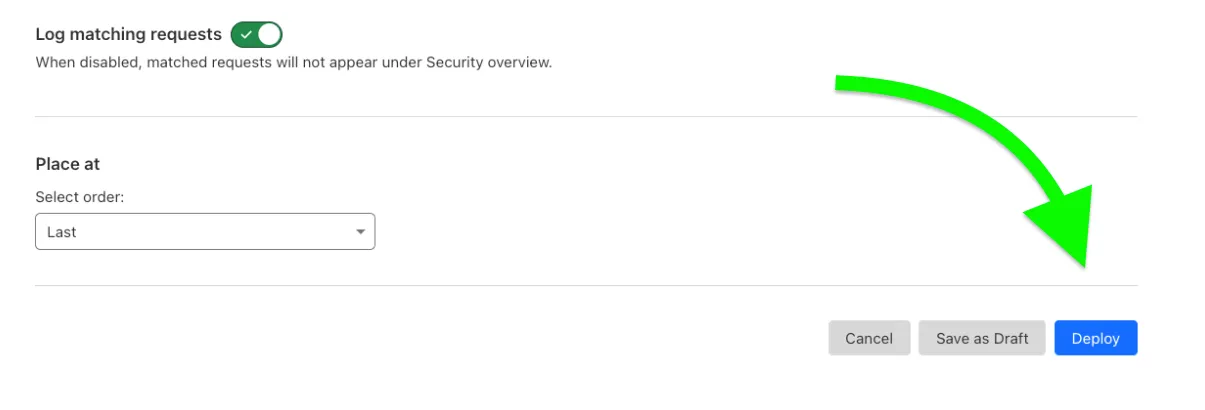
In Then, choose Skip specific rules from a Managed Ruleset, select only the rules responsible for the block, then click Next. Keep the exception before the managed ruleset it skips. This header is not authentication, so do not use it to bypass all protection. Click Deploy to save:
Further reading
Try adding the website to Lyro again after deploying the exception. If the scanner is still blocked, ask your website administrator to review the remaining firewall rules.
To learn more about expanding Lyro's knowledge, see this guide on data sources in general.
