You can hide the Tidio chat widget when all agents are offline, or hide it regardless of your status. This guide covers those settings. For rules based on pages, countries or domains, see Disable Tidio on specific pages.
In this article, you'll learn:
- How to hide the widget when offline
- How to display widget on chosen devices
- How to hide the chat completely
- How to hide widget on specific pages only
- How to hide (or show) widget for specific countries
- How to show the widget only on your domains
Hiding the widget when offline
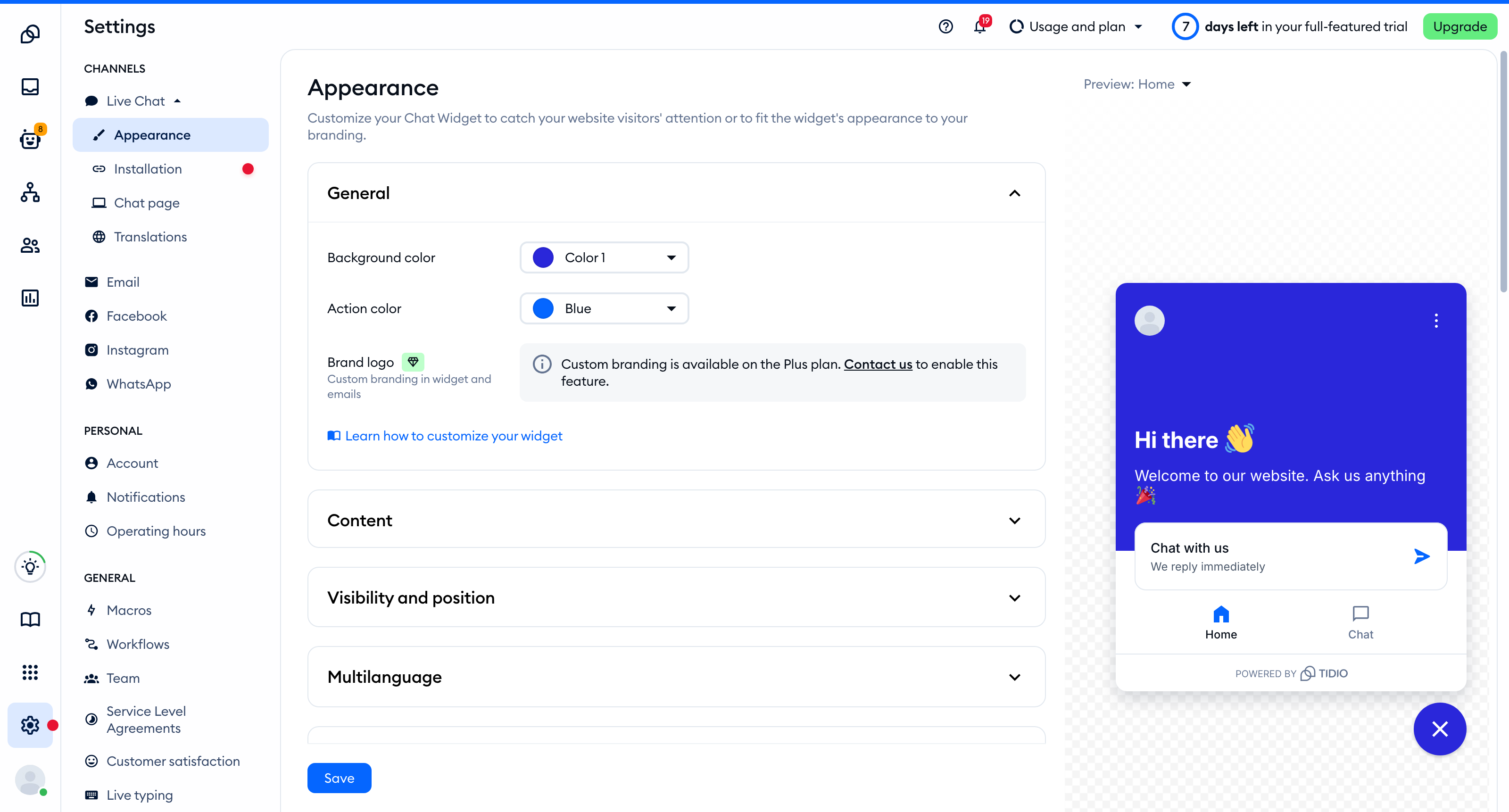
If you'd like to hide your Tidio widget whenever you go offline, navigate to Settings > Live Chat > Appearance, and open the Advanced section there:
Disable the option labeled Display widget when agents are offline if you want Tidio to disappear whenever all your agents are offline, and hit Save:

Under the switch, Tidio reminds you who picks up when you're away: Lyro will take over conversations if Lyro (the AI agent) is active, or Visitors will be asked to create Tickets if your widget lets offline visitors leave a ticket.
Please note: a hidden widget hides Lyro, too. If Lyro answers while you're offline, keep this option on - otherwise your visitors won't be able to reach Lyro when your agents are away. In Lyro's settings, the Lyro responds option shows a reminder about this while the widget is hidden.
Displaying the widget on chosen devices
To access your widget's general visibility options, navigate to the Visibility and position section, located in Settings > Live Chat > Appearance.
Here you can determine where your Tidio widget is displayed and how. There are several options for the desktop version of your website as well as the mobile version, and you can decide about both aspects of your widget separately.
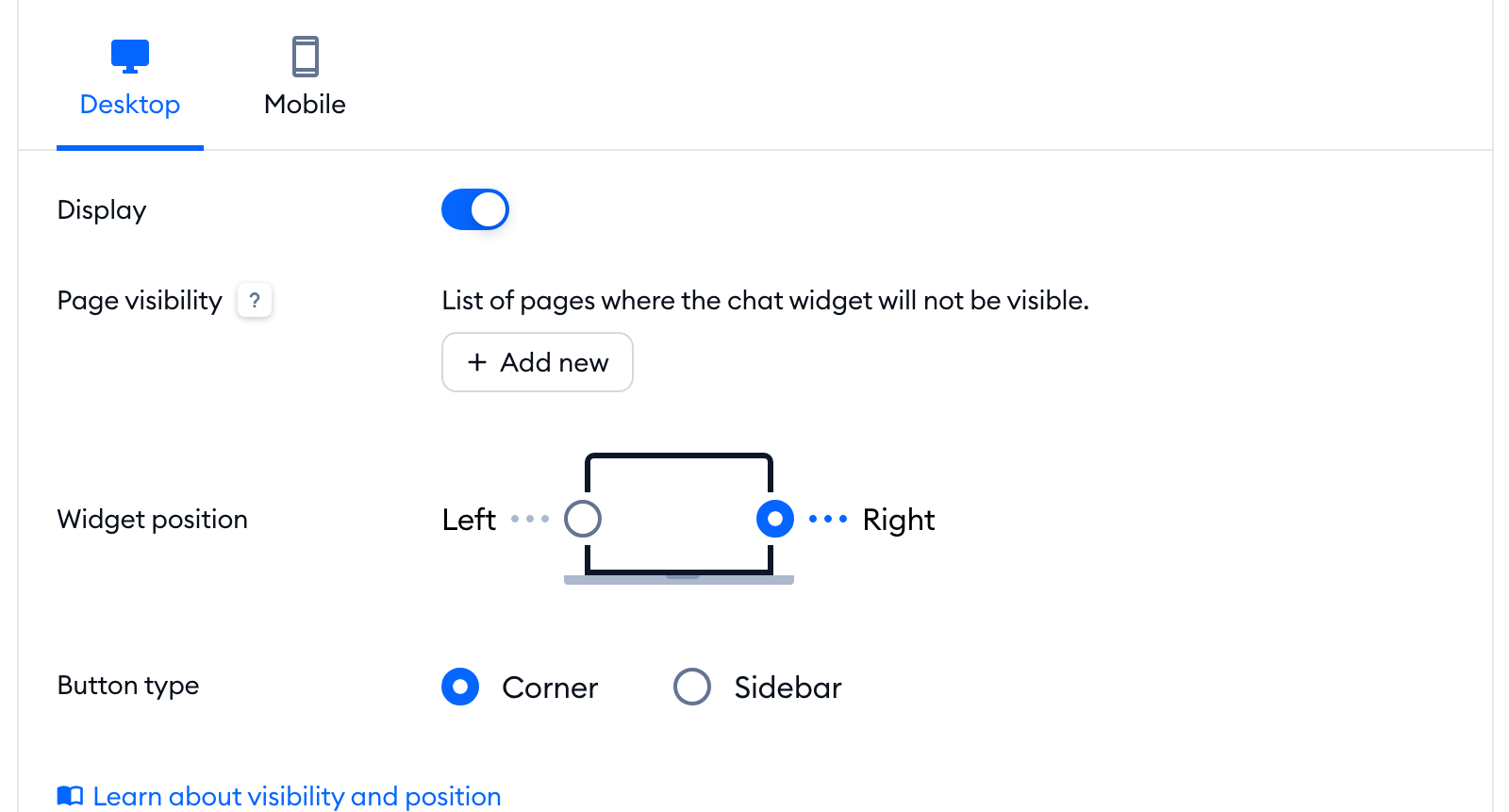
Use the Display switch to decide whether to show or hide the widget on your website in general - you can change this setting separately for the desktop version and for the mobile version of your widget. While the switch is on, you'll see the Page visibility and position options for that device underneath; turn it off, and they're hidden.
Please note: if the Display switch is unavailable, check the availability notice in your panel and compare your subscription with the current plans.
Disabling the chat entirely
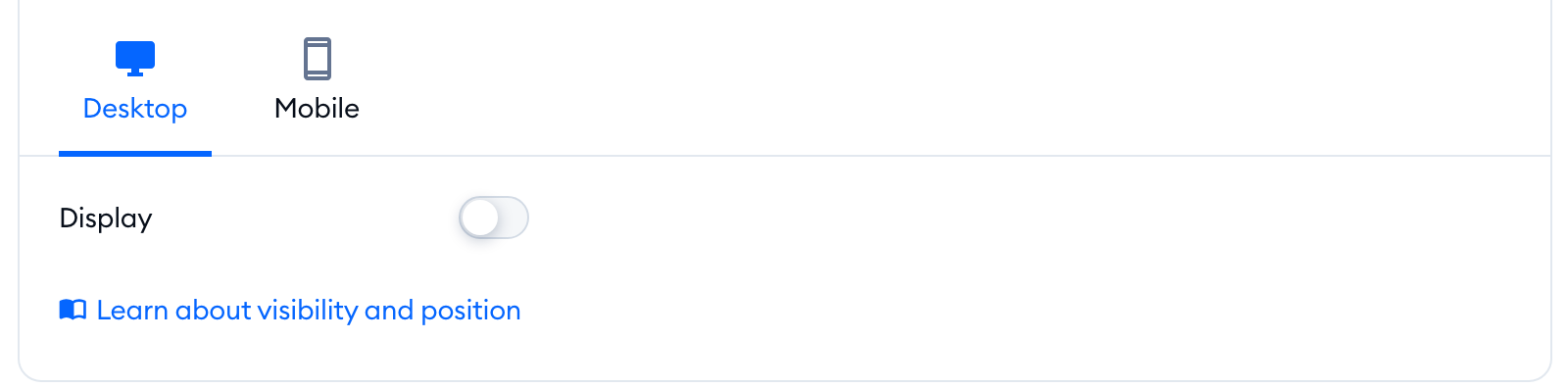
If you wish to completely disable the chat widget on your website (without uninstalling it), disable the Display toggle located in the Visibility and position section (as described above). Make sure to do this for both the desktop and mobile version of your widget; this will hide the widget entirely on your website.
Hiding on specific pages
Use Page visibility in Visibility and position to hide the widget on selected pages. Configure desktop and mobile separately.
Disabling Tidio for an exact URL
Use an Exact rule for a full page address. Follow the exact URL instructions.
Disabling Tidio for addresses that contain a word or string
Use a Contains rule to match part of an address, such as /blog. Follow the Contains rule instructions.
Disabling or enabling Tidio for specific countries
Country visibility controls who sees the widget, not who can enter your website.
Hide for specific countries
Follow the instructions for hiding the widget in selected countries.
Show only in specific countries
Follow the instructions for showing the widget only in selected countries.
Showing the widget only on your domains
Use Trusted domains to restrict the widget to your websites. Follow the trusted domain instructions.