Visitors can revisit their previous chats while browsing your website. Tidio uses the browser's localStorage to help keep the conversation available. Some visitors may prefer to remove that history from their browser.
While localStorage offers advantages in terms of user experience and storing data, some visitors may prefer to remove the chat history from their browsers.
In this article, you'll learn:
Clearing localStorage
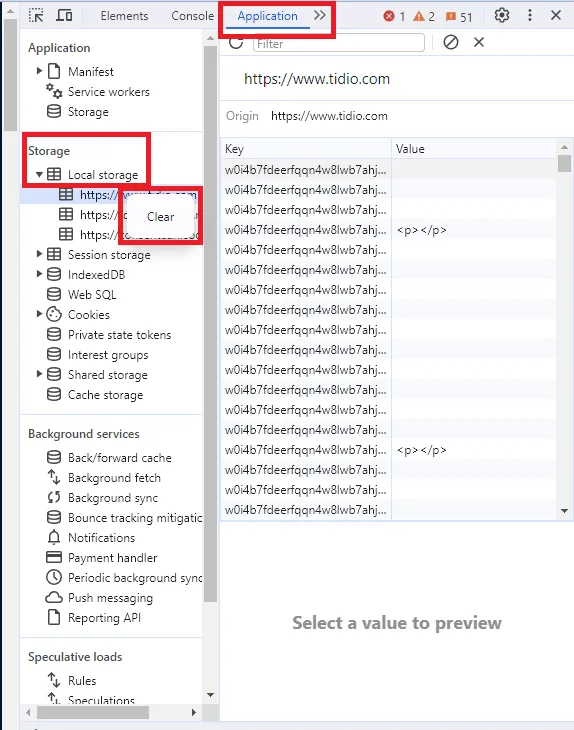
These steps use Chrome DevTools. Other browsers may use different labels. Clearing local storage affects browser data; it is not a request to erase records held by the website or Tidio. Clearing all storage for a domain may also reset other site preferences:
- Right-click anywhere on a blank space on a website or in an active browser window.
- Select Inspect from the context menu that opens. This will open the browser's developer tools.
- Select the Application tab.
- Locate and open the Local Storage list, found in the Storage menu.
- Select the domain whose stored data you want to remove. The domain shown in the example image is not the correct domain for every website.
- Click Clear all to remove its local storage. If you are unsure which domain contains the chat data, ask the website owner before clearing it.